
If your iPhone screen suddenly appears too warm, too cool, yellowish, or even inverted in color, it can be disorienting and affect readability. While hardware failure is rare, most screen color issues stem from software settings, accessibility features, or environmental triggers. Fortunately, restoring your iPhone’s display to its original, balanced color profile is usually straightforward. This guide walks through practical, tested methods to return your screen to its factory-default appearance—without needing technical support or repairs.
Understanding iPhone Screen Color Shifts
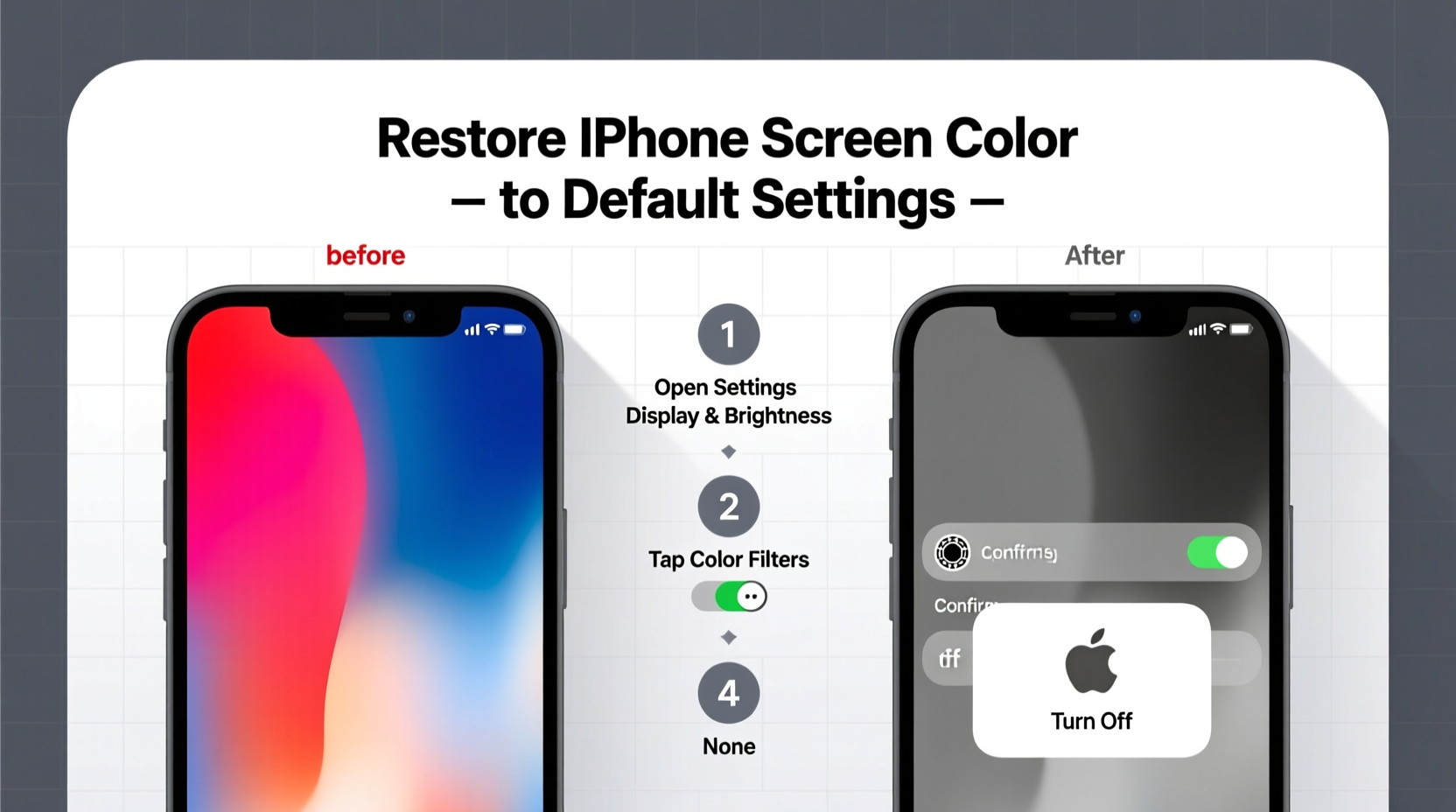
Modern iPhones use OLED or Super Retina XDR displays known for accurate color reproduction. However, the perceived color of your screen isn’t solely determined by hardware. Software-based features like Night Shift, True Tone, Invert Colors, and Color Filters can dramatically alter how colors appear. These tools are designed to improve comfort or accessibility but may activate accidentally or remain enabled after testing.
Additionally, iOS updates sometimes reset display preferences or introduce new defaults that users might not immediately recognize. Environmental factors such as ambient light can also trick True Tone into adjusting brightness and warmth more than desired. Identifying the root cause is key to restoring the intended visual experience.
“Most screen color issues on iPhones are software-related and reversible within minutes using built-in settings.” — Jordan Lee, Mobile UX Specialist at DisplayLogic Labs
Step-by-Step Guide to Restore Default Screen Color
Follow this logical sequence to systematically eliminate common causes and return your iPhone screen to its standard color balance.
- Check Night Shift Settings
Night Shift reduces blue light and warms the screen during evening hours. If scheduled incorrectly, it may stay active all day.
Go to: Settings > Display & Brightness > Night Shift
Disable “Scheduled” or adjust the time range. Toggle “From Sunset to Sunrise” off and manually disable it if active. - Turn Off True Tone
True Tone adjusts color temperature based on ambient lighting. While useful, it can make the screen look yellow under warm indoor lights.
Go to: Settings > Display & Brightness
Toggle off “True Tone.” Observe the immediate shift back to a neutral white point. - Disable Accessibility Color Filters
A color filter or grayscale mode may have been enabled accidentally, especially if guided access or parental controls are in use.
Go to: Settings > Accessibility > Display & Text Size > Color Filters
Turn off “Color Filters.” If enabled, select “None” as the filter type. - Reset Invert Colors
Invert modes reverse screen colors for visibility. Smart Invert flips most content, while Classic Invert applies globally.
Go to: Settings > Accessibility > Display & Text Size > Invert Colors
Select “None” to disable both invert options. - Restart Your iPhone
After making changes, restart your device to clear any cached display states.
Press and hold the side button and either volume button, then slide to power off. Wait 30 seconds, then power back on.
Do’s and Don’ts of iPhone Display Management
| Do’s | Don’ts |
|---|---|
| Calibrate your eyes by viewing a white webpage after changes | Ignore sudden persistent discoloration after reboot |
| Use automatic brightness for optimal adaptation | Enable multiple color-altering features simultaneously |
| Test settings in different lighting environments | Assume hardware damage without checking software first |
| Review settings after major iOS updates | Use third-party apps claiming to “fix” screen color |
Real Example: Recovering From Accidental Accessibility Activation
Sophia, a graphic designer in Seattle, noticed her iPhone 14 Pro screen turned completely yellow one morning. Thinking the OLED panel had failed, she prepared to visit an Apple Store. Before leaving, she recalled testing VoiceOver with her nephew the previous evening. A quick check revealed that “Color Filters” had been set to “Low White Point” under Accessibility settings—likely activated during play. After disabling the filter and turning off True Tone (which exaggerated the warmth), her screen returned to normal. The entire fix took less than two minutes.
This case highlights how easily settings can be changed unintentionally—especially accessibility tools designed for ease of activation—and why methodical troubleshooting beats immediate hardware assumptions.
Troubleshooting Persistent Discoloration
If the screen still appears off-color after following the above steps, consider these advanced checks:
- Check for Profile Conflicts: Some enterprise or parental control profiles override display settings. Go to Settings > General > VPN & Device Management to review installed configurations.
- Reset All Settings: This clears network, privacy, and display preferences without deleting personal data. Go to Settings > General > Transfer or Reset iPhone > Reset > Reset All Settings.
- Update iOS: Bugs affecting display rendering are occasionally patched in updates. Ensure you're on the latest version via Settings > General > Software Update.
- Test in Safe Conditions: View your screen in natural daylight. Compare it side-by-side with another iPhone displaying the same image to confirm accuracy.
FAQ
Why does my iPhone screen look yellow even after disabling Night Shift?
The most likely culprit is True Tone, which dynamically adjusts warmth based on surroundings. Disable it in Display & Brightness settings. Also verify that no Color Filters are active under Accessibility.
Can I restore default color settings with a single tap?
iOS doesn’t offer a one-tap “reset display” function, but resetting all settings (Settings > General > Reset > Reset All Settings) will revert display preferences to default, along with other system configurations.
Is screen discoloration a sign of hardware failure?
Persistent discoloration—such as green lines, flickering, or uneven backlighting—that remains after a full reset and persists in recovery mode may indicate hardware issues. In such cases, contact Apple Support for diagnostics.
Conclusion
Restoring your iPhone screen color to default settings is typically a matter of reviewing a few key options buried in Display and Accessibility menus. Most issues arise from helpful features that were left on unintentionally. By methodically disabling Night Shift, True Tone, Invert Colors, and Color Filters, you regain the balanced, factory-intended display quality Apple designed. Regular awareness of these settings—especially after updates or shared usage—can prevent future confusion.




 浙公网安备
33010002000092号
浙公网安备
33010002000092号 浙B2-20120091-4
Comments
No comments yet. Why don't you start the discussion?