
Group texts can be a double-edged sword. While they keep everyone in the loop for family updates, work coordination, or social planning, they often become overwhelming. Constant pings, irrelevant messages, and late-night notifications can disrupt focus and sleep. The good news? You don’t have to leave the conversation entirely to regain control. Android offers several built-in and third-party solutions that let you mute, filter, or minimize group chat interruptions—without ghosting your contacts.
Why Muting Isn’t Enough—And What to Do Instead
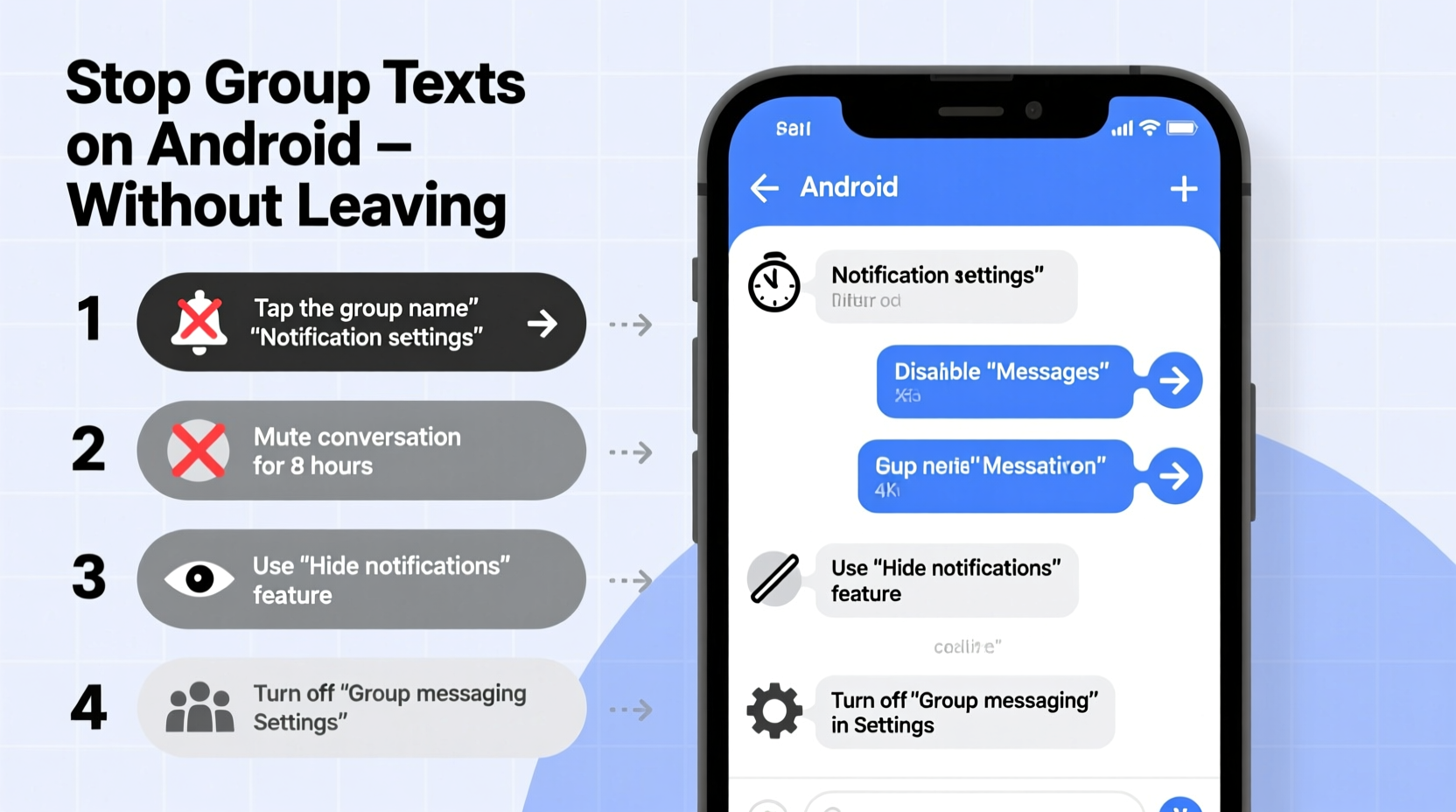
Muting a group text stops the noise, but it doesn’t solve the underlying issue: visual clutter, persistent unread counts, or the temptation to check every message. True control means customizing how and when you engage. Android’s messaging ecosystem, especially with Google Messages as the default app, provides layered options beyond simple muting.
Modern smartphones are designed to keep you connected, but that doesn’t mean you must be always reactive. Taking proactive steps ensures you stay informed without being overwhelmed.
Step-by-Step Guide to Silencing Group Chats Without Leaving
- Open the group conversation in your default messaging app (e.g., Google Messages).
- Tap the group name or info icon (usually three dots or an “i” symbol) at the top.
- Select “Notifications” or “Mute notifications.”
- Choose a mute duration: 8 hours, 1 week, or “Always.” Select “Always” for permanent silence.
- Disable pop-up alerts and sound if not already off.
- Turn off vibration in advanced notification settings.
- Enable “Hide message content” in lock screen notifications to reduce distraction.
This method keeps you in the loop passively—you can check back when convenient—while eliminating real-time disruptions. It’s ideal for work-related groups, neighborhood chats, or extended family threads that generate high volume but low urgency.
Use Chat Categories and Bubbles to Filter Attention
Android 11 and later versions support conversation categories in supported apps like Google Messages. Pinning important one-on-one chats as “priority” conversations allows you to visually separate them from group noise.
Besides muting, use bubbles to elevate only critical conversations. Bubbles float over other apps, ensuring you see messages that matter—while ignoring background chatter.
| Feature | Purpose | How to Enable |
|---|---|---|
| Mute Notifications | Silence sounds and vibrations | Group settings → Notifications → Mute |
| Bubbles | Keep key chats visible | Long-press chat → Create bubble |
| Notification Channels | Customize alert types per chat | App Settings → Notifications → Manage channels |
| Priority Mode | Allow only selected senders | Device Settings → Sound → Do Not Disturb → Exceptions |
Advanced Tactics: Third-Party Apps and Automation
If native tools aren’t enough, consider automation apps like Tasker or MacroDroid. These allow granular control—for example, silencing group texts automatically between 10 PM and 7 AM, or filtering messages containing certain keywords.
For users comfortable with tech customization:
- Create a profile in Tasker that detects incoming messages from group threads and suppresses notifications during set hours.
- Use MacroDroid to auto-archive group messages after reading, reducing inbox clutter.
- Set up rules to forward urgent keywords (e.g., “emergency,” “help”) to your email or personal chat, even if the rest of the thread is muted.
These tools require setup time but pay off in long-term digital wellness. As digital fatigue becomes more common, automation isn’t just convenience—it’s self-care.
“Managing communication overload isn’t about disconnecting—it’s about designing intentional interactions.” — Dr. Lena Torres, Digital Wellbeing Researcher, MIT Human Dynamics Lab
Mini Case Study: Sarah’s Family Group Reset
Sarah, a project manager and mother of two, was part of a 12-person family group chat that averaged 50+ messages daily. Between memes, event planning, and overlapping conversations, she found herself constantly distracted—even checking her phone during meetings.
Instead of leaving—risking hurt feelings—she muted the group indefinitely and set up a weekly reminder to review messages every Sunday evening. She also used Google Messages’ “star” feature to flag important updates (like birthdays or travel plans) and archived the rest.
The result? A 70% reduction in phone checks, improved focus at work, and no family drama. She stayed informed without being immersed.
Checklist: Regain Control of Group Texts
Follow this checklist to reduce group text stress without exiting:
- ✅ Mute the group conversation for a defined or indefinite period
- ✅ Disable sound, vibration, and pop-up alerts
- ✅ Hide message content on lock screen
- ✅ Pin or bubble only essential one-on-one chats
- ✅ Set up a routine to check group messages at scheduled times
- ✅ Use keyword flags or stars for important information
- ✅ Explore automation tools for time-based silencing
- ✅ Archive old group messages to reduce visual clutter
Common Mistakes to Avoid
Even well-intentioned attempts to manage group texts can backfire. Watch out for these pitfalls:
- Assuming muting removes you from the thread – It doesn’t. You’re still receiving messages; you just won’t be notified.
- Leaving and rejoining later – This often causes confusion and may remove message history.
- Using airplane mode as a solution – Too broad and disruptive to other communications.
- Ignoring battery impact of constant notifications – Frequent alerts drain battery life and increase cognitive load.
Smartphone usage should serve you—not dictate your attention. Small adjustments in how you handle group dynamics can lead to significant improvements in mental clarity and productivity.
Frequently Asked Questions
Can people tell if I’ve muted a group chat?
No. Muting is a local setting on your device. Other participants cannot see your notification preferences. You’ll still appear active if you send messages, but your read status (if enabled) depends on your app settings.
Will I lose messages if I mute a group?
No. All messages are preserved in the thread. You can catch up at any time by opening the conversation. Cloud backups (if enabled) also ensure message history remains intact across devices.
Is there a way to mute only certain keywords?
Not natively in most messaging apps. However, automation apps like Tasker or macro tools can filter notifications based on content. For example, you can silence all messages except those containing “urgent” or your name.
Conclusion: Stay Connected on Your Terms
Staying in a group text doesn’t mean surrendering your peace. With thoughtful use of Android’s notification controls, smart categorization, and optional automation, you can remain part of the conversation without being ruled by it. The goal isn’t isolation—it’s intentionality. By choosing when, how, and why you engage, you reclaim your attention and reduce digital stress.




 浙公网安备
33010002000092号
浙公网安备
33010002000092号 浙B2-20120091-4
Comments
No comments yet. Why don't you start the discussion?