
In an era where video communication dominates remote work, live streaming, and virtual events, having a reliable, high-resolution camera is no longer optional—it’s essential. While many laptops come with built-in webcams, their image quality often falls short. Fortunately, most people already own a superior alternative: their smartphone. Modern smartphones feature advanced cameras with 4K resolution, autofocus, HDR, and excellent low-light performance—making them ideal candidates for use as external webcams. With the right tools and techniques, you can transform your mobile device into a professional-grade webcam without spending hundreds on new hardware.
Why Use Your Phone as a Webcam?
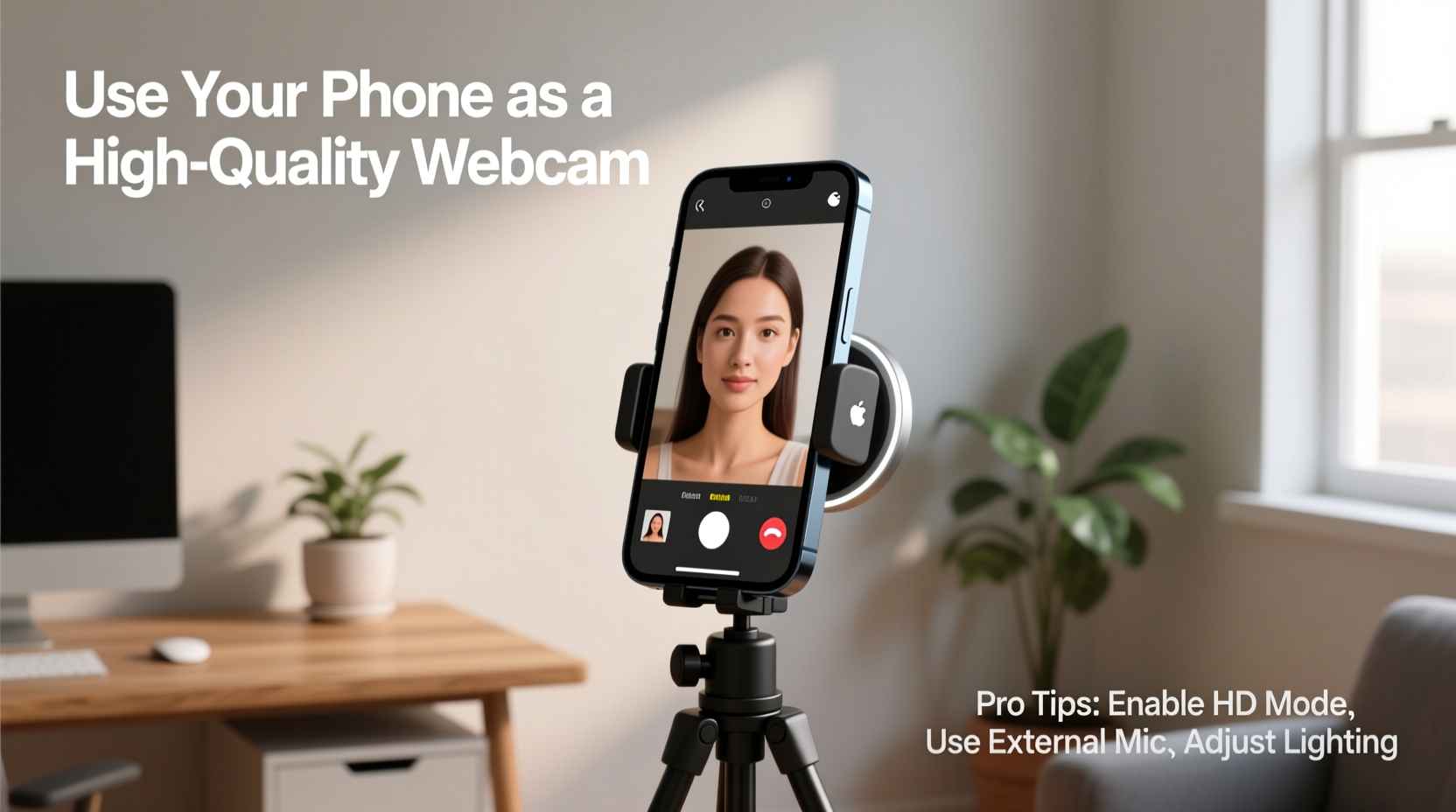
Laptop webcams typically max out at 720p or 1080p with limited dynamic range and poor low-light capabilities. In contrast, flagship smartphones offer significantly better sensors, wider apertures, and AI-enhanced image processing. Using your phone as a webcam gives you access to:
- Sharper image quality and higher resolution (up to 4K)
- Better color accuracy and dynamic range
- Superior autofocus and stabilization
- Flexible positioning and mounting options
- Access to multiple lenses (wide, ultra-wide, telephoto)
This makes your phone not just a viable substitute, but often a substantial upgrade over traditional webcams.
Step-by-Step Guide: Connecting Your Phone to Your Computer
There are two primary methods for using your phone as a webcam: wired and wireless. Each has its pros and cons depending on your needs and setup.
- Choose Your Platform: Determine whether you're using iOS or Android, as compatibility varies by app.
- Select a Webcam App: Popular choices include DroidCam (Android), EpocCam (iOS/Android), and iVCam. These apps transmit your phone’s camera feed to your computer via USB or Wi-Fi.
- Install Software on Your Computer: Download the companion software for your chosen app from the developer’s official website.
- Connect Your Phone: For a stable connection, use a USB cable. If using Wi-Fi, ensure both devices are on the same network.
- Launch the App and Pair Devices: Open the app on your phone and the desktop client on your computer. Follow pairing instructions.
- Select the Virtual Camera in Your Video App: In Zoom, Teams, OBS, or any conferencing software, choose the virtual camera (e.g., “DroidCam Source”) as your video input.
Once connected, your phone’s camera will appear as a standard webcam input across all applications.
Top Apps for Turning Your Phone into a Webcam
Not all apps deliver the same experience. Here’s a comparison of the most reliable options available today:
| App Name | Platform | Connection Type | Max Resolution | Paid Features |
|---|---|---|---|---|
| EpocCam | iOS & Android | USB/Wi-Fi | 1080p (Pro), 720p (Free) | Yes (OBS plugin, HD, audio) |
| DroidCam | Android & iOS | Wi-Fi/USB | 720p (Free), 1080p (Pro) | Yes (HD, no ads, audio) |
| iVCam | Android & iOS | Wi-Fi/USB | 1080p | Yes (background mode, filters) |
| CameraFi Live | Android | Wi-Fi/USB | 1080p | Yes (cloud streaming, RTMP) |
For most users, EpocCam offers the smoothest integration with macOS and Windows, especially when used with video production tools like OBS Studio. DroidCam remains popular among budget-conscious users due to its free tier and open-source nature.
Mini Case Study: Remote Worker Upgrades Setup
Sarah, a freelance graphic designer based in Portland, struggled with her aging laptop’s grainy webcam during client meetings. After researching alternatives, she downloaded EpocCam on her iPhone 13 and connected it via USB to her MacBook. She mounted the phone on a mini tripod clipped to her desk, positioned slightly above eye level. The result? A crisp 1080p feed with natural depth and accurate skin tones. Clients began commenting on her “professional setup,” unaware she had spent less than $20 on software and a $15 mount. Within a month, Sarah reported increased confidence in presentations and even landed a new long-term contract attributed partly to her improved on-camera presence.
Optimizing Image Quality and Lighting
Even the best camera performs poorly in bad lighting. To maximize your phone’s potential:
- Use Natural Light: Position yourself facing a window during daylight hours for soft, even illumination.
- Avoid Backlighting: Don’t sit with a bright window behind you—this creates silhouettes.
- Add Fill Light: Use a ring light or desk lamp with a warm-white bulb to eliminate shadows.
- Stabilize Your Phone: Use a tripod, clamp, or stand to prevent shaky footage.
- Adjust Exposure Manually: In your phone’s camera app, tap the screen and slide the brightness slider down slightly if the image appears washed out.
“Smartphone cameras now rival dedicated webcams in resolution and dynamic range. When paired with proper lighting and stable mounts, they’re more than sufficient for professional broadcasting.” — James Lin, AV Technology Consultant
Do’s and Don’ts of Mobile Webcam Use
| Do | Don’t |
|---|---|
| Use a USB connection for lower latency and consistent power | Rely solely on Wi-Fi if your network is unstable |
| Mount your phone at eye level or slightly above | Hold the phone in your hand during a call |
| Enable “Do Not Disturb” to block notifications | Leave message alerts or calls active |
| Test audio sync in recording software like OBS | Assume audio and video are perfectly synced by default |
| Use a dedicated lavalier mic for clearer sound | Depend entirely on your phone’s microphone in noisy environments |
FAQ
Can I use my phone as a webcam without Wi-Fi?
Yes. Most apps support USB connections, which provide a more stable and secure link than Wi-Fi. Simply install the desktop software, connect your phone via cable, and select the virtual camera input in your conferencing app.
Does using my phone as a webcam drain the battery quickly?
It can, especially over Wi-Fi. To avoid power loss, keep your phone plugged into a charger during use. When connected via USB to your computer, the phone often charges simultaneously.
Is there any lag or delay when using a phone as a webcam?
Wireless setups may introduce slight latency (200–500ms). For real-time interaction, use a USB connection to minimize delay. In streaming scenarios using OBS, adding a small audio delay can help synchronize sound and video.
Checklist: Setting Up Your Phone as a Webcam
- ☐ Choose a compatible app (EpocCam, DroidCam, or iVCam)
- ☐ Install the desktop software on your computer
- ☐ Connect phone via USB or join the same Wi-Fi network
- ☐ Launch the app and pair with the desktop client
- ☐ Select the virtual camera in Zoom, Teams, or OBS
- ☐ Mount the phone securely at eye level
- ☐ Test video and audio quality before going live
- ☐ Enable “Do Not Disturb” and disable screen lock timeout
Conclusion
Turning your smartphone into a high-quality webcam is one of the most cost-effective upgrades you can make to your home office or streaming setup. With resolutions that surpass most built-in laptop cameras, advanced optics, and flexible mounting, your phone offers a compelling alternative to expensive external webcams. Whether you're hosting important business meetings, teaching online classes, or streaming content to thousands, leveraging your phone’s camera capabilities ensures you present yourself clearly and professionally.




 浙公网安备
33010002000092号
浙公网安备
33010002000092号 浙B2-20120091-4
Comments
No comments yet. Why don't you start the discussion?