
Transferring files between devices doesn’t have to involve cables, cloud uploads, or complicated software. Bluetooth remains one of the most universally supported wireless technologies for sharing photos, documents, music, and contacts—especially when internet access is limited or inconvenient. Despite its age, Bluetooth continues to be a reliable, low-energy solution for quick peer-to-peer transfers. Yet many users still struggle with pairing issues, slow speeds, or incomplete transfers due to overlooked settings or misconceptions about compatibility.
This guide demystifies the entire process, offering clear instructions that work across Android, iOS, Windows, macOS, and Linux. Whether you're sending a presentation from your laptop to a colleague’s phone or sharing vacation photos with family, you’ll learn how to make Bluetooth file transfer seamless, secure, and efficient—no matter the brand or operating system.
How Bluetooth File Transfer Works
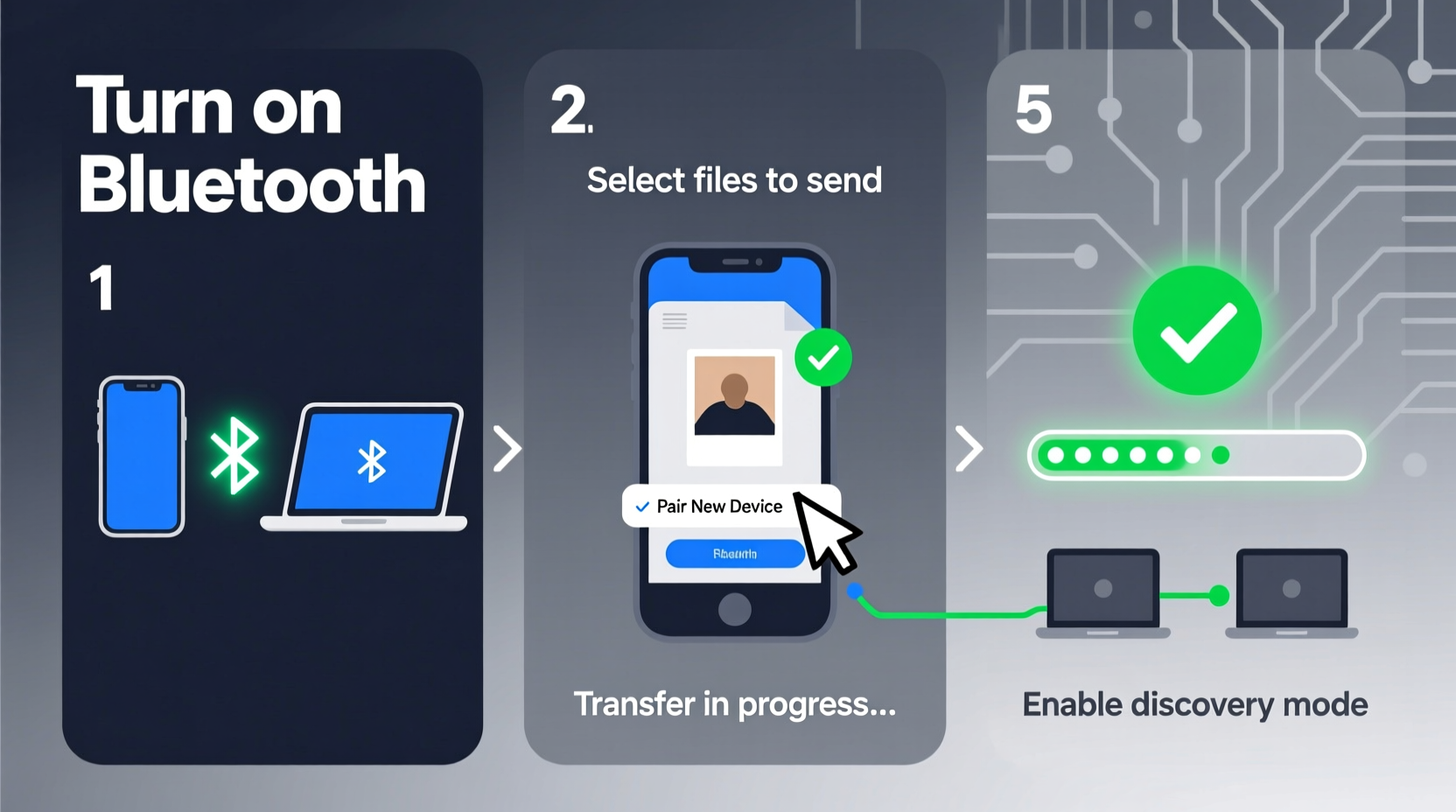
Bluetooth uses short-range radio waves to create a personal area network (PAN) between two devices within approximately 30 feet of each other. Unlike Wi-Fi Direct or NFC, it doesn’t require an internet connection or physical contact. Instead, devices “pair” using unique identifiers and encryption keys, establishing a trusted link before data exchange begins.
The most common protocol for transferring files over Bluetooth is called OBEX (Object Exchange), which allows for the transmission of objects like vCards, images, and documents. While newer versions of Bluetooth (4.0 and above) support faster data rates, actual transfer speed depends on both devices’ capabilities and signal interference from walls, metal surfaces, or other wireless signals.
Step-by-Step Guide to Transfer Files via Bluetooth
- Enable Bluetooth on Both Devices
Go to Settings > Bluetooth and toggle it on. Make sure airplane mode is off if enabled. - Make Your Device Discoverable
On most devices, tapping “Pair new device” automatically activates discoverability for a few minutes. On Android, tap the three-dot menu and select “Discoverable.” On Windows, go to Bluetooth & devices > More Bluetooth options > Allow Bluetooth devices to find this PC. - Search for Devices
On the sender device, click “Scan” or “Add device.” A list of nearby discoverable devices will appear. - Select the Target Device
Tap the name of the receiving device. If prompted, confirm pairing by entering or verifying a passcode (usually displayed as 6 digits). - Send the File
Navigate to the file you want to send—photo, document, etc.—open its share menu, and choose Bluetooth. Select the paired device from the list. - Accept the Incoming File
On the receiving device, a notification will appear asking whether to accept the incoming file. Tap Accept. The file will typically save in a default folder like Downloads or Received Files.
“This process should take under two minutes once devices are paired. The key is ensuring both units support the same Bluetooth profiles—specifically FTP and OPP.” — Dr. Rajiv Mehta, Wireless Communications Engineer
Cross-Platform Compatibility: What You Need to Know
Not all devices support bidirectional file transfer equally. Apple restricts Bluetooth file reception on iOS for security reasons, meaning iPhones can send contacts via AirDrop (which uses Bluetooth LE for discovery) but cannot receive arbitrary files through standard Bluetooth. However, third-party apps like Documents by Readdle enable limited file reception via background Bluetooth services.
In contrast, Android, Windows, and Linux offer full native support for sending and receiving files over Bluetooth without additional software. Here's a breakdown of platform-specific behaviors:
| Device Type | Can Send Files? | Can Receive Files? | Notes |
|---|---|---|---|
| Android Phone/Tablet | Yes | Yes | Use built-in Bluetooth sharing in Share menu |
| iOS (iPhone/iPad) | Limited (Contacts only) | No (natively) | Requires third-party apps; relies on AirDrop instead |
| Windows 10/11 | Yes | Yes | Files saved to %UserProfile%\\Downloads by default |
| macOS | Yes (via System Settings) | Yes | Uses Bluetooth File Exchange utility; saves to ~/Downloads |
| Linux (Ubuntu/GNOME) | Yes | Yes | Install Blueman or use built-in GNOME Bluetooth tool |
Troubleshooting Common Bluetooth Transfer Issues
Even when following correct procedures, users often encounter failed transfers or pairing timeouts. Most problems stem from misconfigurations rather than hardware faults.
- Device not showing up? Check if it’s in discoverable mode and not already paired to another device. Restarting Bluetooth on both ends often resolves detection issues.
- Transfer fails mid-way? Large files (over 50MB) may time out on older Bluetooth versions (2.1 or earlier). Compress large files into smaller ZIP archives before sending.
- Passcode mismatch? Manually enter the same 4–6 digit code on both devices during pairing if auto-generated codes don’t match.
- File not saving? Verify storage permissions on the receiving device. On Android, check app-level permission for Bluetooth; on Windows, ensure user account has write access to the target directory.
Real-World Example: Sharing a Report at a Client Meeting
Sophie, a marketing consultant, arrived at a client site where Wi-Fi was disabled for security. She needed to share a 12-page PDF report with the team lead, who used a Windows laptop. Her iPhone couldn’t send files directly via Bluetooth, so she connected her iPad (running iPadOS with partial Bluetooth file support via Files app) to the laptop.
She turned on Bluetooth on both devices, made the iPad discoverable, and initiated pairing from the laptop. After confirming the six-digit code, she opened the PDF in the Files app, tapped Share > Bluetooth, and selected the laptop. The file transferred in 45 seconds and opened automatically upon receipt. This allowed the meeting to begin without delays or reliance on email attachments.
Best Practices Checklist
- ✅ Before Sending:
- - Ensure both devices have sufficient battery (below 10% may disable Bluetooth)
- - Close unnecessary apps that might interfere with wireless modules
- - Confirm file format compatibility (e.g., .docx readable on recipient’s device)
- ✅ During Pairing:
- - Stay within 10 feet of each other
- - Avoid areas with heavy RF interference (near microwaves, elevators)
- - Only pair with trusted devices to prevent unauthorized access
- ✅ After Transfer:
- - Delete temporary files from default folders to free space
- - Remove old pairings from Bluetooth settings to reduce clutter
- - Verify file integrity by opening it immediately
Frequently Asked Questions
Can I transfer multiple files at once over Bluetooth?
Most operating systems allow selecting multiple items in the share menu, but they are sent sequentially, not simultaneously. To streamline bulk transfers, compress files into a single ZIP archive first.
Is Bluetooth file transfer secure?
Yes, when properly configured. Modern Bluetooth uses AES-128 encryption during pairing and data transfer. However, never pair in public spaces without verifying device names, as “bluejacking” attacks can exploit open discoverability.
Why is my Bluetooth transfer so slow?
Older Bluetooth versions (2.0, 3.0) max out at around 2–3 Mbps. Even Bluetooth 5.0 doesn’t improve file transfer speeds significantly unless both devices support LE Data Length Extension. For large files, consider alternatives like USB tethering or local Wi-Fi sharing.
Final Thoughts: Embrace Simplicity Without Sacrificing Efficiency
In an era dominated by high-speed networks and cloud ecosystems, Bluetooth file transfer stands out for its simplicity, accessibility, and zero dependency on external infrastructure. It may not replace fast internet-based methods, but it remains indispensable in offline environments, emergency scenarios, or quick exchanges between colleagues.
By understanding the underlying mechanics, respecting platform limitations, and applying consistent best practices, you can achieve truly effortless Bluetooth file transfers across nearly any combination of modern devices. No more fumbling with cords or waiting for uploads—just direct, reliable communication between your gadgets.




 浙公网安备
33010002000092号
浙公网安备
33010002000092号 浙B2-20120091-4
Comments
No comments yet. Why don't you start the discussion?