
Managing large volumes of digital images is a routine task for photographers, marketers, bloggers, and e-commerce professionals. Whether preparing product photos for an online store, optimizing visuals for social media, or archiving personal memories, manually resizing each photo is time-consuming and inefficient. Fortunately, modern tools and techniques make bulk photo resizing not only possible but effortless. By applying the right strategies, you can maintain image quality while dramatically reducing processing time.
Why Bulk Photo Resizing Matters
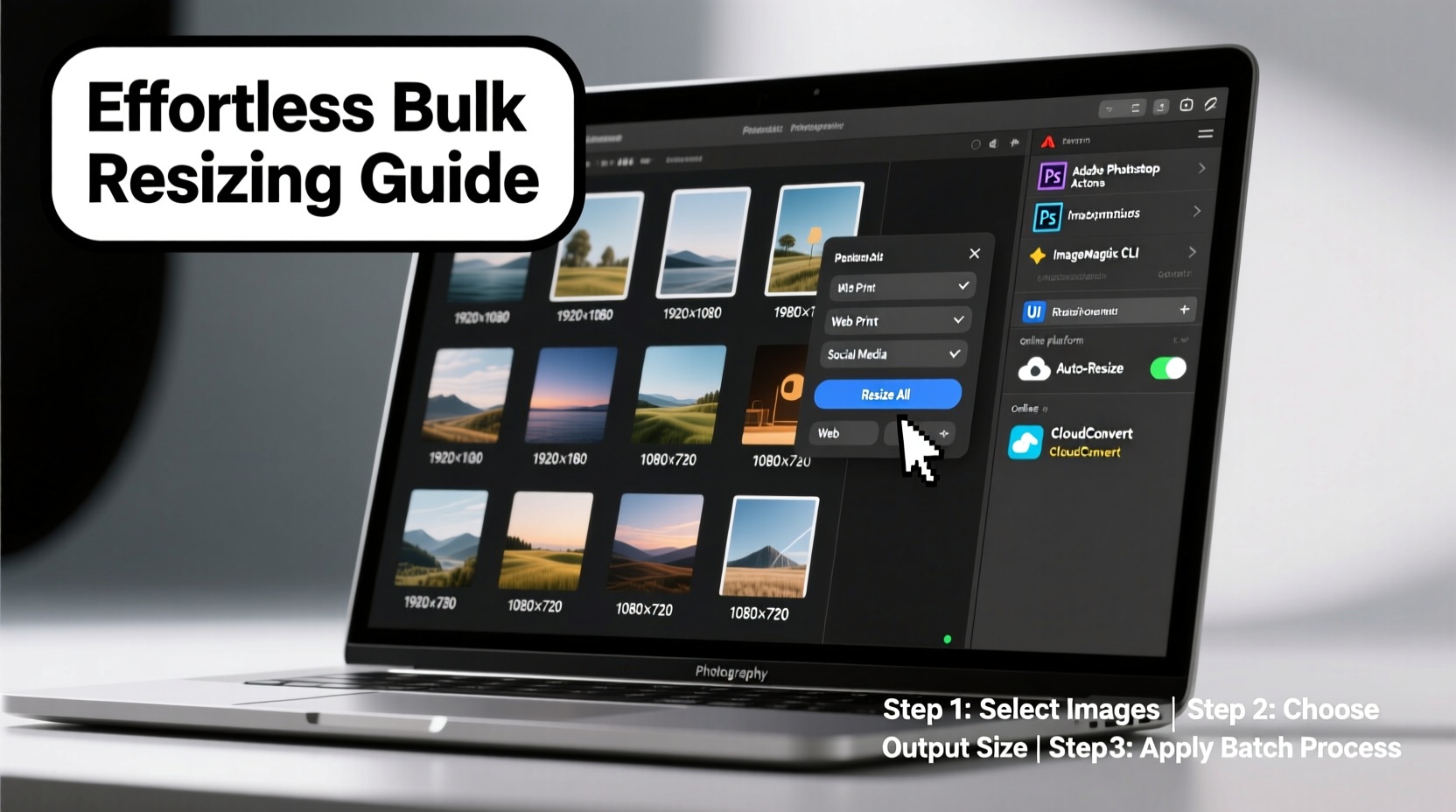
In today’s visual-first digital landscape, consistency and speed are critical. A single off-sized image can disrupt a website layout, slow down page loading, or appear pixelated on mobile devices. When dealing with hundreds—or even thousands—of images, manual editing isn’t scalable. Bulk resizing ensures uniformity across all files, enforces brand standards, and prepares assets for multiple platforms without repetitive effort.
Resizing in bulk also minimizes human error. Automated workflows reduce the risk of skipping steps, misapplying dimensions, or saving files in incompatible formats. This precision supports professional output, especially when delivering work under tight deadlines.
Step-by-Step Guide to Efficient Bulk Resizing
The key to successful bulk photo resizing lies in preparation, tool selection, and execution. Follow this structured process to ensure optimal results every time.
- Organize Your Files: Create a dedicated folder for the images you want to resize. Remove duplicates or irrelevant shots. Use consistent naming conventions to simplify tracking.
- Determine Output Requirements: Identify the target dimensions (e.g., 1200x800 pixels), file format (JPEG, PNG, WebP), and quality level (e.g., 80% compression). These depend on where the images will be used—social media, email campaigns, websites, etc.
- Choose the Right Tool: Select software that supports batch processing and matches your technical comfort level. Options range from desktop applications to cloud-based services.
- Preview Settings: Test your configuration on 2–3 sample images first. Check clarity, aspect ratio, and file size to confirm settings meet expectations.
- Run the Batch Process: Apply the resizing operation across the entire folder. Monitor progress and verify completion.
- Review and Archive: Spot-check resized images for artifacts or distortions. Save the processed batch in a clearly labeled directory, separate from originals.
Top Tools for Bulk Image Resizing
Different tools cater to different needs—some prioritize simplicity, others offer advanced customization. Here’s a comparison of reliable options across platforms.
| Tool | Platform | Key Features | Best For |
|---|---|---|---|
| IrfanView (with PlugIns) | Windows | Free, lightweight, supports batch mode, multi-format export | Beginners and high-volume processors on Windows |
| XnConvert | Windows, macOS, Linux | Cross-platform, no installation needed, 500+ format support, metadata handling | Professionals needing granular control |
| Adobe Photoshop (Image Processor Pro) | All major OS | Integration with Creative Cloud, actions & scripts, non-destructive editing | Creative teams already using Adobe ecosystem |
| Photoscape X | Windows, macOS | User-friendly interface, batch editor, built-in presets for social platforms | Social media managers and small business owners |
| Caesium Image Compressor | Windows, Web, Portable | Open-source, drag-and-drop interface, real-time size reduction preview | Fast compression with minimal learning curve |
“Automating image workflows doesn’t just save time—it elevates consistency. Teams that adopt bulk processing report up to 70% faster turnaround on visual content.” — Daniel Lin, Digital Workflow Consultant at VisualOps
Real-World Example: E-Commerce Product Upload
A boutique clothing brand was launching an online catalog featuring 480 product images taken on various devices. Each platform—Shopify, Instagram, and Google Merchant Center—required different dimensions and aspect ratios. Manually resizing would have taken over 20 hours.
Instead, the team used XnConvert to define three separate output profiles: one for square thumbnails (1080x1080 px), one for web display (800x1000 px), and another for print-ready previews (300 DPI, CMYK). They applied automatic sharpening and renamed files using SKU codes during export. The entire batch completed in under 45 minutes with zero errors. The result? Faster time-to-market and perfectly formatted visuals across channels.
Checklist: Preparing for a Successful Bulk Resize
- ✅ Back up original images
- ✅ Confirm required dimensions and file types
- ✅ Verify aspect ratio requirements (avoid stretching)
- ✅ Decide whether to apply sharpening or compression
- ✅ Organize input files into a single folder
- ✅ Test settings on 2–3 sample images
- ✅ Choose output folder location and naming scheme
- ✅ Run full batch and validate random samples
Frequently Asked Questions
Can I resize photos without losing quality?
Yes, if done correctly. Use high-quality interpolation methods (like Lanczos or Bicubic Sharper) and avoid upsizing. Resizing down preserves detail better than enlarging. Also, retain a copy of the original for future use.
Is it safe to use online bulk resizers?
Exercise caution. While tools like TinyPNG or BulkResizePhoto offer convenience, uploading sensitive or proprietary images to third-party servers poses privacy risks. For confidential content, use offline software such as XnConvert or IrfanView.
How do I maintain consistent aspect ratios across different image sizes?
Set a fixed aspect ratio in your resizing tool (e.g., 4:3 or 1:1). Most batch processors allow cropping to ratio or scaling with padding (letterboxing). This prevents distortion and ensures alignment across layouts.
Optimizing Workflows Beyond Resizing
Bulk resizing is often just one part of a larger optimization pipeline. Advanced users combine resizing with other automated tasks such as renaming files, converting color spaces, adding watermarks, or stripping EXIF data for privacy. Tools like Adobe Actions, Automator (macOS), or PowerShell scripts (Windows) can chain these operations together into a single click.
For recurring projects, save your resizing profiles. Many applications let you export preset configurations so you can reuse them for seasonal campaigns, new product drops, or client deliveries. This eliminates reconfiguration and maintains brand consistency over time.
“Time spent on repetitive editing is time lost from creative work. Automate the mundane, and focus on what truly adds value.” — Lena Patel, Senior Digital Producer at StudioFrame Media
Conclusion
Effortless bulk photo resizing is more than a convenience—it's a necessity in fast-paced digital environments. With the right tools and methodology, anyone can transform hours of manual labor into minutes of automated precision. From free utilities like IrfanView to powerful suites like Adobe Photoshop, accessible solutions exist for every skill level and budget.
The benefits extend beyond efficiency: improved consistency, reduced errors, and enhanced scalability empower individuals and teams to deliver higher-quality visual content reliably. Whether you're managing a personal photo library or supporting enterprise-level content production, mastering bulk resizing is a foundational skill worth developing.




 浙公网安备
33010002000092号
浙公网安备
33010002000092号 浙B2-20120091-4
Comments
No comments yet. Why don't you start the discussion?