
The LG G7 ThinQ, released as one of LG’s flagship smartphones, combines sleek design with powerful functionality. While newer models have emerged, the G7 remains a reliable device for everyday communication—especially when it comes to making and receiving calls. Despite its intuitive interface, many users overlook built-in features that can streamline calling, improve clarity, and enhance accessibility. This guide walks you through every aspect of using your LG G7 for seamless voice communication, from basic dialing to advanced call management.
Understanding Your LG G7 Calling Interface
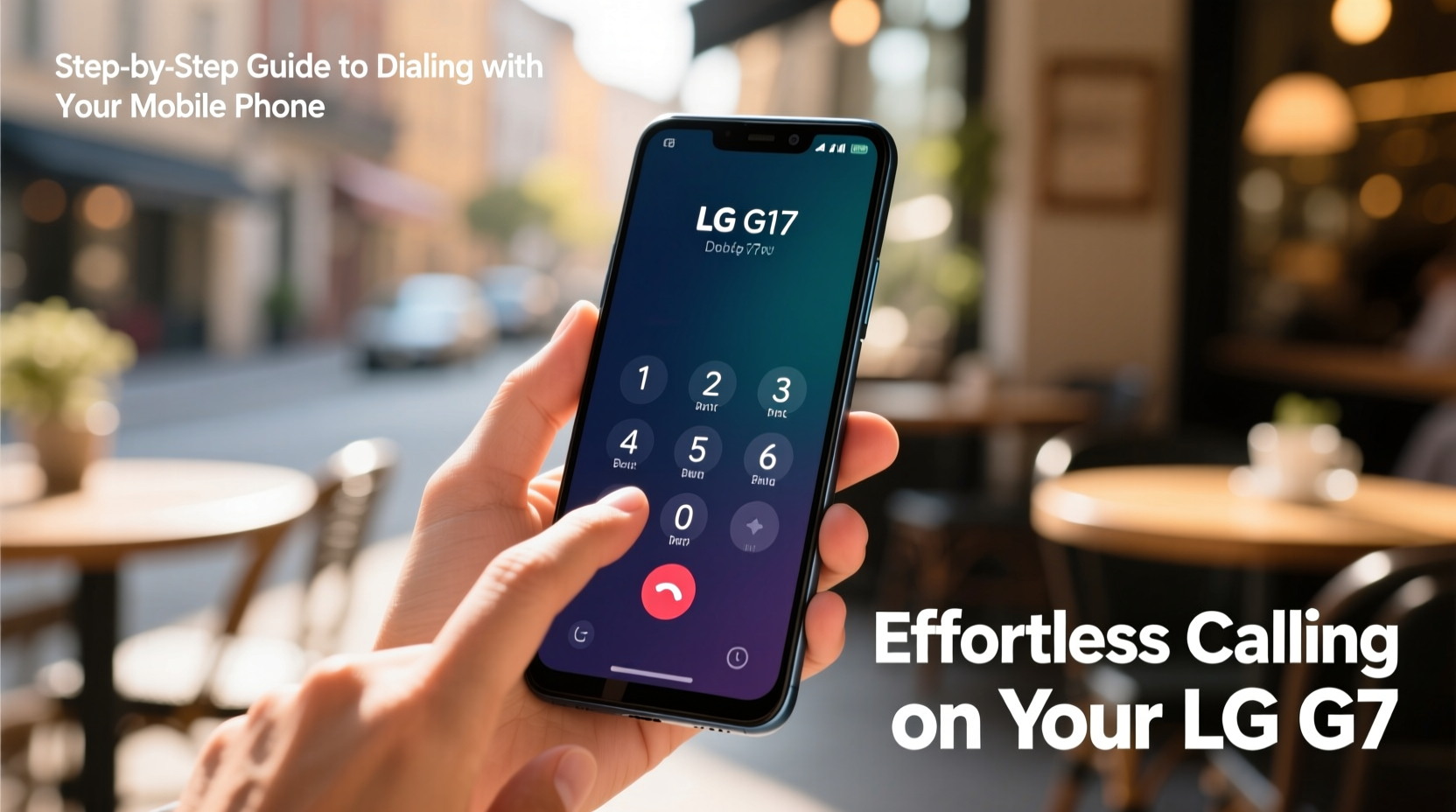
The calling experience on the LG G7 begins with its stock Phone app, which is clean, responsive, and designed for ease of use. Whether you're using the default dialer or a third-party alternative, understanding the core components ensures smoother interactions.
The primary sections of the Phone app include:
- Dial Pad: For entering numbers manually.
- Recent Calls: A log of incoming, outgoing, and missed calls.
- Contacts: Access to saved names and numbers.
- Favorites: Quick access to frequently called people.
Navigating between these tabs is simple—just tap the icons at the bottom of the screen. The interface supports both portrait and landscape modes, though dialing is typically faster in portrait orientation.
Step-by-Step Guide to Making a Call
Making a call on your LG G7 is straightforward, but knowing the nuances can save time and reduce errors. Follow this sequence for consistent results:
- Unlock your phone – Press the power button and use your PIN, pattern, or fingerprint (if enabled).
- Open the Phone app – Tap the green phone icon on your home screen or app drawer.
- Select the Dial Pad tab – Located at the bottom center of the screen.
- Enter the number – Use the on-screen keypad. The G7 supports predictive dialing; as you type, matching contacts appear above the keypad.
- Initiate the call – Tap the green call button. The screen will display call duration, signal strength, and available call options (like mute or speakerphone).
- End the call – Tap the red end-call button when finished.
If you're calling someone already in your contacts, simply go to the Contacts tab, find the person, and tap their phone number. You can also long-press a number to choose between voice call, video call (if supported via carrier), or message.
Optimizing Call Quality and Audio Settings
The LG G7 features advanced audio technologies, including Boombox speakers and DTS:X 3D Surround Sound, which also benefit voice calls. However, optimal call clarity depends on correct settings and usage habits.
| Setting | Function | How to Adjust |
|---|---|---|
| Speaker Mode | Enables hands-free calling | Tap speaker icon during a call |
| Microphone Mute | Temporarily disables mic | Tap mute button mid-call |
| HD Voice (VoLTE) | Improves call clarity over LTE | Settings > Network & Internet > Mobile network > Enable VoLTE |
| Noise Reduction | Reduces background noise | Settings > Sound & Vibration > Advanced > Noise Reduction |
For best audio performance, ensure HD Voice is enabled—this requires carrier support but significantly enhances voice sharpness and reduces dropouts. Additionally, keep your earpiece and microphone ports clean. Dust buildup can muffle sound and affect call quality.
“Modern smartphones like the LG G7 have hardware capable of studio-grade audio processing. But most users never enable the full suite of noise filtering and voice enhancement tools.” — Daniel Park, Senior Mobile Engineer at AudioSync Labs
Managing Contacts for Faster Dialing
Speed-dialing becomes effortless when your contacts are well-organized. The LG G7 allows multiple ways to store and access important numbers.
To add a new contact:
- Open the Phone app and go to the Contacts tab.
- Tap the \"+\" icon in the bottom-right corner.
- Enter the name, phone number, and any additional details (email, address, etc.).
- Choose where to save the contact (device, SIM, or Google account).
- Tap Save.
For even quicker access, set up Favorites:
- Go to the Phone app > Favorites tab.
- Tap the \"+\" icon.
- Select a contact and assign them to a spot (up to 8 favorites).
You can also use voice commands via Google Assistant. Say “Call Mom” or “Dial John at work,” and the phone will initiate the call if the contact is labeled correctly.
Real-World Example: Streamlining Daily Communication
Sarah, a small business owner in Portland, uses her LG G7 daily to manage client calls, vendor check-ins, and family updates. Initially, she struggled with missed calls and poor audio during outdoor meetings. After reorganizing her contacts and enabling HD Voice and noise reduction, her calling efficiency improved dramatically.
She now keeps top clients in her Favorites, uses voice commands while driving, and relies on speaker mode during multitasking. “I used to dread taking calls on my phone,” she says. “Now, I can jump on a call in seconds, and people tell me I sound crystal clear—even from a noisy café.”
This case illustrates how small adjustments can transform an ordinary function into a productivity booster.
Troubleshooting Common Calling Issues
Even with a well-maintained device, issues may arise. Here are common problems and practical fixes:
- No dial tone or call fails to connect: Check signal strength. Restart the phone or toggle Airplane mode on/off to reset the network connection.
- Caller can’t hear you: Ensure the microphone isn’t blocked. Test with voice memos and clean the mic port gently with a soft brush.
- Can’t hear the other party: Increase volume using side buttons. If sound is distorted, disable audio enhancements under Settings > Sound & Vibration > Audio Quality & Effects.
- Call drops frequently: Confirm VoLTE is enabled. If not, contact your carrier to verify network compatibility.
If problems persist, perform a software update: Settings > System > Software Update > Check for Updates. LG occasionally releases patches that improve telephony stability.
Essential Checklist for Effortless Calling
Before relying on your LG G7 for critical communications, run through this checklist:
- ✅ Ensure your SIM card is properly inserted and activated.
- ✅ Enable HD Voice (VoLTE) in network settings.
- ✅ Clean microphone and earpiece with a dry, soft cloth.
- ✅ Organize key contacts and add them to Favorites.
- ✅ Label contacts with voice-friendly names (e.g., “Home,” “Office”).
- ✅ Test speakerphone and mute functions regularly.
- ✅ Keep the operating system updated for optimal performance.
Frequently Asked Questions
Can I make international calls directly from the dial pad?
Yes. To call internationally, press and hold the “0” key to enter the \"+\" symbol, followed by the country code and number. For example, +44 20 7946 0958 for a UK number. Make sure international calling is enabled with your carrier.
Why does my LG G7 sometimes switch to speakerphone automatically?
This can happen if the proximity sensor is obstructed or dirty. Wipe the top edge of the screen gently with a microfiber cloth. If the issue continues, recalibrate the sensor via Settings > Accessibility > Proximity Sensor Calibration (if available).
Is it possible to block unwanted callers on the LG G7?
Yes. Open the Phone app, go to Recent Calls, tap the number you want to block, and select “Block number.” You can also manage blocked numbers under Settings > Call settings > Blocked numbers.
Conclusion: Master the Basics, Maximize Efficiency
Calling may seem like the most basic smartphone function, but mastering it on your LG G7 unlocks faster communication, clearer conversations, and fewer frustrations. From organizing contacts to fine-tuning audio settings, each step contributes to a smoother experience. Whether you're coordinating business calls or staying in touch with loved ones, these practices ensure your phone works as efficiently as possible.




 浙公网安备
33010002000092号
浙公网安备
33010002000092号 浙B2-20120091-4
Comments
No comments yet. Why don't you start the discussion?