
Managing a closet full of clothes can feel overwhelming. Without a clear system, it's easy to forget what you own, overbuy duplicates, or struggle to put together outfits. An organized clothing inventory changes that. By building a simple yet effective Excel tracker, you gain visibility into your wardrobe, reduce decision fatigue, and make smarter fashion choices. This guide walks you through the entire process—from planning your categories to maintaining your tracker long-term—with practical steps anyone can follow.
Why Track Your Wardrobe in Excel?
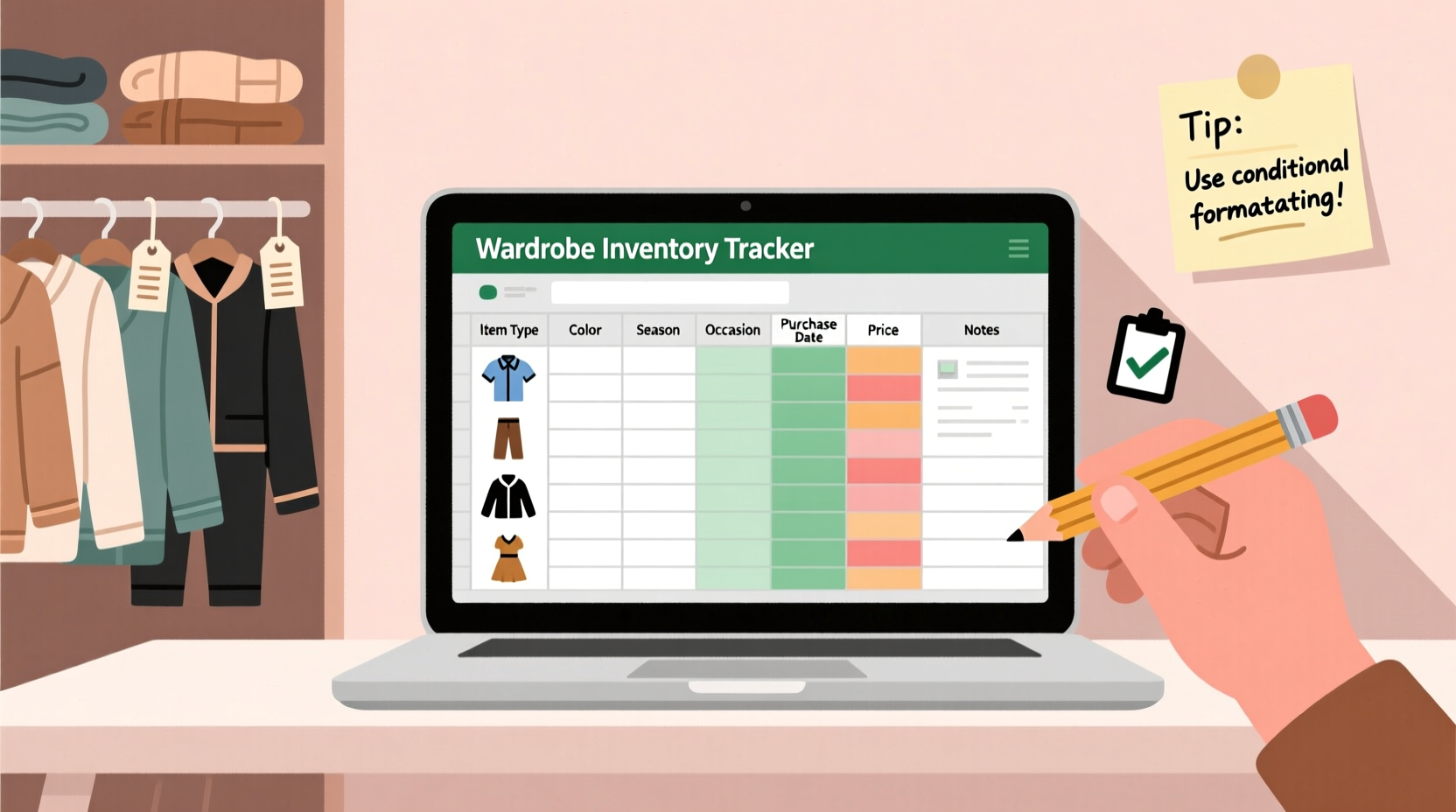
Excel is accessible, customizable, and powerful enough to handle detailed inventories without requiring specialized software. Unlike apps that may lock features behind paywalls, Excel gives you full control. You can sort by season, color, frequency of use, or occasion—all within a single workbook. Fashion organizers and minimalist stylists increasingly recommend digital tracking as a way to build intentionality into personal style.
“Knowing exactly what you own is the first step toward dressing with purpose.” — Lena Torres, Sustainable Style Consultant
A well-maintained inventory helps identify underused items, supports capsule wardrobe planning, and reduces impulse purchases. Over time, it becomes a visual reflection of your evolving style and lifestyle needs.
Step-by-Step: Building Your Clothing Inventory Tracker
Follow this structured approach to create a functional, scalable Excel tracker tailored to your wardrobe.
Step 1: Gather and Sort Your Clothing
Begin by removing all clothing from your closet and drawers. Sort items into broad categories: tops, bottoms, dresses, outerwear, shoes, accessories, etc. As you sort, set aside pieces you no longer wear or that need repair. This physical audit ensures your digital list reflects only usable items.
Step 2: Define Your Tracking Columns
Open a new Excel workbook and create column headers in Row 1. These fields will capture essential details about each garment:
| Column | Description | Example |
|---|---|---|
| ID Number | Unique identifier for each item | TOP-001 |
| Item Type | Category (e.g., blouse, jeans) | Sweater |
| Brand | Manufacturer or label | Everlane |
| Color | Primary and secondary colors | Navy, White Stripe |
| Size | Your fit size | M |
| Material | Fabric composition | Cotton, Wool Blend |
| Season | When it’s worn (Spring, Summer, Fall, Winter) | Fall/Winter |
| Purchase Date | Date acquired | 2023-10-15 |
| Price | Original cost | $48.00 |
| Worn Last | Last time used | 2024-03-22 |
| Location | Storage area (e.g., bedroom closet) | Top Shelf – Section B |
| Notes | Special care instructions or styling tips | Pair with black pants; dry clean only |
Step 3: Enter Your Data
Work through one category at a time. For accuracy, hold each item and enter its details directly. Use consistent formatting—especially for dates and sizes—to ensure sorting works correctly later. If you have many items, dedicate 30–60 minutes per session to avoid burnout.
Step 4: Apply Formatting and Filters
Select the header row and enable \"Filter\" (under the Data tab). This allows you to sort by color, filter by season, or hide rarely worn items. Use conditional formatting to highlight items not worn in the last six months—select the “Worn Last” column, go to Conditional Formatting > Highlight Cells Rules > Less Than, and enter =TODAY()-180.
Step 5: Add a Dashboard Sheet
Create a second sheet named “Dashboard” to summarize key insights. Use formulas like COUNTIF to show totals by category or average wear frequency. For example:
=COUNTIF(Sheet1!B:B,\"Dress\")→ Total dresses owned=AVERAGE(Sheet1!J:J)→ Average days since last worn (if using date values)
This summary helps you spot trends at a glance, such as owning too many black sweaters or neglecting certain footwear.
Essential Tips for Long-Term Success
Creating the tracker is just the beginning. Maintaining it ensures lasting value.
- Review monthly: Schedule a 10-minute check-in to update wear dates and note damaged items.
- Use drop-downs: In Excel, apply Data Validation to columns like “Season” or “Item Type” to maintain consistency.
- Backup regularly: Save your file to cloud storage (Google Drive, OneDrive) or export a copy weekly.
- Go seasonal: Filter out off-season items to declutter your view during rotation.
Real Example: How Sarah Streamlined Her Style
Sarah, a marketing professional with a packed schedule, often felt she had “nothing to wear” despite a full closet. After building her Excel inventory, she discovered she owned 17 black blouses but only two pairs of dress pants. She also found three silk scarves she’d forgotten about—perfect for adding variety.
Using filters, she created a “Workweek Capsule” view showing only versatile, frequently worn pieces. Within a month, she reduced morning decisions by 70% and avoided two unnecessary purchases. The tracker even helped her donate 23 underused items confidently, knowing they weren’t “must keeps.”
Wardrobe Inventory Checklist
Use this checklist to stay on track during setup and maintenance:
- ✅ Pull all clothing from storage and sort into categories
- ✅ Discard or donate items beyond repair or relevance
- ✅ Open Excel and create column headers based on tracking needs
- ✅ Enter one category at a time, double-checking details
- ✅ Enable filters and freeze the header row
- ✅ Set up conditional formatting for wear frequency
- ✅ Create a dashboard sheet with summary stats
- ✅ Save and back up the file to cloud storage
- ✅ Schedule monthly review reminders
- ✅ Update after every purchase or donation
Frequently Asked Questions
Can I use Google Sheets instead of Excel?
Yes. Google Sheets offers similar functionality and has the added benefit of automatic saving and mobile access. All steps in this guide apply equally to Sheets, including filtering, formulas, and data validation.
How detailed should I get with descriptions?
Be specific enough to distinguish similar items. Instead of “blue shirt,” write “Light blue chambray button-up, short sleeve.” This prevents confusion when searching or planning outfits remotely.
What if I have hundreds of items? Isn’t this too time-consuming?
Start small. Focus on one category—like workwear or outerwear—and build gradually. Even partial tracking delivers benefits. Most users report the initial effort pays off within two weeks of use.
Take Control of Your Closet Today
An organized wardrobe isn’t about perfection—it’s about clarity. With your Excel tracker in place, you’re no longer guessing what you own or relying on memory. You’ll shop with intention, mix and match with confidence, and keep your space clutter-free. The system adapts as your style evolves, making it a lifelong tool for mindful fashion.




 浙公网安备
33010002000092号
浙公网安备
33010002000092号 浙B2-20120091-4
Comments
No comments yet. Why don't you start the discussion?