
Printing from a Mac should be seamless, especially in today’s wireless world. Whether you're setting up a new printer or migrating from an older model, modern macOS systems are designed to integrate effortlessly with wireless printers. Yet, many users still face confusion when trying to connect devices across different brands, network configurations, and security settings. The good news: with the right steps, connecting any wireless printer to your Mac doesn’t require technical expertise—it just requires clarity.
This guide walks you through every stage of the process, from checking compatibility to finalizing your connection and testing a print job. You’ll also find troubleshooting advice, configuration best practices, and insights from IT professionals who manage hundreds of printer setups annually.
Understanding Wireless Printer Compatibility with macOS
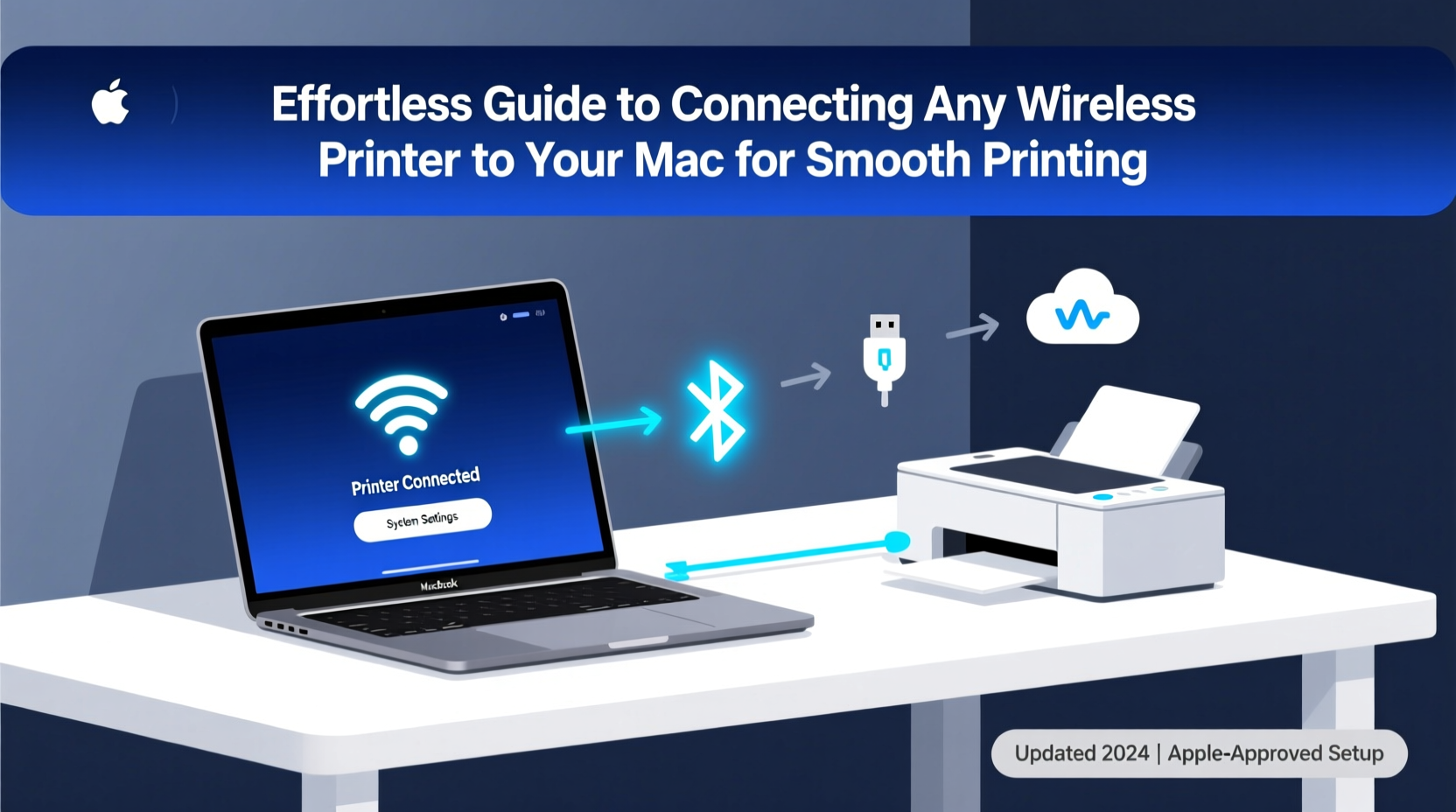
Before diving into setup, confirm that your printer is compatible with macOS. Most major brands—including HP, Canon, Epson, Brother, and Lexmark—offer models specifically optimized for Apple devices. However, compatibility isn't only about brand; it's also about communication protocols and drivers.
macOS supports two primary methods for wireless printing:
- AirPrint: Apple’s built-in wireless printing technology that works without installing additional software. If your printer supports AirPrint, setup takes minutes.
- Manufacturer Drivers: For non-AirPrint printers, you’ll need to install proprietary software provided by the manufacturer to unlock full functionality like scanning, ink monitoring, and duplex printing.
If your printer lacks AirPrint support, don’t worry—you can still connect it wirelessly using the manufacturer’s app or driver suite. Just ensure your Mac is running a supported version of macOS (typically macOS 10.15 Catalina or later).
Step-by-Step Guide to Connecting Your Wireless Printer
Follow this universal procedure regardless of your printer brand. While minor variations exist between models, the core steps remain consistent across all devices.
- Power on your printer and place it within range of your Wi-Fi router (ideally no more than 10–15 feet away with minimal obstructions).
- Connect the printer to your Wi-Fi network. Use the control panel on the printer to select your network and enter the password. Some newer models support WPS push-button setup—press WPS on the router, then on the printer within two minutes.
- Ensure your Mac is connected to the same Wi-Fi network. Printing over different networks (e.g., guest vs. main) will fail.
- Open System Settings on your Mac (Apple menu → System Settings).
- Navigate to Printers & Scanners in the sidebar.
- Click the + button below the list of printers.
- Wait for your printer to appear in the list under \"Nearby Printers.\" If it supports AirPrint, it will show up automatically.
- Select the printer and click “Add.” macOS will install necessary drivers automatically if available.
- For non-AirPrint printers, download and install the manufacturer’s software from their official website before adding the device.
- Test the connection by printing a test page via Printer Settings → Options & Supplies → Print Test Page.
“The key to reliable wireless printing is consistency in network naming and security type. Avoid hidden SSIDs and outdated WEP encryption—they cause handshake failures.” — David Lin, Network Infrastructure Specialist at TechFlow Solutions
Troubleshooting Common Connection Issues
Even with careful setup, issues may arise. Here are the most frequent problems and how to resolve them quickly.
| Issue | Possible Cause | Solution |
|---|---|---|
| Printer not showing in list | Not on same network, out of range, or powered off | Verify both devices are on same Wi-Fi. Restart printer and Mac. Move printer closer to router. |
| Connection times out | Firewall blocking ports or IP conflict | Temporarily disable firewall. Renew DHCP lease: System Settings → Network → Wi-Fi → Details → TCP/IP → Renew DHCP Lease. |
| Print jobs stuck in queue | Driver error or spooler issue | Open Printers & Scanners, right-click printer, choose \"Open Print Queue,\" then clear all jobs. Reboot printer and restart the CUPS service via Terminal: sudo launchctl restart org.cups.cupsd. |
| Partial prints or formatting errors | Outdated or incorrect driver | Download latest driver from manufacturer’s site. Remove old printer entry first, then reinstall. |
Real-World Example: Setting Up a Home Office Printer
Sophie, a freelance graphic designer in Portland, recently upgraded her aging wired printer to a new Epson EcoTank ET-4850. She wanted wireless convenience but had never set up a networked printer before.
She followed these steps:
- Placed the printer near her router and used the touchscreen to connect to her 2.4GHz Wi-Fi network (the 5GHz band wasn’t supported).
- Confirmed her MacBook Air was on the same network.
- Opened System Settings → Printers & Scanners and clicked the \"+\" icon.
- The Epson appeared instantly as an AirPrint-compatible device.
- After adding it, she printed a test page successfully.
- To enable scanning, she downloaded the Epson Connect Printer Setup utility from epson.com, which added full feature support.
Within 15 minutes, Sophie was printing mockups and client contracts wirelessly from any room in her home office. When her son accidentally changed the Wi-Fi password a week later, she reconnected the printer using the WPS method—no manual re-entry required.
Best Practices for Long-Term Smooth Operation
Once your printer is connected, maintain reliability with these proactive habits:
- Keep firmware updated: Manufacturers release updates that improve stability, security, and compatibility.
- Use strong Wi-Fi signals: Avoid interference from microwaves, cordless phones, or thick walls. Consider a Wi-Fi extender if needed.
- Monitor ink and paper levels remotely: Many apps (like HP Smart or Canon PRINT) allow you to check status from your iPhone or Mac.
- Reboot periodically: Restart both your printer and router every few weeks to clear cached connections.
- Name your printer clearly: Instead of “Epson_1A2B3C,” use “Office_Color_Printer” so it’s easily identifiable across multiple devices.
“Wireless printing fails most often due to overlooked basics—wrong network, weak signal, or outdated OS. Fix those first before blaming the printer.” — Maria Chen, Apple-Certified Support Technician
Frequently Asked Questions
Can I connect a printer to my Mac without Wi-Fi?
Yes, but not wirelessly. You can use a USB cable for direct connection or set up a local print server via Ethernet. However, true wireless printing requires Wi-Fi or Bluetooth (rare in printers).
Why does my Mac say 'No AirPrint Printers Found'?
This usually means the printer isn’t on the same network, AirPrint is disabled, or the printer doesn’t support AirPrint. Verify network alignment, restart devices, and consult the printer manual for AirPrint activation steps (often found under Network > Services).
Do I need to install drivers for AirPrint-compatible printers?
No. AirPrint uses native macOS drivers. However, installing the manufacturer’s software unlocks advanced features like scanning, maintenance tools, and ink level tracking.
Final Checklist Before You Print
- ✅ Same Wi-Fi network?
- Both Mac and printer must be on the same SSID.
- ✅ Printer powered on and online?
- Check display panel or router admin page for active connection.
- ✅ AirPrint supported or driver installed?
- Confirm via specs or manufacturer site.
- ✅ Test page successful?
- Always print a test to verify quality and alignment.
- ✅ Static IP assigned (recommended)?
- Prevents disconnections after router reboots.
Start Printing with Confidence
Connecting a wireless printer to your Mac doesn’t have to be complicated. With AirPrint simplifying much of the process and robust troubleshooting tools built into macOS, most setups complete in under ten minutes. The real challenge lies in preparation—ensuring compatibility, maintaining network health, and following a logical sequence.
Now that you’ve walked through each step, tested your connection, and learned how to resolve common hiccups, you’re equipped to handle any wireless printer integration. Whether you're a student, remote worker, or creative professional, reliable printing enhances productivity and peace of mind.




 浙公网安备
33010002000092号
浙公网安备
33010002000092号 浙B2-20120091-4
Comments
No comments yet. Why don't you start the discussion?