
Keeping your Android apps updated is one of the simplest yet most effective ways to maintain device performance, security, and user experience. Outdated apps can lead to crashes, compatibility issues, and even expose your phone to vulnerabilities. The good news? Updating apps doesn’t have to be complicated or time-consuming. With the right approach, you can ensure your apps stay current with minimal effort.
This guide walks you through everything you need to know about updating Android apps—automatically and manually—while offering practical tips to streamline the process and avoid common pitfalls.
Why App Updates Matter
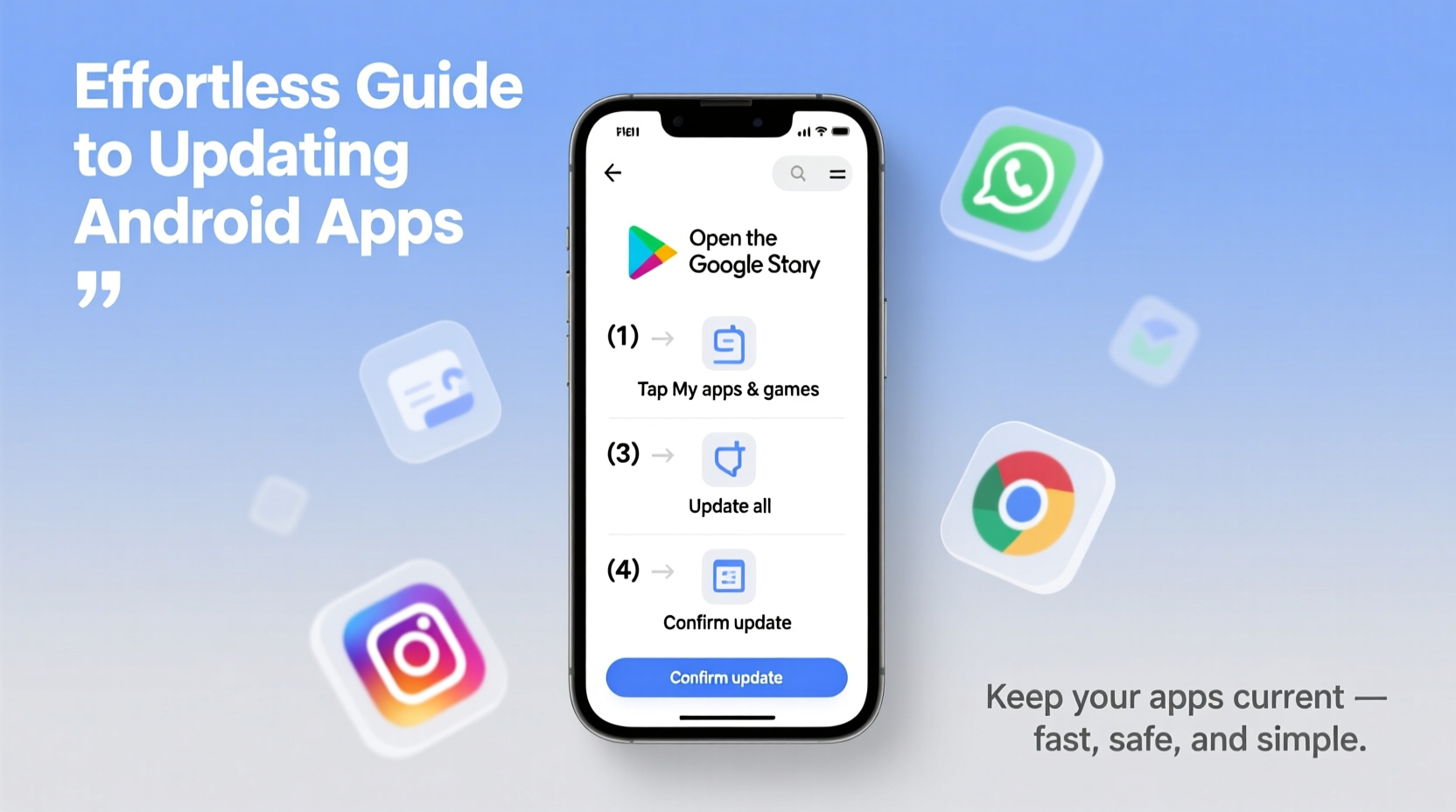
App updates are more than just feature additions. Developers release updates for several critical reasons:
- Security patches: Fix known vulnerabilities that hackers could exploit.
- Bug fixes: Resolve crashes, freezes, or glitches affecting usability.
- New features: Introduce improved functionality or interface enhancements.
- Performance improvements: Optimize speed, battery usage, and responsiveness.
- Compatibility: Ensure apps work correctly with new Android versions and devices.
Ignoring updates can leave your device exposed. According to Google’s 2023 Security Report, over 70% of high-risk app vulnerabilities were resolved within two months of discovery—but only if users installed the latest versions.
“Regular app updates are a frontline defense against malware and data breaches.” — Dr. Lena Torres, Mobile Security Researcher at CyberShield Labs
Step-by-Step Guide to Updating Android Apps
Whether you prefer full automation or manual control, here’s how to keep your apps up to date.
1. Enable Automatic Updates via Google Play Store
The easiest way to stay current is letting Google Play handle updates automatically. Here’s how:
- Open the Google Play Store app.
- Tap your profile icon in the top-right corner.
- Select Settings > Network Preferences > Auto-update apps.
- Choose one of three options:
- Over any network: Updates happen anytime, using Wi-Fi or mobile data.
- Over Wi-Fi only: Saves data by restricting updates to Wi-Fi connections.
- Don’t auto-update apps: Gives you full manual control.
2. Manually Update Apps When Needed
If you’ve disabled auto-updates or want to update specific apps immediately:
- Open the Play Store.
- Tap your profile icon.
- Tap Manage apps & device.
- Under “Updates available,” review the list.
- Tap Update next to individual apps, or tap Update all to refresh everything at once.
Note: Some system apps (like Google Play Services) may update independently and won’t appear in this list.
3. Check for Updates Outside the Play Store
Not all apps come from Google Play. If you use third-party stores (e.g., Samsung Galaxy Store, Amazon Appstore), check them separately:
- Open the alternative app store.
- Navigate to your library or account section.
- Look for an “Updates” tab and proceed as prompted.
Best Practices for Managing App Updates
Staying on top of updates doesn’t mean constant monitoring. Use these strategies to make maintenance effortless.
Create a Weekly Maintenance Routine
Set aside five minutes each week to review pending updates. This habit ensures you catch important changes early without relying solely on automation.
Monitor Storage and Bandwidth Usage
Large app updates can consume significant storage and data. To manage this:
- Go to Settings > Apps to see which apps take up the most space.
- Clear cache regularly for infrequently used apps.
- Use “Update over Wi-Fi only” if you’re on a limited data plan.
Review Permissions After Major Updates
Sometimes, updated apps request new permissions. Always check what access they’re asking for:
- After an update, go to Settings > Apps.
- Select the app and tap Permissions.
- Revoke any unnecessary access (e.g., location, microphone).
| Practice | Benefit | How Often? |
|---|---|---|
| Enable auto-updates (Wi-Fi only) | Keeps apps secure without data cost | One-time setup |
| Weekly manual check | Catches missed or delayed updates | Once per week |
| Clear app cache monthly | Prevents storage bloat | Monthly |
| Review app permissions | Protects privacy after updates | After major version changes |
Real-World Example: Sarah’s Security Wake-Up Call
Sarah, a freelance designer, noticed her banking app kept crashing after she upgraded her phone. She ignored the issue for weeks, assuming it was temporary. Then, she received an alert from her bank about a suspicious login attempt.
Upon investigation, her IT-savvy friend discovered the app hadn’t been updated in over two months—missing a critical security patch. Once Sarah manually updated the app and enabled auto-updates, the crashes stopped, and her account remained secure.
This experience taught her that skipping updates isn’t just inconvenient—it can directly impact personal safety.
Frequently Asked Questions
Do I really need to update apps if they’re working fine?
Yes. Even if an app runs smoothly, outdated versions may contain hidden security flaws. Updates often include backend fixes that aren’t visible but are crucial for protection.
Can app updates slow down my phone?
Rarely. While some large updates may temporarily increase resource usage during installation, most updates improve efficiency. If an app becomes slower after an update, try clearing its cache or reinstalling it.
What happens if I don’t update an app for months?
You risk compatibility issues, reduced performance, and exposure to known threats. In extreme cases, very old versions may stop working entirely when servers drop support.
Conclusion: Make Updates Effortless, Not Optional
Updating Android apps should be a seamless part of your digital routine—not a chore you postpone. By enabling smart auto-updates, performing quick weekly checks, and staying mindful of permissions and storage, you protect your data, enhance performance, and get the most out of your favorite tools.
Technology evolves fast, and so do the threats targeting it. A few taps today can prevent headaches tomorrow. Take control now: open your Play Store, enable auto-updates over Wi-Fi, and set a reminder for a weekly review. Your future self will thank you.




 浙公网安备
33010002000092号
浙公网安备
33010002000092号 浙B2-20120091-4
Comments
No comments yet. Why don't you start the discussion?