
For users deeply embedded in the Apple ecosystem, iCloud is more than just cloud storage—it’s the backbone of digital continuity. When properly configured, iCloud ensures that your photos, documents, notes, passwords, and settings move seamlessly between your Mac, iPhone, iPad, and even Apple Watch. Yet, many Mac users experience hiccups: missing files, sync delays, or unexpected storage overuse. The solution isn’t buying more space—it’s mastering the setup.
This guide walks through the complete process of enabling, optimizing, and troubleshooting iCloud sync on your Mac. Whether you’re setting up a new machine or fine-tuning an existing one, these steps ensure smooth, reliable synchronization across all your devices.
Understanding iCloud Sync: What It Does and Why It Matters
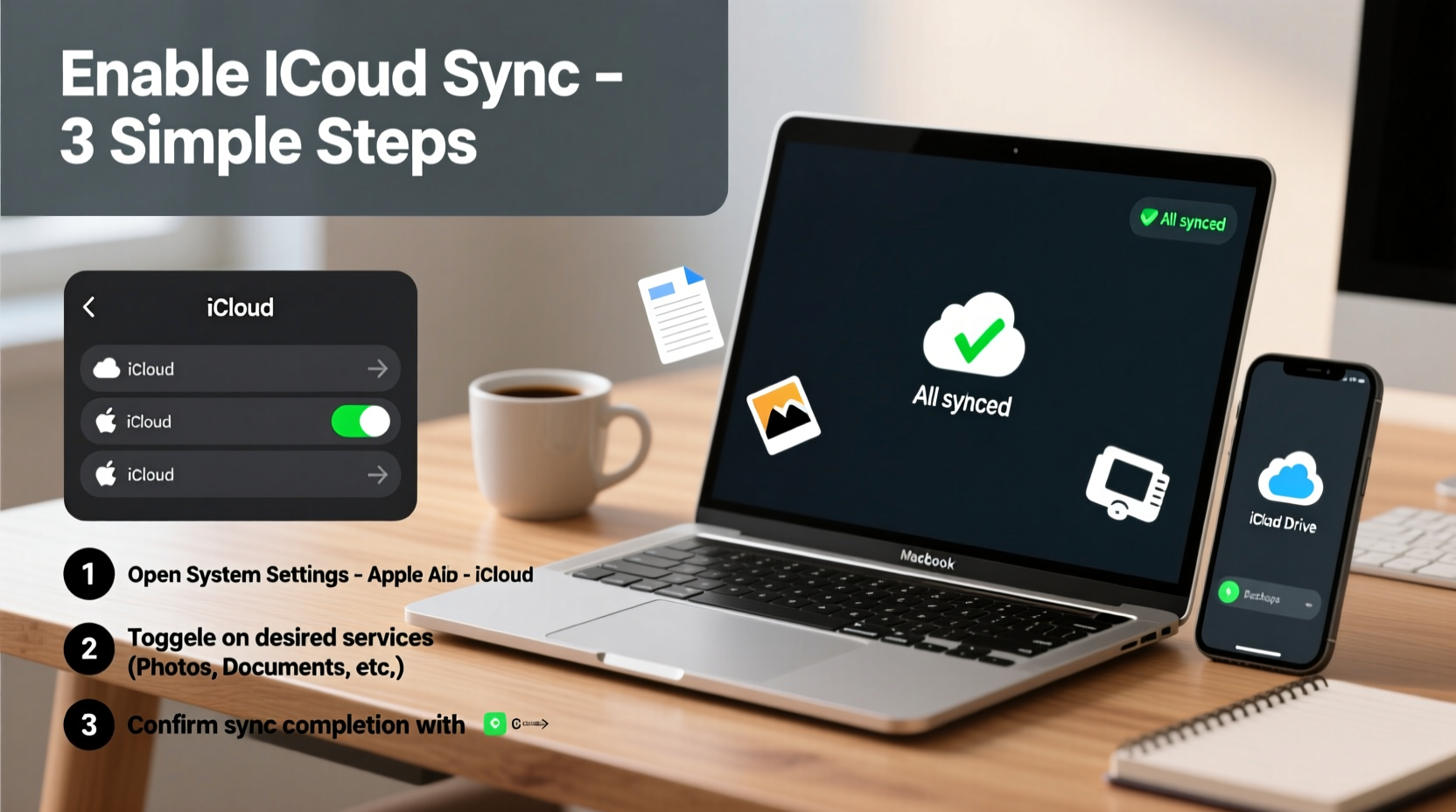
iCloud sync doesn’t just back up your data—it actively keeps it current across devices. When you create a note on your iPhone, it appears on your Mac within seconds. Change a calendar event on your iPad? Your MacBook reflects the update instantly. This real-time consistency eliminates manual file transfers and reduces the risk of losing work.
The key synced services include:
- Photos: Full library sync via iCloud Photos.
- Documents & Desktop: Files from your Desktop and Documents folders are mirrored across devices.
- Mail, Contacts, Calendars: Unified access to personal information.
- Notes, Reminders, Safari: Seamless browsing and task management.
- Keychain: Encrypted storage for passwords and credit cards.
- Find My: Device tracking and activation lock.
Syncing happens automatically when connected to Wi-Fi and power, but only if configured correctly. Missteps during setup—like disabling critical options or exceeding storage limits—can disrupt the entire system.
Step-by-Step Setup: Activating iCloud Sync on Mac
Follow this sequence to ensure every service is properly enabled and synchronized.
- Sign in to your Apple ID: Open System Settings (Ventura and later) or System Preferences (older versions), click your name, and sign in with your Apple ID if not already active.
- Navigate to iCloud: Select the iCloud option from the sidebar.
- Select services to sync: Check the boxes next to each app or folder you want to sync:
- Contacts
- Calendars
- Reminders
- Notes
- Safari
- Bookmarks
- Find My Mac
- Keychain
- iCloud Drive
- Enable iCloud Drive options: Click Options next to iCloud Drive and enable “Desktop & Documents Folders” to sync those directories.
- Turn on iCloud Photos: In the same menu, toggle on “iCloud Photos.” Choose “Download New Photos and Videos to My Mac” to balance local storage and cloud access.
- Wait for initial sync: Depending on your internet speed and data volume, this may take minutes or hours. Avoid shutting down your Mac during this phase.
Once complete, any changes made to supported files or settings will propagate across all signed-in devices.
Optimizing iCloud Performance and Storage
Even with correct setup, performance issues can arise. These strategies help maintain efficiency and avoid storage overloads.
| Action | Benefit | How to Do It |
|---|---|---|
| Enable Optimize Mac Storage | Keeps frequently used files local; stores older ones in the cloud | In System Settings > Apple ID > iCloud > Photos, select “Optimize Mac Storage” |
| Review large iCloud backups | Frees up space used by outdated device backups | Go to iCloud settings > Manage > Backups and delete obsolete entries |
| Use folders in iCloud Drive | Improves organization and speeds up file retrieval | Create folders in Finder under iCloud Drive and sort files accordingly |
| Disable unnecessary syncs | Reduces bandwidth and processing load | Uncheck non-essential items like Voice Memos or News in iCloud settings |
“The most common sync failure stems from partial configuration—not all services are enabled by default, and users often miss critical toggles.” — Jordan Lee, Apple Support Specialist
Troubleshooting Common Sync Issues
When files don’t appear or updates stall, consider these proven fixes:
1. Verify Internet Connection
iCloud requires a stable Wi-Fi connection. Test connectivity by visiting a website or restarting your router.
2. Sign Out and Back Into iCloud
Sometimes re-authentication resolves sync blocks:
- Open System Settings > [Your Name]
- Scroll down and click “Sign Out” (ensure you keep a local copy of data)
- Restart your Mac
- Sign back in with your Apple ID
3. Check Date and Time Settings
Incorrect system time can break encryption handshakes. Ensure “Set date and time automatically” is enabled in System Settings > General > Date & Time.
4. Force Sync via Terminal (Advanced)
If Photos or Drive hangs, force a sync refresh:
- Open Terminal (Applications > Utilities)
- Type:
killall birdand press Enter - Wait 30 seconds—the iCloud Drive daemon will restart automatically
Real-World Example: A Freelancer’s Workflow Transformation
Maya, a freelance graphic designer, used to manually transfer project files between her MacBook Pro and iPad using USB drives. She often worked on outdated versions and lost client feedback due to version confusion. After enabling iCloud Drive and syncing her Documents folder, she saved an average of 3 hours per week. Now, opening a Sketch file on her iPad continues exactly where she left off on her Mac. Her client notes in Notes sync instantly, and her portfolio images in Photos stay consistent across devices. The switch didn’t require new tools—just proper iCloud configuration.
Essential Checklist for Flawless iCloud Sync
Before considering your setup complete, verify each item below:
- ✅ Signed in with the same Apple ID on all devices
- ✅ Two-factor authentication enabled
- ✅ iCloud Drive turned on with Desktop & Documents sync active
- ✅ iCloud Photos enabled with Optimize Storage selected
- ✅ Mail, Contacts, Calendars, and Notes toggled on
- ✅ Keychain enabled for password sync
- ✅ Find My Mac activated for device recovery
- ✅ At least 20% free iCloud storage available
- ✅ Automatic date and time set correctly
- ✅ No conflicting third-party sync tools running (e.g., Dropbox auto-syncing same folders)
Frequently Asked Questions
Why are my Desktop files not showing up on my iPhone?
iCloud sync for Desktop and Documents folders only works on Mac and iPad (with Files app). iPhones do not display desktop folders directly. Access them via the Files app under “iCloud Drive.”
Can I sync external drive folders to iCloud?
No. iCloud Drive only syncs folders located within your user directory (e.g., Documents, Desktop). Files stored on external drives must be manually copied into iCloud-synced folders to be uploaded.
What happens if I run out of iCloud storage?
Syncing stops for all services except Mail, Find My, and iMessage. You’ll receive alerts on all devices. To resume full functionality, either delete old data or upgrade your plan via System Settings > Apple ID > iCloud > Manage Storage > Change Storage Plan.
Final Thoughts: Make iCloud Work for You, Not Against You
iCloud sync, when set up correctly, operates silently in the background—so well that you forget it’s there. That invisibility is its strength. But achieving that level of seamlessness requires attention to detail during setup and occasional maintenance.
Don’t treat iCloud as just backup space. Use it as your central nervous system for digital life: a unified layer that connects work, communication, creativity, and personal organization. With the right configuration, your Mac becomes not just a computer, but a node in a responsive, intelligent network of devices—all working together, effortlessly.




 浙公网安备
33010002000092号
浙公网安备
33010002000092号 浙B2-20120091-4
Comments
No comments yet. Why don't you start the discussion?