
Keeping a physical copy of your contacts might seem outdated in a digital world, but printed contact lists remain valuable for emergencies, office directories, or sharing with family members who prefer paper records. Whether you're upgrading phones, preparing for travel, or organizing personal data, knowing how to print your contacts directly from your smartphone simplifies the process significantly. Modern tools make it possible—even automatic—with minimal effort.
The key is understanding which method aligns with your device, operating system, and desired output format. From built-in features to third-party apps and cloud syncing, there are multiple pathways that require little technical skill. This guide breaks down the most efficient, reliable ways to extract and print your mobile contacts—regardless of whether you use an iPhone or Android device.
Why Print Your Contacts? Practical Use Cases
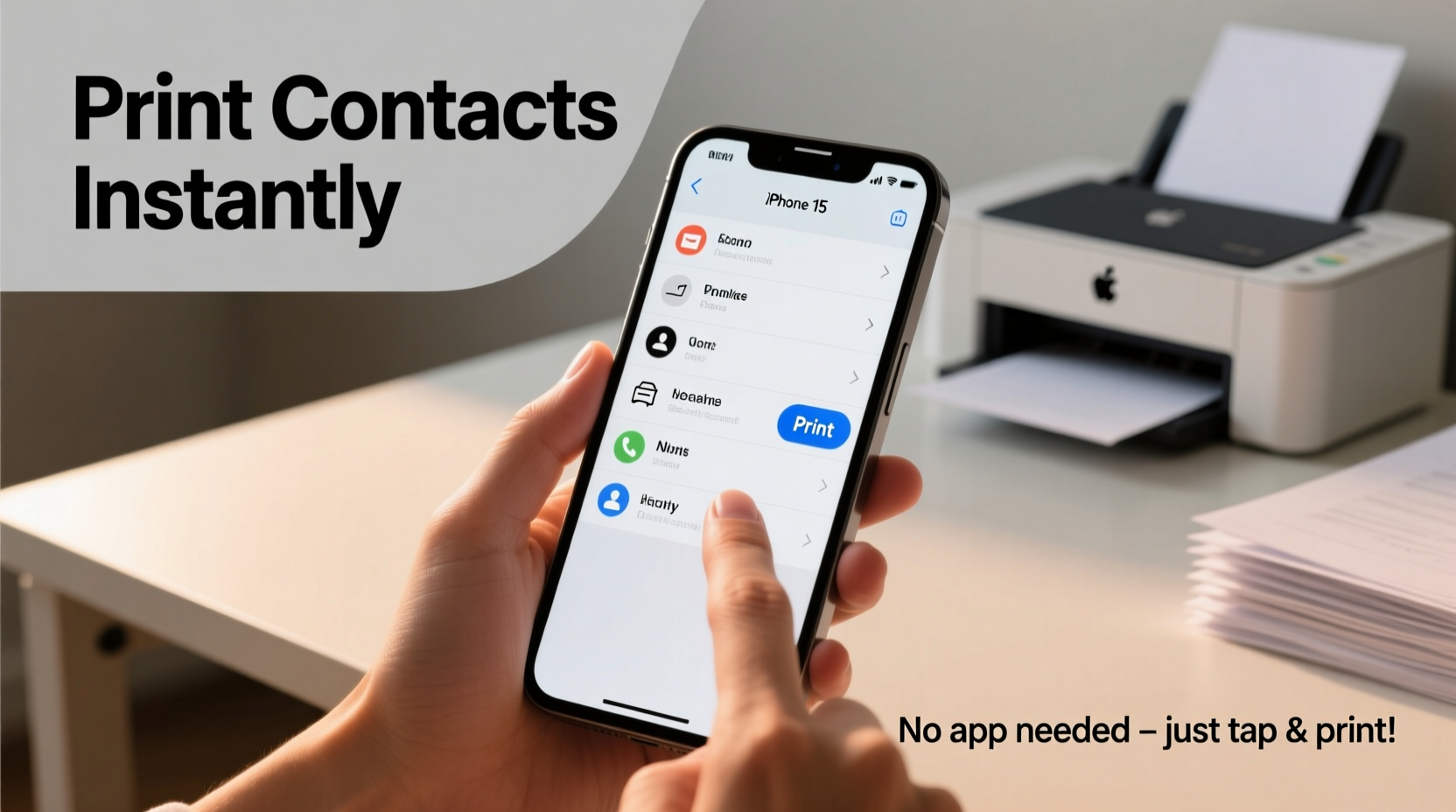
While smartphones store thousands of contacts digitally, printing them offers tangible benefits:
- Emergency preparedness: In power outages or phone failures, a printed list ensures access to critical numbers.
- Workplace organization: Offices often need printed directories for shared spaces or training sessions.
- Family coordination: Elderly relatives may find printed names and numbers easier to read than small screens.
- Data backup: A hardcopy serves as a fail-safe when digital backups fail or get lost.
Printing doesn’t mean sacrificing modern convenience. With today’s integrations between phones, email services, and printers, generating a clean, readable contact sheet takes minutes—not hours.
Step-by-Step: How to Export and Print Contacts by Device Type
The method varies depending on your phone’s ecosystem. Below are proven workflows for both major platforms.
iOS (iPhone)
- Open the Settings app and tap your name at the top.
- Select iCloud, then toggle on Contacts.
- Wait for all contacts to sync—this may take a few moments.
- On a computer, go to iCloud.com and sign in using your Apple ID.
- Click the Contacts app icon.
- Select all contacts (or specific groups) using Command/Ctrl + Click or Shift for ranges.
- Click the gear icon ⚙️ and choose Export vCard.
- Open the downloaded .vcf file in a desktop address book program like Outlook or macOS Contacts, then use File > Print.
Android (Google-Based Devices)
- Ensure your contacts are synced with your Google account: Go to Settings > Accounts > Google and confirm Contacts sync is enabled. <2>On a computer, visit Google Contacts.
- Use filters or search to refine which contacts you want to print.
- Select the checkboxes next to each entry—or click the top box to select all visible ones.
- Click the Print button (printer icon) in the toolbar above the list.
- Adjust layout options (list vs. cards), font size, and include fields (phone, email, address).
- Click Print again to send to your connected printer or save as PDF.
“We’ve seen a rise in users requesting printable contact exports during device transitions—especially among non-tech-savvy demographics.” — Lena Torres, UX Researcher at MobileSync Labs
Cross-Platform Tools That Simplify Printing
If you manage multiple devices or work across ecosystems, standalone tools streamline contact export without manual transfers.
Using Third-Party Apps
Apps like Contact Sheet Printer (Android) and Contacts to CSV (iOS) allow direct export to CSV or PDF formats, which can be opened in Excel or Google Sheets and printed with full formatting control.
- Advantages: Batch processing, custom sorting, field selection.
- Caution: Only install apps from trusted developers; avoid granting unnecessary permissions.
Email-Based Syncing
You can also forward individual contacts via email and compile them into a single document:
- From your phone’s Contacts app, open a contact and tap Share.
- Choose “Mail” or “Message,” then send to your personal email.
- Repeat for other key contacts.
- Compile received vCards into one folder, open each, and copy details into a Word or Google Docs file.
- Format neatly and print.
This method works best for selective printing rather than full directories.
Checklist: Prepare Before You Print
Follow this checklist to ensure a smooth, error-free print job:
- ✅ Confirm all contacts are backed up to the cloud (iCloud/Google).
- ✅ Remove duplicates or outdated entries before export.
- ✅ Organize contacts into labeled groups (e.g., Family, Work, Emergency).
- ✅ Choose the right format: list view for readability, card view for visual clarity.
- ✅ Test-print one page first to check layout and font size.
- ✅ Optimize for ink usage—print in black and white unless color coding is necessary.
Comparison Table: Methods Across Platforms
| Method | Best For | Time Required | Technical Skill | Output Quality |
|---|---|---|---|---|
| Google Contacts Web Print | Android users, full directory | 5–7 minutes | Low | High (clean layout) |
| iCloud + vCard Export | iPhone users, selective export | 8–10 minutes | Moderate | Medium (requires desktop step) |
| Third-Party App (CSV/PDF) | Custom formatting needs | 6–8 minutes | Moderate | Very High (editable) |
| Email Forwarding | Few contacts, quick share | 3–5 minutes per contact | Low | Low to Medium |
Mini Case Study: Preparing a Family Emergency Contact List
Sarah, a mother of two in Portland, wanted to prepare emergency contact sheets for her parents’ refrigerator and her kids’ school folders. Her husband used Android, she used iPhone, and their parents relied on landlines.
She consolidated everything by having her husband export his Google Contacts as a printable PDF. She exported her own contacts via iCloud, merged both lists in Google Sheets, removed duplicates, added labels (“Mom,” “Pediatrician,” “Nearest Neighbor”), and formatted it with large fonts.
The final document was printed in color, laminated, and placed in visible locations. When their power went out during a winter storm, her mother-in-law used the printed list to call the utility company and coordinate help—proving that even in 2024, paper backups matter.
FAQ
Can I print contacts directly from my phone without a computer?
Yes, some third-party apps like “Contact Manager & Print” (Android) or “Contacts Backup & Restore” (iOS) support direct PDF generation and wireless printing via AirPrint or Google Cloud Print. However, most native methods still require a computer for optimal formatting.
Will printing contacts compromise my privacy?
Potentially, yes. Always review what information you’re including—avoid printing sensitive notes, birthdays, or addresses unless absolutely necessary. Store printed copies securely and shred outdated versions.
How do I prevent missing contacts during export?
Double-check where your contacts are stored: on-device, SIM card, or cloud. Only cloud-synced contacts appear in web portals like Google Contacts or iCloud. Transfer local contacts to your account before exporting.
Final Thoughts: Make It Effortless, Not Occasional
Printing your contacts shouldn’t be a last-minute scramble. By integrating regular contact maintenance into your digital routine—cleaning duplicates, syncing across devices, and organizing groups—you’ll always be ready to generate a polished, useful printout within minutes.
Technology should serve simplicity, not complicate it. Whether you’re preparing for disaster, supporting loved ones, or streamlining daily life, a well-formatted contact list bridges the gap between digital efficiency and real-world reliability.




 浙公网安备
33010002000092号
浙公网安备
33010002000092号 浙B2-20120091-4
Comments
No comments yet. Why don't you start the discussion?