
Managing files efficiently is a cornerstone of productive computing, especially in Linux environments where automation, precision, and control are paramount. Whether you're moving logs between servers, syncing configuration files, or reorganizing personal documents, mastering the art of file transfer and organization can save hours each week. The good news? You don’t need third-party tools or complex GUIs. With native Linux utilities and thoughtful structuring, file management becomes not only efficient but also reliable and repeatable.
Mastering File Transfer with Built-in Tools
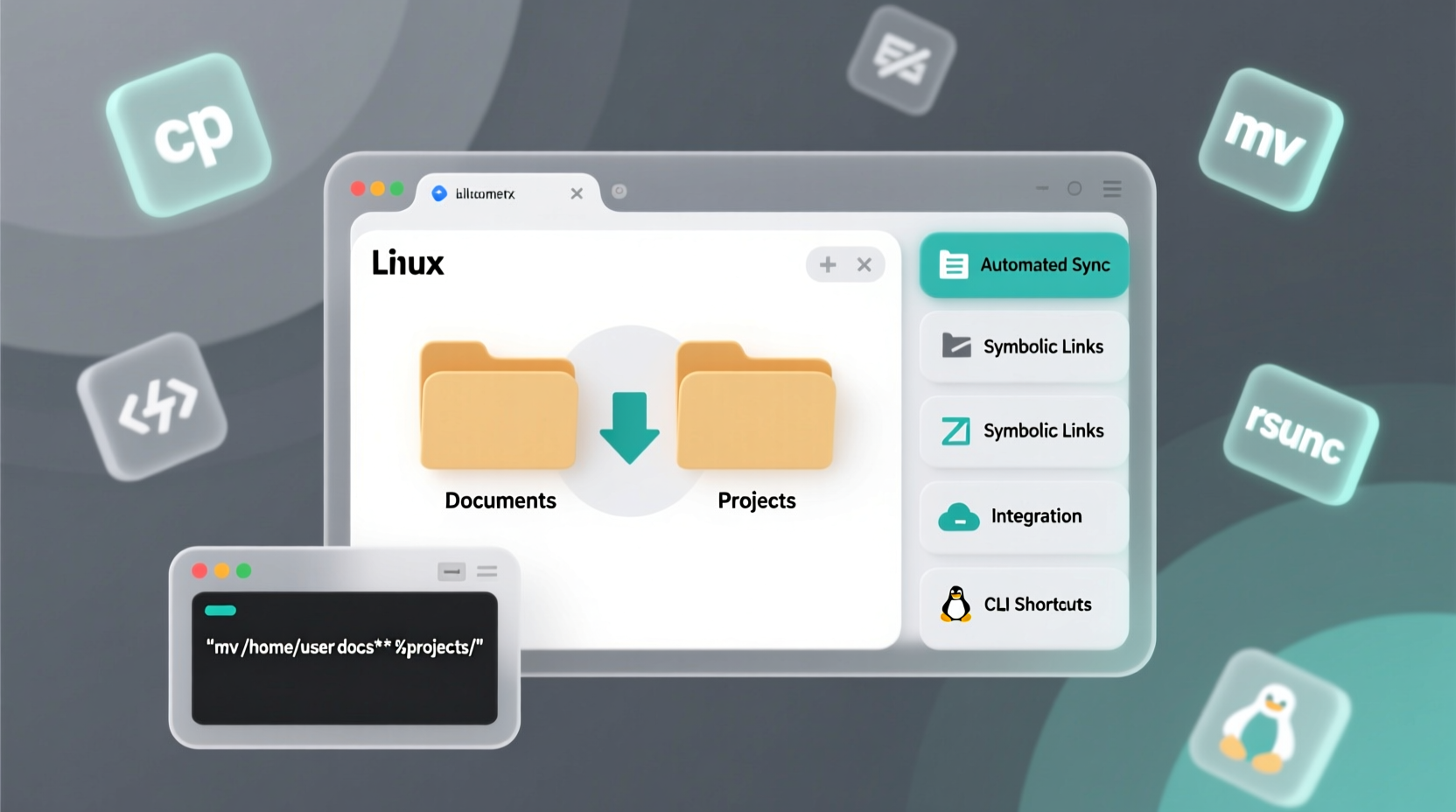
Linux offers powerful command-line tools that handle file transfers securely and quickly. Unlike graphical interfaces that may falter over large datasets or remote connections, these tools are lightweight and scriptable.
scp (Secure Copy) remains one of the most reliable ways to move files between local and remote machines. It uses SSH for encryption, ensuring your data stays private during transit.
For example, to copy a file from your local machine to a remote server:
scp document.txt user@192.168.1.10:/home/user/documents/To pull a file from a remote system to your local directory:
scp user@192.168.1.10:/var/log/app.log ./logs/rsync goes a step further by enabling incremental transfers—only changed parts of files are sent, which drastically reduces bandwidth and time. It's ideal for backups or syncing directories across systems.
rsync -avz ~/projects/ user@backup-server:/backups/current/The flags here mean: archive mode (-a), verbose output (-v), and compression during transfer (-z). If you run this command again, rsync will only transfer what’s new or modified.
--dry-run with rsync to preview changes without making them. This prevents accidental overwrites.
Organizing Files with Logical Directory Structures
A well-organized filesystem starts with a clear hierarchy. Instead of dumping everything into home or downloads, define categories based on function or project.
Consider adopting a structure like:
/home/user/
├── Documents/
│   ├── Work/
│   ├── Personal/
│   └── Archives/
├── Projects/
│   ├── WebDev/
│   ├── Scripts/
│   └── Research/
├── Media/
│   ├── Photos/
│   ├── Music/
│   └── Videos/
└── Backups/
    ├── Weekly/
    └── Monthly/
This layout makes navigation intuitive and simplifies automation. For instance, backup scripts can target specific branches without scanning irrelevant folders.
Use symbolic links (ln -s) to maintain access to frequently used directories without duplicating data:
ln -s /home/user/Projects/WebDev /home/user/Desktop/WebNow the WebDev folder appears on your desktop while residing in its original location.
Automate Repetitive Tasks with Shell Scripts
Manual file movement doesn’t scale. Automating routine operations ensures consistency and frees mental bandwidth.
Create a simple script to archive old logs weekly:
#!/bin/bash
LOG_DIR=\"/var/log/myapp\"
ARCHIVE_DIR=\"/home/user/archives/logs\"

mkdir -p \"$ARCHIVE_DIR\"
find \"$LOG_DIR\" -name \"*.log\" -mtime +7 -exec gzip {} \\;
mv \"$LOG_DIR\"/*.gz \"$ARCHIVE_DIR\"/
Save this as archive-logs.sh, make it executable with chmod +x archive-logs.sh, then schedule it via cron:
0 2 * * 0 /home/user/scripts/archive-logs.shThis runs every Sunday at 2 AM. Automation like this turns maintenance from a chore into a silent background process.
Efficient File Search and Management Commands
Even the best organization benefits from quick retrieval. Linux provides fast, flexible search tools.
Use find to locate files by name, size, age, or type:
find ~/Documents -name \"*.pdf\"– Find all PDFsfind /var/log -type f -size +100M– Locate logs over 100MBfind . -mtime -3 -print– List files modified in the last three days
Pair find with actions:
find ~/Downloads -name \"*.tmp\" -deleteThis removes temporary files older than a certain threshold—ideal for cleanup scripts.
For bulk renaming, use rename. On Debian-based systems:
rename 's/.jpeg/.jpg/' *.jpegThis converts all .jpeg extensions to .jpg in the current directory—useful after batch imports.
“Automation isn't just about saving time—it's about reducing cognitive load so you can focus on meaningful work.” — Linus Torvalds, Creator of Linux
Best Practices for Secure and Scalable File Handling
Moving and organizing files isn’t just technical—it’s also strategic. Follow these principles to build resilient workflows.
| Do | Avoid |
|---|---|
| Use absolute paths in scripts for clarity | Hardcoding IP addresses; use config files instead |
| Test destructive commands with echo first | Running rm -rf without verification |
| Set up SSH keys for passwordless, secure logins | Sending credentials over unencrypted channels |
| Version-control critical configurations with git | Storing configs only on single machines |
cp -r source/ source.bak can rescue a bad day.
Mini Case Study: Streamlining Developer Workflow
Jamal, a backend developer managing multiple staging servers, used to spend Friday afternoons manually copying updated configuration files and logs. After setting up an rsync-based sync script triggered by Git hooks, his deployment time dropped from 45 minutes to under 2 minutes. He now uses symbolic links to map shared library directories across projects, reducing redundancy. His team adopted the same pattern, cutting onboarding time for new developers by 60%.
The key wasn’t learning new tools—it was applying existing ones systematically.
Essential Checklist for Daily File Efficiency
Follow this checklist to maintain smooth file operations:
- ✅ Use
rsyncinstead ofcporscpfor large or repeated transfers - ✅ Organize directories by purpose, not date or arbitrary names
- ✅ Automate cleanup with cron jobs and find-based filters
- ✅ Compress old files with
gziporbzip2before archiving - ✅ Label important directories with README files explaining their contents
- ✅ Regularly audit disk usage with
du -sh *in key folders - ✅ Set up SSH key authentication for seamless remote access
Frequently Asked Questions
How do I transfer files without exposing passwords?
Use SSH key authentication. Generate a key pair with ssh-keygen, then install the public key on the remote server using ssh-copy-id user@host. After setup, scp and rsync will connect without prompting for passwords.
What’s the fastest way to move large amounts of data locally?
Use rsync -a even for local transfers—it handles interruptions gracefully and can resume if interrupted. Alternatively, mv is atomic and fastest for same-filesystem moves, but cannot resume if canceled.
Can I sync two directories automatically?
Yes. Combine inotifywait from the inotify-tools package with rsync to trigger syncs when changes occur. Example:
inotifywait -m -e modify,create,delete --recursive /path/to/dir | while read; do rsync -a /path/to/dir user@backup:/backup/dir; doneConclusion: Build Systems, Not Habits
Effortless file management on Linux isn’t about memorizing commands—it’s about designing systems that work for you. By leveraging built-in tools like rsync, find, and shell scripting, you create workflows that are faster, safer, and more consistent than any manual process. Organization becomes less about discipline and more about design.




 浙公网安备
33010002000092号
浙公网安备
33010002000092号 浙B2-20120091-4
Comments
No comments yet. Why don't you start the discussion?