
Transferring photos from your iPhone to your Mac should be a smooth, almost invisible process—especially when you take hundreds of photos each month. Whether you're capturing family moments, travel memories, or professional shots, having a reliable system ensures your images are backed up, organized, and accessible across devices. With Apple’s ecosystem offering multiple integrated solutions, the key is choosing the right method based on your workflow, privacy preferences, and technical comfort level.
The goal isn’t just to move files—it’s to create a sustainable photo management routine that prevents clutter, avoids data loss, and keeps your digital life in order. Below are proven, practical approaches that require minimal effort while delivering maximum reliability.
Use iCloud Photos for Automatic Syncing
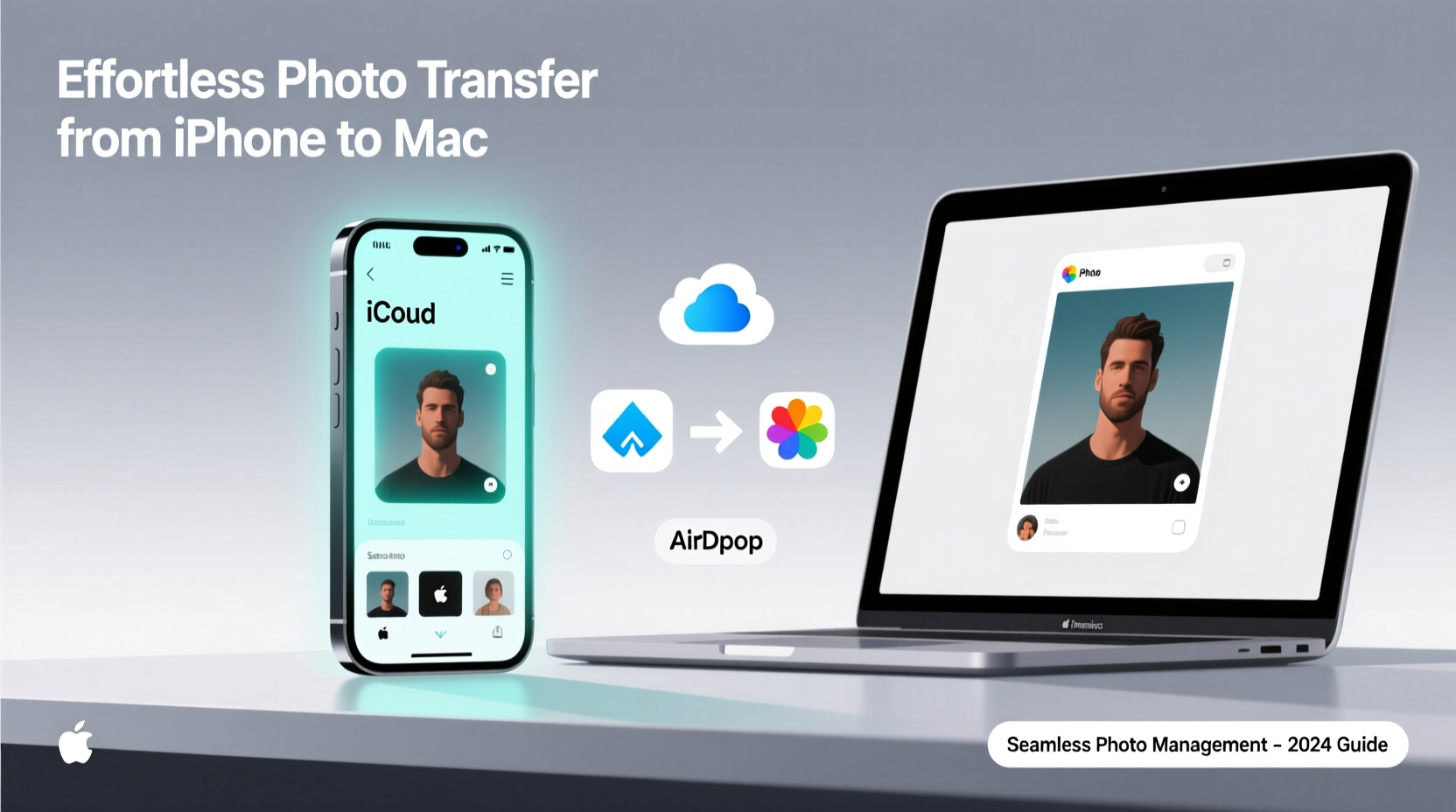
iCloud Photos is Apple’s most seamless solution for keeping your photos synchronized across all devices. Once enabled, every photo you take on your iPhone automatically uploads to iCloud and appears on your Mac via the Photos app—no manual transfers needed.
To set it up, go to Settings > [Your Name] > iCloud > Photos on your iPhone and toggle on “iCloud Photos.” On your Mac, open the Photos app and sign in with the same Apple ID. Then, enable iCloud Photos in System Settings > Apple ID > iCloud > Photos.
This method works best if you have sufficient iCloud storage (5GB free; paid plans start at 50GB). It’s ideal for users who want hands-off syncing and access to their entire library from any Apple device.
Transfer Photos via AirDrop
AirDrop offers a fast, wireless way to send selected photos from your iPhone to your Mac without relying on cloud storage. Both devices must have Wi-Fi and Bluetooth enabled and be within close proximity.
To use AirDrop:
- Open Control Center on your iPhone and long-press the network settings box to reveal AirDrop.
- Select “Everyone” or “Contacts Only.”
- On your Mac, open Finder and click AirDrop in the sidebar.
- Choose your desired visibility setting (“Allow me to be discovered by”).
- On your iPhone, open the Photos app, select the images you want to transfer, tap Share, then tap your Mac’s name under AirDrop.
The transfer begins instantly, and the photos appear in your Downloads folder or directly in the Photos app, depending on your default settings.
“AirDrop is one of the most underrated tools in the Apple ecosystem—fast, secure, and perfect for quick transfers without touching a cable.” — Jordan Lee, Apple Ecosystem Consultant
Import Directly Using a USB Cable
For full control and large-volume transfers, connecting your iPhone to your Mac with a Lightning or USB-C cable remains one of the most reliable methods. This approach bypasses the internet entirely and ensures high-speed transfers, especially useful when moving years’ worth of photos.
Connect your iPhone to your Mac, unlock your phone, and trust the computer if prompted. Open the Photos app on your Mac. A window will appear showing all unimported photos from your device. You can choose to import new items only or all photos.
Alternatively, use the Image Capture app (found in Applications > Utilities) for more granular control. Image Capture allows you to select specific photos, choose a destination folder, and even set a default action when your iPhone is connected.
| Method | Best For | Speed | Internet Required? |
|---|---|---|---|
| iCloud Photos | Daily automatic sync | Medium (depends on upload speed) | Yes |
| AirDrop | Quick sharing of selected photos | Fast (within minutes) | No (uses local Wi-Fi/Bluetooth) |
| USB Cable + Photos App | Large batches, full backups | Very Fast | No |
| Email or Messaging Apps | Sharing single images | Slow (size-limited) | Yes |
Create a Custom Workflow: Combine Methods for Maximum Efficiency
No single method fits every need. A smart photo management strategy often combines two or more techniques. For example:
- Use iCloud Photos for daily syncing of recent shots.
- Monthly, connect your iPhone via USB to perform a complete import and verify nothing was missed.
- Use AirDrop for immediate transfers when editing photos in Lightroom or Preview.
This hybrid approach leverages automation where possible and adds manual checks for security, ensuring no photo is left behind.
Mini Case Study: Streamlining a Photographer’s Workflow
Mark, a freelance event photographer, used to lose photos due to inconsistent backups. He shot hundreds per event but relied solely on his iPhone’s camera roll. After missing a wedding highlight because his phone crashed, he redesigned his workflow.
Now, he enables iCloud Photos for real-time backup during events. Immediately after, he connects his iPhone to his MacBook Pro via cable and imports all photos into Photos.app, tagging them by client and date. He also uses AirDrop to quickly share preview images with clients on-site.
The result? Zero lost photos over the past year, faster delivery times, and peace of mind knowing his work is securely stored both locally and in the cloud.
Essential Checklist for Seamless Photo Transfers
Follow this checklist monthly to maintain a clean, organized photo library:
- ✅ Ensure iCloud Photos is enabled on all devices.
- ✅ Verify your iCloud storage has enough space (upgrade if needed).
- ✅ Connect your iPhone to your Mac and import any remaining photos.
- ✅ Review and delete duplicates or blurry shots after transfer.
- ✅ Organize imported photos into albums or folders by date or event.
- ✅ Back up your Mac’s Photos library to an external drive quarterly.
Frequently Asked Questions
Will transferring photos from iPhone to Mac delete them from my phone?
No—transferring via AirDrop, USB, or iCloud does not delete photos from your iPhone unless you manually remove them. When using iCloud Photos, deletion on one device removes the photo from all synced devices.
Why aren’t my photos appearing on my Mac after enabling iCloud Photos?
Ensure both devices are connected to Wi-Fi, signed in with the same Apple ID, and have iCloud Photos turned on. Also, check that “Sync this Mac” is enabled in Photos preferences on your Mac. Large libraries may take several hours to sync.
Can I transfer photos without using iCloud or the internet?
Yes. Use a USB cable with the Photos app or Image Capture. These methods work entirely offline and are ideal for users concerned about data usage or privacy.
Take Control of Your Digital Memories
Your photos are more than just files—they’re personal history, creative expression, and emotional anchors. Letting them stay trapped in your iPhone’s limited storage risks loss, disorganization, and frustration. By adopting even one of these effortless transfer methods, you reclaim control over your digital life.
Start today: pick the method that aligns with your habits, set up automatic syncing if possible, and schedule regular imports. Small actions now prevent big headaches later. A well-managed photo library isn’t just convenient—it’s a legacy in the making.




 浙公网安备
33010002000092号
浙公网安备
33010002000092号 浙B2-20120091-4
Comments
No comments yet. Why don't you start the discussion?