
Moving to a new phone should be exciting—not stressful. Yet, for millions of users each year, the process of transferring contacts, photos, messages, and app settings becomes a bottleneck. Lost files, forgotten passwords, and broken app syncs are common pain points. The good news? With the right preparation and tools, phone switching can be truly effortless. Whether you're upgrading from Android to iPhone, moving between Samsung devices, or jumping platforms entirely, this guide walks you through every phase of a seamless transition.
Why Most Phone Transfers Fail
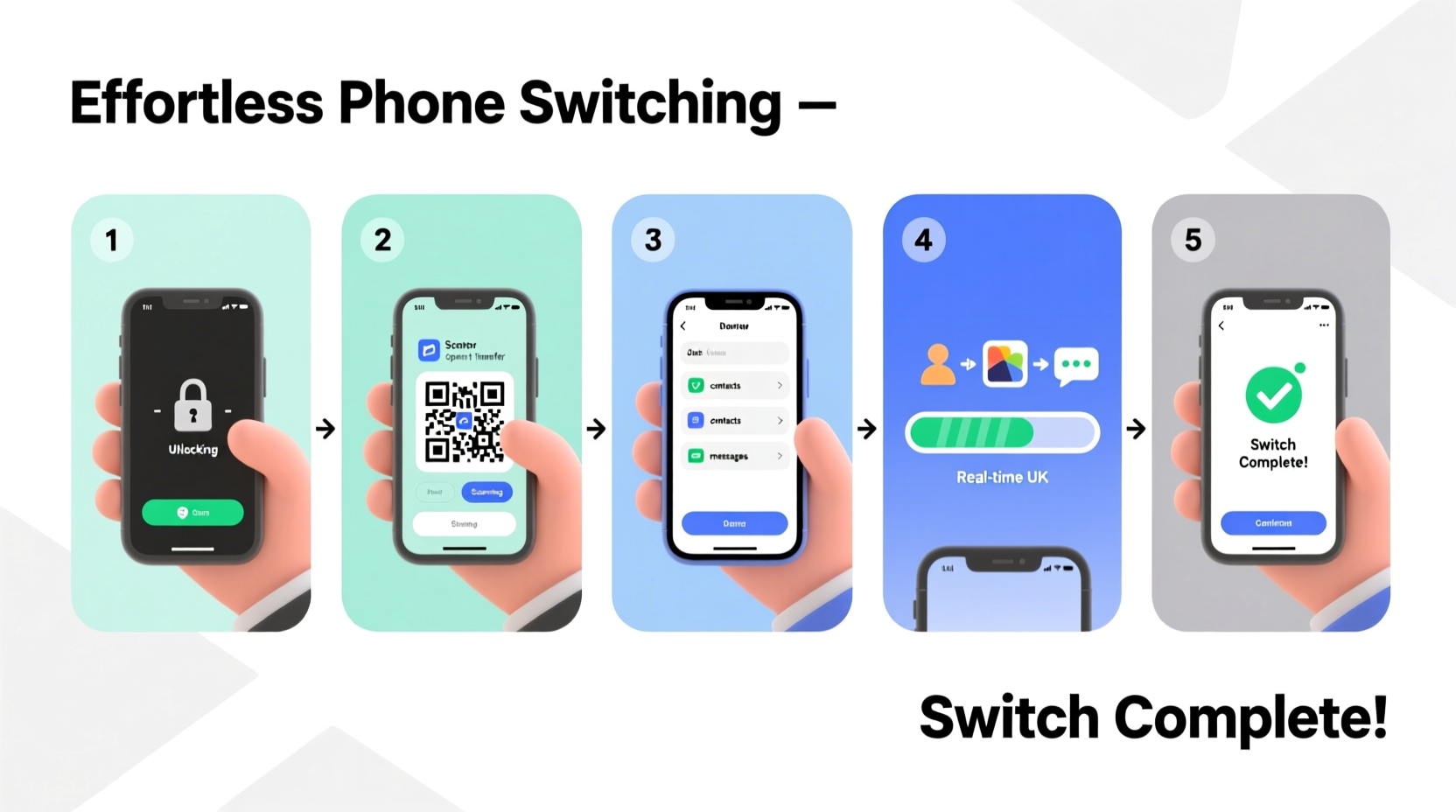
The root cause of failed data transfers isn’t faulty technology—it’s poor planning. Many users assume their new device will “figure it out,” only to realize too late that some data types aren’t automatically synced. Photos stored locally, SMS threads, app-specific data, and even Wi-Fi passwords often fall through the cracks if not handled proactively.
Modern operating systems have improved dramatically. Apple’s Quick Start and Google’s Switch apps make transitions smoother than ever. But these tools work best when used correctly—and in the right order.
Step-by-Step Guide to Seamless Data Migration
A successful phone switch hinges on following a structured sequence. Skipping steps—even minor ones—can result in incomplete transfers. This timeline covers both same-platform and cross-platform scenarios.
- Back up everything on your current phone – Use iCloud (iPhone) or Google Drive (Android). For Android, also enable “Backup to Google One.”
- Ensure full charge or connect to power – Both devices should be charged above 50% or plugged in during transfer.
- Sign into core accounts – Confirm your Apple ID or Google account is active and accessible on the new device.
- Use native transfer tools – iPhone-to-iPhone? Use Quick Start via Bluetooth. Android-to-Android? Use Google’s “Send data from old phone” feature.
- For cross-platform moves, use official bridge tools – Apple’s Move to iOS app (for Android → iPhone) or Samsung Smart Switch (for iPhone → Galaxy).
- Verify transferred data – Check photos, messages, call logs, and app logins manually.
- Update and re-authenticate apps – Banking, email, and two-factor authentication apps may require fresh logins.
This entire process typically takes 30–90 minutes, depending on data volume and connection speed.
Platform Comparison: Tools and Limitations
Not all transfer methods are equal. Below is a comparison of built-in migration tools across major platforms.
| Transfer Type | Tool Used | Data Included | Limits / Notes |
|---|---|---|---|
| iPhone → iPhone | Quick Start + iCloud Backup | Settings, apps, messages, photos, health data | Requires proximity and Wi-Fi |
| Android → Android | Google Account Sync | Contacts, calendar, app data, wallpapers | Media must be backed to Google Photos separately |
| Android → iPhone | Move to iOS (Apple) | Contacts, messages, photos, videos, calendars | App data not transferred; works only during initial setup |
| iPhone → Android | Samsung Smart Switch / Google Pixel Transfer | Photos, videos, messages, contacts | Messages may appear as MMS; iMessage deactivation required |
Checklist: Prepare Your Old Phone for Transfer
- ✅ Charge both phones fully
- ✅ Connect old phone to Wi-Fi
- ✅ Update OS on both devices
- ✅ Sign out of payment apps (Apple Pay, Google Wallet)
- ✅ Disable Find My iPhone or Find My Device temporarily
- ✅ Export notes or reminders not synced to cloud
- ✅ Note down app passwords or use a password manager
- ✅ Remove SIM card if needed for new device
Real Example: A Cross-Platform Switch Done Right
Sarah had used an iPhone 12 for three years but switched to a Google Pixel 8 for better camera performance and AI features. She followed a strict protocol:
One week before switching, she enabled Google Photos backup and confirmed all 12,000 photos were uploaded. She used Chrome to sync bookmarks and passwords. During setup, she launched the “Move to Android” app on her iPhone and connected it to the Pixel via a direct Wi-Fi hotspot. Over 90 minutes, her contacts, message history, and photo library transferred. After setup, she manually reinstalled key apps like WhatsApp and signed in using two-factor authentication. By day’s end, her new phone felt familiar—with no data loss.
“Most people don’t fail because the tools are bad—they fail because they start the transfer unprepared. A 20-minute prep saves hours of recovery.” — David Lin, Mobile Systems Engineer at TechSync Labs
Avoid These Common Transfer Mistakes
- Assuming everything syncs automatically – App data, local files, and saved games often require manual export.
- Starting transfer over cellular data – Large transfers consume significant bandwidth. Always use Wi-Fi.
- Skipping verification – Not checking if messages or photos arrived leads to irreversible losses.
- Forgetting two-factor apps – Authenticator apps like Google Authenticator do not transfer automatically. Use export features or backup codes.
- Deactivating old device too soon – Keep your old phone powered on for at least 48 hours post-transfer as a fallback.
Frequently Asked Questions
Can I transfer WhatsApp chats between Android and iPhone?
Yes, but only with specific tools. Use WhatsApp’s built-in “Move to iOS” (for Android → iPhone) or “Chat Transfer” (iOS → Android via Move to iOS app). The process requires both phones to stay connected throughout and may take over an hour for large chat histories.
What happens to my app subscriptions after switching?
Subscriptions tied to your Apple ID or Google account remain active, but you’ll need to sign in to each app individually on the new device. Auto-renewal continues as long as the payment method is valid. However, subscriptions purchased directly through a developer’s website may require manual reactivation.
Is cloud backup enough, or should I use a cable?
Cloud backups are reliable for most users, but they exclude certain data like locally stored voice memos or offline maps. For maximum reliability, combine cloud backup with a direct transfer using a tool like Samsung Smart Switch or a USB-C to Lightning cable. Wired transfers are faster and more secure for sensitive data.
Final Steps: Optimize Your New Phone
After data arrives, your job isn’t done. Take time to personalize and secure your new device:
- Set up biometric locks (Face ID, fingerprint)
- Enable encryption and remote wipe
- Install a trusted antivirus or mobile security suite
- Organize home screen and folders
- Review privacy settings—especially location access and ad tracking
Give yourself a few days to adjust. Some gestures, app layouts, and notification behaviors differ between platforms. Patience pays off.
Conclusion: Make Your Next Switch Effortless
Switching phones doesn’t have to mean starting over. With the right strategy, your digital life can move with you—intact, secure, and ready to go. The key is preparation: back up early, use the correct tools, verify thoroughly, and keep your old device as a safety net. Technology should simplify your life, not complicate it. By following this guide, you’re not just changing devices—you’re upgrading your experience.




 浙公网安备
33010002000092号
浙公网安备
33010002000092号 浙B2-20120091-4
Comments
No comments yet. Why don't you start the discussion?