
Streaming content from your phone to your TV has become a daily ritual for millions—whether you're sharing vacation photos, watching the latest episode of a show, or presenting a work update. Yet, despite the promise of seamless connectivity, many users still struggle with compatibility issues, lag, or unclear setup processes. The good news: with the right tools and understanding, turning your phone into a remote control for your living room is not only possible—it’s effortless.
This guide breaks down everything you need to know about casting and screen mirroring, from built-in features to third-party solutions, helping you choose the best method for your devices and avoid common pitfalls.
Understanding the Difference: Casting vs. Mirroring
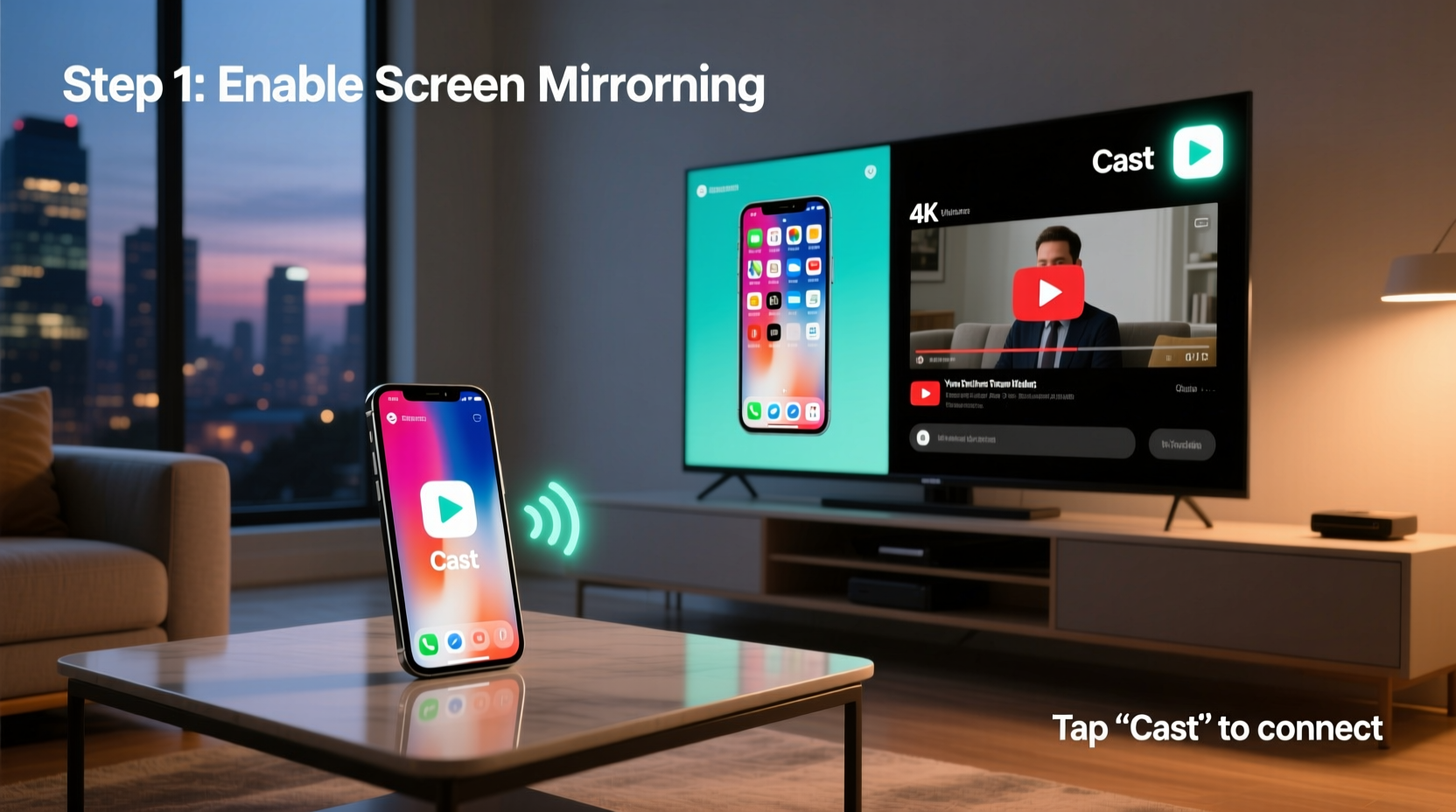
Before diving into setup steps, it's essential to distinguish between two commonly confused terms: casting and screen mirroring.
- Casting sends specific content (like a YouTube video or Spotify playlist) from your phone to your TV via an intermediary device such as a Chromecast or smart TV app. Your phone acts as a remote; the content streams directly from the internet to the TV.
- Mirroring duplicates your entire phone screen onto the TV in real time. Everything you do on your phone appears on the big screen, which is ideal for presentations, gaming, or showing apps that don’t support casting.
The distinction matters because casting typically offers smoother performance and uses less battery, while mirroring provides full flexibility at the cost of higher data usage and potential lag.
“Casting is like handing off a song to a speaker system. Mirroring is like holding up a mirror to your phone’s screen—everything reflects instantly.” — David Lin, Home Entertainment Technologist
Step-by-Step Guide to Screen Mirroring and Casting by Platform
Different operating systems use different technologies. Here’s how to stream seamlessly depending on your phone and TV setup.
Android to TV: Using Google Cast and Miracast
Most Android phones support Google Cast natively through the Google Home app or within compatible apps (YouTube, Netflix, etc.). For full-screen mirroring, Miracast is often used.
- Ensure both your Android phone and TV (or streaming stick) are connected to the same Wi-Fi network.
- Open the Google Home app and tap your device (e.g., Chromecast, Android TV).
- Select “Cast my screen” to begin mirroring.
- To cast specific content, open a supported app, tap the Cast icon (rectangle with waves), and choose your TV.
iOS to TV: AirPlay for Seamless Streaming
Apple’s AirPlay is one of the most reliable methods for iPhone users—but only if your TV supports it. Newer smart TVs from Samsung, LG, and Sony include AirPlay 2.
- Swipe down from the top-right corner (iPhone X or later) to open Control Center.
- Tap “Screen Mirroring” or “AirPlay”.
- Select your TV from the list.
- Enter the passcode displayed on the TV if prompted.
If your TV doesn’t support AirPlay, use an Apple TV box or third-party apps like LetsView or Reflector to enable compatibility.
Windows Phone or Legacy Devices: Third-Party Solutions
While Windows Mobile is no longer supported, older or niche devices can still connect using universal tools like ApowerMirror, Mirroring360, or AnyDesk. These apps bridge compatibility gaps but may introduce latency or watermarks on free versions.
Device Compatibility Checklist
Not all phones and TVs play nicely together. Use this checklist before attempting to stream:
- ✅ Both devices are on the same Wi-Fi network
- ✅ TV has built-in casting (Chromecast, AirPlay 2, Miracast)
- ✅ Phone OS is updated (Android 8+, iOS 12+)
- ✅ Sufficient bandwidth (minimum 10 Mbps for HD streaming)
- ✅ No firewall or guest network restrictions blocking local connections
Comparing Popular Streaming Methods
| Method | Best For | Latency | Audio Support | Cost |
|---|---|---|---|---|
| Google Cast | Streaming videos/music from apps | Low | Yes | Free (built-in) |
| AirPlay | iOS users with Apple-compatible TVs | Very Low | Yes | Free (requires compatible hardware) |
| Miracast | Full Android screen mirroring | Moderate | Limited (device-dependent) | Free |
| Third-Party Apps (e.g., LetsView) | Cross-platform or legacy devices | High | Varies | Freemium (premium removes ads) |
| HDMI Cable (via adapter) | Zero-latency wired connection | Negligible | Yes (with proper cable) | $15–$40 |
Real-World Example: Hosting a Movie Night Without Hassle
Sophia wanted to host a small movie night but didn’t want guests huddled around her phone. She owns an Android phone and a Samsung QLED TV. Instead of downloading files or using USB drives, she opened Disney+ on her phone, tapped the Cast icon, selected her TV, and started playback. Within seconds, the film was playing on the big screen. Her phone remained free to browse messages or pause the movie remotely—all without ever touching the TV remote.
This scenario highlights the power of modern casting: simplicity, speed, and scalability. No cables, no file transfers, no confusion.
Troubleshooting Common Streaming Issues
Even with the right setup, problems can arise. Here’s how to fix them quickly.
- Connection drops during playback: Move closer to the router or switch to 5 GHz Wi-Fi for better stability.
- No sound on TV: Check audio output settings on your phone and ensure the TV isn’t muted.
- Screen mirroring is laggy: Close background apps on your phone and disable battery saver mode, which throttles performance.
- TV not appearing in device list: Enable \"Wireless Display\" or \"Screen Mirroring\" in your TV’s input menu.
Frequently Asked Questions
Can I stream from my phone to a non-smart TV?
Yes. Use a streaming dongle like Google Chromecast, Amazon Fire Stick, or Roku. Plug it into the HDMI port, connect to Wi-Fi, and follow the app setup process on your phone.
Does screen mirroring use mobile data?
No, when done over Wi-Fi, mirroring uses your local network. However, if Wi-Fi is off and your phone shares its hotspot, it will consume data. Always ensure both devices are on the same Wi-Fi network to avoid charges.
Is it safe to mirror my phone screen?
Generally yes, as long as you’re on a private, password-protected network. Avoid public Wi-Fi mirroring, as some protocols lack encryption and could expose sensitive information.
Optimizing Performance for a Smoother Experience
For uninterrupted streaming, optimize both hardware and software:
- Use a dual-band router and connect both devices to the 5 GHz band for faster speeds and less interference.
- Close unused apps on your phone to free up RAM and reduce lag.
- Update your TV’s firmware—manufacturers often release improvements for casting responsiveness.
- Position your router centrally to minimize dead zones.
“Over 70% of casting failures stem from network configuration, not device compatibility.” — Tech Insights Report, 2023, Consumer Electronics Association
Conclusion: Make Streaming Effortless Starting Today
Phone-to-TV streaming shouldn’t feel like solving a tech puzzle. With native tools like Google Cast and AirPlay, combined with a solid Wi-Fi network, you can enjoy seamless content sharing in seconds. Whether you're casting a playlist, mirroring a presentation, or binge-watching a series, the technology exists to make it smooth and intuitive.
The key is knowing your devices, preparing your network, and choosing the right method for your needs. Now that you have the full picture—from setup to troubleshooting—you’re ready to take full advantage of your screen, your way.




 浙公网安备
33010002000092号
浙公网安备
33010002000092号 浙B2-20120091-4
Comments
No comments yet. Why don't you start the discussion?