
In today’s mobile-first world, needing to print something doesn’t mean you have to be near a computer or tethered to a printer. Whether you're traveling, working remotely, or simply away from your home office, printing directly from your smartphone is not only possible—it's seamless. With the right tools and knowledge, you can send documents, photos, boarding passes, and receipts to a printer with just a few taps. This guide breaks down everything you need to know about wireless mobile printing, from setup to troubleshooting, ensuring you can print confidently from any location.
How Mobile Printing Works: The Basics
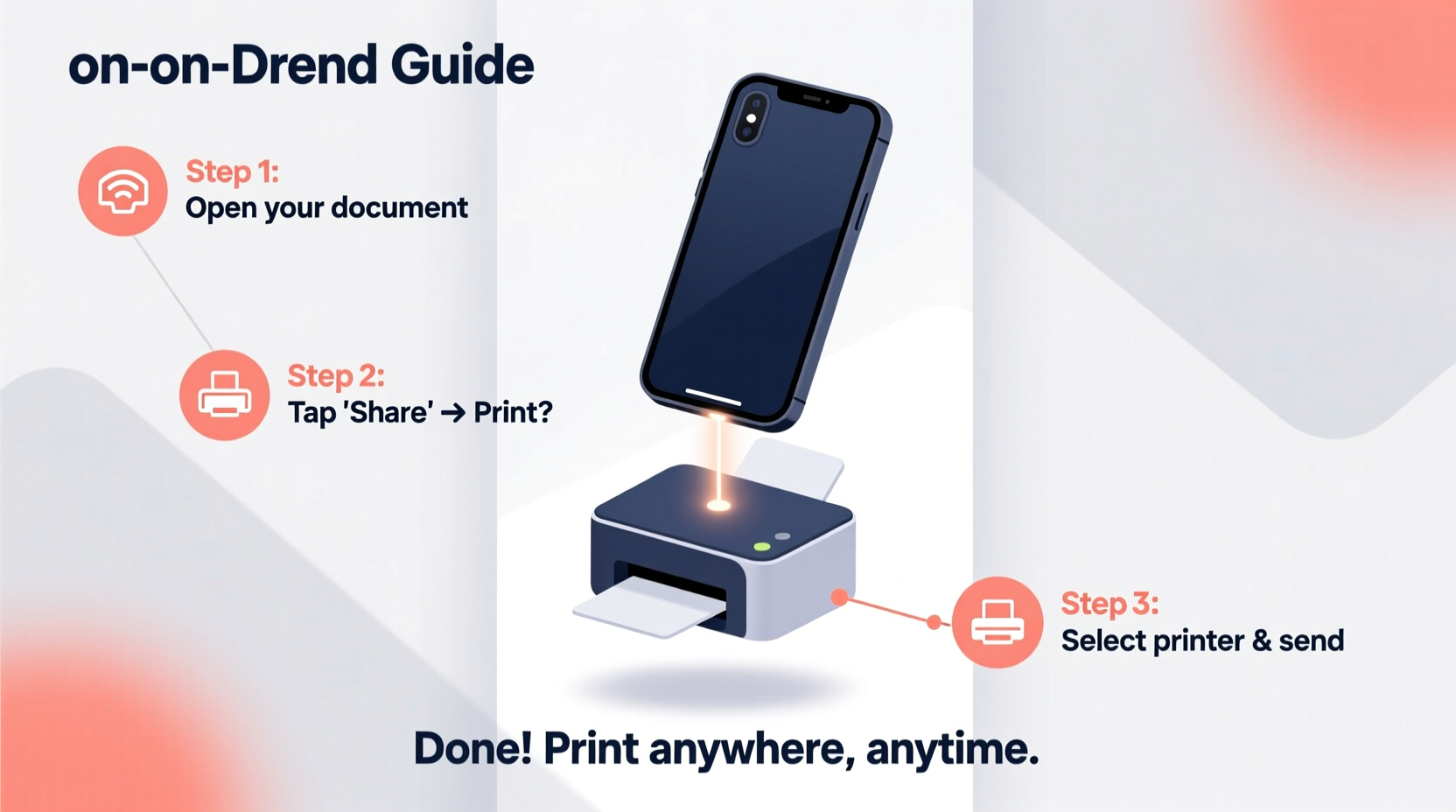
Mobile printing relies on connectivity between your smartphone and a compatible printer. Most modern smartphones support several printing methods, including Wi-Fi Direct, cloud printing, Bluetooth, and manufacturer-specific apps. The key is ensuring both devices are on the same network—or connected through a secure cloud service.
When you select “Print” from an app (like Gmail, Photos, or Google Docs), your phone communicates with the printer via one of these protocols. The document is converted into a printable format and transmitted securely. No cables, no computers—just instant output.
Step-by-Step Guide to Print from Your Phone
Follow this universal process to print from any iOS or Android device:
- Verify printer compatibility: Ensure your printer supports mobile printing. Look for logos like AirPrint (Apple), Mopria (Android), or Google Cloud Print (discontinued but replaced by native solutions).
- Connect both devices to Wi-Fi: Your phone and printer must be on the same network for direct printing.
- Open the file you want to print: This could be a PDF, photo, email attachment, or webpage.
- Select the share or print option: Tap the share icon or menu and choose “Print.” On iPhone, this appears as an action in the share sheet; on Android, it may be under “More” or “Print.”
- Choose your printer: A list of available printers will appear. Select the correct one.
- Adjust settings: Set number of copies, color vs. grayscale, paper size, and orientation.
- Tap “Print”: The job will be sent instantly.
If your printer isn’t showing up, double-check its power status, network connection, and firmware updates. Restarting both devices often resolves connectivity hiccups.
Top Mobile Printing Technologies Compared
Different platforms offer distinct printing experiences. Understanding their strengths helps you choose the right method for your needs.
| Technology | Platform | Setup Complexity | Remote Printing? | Best For |
|---|---|---|---|---|
| AirPrint | iOS/macOS | Low | No (local only) | Apple users printing at home or office |
| Google Workspace / Android Print Service | Android | Low | Limited | General document printing |
| Mopria Print Service | Android | Medium | No | Cross-brand printing without apps |
| HP Smart App | iOS/Android | Medium | Yes | HP printer owners needing remote access |
| Epson iPrint | iOS/Android | Medium | Yes | Photo printing and scanning on the go |
| Canon PRINT Inkjet/SELPHY | iOS/Android | Low-Medium | Yes | Mobile photographers and students |
For universal compatibility, consider installing the manufacturer’s official app. These often unlock advanced features like scanning, ink level monitoring, and remote printing from outside your home network.
Printing Remotely: Beyond Your Home Network
Sometimes you need to print while miles away. Remote printing uses cloud-based services to bridge the gap between your phone and a distant printer.
Many modern printers come with built-in cloud capabilities. For example, if you own an HP ePrint-enabled device, you can email a document directly to your printer’s unique email address. Alternatively, use the HP Smart app to send jobs over the internet—even when you’re abroad.
“Cloud-connected printers have transformed how professionals handle last-minute print requests. I’ve printed contracts from airport lounges that closed deals before landing.” — Daniel Reyes, Field Sales Manager
To set up remote printing:
- Create an account with your printer brand’s ecosystem (e.g., HP+, Epson Connect).
- Register your printer online and link it to your account.
- Install the companion app on your phone.
- Send print jobs via app, email, or web portal.
Mini Case Study: Printing On-Demand During Travel
Sophie, a freelance consultant, was en route to a client meeting in Chicago when she realized her presentation handouts hadn’t been printed. She didn’t have her laptop, but she had her phone and the PDF saved in Google Drive. Using the hotel’s Wi-Fi and the hotel business center’s AirPrint-compatible printer, she opened the file, tapped share → print, selected the available device, and had physical copies within two minutes. No delays, no stress—just efficient problem-solving made possible by mobile printing.
Common Issues and How to Fix Them
Even with seamless technology, problems arise. Here’s how to troubleshoot the most frequent mobile printing challenges:
- Printer not found: Confirm both devices are on the same Wi-Fi. Restart router and printer. Reinstall printer firmware if needed.
- Print quality poor: Check ink levels. Clean print heads via printer settings. Avoid compressing image files before printing.
- Jobs stuck in queue: Cancel pending tasks via printer interface or app. Restart printing service on your phone.
- Formatting errors: Preview before printing. Convert files to PDF to preserve layout.
Checklist: Before You Hit Print
- ✅ Confirm printer is powered on and online
- ✅ Ensure sufficient paper and ink
- ✅ Connect phone to same Wi-Fi network (for local printing)
- ✅ Verify file compatibility (PDF, JPG, DOCX recommended)
- ✅ Preview document to check margins and orientation
- ✅ Secure sensitive data when printing remotely
Frequently Asked Questions
Can I print from my phone without Wi-Fi?
Yes, but options are limited. Some printers support Bluetooth or USB OTG (On-The-Go) connections. Alternatively, transfer the file to a cloud drive when back online, then print remotely if your printer supports it.
Is mobile printing secure?
Generally yes—especially when using encrypted networks and manufacturer-authenticated apps. However, avoid printing sensitive information (like tax returns or IDs) on public networks or shared printers without additional safeguards.
Do all printers work with smartphones?
No. Older models may lack wireless capabilities. Look for AirPrint (Apple), Mopria (Android), or brand-specific mobile support. If your printer is outdated, consider using a print server or upgrading hardware.
Conclusion: Take Control of Your Printing Anywhere
Mobile printing has evolved from a novelty to a necessity. Whether you're a student submitting assignments, a professional closing deals on the road, or a parent printing birthday invitations at midnight, the ability to print effortlessly from your phone saves time and reduces friction. By understanding the technologies available, setting up your devices correctly, and knowing how to troubleshoot issues, you gain freedom and flexibility in how—and where—you manage printed materials.




 浙公网安备
33010002000092号
浙公网安备
33010002000092号 浙B2-20120091-4
Comments
No comments yet. Why don't you start the discussion?