
Changing your Windows 10 username might seem risky—especially if you're worried about losing files, app preferences, or system configurations. But with the right approach, it’s entirely possible to update your account name safely and efficiently. Whether you want a more professional login, are troubleshooting profile conflicts, or simply prefer a new identity on your PC, this guide walks you through secure, tested methods that preserve your data and settings.
The key is understanding the difference between your display name, your Microsoft account name, and your local profile folder name. Many users assume changing one affects all three, but that’s not always true. With careful execution, you can modify what appears at login and in File Explorer without disrupting years of personalized setup.
Understanding Usernames in Windows 10
Before making changes, clarify what type of \"username\" you want to change. Windows 10 uses several identifiers:
- Account Name (Display Name): The friendly name shown on the login screen and in Settings.
- Microsoft Account Email/Username: If signed in with a Microsoft account, this is tied to your email address.
- Local User Account Username: The actual folder name under
C:\\Users\\, used by the system for file paths and permissions. - Profile Path: The directory where personal data like Documents, Desktop, and AppData are stored.
Modifying the display name is simple and safe. Changing the underlying profile folder (C:\\Users\\OldName) is riskier and often unnecessary. This guide focuses on altering visible usernames while preserving the profile path to avoid breaking apps or losing access to settings.
Step-by-Step Guide: Change Your Username Safely
Follow these clear, low-risk steps to update your username without affecting your system configuration or personal files.
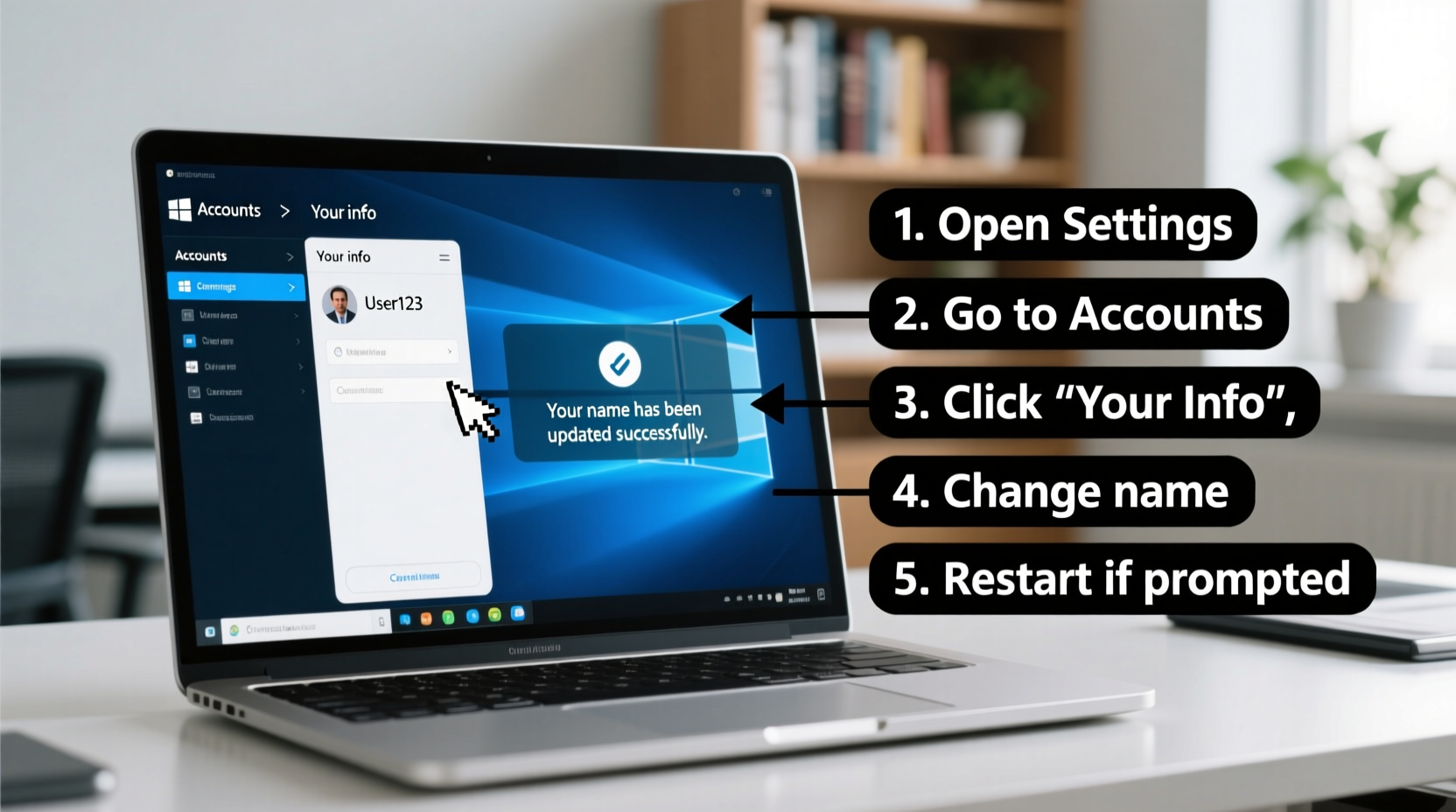
- Open Settings – Press Win + I to launch the Settings app.
- Navigate to Accounts – Click “Accounts,” then select “Your info” from the left panel.
- Edit Display Name – Under “Your name,” click “Manage my Microsoft account” if linked online, or “Change name” if using a local account.
- Enter New Name – Type your preferred username and confirm.
- Restart Your Computer – Log back in to see the updated name on the sign-in screen and desktop.
This method only changes how your name appears—it doesn’t alter your profile folder or registry entries. It's ideal for cosmetic updates and requires no technical expertise.
For Local Accounts: Using Control Panel
If you’re not using a Microsoft account, use the classic Control Panel method:
- Press Win + R, type
control, and press Enter. - Go to User Accounts > User Accounts again.
- Select “Change your account name.”
- Enter the new name and click “Change Name.”
- Log off and back in to apply changes.
This modifies the local account label without touching the C:\\Users\\ directory structure.
What Not to Do: Avoiding Common Pitfalls
Some guides suggest renaming the C:\\Users\\ folder directly via File Explorer or command line. While technically possible, this often breaks application shortcuts, system references, and permission links. Here’s why you should avoid it:
| Risk | Description |
|---|---|
| App Malfunction | Programs like Steam, Adobe Creative Cloud, or Visual Studio store user paths during installation. Renaming the folder breaks these paths. |
| Registry Conflicts | Windows stores user-specific registry keys tied to the original profile name. Mismatched entries cause errors. |
| Data Loss Risk | Incorrect permissions after rename may prevent access to documents, downloads, or desktop items. |
| System Instability | Windows Update or driver installations may fail due to corrupted profile references. |
“Altering the profile folder manually is like rewiring a house without turning off the power—it might work, but one misstep causes cascading failures.” — Daniel Reeves, IT Infrastructure Specialist
Expert Alternative: Create a New Profile (When Necessary)
If you absolutely must change the C:\\Users\\ folder name—for example, after a typo during initial setup—the safest route is creating a new user account and migrating data.
- Create a new administrator account via Settings > Accounts > Family & other users.
- Log into the new account and verify functionality.
- Copy files from old
C:\\Users\\OldName\\Documents,Pictures, etc., to matching folders in the new profile. - Reinstall critical applications under the new account to ensure correct registry entries.
- Transfer browser bookmarks, email profiles, and app settings manually.
- Once confirmed working, delete the old account (Settings > Accounts > Other users > Remove).
This method ensures clean profile creation while letting you retain all personal content. It takes more time but eliminates compatibility risks.
robocopy \"C:\\Users\\OldName\\Documents\" \"C:\\Users\\NewName\\Documents\" /E /COPYALL /XJ
Mini Case Study: Fixing a Misspelled Username
Sarah, a freelance graphic designer, set up her laptop months ago with a typo in her username: “Sarrah_Designs” instead of “Sarah_Designs.” She avoided fixing it, fearing she’d lose Photoshop presets and client project files. After reading official documentation and testing in a virtual machine, she opted to keep the profile folder unchanged and only updated her display name through Settings.
She created a symbolic link to make new shortcuts appear correctly:
mklink /D C:\\Users\\Sarah_Designs C:\\Users\\Sarrah_Designs
This allowed newer software expecting the corrected path to function smoothly while maintaining full access to her existing environment. Her workflow remained uninterrupted, and within 20 minutes, her system reflected the correct identity across interfaces.
Frequently Asked Questions
Will changing my username affect my files?
No—if you only change the display name or account label, your files, settings, and installed programs remain untouched. The physical location (C:\\Users\\...) stays the same.
Can I change my Microsoft account username?
You can't change the email address used as your Microsoft ID directly, but you can add an alias (a different email) and sign in with that. Go to account.microsoft.com > Your Info > Manage How You Sign In.
Why does my old username still show up in some programs?
Some applications cache user information or reference the original profile path. Restart the app or clear its cache. If deeply embedded, consider reinstalling under the new context.
Conclusion: Take Control of Your Digital Identity
Updating your Windows 10 username doesn’t have to be intimidating. By focusing on the display name rather than the underlying system folder, you maintain stability while refreshing your digital presence. Most users never need to touch their C:\\Users\\ directory—simple Settings adjustments suffice.
Whether you're aligning your PC with your professional brand or correcting an early setup mistake, these effortless steps ensure your transition is smooth and secure. Your files, preferences, and productivity stay intact, so there's no reason to delay.




 浙公网安备
33010002000092号
浙公网安备
33010002000092号 浙B2-20120091-4
Comments
No comments yet. Why don't you start the discussion?