
Bluetooth-enabled smart glasses are transforming how we interact with audio on the go. Whether you're taking calls, listening to music, or using voice assistants, these sleek wearable devices offer hands-free convenience without sacrificing style. But for all their innovation, many users hesitate at the first hurdle: pairing them with a smartphone. The good news? Connecting Bluetooth glasses doesn’t require technical expertise—it just takes the right approach.
This guide walks through the seamless process of pairing your smart glasses with any modern smartphone, whether it runs Android or iOS. From initial setup to troubleshooting common issues, you’ll gain confidence in using this next-generation tech as effortlessly as your wireless earbuds.
Understanding Bluetooth Glasses Compatibility
Before diving into the pairing process, it’s important to understand compatibility. Most Bluetooth glasses use standard Bluetooth 5.0 or higher, which ensures broad support across smartphones released in the last five years. However, not all features may be available depending on your phone's operating system.
For example, some smart glasses come with companion apps that offer advanced controls like equalizer settings, firmware updates, or gesture customization. These apps are often only available on one platform (iOS or Android), but basic audio and call functionality will still work on both.
| Feature | iOS Support | Android Support |
|---|---|---|
| Audio Streaming | Yes | Yes |
| Call Handling | Yes | Yes |
| Voice Assistant Access | Siri via double-tap | Google Assistant configurable |
| Companion App Features | Limited to specific brands | Broad support (e.g., Bose, Ray-Ban) |
| Firmware Updates | Through app only | App or manual update |
Step-by-Step Guide to Pairing Your Bluetooth Glasses
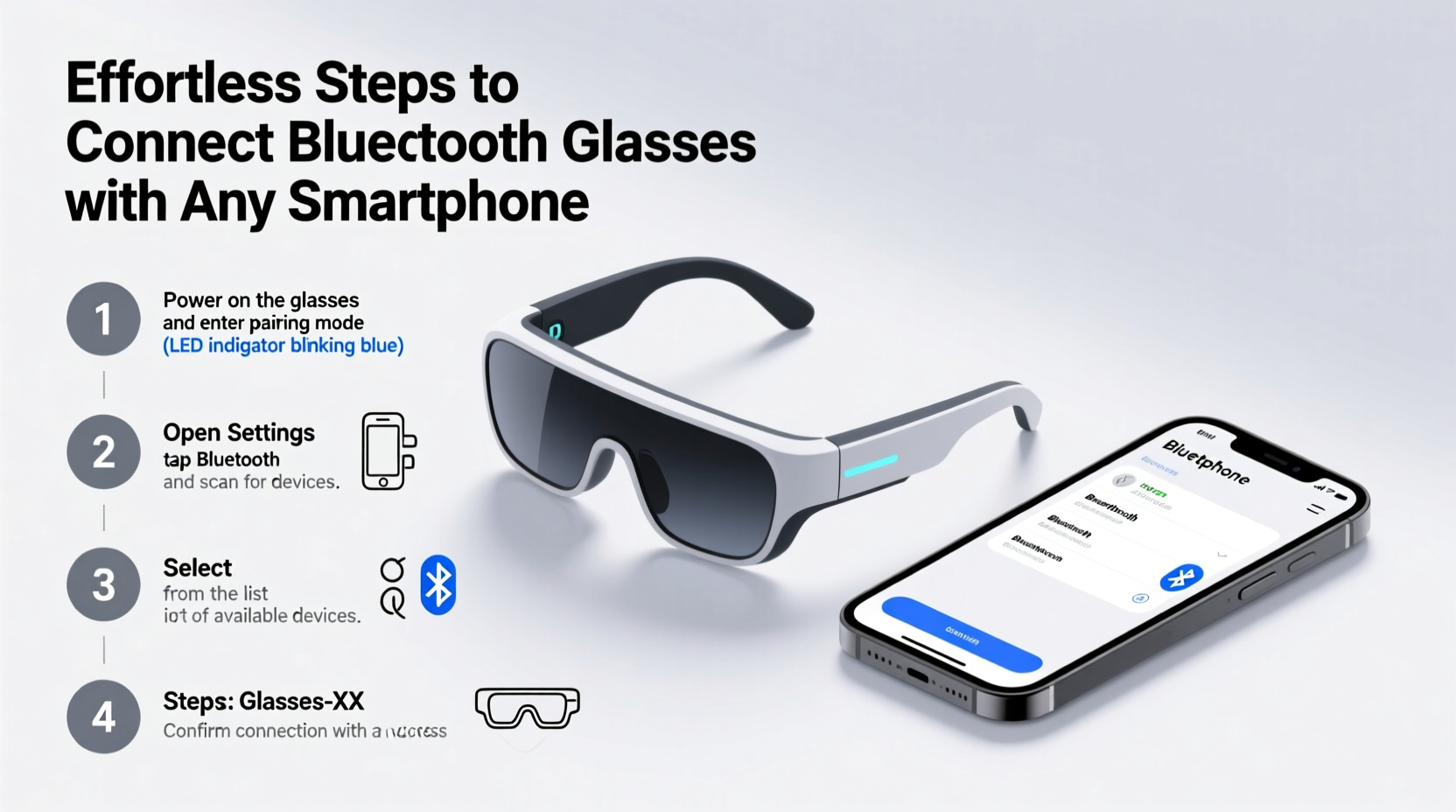
Follow this universal sequence to pair your smart glasses with any smartphone. While minor variations exist between brands like Bose Frames, Ray-Ban Meta, or Amazon Echo Frames, the core process remains consistent.
- Charge your glasses fully. Low battery can interrupt pairing. Connect to the charging case or cable until the indicator shows full charge.
- Power on the glasses. Press and hold the power button (usually on the temple) for 3–5 seconds until an LED flashes blue or you hear a startup chime.
- Enter pairing mode. Continue holding the power button after startup until the LED blinks rapidly in red and blue, or you hear “Ready to pair.” This may take 5–7 seconds.
- Open Bluetooth settings on your phone. Go to Settings > Bluetooth and ensure Bluetooth is turned on.
- Select the device. Look for a name like “Ray-Ban Stories,” “Bose Frames,” or “Echo Frames” in the list of available devices. Tap it.
- Confirm connection. Once paired, you’ll hear a confirmation tone through the glasses, and your phone will display “Connected.”
If the device doesn’t appear, try toggling Bluetooth off and on again, restarting the glasses, or forgetting previous connections from other phones.
What to Do If Pairing Fails
Occasionally, interference, outdated firmware, or cached data can prevent successful pairing. Try these fixes:
- Move away from Wi-Fi routers or crowded Bluetooth areas.
- Restart your smartphone.
- Reset the glasses (refer to the user manual—typically involves holding buttons for 10+ seconds).
- Clear Bluetooth cache on Android: Settings > Apps > Show System Apps > Bluetooth > Storage > Clear Cache.
Optimizing Audio and Controls After Connection
Once connected, fine-tune your experience for maximum comfort and utility. Smart glasses typically deliver spatial audio designed for open-ear listening, so volume levels may feel different than headphones.
Adjust the balance between ambient awareness and sound clarity by lowering the volume slightly and increasing it gradually until speech and music remain clear without blocking surrounding noise—a key safety benefit when walking or cycling.
Most models support touch or button controls on the frame. Common gestures include:
- Double-tap: Play/pause or answer/end calls
- Swipe forward/backward: Skip tracks or adjust volume
- Press and hold: Activate voice assistant
“Users who calibrate their audio settings within the first 10 minutes report higher long-term satisfaction with smart glasses.” — Dr. Lena Torres, Wearable Technology Researcher, MIT Media Lab
Real-World Example: Commuting with Connected Glasses
Sophie, a project manager in Seattle, started using Ray-Ban Meta glasses during her daily commute. Initially skeptical about pairing reliability, she followed the six-step process above using her iPhone 14. Within two minutes, her glasses were connected.
Now, she listens to curated playlists while staying aware of traffic sounds. When a colleague calls, she answers with a tap—no need to pull out her phone. Over time, she customized touch sensitivity through the Facebook View app, reducing accidental triggers when adjusting her frames.
The seamless integration has made her morning walks more productive and enjoyable. “It feels like having a personal assistant built into my sunglasses,” she says.
Essential Tips for Ongoing Use
To get the most from your Bluetooth glasses, follow this quick checklist:
Bluetooth Glasses Setup Checklist
- ✅ Fully charge the glasses before first use
- ✅ Enable Bluetooth on your smartphone
- ✅ Place glasses in pairing mode (LED blinking red/blue)
- ✅ Select the correct device from the Bluetooth menu
- ✅ Test audio playback and call functions
- ✅ Install the companion app if available
- ✅ Customize controls and voice assistant preferences
- ✅ Perform a firmware check
Frequently Asked Questions
Can I connect Bluetooth glasses to multiple phones?
Yes, most smart glasses support pairing with up to eight devices. They’ll automatically reconnect to the last used phone when in range. To switch, either turn off Bluetooth on the current device or manually disconnect in settings.
Why won’t my glasses show up in Bluetooth settings?
This usually means they’re not in pairing mode. Ensure the LED is blinking rapidly in alternating colors. Also, verify that the glasses aren’t already connected to another device. If problems persist, perform a factory reset per the manufacturer’s instructions.
Do Bluetooth glasses drain my phone’s battery quickly?
Not significantly more than standard wireless earbuds. Streaming audio uses comparable power. However, prolonged calls or voice assistant usage may increase drain slightly. Using AAC codec (on iPhone) or aptX (on compatible Android) improves efficiency.
Final Thoughts: Embrace the Future of Wearable Audio
Connecting Bluetooth glasses to your smartphone is no longer a niche tech challenge—it’s a simple, repeatable process accessible to everyone. With just a few taps and holds, you unlock a new dimension of audio freedom. Whether you're enhancing your workouts, managing back-to-back calls, or simply enjoying a podcast under the sun, these devices blend seamlessly into modern life.
The key is starting with the basics: charge, power on, enter pairing mode, and connect. From there, explore customization options and build habits that make your glasses a natural extension of your digital routine.




 浙公网安备
33010002000092号
浙公网安备
33010002000092号 浙B2-20120091-4
Comments
No comments yet. Why don't you start the discussion?