
Audio elements can transform a static slideshow into a dynamic, emotionally resonant experience. When used strategically, sound enhances storytelling, supports key messages, and keeps audiences attentive. Whether you're presenting at a conference, teaching a class, or pitching to stakeholders, integrating audio into your PowerPoint presentation adds a professional layer that text and images alone can't achieve. The good news? Inserting and customizing audio doesn’t require technical expertise—just a few deliberate steps.
Why Audio Matters in Presentations
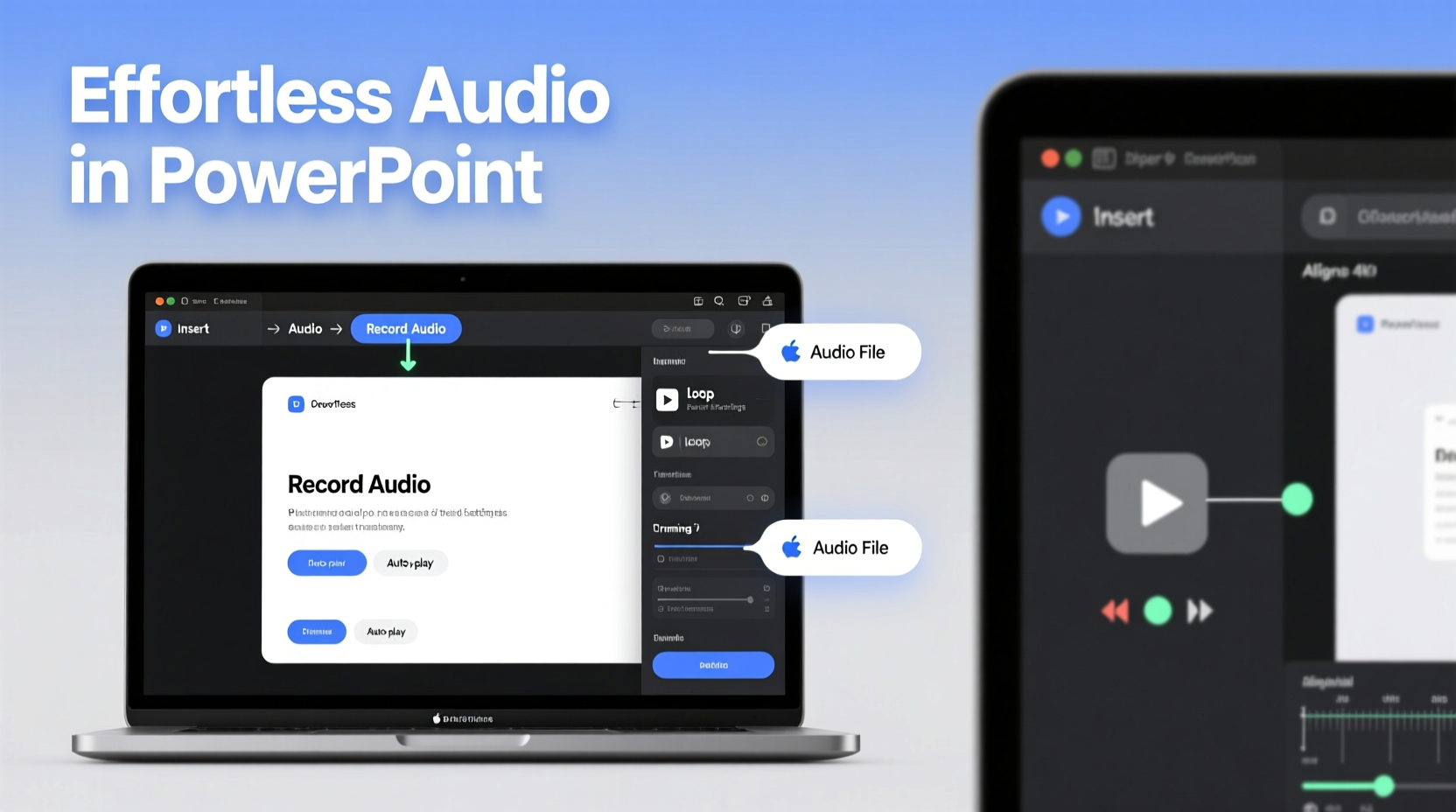
Visuals dominate most slide decks, but auditory cues are equally powerful. Research from the University of California shows that multi-sensory engagement improves information retention by up to 40%. Audio helps set tone, emphasize transitions, and guide audience focus. A well-placed narration clip, background music, or even a short sound effect can make your message more memorable.
Consider a sales pitch: soft instrumental music during an introduction creates anticipation. A recorded testimonial plays as a client’s photo appears—adding authenticity. These small details build credibility and emotional connection without overwhelming the viewer.
“Presentations that engage multiple senses not only hold attention better but also improve comprehension and recall.” — Dr. Laura Simmons, Cognitive Learning Specialist
Step-by-Step Guide to Insert Audio in PowerPoint
PowerPoint makes it simple to add audio across modern versions (2016, 2019, 365, and online). Follow this sequence to embed sound files seamlessly:
- Open your presentation and navigate to the slide where you want the audio.
- Go to the Insert tab on the ribbon.
- Click Audio > Audio on My PC.
- Browse your computer for the audio file (MP3, WAV, M4A supported).
- Select the file and click Insert.
- An audio icon will appear on the slide. You can reposition or resize it.
The default playback option is manual—click the speaker icon to play. However, customization unlocks greater control over how and when sound plays.
Customizing Audio Playback Settings
Once inserted, use the Playback tab to fine-tune behavior. This is where audio becomes truly effective—not just present, but purposeful.
- Start Options: Choose between “On Click,” “Automatically,” or “Across Slides” to define trigger conditions.
- Trim Audio: Cut unwanted sections (like silence at the beginning) using the trim tool.
- Fade In/Out: Apply smooth volume transitions to prevent jarring starts or abrupt endings.
- Volume: Adjust levels to match room acoustics or voiceover clarity.
- Hide During Show: Check this to keep the audio icon invisible while still playing sound.
For longer presentations, use “Play Across Slides” to maintain background music through multiple screens. Just ensure the audio stops automatically when no longer needed to avoid awkward overlaps.
Best Practices for Professional Audio Integration
Just because you can add sound doesn’t mean you should add it everywhere. Strategic use ensures clarity, not clutter. Here’s what separates polished presentations from chaotic ones:
| Do | Don’t |
|---|---|
| Use royalty-free music for intros/outros | Play loud or distracting sound effects repeatedly |
| Synchronize audio with animations or visuals | Embed large files that slow down the presentation |
| Test playback on presentation hardware | Assume all devices support audio output |
| Keep narration concise and well-recorded | Use low-quality microphone recordings with background noise |
| Provide subtitles if audio contains critical information | Make audio the only source of essential content |
Mini Case Study: Engaging a Virtual Training Session
A corporate trainer preparing onboarding materials for remote employees faced low engagement during video-based sessions. Attendees reported zoning out during long slide segments. She redesigned her deck by adding subtle ambient music during welcome slides, inserting pre-recorded voice explanations for complex diagrams, and using a gentle chime to signal section transitions. Post-session feedback showed a 65% increase in perceived clarity and a noticeable drop in multitasking during delivery. The audio wasn’t flashy—it was functional, enhancing flow without drawing attention to itself.
Managing File Size and Compatibility
One common pitfall is embedding high-bitrate audio files that balloon your presentation size. A single 5-minute WAV file can exceed 50MB, making email sharing impractical and causing lag on older computers.
To avoid this:
- Convert long clips to MP3 format at 128kbps—ideal balance of quality and size.
- Use “Link to File” instead of embedding (via Insert > Audio > Link to File), though this requires keeping the audio file with the presentation.
- Avoid using cloud-dependent audio; downloaded files ensure reliability.
Checklist: Audio Integration Success
Before finalizing your presentation, run through this checklist:
- ✅ Audio file is relevant and adds value to the slide
- ✅ File format is supported (MP3, WAV, M4A)
- ✅ Volume is balanced and tested on external speakers
- ✅ Playback settings match intended timing (automatic/manual)
- ✅ Audio icon is hidden or styled appropriately
- ✅ Presentation file size is manageable for sharing
- ✅ Backup plan exists (e.g., verbal cue) if audio fails
Frequently Asked Questions
Can I record narration directly in PowerPoint?
Yes. Use the “Record Slide Show” feature under the Slide Show tab. It captures voice, laser pointer movements, and timings. Narration is saved per slide and can be edited or re-recorded later.
Will audio play in PowerPoint Online?
Limited support exists. Auto-playing audio may not function, and some formats aren’t compatible. For reliable playback in browser-based environments, test thoroughly or convert audio to embedded video.
How do I loop background music across multiple slides?
Insert the audio, go to Playback > Start: “Automatically,” then check “Play Across Slides” and enable “Loop until Stopped.” Manually stop the audio on the last slide using a trigger or animation.
Conclusion: Elevate Your Message with Thoughtful Sound
Great presentations don’t just inform—they resonate. By mastering the insertion and customization of audio in PowerPoint, you gain a subtle yet powerful tool to deepen engagement, clarify messaging, and deliver experiences that linger. The process is straightforward, but the impact is significant. Take time to experiment: try different music styles, refine voiceovers, and align sound cues with visual rhythm. Small refinements lead to noticeably more compelling results.




 浙公网安备
33010002000092号
浙公网安备
33010002000092号 浙B2-20120091-4
Comments
No comments yet. Why don't you start the discussion?