
Streaming entertainment should be effortless. Yet, many Apple TV users experience sluggish performance, app crashes, or outdated features simply because their apps aren’t properly maintained. The good news? Keeping your Apple TV apps updated and functioning optimally doesn’t require technical expertise—it just takes a few consistent habits. With the right approach, you can ensure every movie night, workout session, or gaming round runs without interruption.
Why App Updates Matter on Apple TV
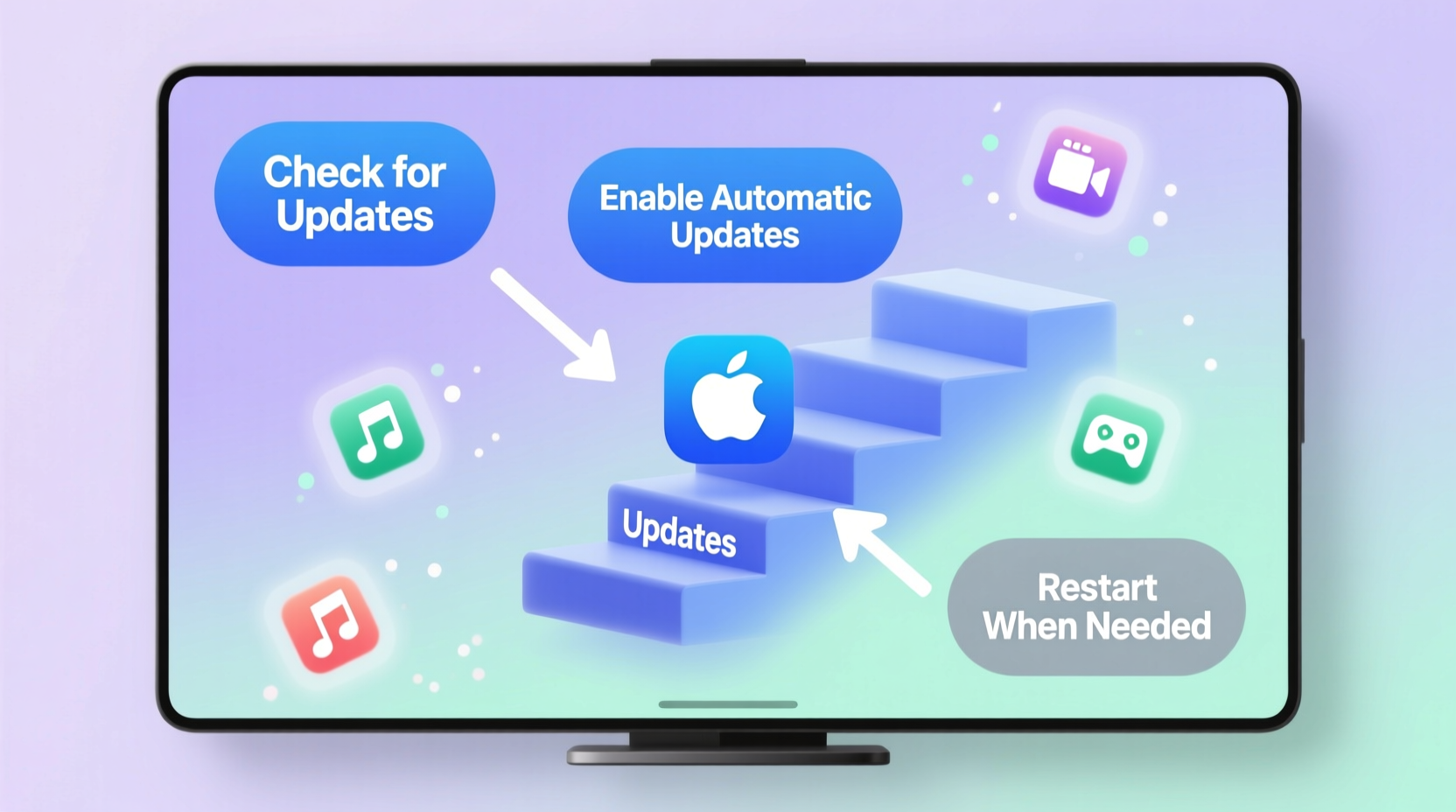
App updates on Apple TV are more than just cosmetic improvements. Developers regularly release patches that enhance stability, fix bugs, improve compatibility with newer tvOS versions, and introduce new features. Ignoring these updates can lead to degraded performance, security vulnerabilities, and incompatibility with new content formats like Dolby Vision or spatial audio.
Apple’s ecosystem is designed for seamless integration, but even the best hardware suffers when software lags behind. Outdated apps may fail to load, freeze during playback, or lose access to subscription services due to authentication changes. Staying current ensures you get the most out of your device—and your subscriptions.
“Regular app maintenance is as crucial as updating your iPhone or Mac. It directly impacts reliability and user experience.” — Jordan Lee, Senior iOS Developer at StreamOptima
Automatic Updates: Set It and Forget It
The simplest way to keep your Apple TV apps up to date is by enabling automatic updates. This feature allows your device to download and install updates in the background, typically during off-peak hours when your Apple TV is idle and connected to power.
To enable automatic updates:
- Go to Settings on your Apple TV.
- Select Apps.
- Choose Automatic Updates.
- Toggle the switch to On.
Once enabled, your Apple TV will check for updates periodically and install them automatically. You won’t need to manually intervene unless an update requires additional permissions or storage space.
Manual Update Checks for Critical Apps
While automatic updates handle most scenarios, some high-usage apps—like Netflix, Disney+, or fitness platforms such as Peloton or Nike Training—may benefit from occasional manual checks. If you rely on a specific app daily, don’t wait for automation; verify its status proactively.
To manually check for updates:
- Open the App Store on your Apple TV.
- Navigate to the Purchased tab (you may need to sign in).
- Browse the list of installed apps. Any available updates will show an “Update” button next to the app name.
- Select the app and confirm the update.
This method is especially useful after a major tvOS update, which can temporarily disrupt app compatibility until developers release fixes.
When to Prioritize Manual Updates
- After installing a new tvOS version.
- If an app fails to launch or crashes frequently.
- When new features are announced (e.g., multiplayer support in a game).
- Before hosting a viewing party or using Apple TV for presentations.
Managing Storage to Support Smooth Updates
One often-overlooked factor in app performance is storage space. Apple TV models come with limited internal storage (typically 32GB or 64GB), and over time, accumulated apps, caches, and temporary files can hinder update installations.
If your Apple TV shows a “Not Enough Space” error during an update, follow this checklist to free up room:
- Uninstall apps you no longer use (Settings > General > Manage Storage).
- Delete downloaded content from streaming apps (e.g., offline movies in Netflix).
- Restart your Apple TV to clear temporary cache files.
- Avoid keeping large games or 4K-downloading apps unless actively used.
After clearing space, return to the App Store to retry the update. Consider revisiting storage management every few months, especially if you frequently test new apps or play console-style games.
Storage Comparison Across Apple TV Models
| Model | Available Storage | Recommended Usage |
|---|---|---|
| Apple TV HD | ~25GB usable (32GB total) | Streaming, light gaming |
| Apple TV 4K (1st–3rd gen) | ~55GB usable (64GB total) | 4K streaming, moderate gaming |
| Apple TV 4K (M1, 2022) | ~115GB usable (128GB total) | Heavy gaming, multitasking |
Real-World Example: Recovering from a Frozen Hulu App
Sarah, a remote worker in Portland, uses her Apple TV daily for morning news and evening relaxation. One week, the Hulu app began freezing during login. She tried restarting the app multiple times, but the issue persisted. Frustrated, she nearly reset her entire device—until she remembered reading about app updates.
She opened the App Store, checked Purchased apps, and found Hulu had a pending update. After installing it, the app launched instantly and resumed syncing her watch history. The root cause? A recent two-factor authentication change that older app versions couldn’t process.
Sarah now checks for updates monthly and keeps automatic updates enabled. Her Apple TV hasn’t missed a beat since.
Troubleshooting Common Update Issues
Even with best practices, problems can arise. Here’s how to resolve common update-related issues:
- Update stuck downloading: Restart your Apple TV and router. Ensure stable internet (minimum 15 Mbps recommended).
- App crashes after update: Delete and reinstall the app. This clears corrupted data while preserving account info via iCloud.
- Update not appearing: Check your Apple ID region settings. Some apps are only updated per geographic availability.
- Slow performance post-update: Wait 24 hours. Background indexing and cache rebuilding can take time.
Frequently Asked Questions
Do I need to pay for app updates on Apple TV?
No. All app updates are free. You only pay once for paid apps or in-app purchases. Updates include bug fixes, new features, and compatibility improvements at no extra cost.
Will updating an app delete my data or preferences?
Generally, no. App updates preserve your login credentials, watch history, and settings. However, if you uninstall and reinstall an app, you may need to log in again—though most streaming apps sync data via your account.
How do I know which apps have been updated recently?
The App Store doesn’t provide a direct “recent updates” log. However, you can infer activity: if an app launches differently or displays a “What’s New” screen, it was recently updated. You can also monitor update frequency by checking the Purchased section weekly.
Final Thoughts: Make Maintenance Effortless
Keeping your Apple TV apps updated isn’t a chore—it’s a habit that pays off in smoother performance, fewer glitches, and access to better content. By enabling automatic updates, monitoring storage, and performing quick manual checks when needed, you create a reliable entertainment hub that works as hard as you do.
Think of it like changing the oil in your car: small efforts prevent big breakdowns. A few minutes a month can save you hours of frustration down the line.




 浙公网安备
33010002000092号
浙公网安备
33010002000092号 浙B2-20120091-4
Comments
No comments yet. Why don't you start the discussion?