
In an age where precision matters—from scheduling meetings to tracking workouts—having a correctly set time on your smartwatch is essential. While most modern smartwatches sync automatically with smartphones or GPS networks, there are moments when manual adjustment becomes necessary. Whether you're traveling across time zones, troubleshooting connectivity issues, or simply prefer full control over your device settings, knowing how to manually set the time ensures your smartwatch remains accurate and reliable.
This guide walks through the process clearly and concisely, covering multiple leading brands, common pitfalls, and expert-backed techniques to keep your wearable perfectly in sync—no guesswork required.
Why Manual Time Setting Still Matters
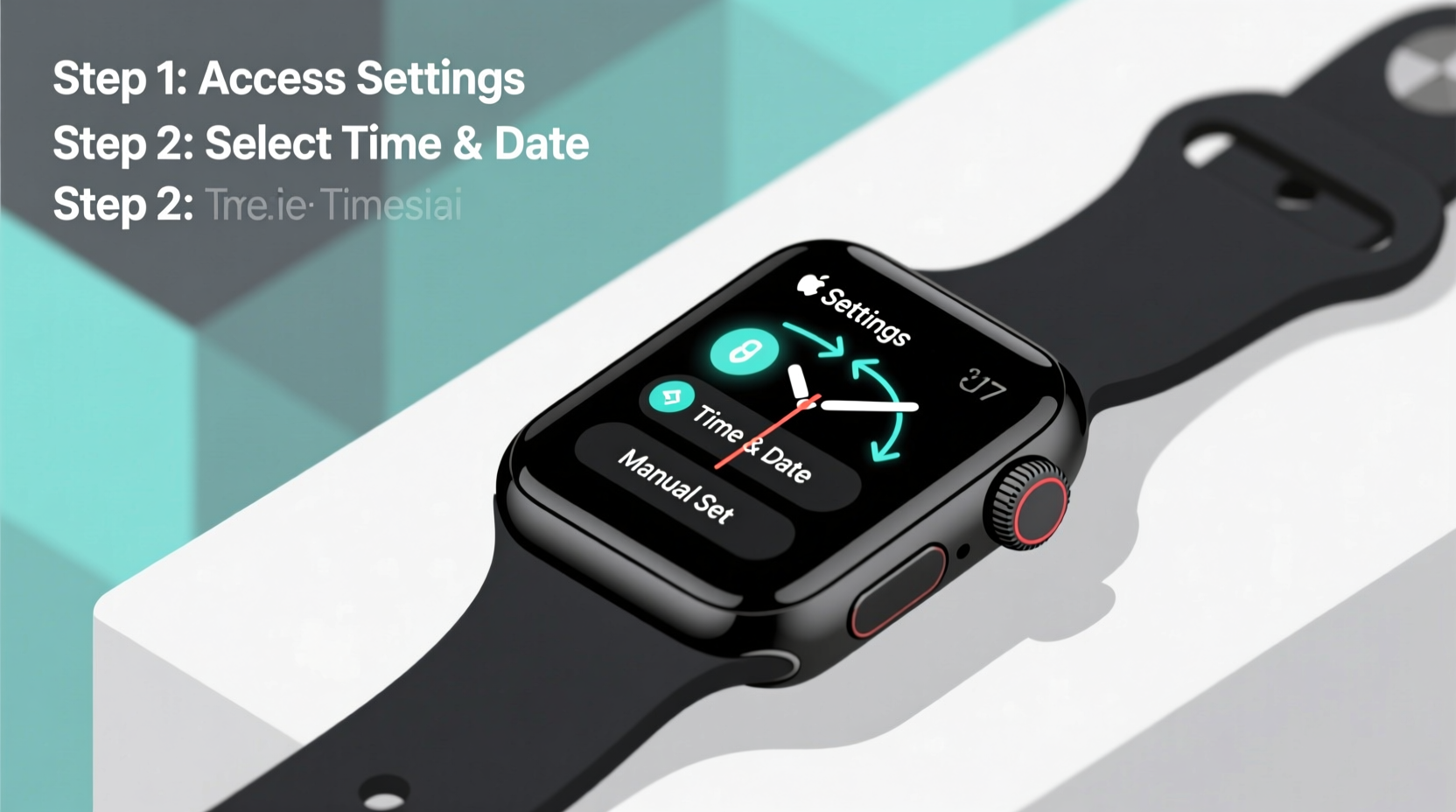
Despite seamless automatic syncing in most cases, relying solely on it can lead to inaccuracies during network outages, Bluetooth disconnections, or software glitches. Manually setting the time gives you direct control, especially useful when:
- You're in airplane mode or offline environments.
- Your paired phone has incorrect time settings.
- You’ve reset your smartwatch and need immediate calibration.
- You’re testing firmware updates that affect system clocks.
Manual setup also helps verify that your watch’s internal clock module is functioning properly—a key diagnostic step for long-term device health.
Step-by-Step Guide to Manually Set Your Smartwatch Time
The exact method varies slightly by brand, but the general workflow follows these logical stages. Follow this universal timeline to ensure success regardless of model.
- Access Settings: Swipe up or press the side button to open the app menu. Tap the gear icon labeled “Settings.”
- Navigate to System Clock: Scroll down and select “System,” then choose “Date & Time” or similar.
- Disable Automatic Sync: Toggle off “Set Automatically” or “Sync with Phone.” This enables manual input.
- Enter Time Manually: Select “Set Time” and use the touchscreen or crown/buttons to adjust hours and minutes.
- Adjust Date (if needed): Enter day, month, and year using the same interface.
- Confirm Time Format: Choose between 12-hour (AM/PM) and 24-hour (military) formats based on preference.
- Save and Exit: Confirm all entries and exit the menu. The watch will now display the newly set time.
After completion, re-enable automatic syncing if desired—this maintains future accuracy while preserving your current manual correction.
Brand-Specific Instructions at a Glance
| Brand | Path to Time Settings | Key Notes |
|---|---|---|
| Apple Watch | Settings → General → Date & Time → Turn off Set Automatically | Use Digital Crown to scroll through values; requires iPhone pairing for full sync recovery. |
| Samsung Galaxy Watch | Settings → System → Date and Time → Uncheck Automatic | Supports both touch dial and bezel navigation; changes apply instantly. |
| Garmin Watches | Hold Menu → Settings → System → Clock Display → Time Format → Manual Setup | Some older models require computer software (Garmin Express) for deep system adjustments. |
| FITBIT | Settings → Clock Face → Press and Hold → Change Time | Limited manual options; best corrected via Fitbit app under “Device Settings.” |
| Wear OS (by Google) | Quick Settings → Gear Icon → Date & Time → Disable Auto-Detect | Compatible with third-party launcher apps for enhanced customization. |
Common Mistakes to Avoid
Even simple tasks can go wrong without attention to detail. These frequent errors undermine time-setting accuracy:
- Forgetting to disable auto-sync: If automatic time detection remains on, your manual input may be overridden within seconds.
- Misreading AM/PM: Accidentally setting 3:00 PM as 3:00 AM disrupts alarms and calendar alerts.
- Skipping time zone confirmation: After manual entry, ensure the correct time zone is selected to prevent drift during daylight saving transitions.
- Not verifying against a trusted source: Always cross-check with atomic clocks (like time.gov) or official smartphone time after adjustment.
Real Example: Traveler Resets Watch Before International Meeting
James, a marketing consultant based in Chicago, flew to London for a client presentation. His Apple Watch remained on Central Time despite landing at 8:00 AM local time. With a crucial 9:30 AM meeting approaching, he realized his watch still showed 2:30 AM back home.
Rather than risk confusion, James opened Settings, disabled “Set Automatically,” and manually adjusted the time to 9:15 AM BST. He confirmed the date change and re-enabled auto-sync once connected to Wi-Fi. This small action ensured punctuality and professionalism throughout the day.
“I used to rely entirely on my phone,” James said later. “But now I know how quick and reliable manual time setting can be—especially when every minute counts.”
“Time accuracy isn’t just about convenience—it’s a cornerstone of digital trust. A misaligned clock undermines productivity, fitness tracking, and even medical alert systems.” — Dr. Lena Patel, Wearable Technology Researcher at MIT Media Lab
Essential Checklist: Mastering Manual Time Adjustment
Before finalizing your time settings, run through this checklist to ensure everything is correct:
- ✅ Disabled automatic time synchronization
- ✅ Verified current accurate time from a trusted source (e.g., world clock website)
- ✅ Entered correct hour, minute, and second (if applicable)
- ✅ Confirmed proper date (day, month, year)
- ✅ Selected preferred time format (12h or 24h)
- ✅ Checked time zone alignment
- ✅ Saved changes and tested alarm function
- ✅ Re-enabled auto-sync if desired for ongoing accuracy
Frequently Asked Questions
Can manually setting the time damage my smartwatch?
No. Adjusting the time manually is a standard feature designed into all major operating systems. It does not harm hardware or void warranties. However, excessive repeated changes may indicate deeper sync issues worth investigating.
Why does my smartwatch keep resetting the time incorrectly?
This usually happens when background sync services are unstable or permissions are restricted. Ensure Bluetooth is active, the companion app runs in the background, and location services are enabled (used for automatic time zone detection).
Do I need internet access to set the time manually?
No. Manual time entry works entirely offline. Internet is only required if you plan to re-enable automatic synchronization afterward.
Final Thoughts: Precision Starts with a Single Tap
Your smartwatch is more than a timepiece—it's a personal assistant, fitness coach, and communication hub. Ensuring its clock displays the right moment empowers every other function it performs. By mastering the simple art of manual time setting, you take ownership of your device’s reliability, especially when automation fails.
Whether you're navigating global time zones, troubleshooting tech hiccups, or simply fine-tuning your routine, these effortless steps deliver perfect accuracy whenever you need it. Don’t wait for a missed appointment or workout log error to act—test your knowledge today. Open your watch settings, walk through the process, and confirm your device reflects the true time.




 浙公网安备
33010002000092号
浙公网安备
33010002000092号 浙B2-20120091-4
Comments
No comments yet. Why don't you start the discussion?