
YouTube’s algorithm thrives on data—and one of its richest sources is your viewing history. Every video you watch, pause, or skip contributes to the personalized experience you see on your homepage, recommendations, and subscriptions feed. While this can enhance discovery, unchecked history can clutter your suggestions with outdated interests or accidental clicks. The good news? Managing your YouTube viewing history doesn’t require technical skills. With a few smart habits and built-in tools, you can maintain control over what YouTube learns about you—without sacrificing convenience.
Why Your YouTube Viewing History Matters
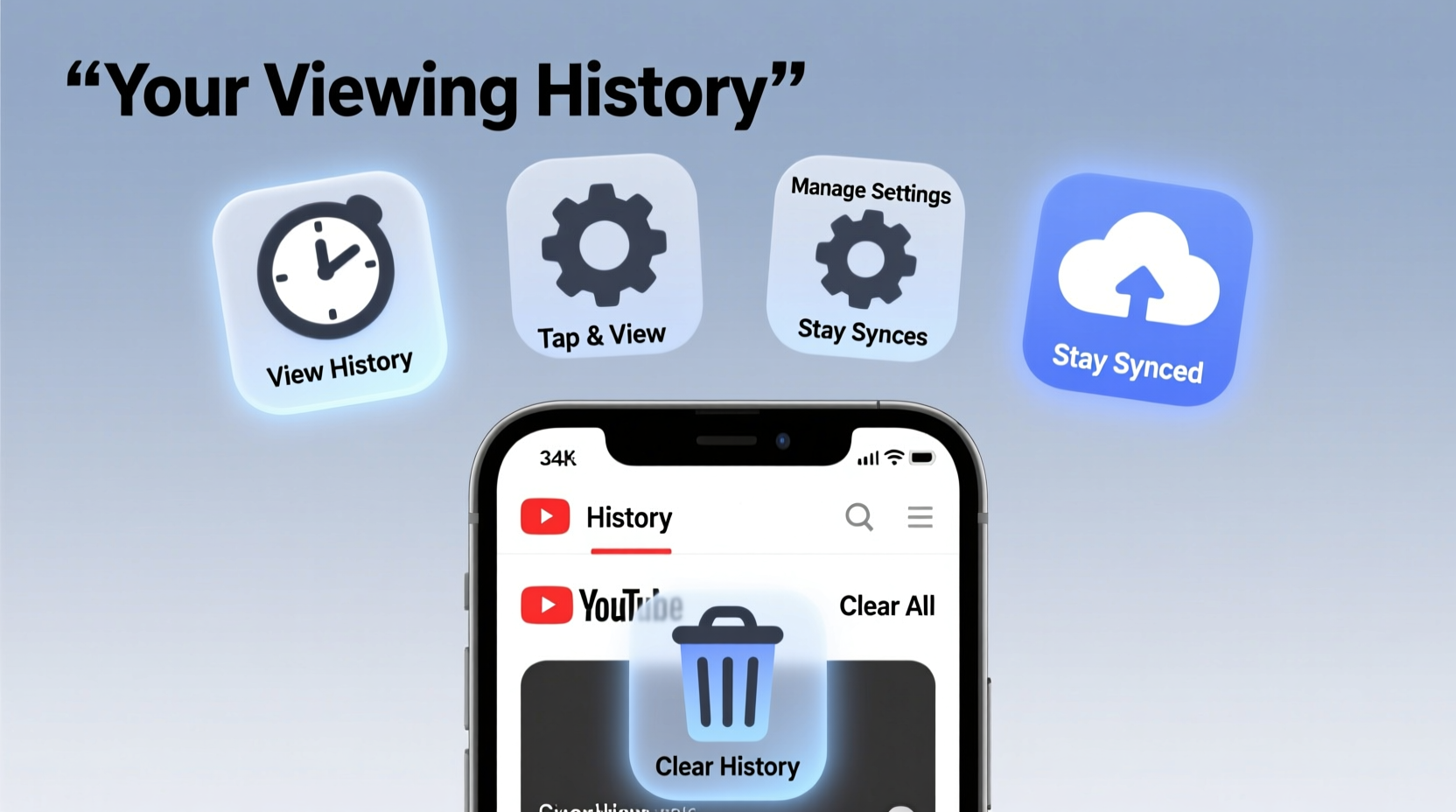
Your viewing history shapes more than just recommended videos. It influences ads, search results, and even the order in which content appears across your account. Over time, accumulated history from shared devices, idle browsing, or curiosity-driven clicks can distort your digital footprint. This leads to irrelevant suggestions and reduced content quality. More critically, unmanaged history poses privacy concerns, especially on personal devices used by multiple people.
Google stores your YouTube activity by default unless manually disabled. This includes timestamps, device types, and duration watched. While Google emphasizes user control, many users remain unaware of how to navigate these settings efficiently.
“Your digital trail isn't just passive data—it actively shapes your online experience. Taking ownership of it is a form of digital hygiene.” — Dr. Lena Torres, Digital Privacy Researcher at Stanford University
How to Access Your YouTube Viewing History
Accessing your viewing history is the first step toward managing it. Whether you're on mobile or desktop, the process is straightforward and consistent across platforms.
On Desktop (Browser)
- Sign in to your Google account and go to youtube.com.
- In the top-left corner, click the menu icon (three horizontal lines).
- Select “History” from the sidebar.
- Choose “Watch history” to view all videos you’ve played.
You’ll see a chronological list of videos, including titles, thumbnails (in some views), uploaders, and timestamps. Each entry is clickable, allowing you to revisit past content instantly.
On Mobile (Android/iOS)
- Open the YouTube app and tap your profile picture in the top-right corner.
- Select “History” from the dropdown menu.
- Tap “Watch history” to browse your full viewing record.
The mobile interface mirrors the desktop version but is optimized for touch navigation. Long-pressing a video gives options to remove it or pause history temporarily.
Efficient Ways to Manage and Clean Your History
Once you’ve accessed your history, cleaning and organizing it becomes simple. YouTube offers several native tools that allow selective deletion, bulk removal, and automated management.
Remove Individual Videos
To delete a single item:
- Hover over the video entry (desktop) or swipe left (mobile).
- Click the “X” or “Remove” option.
- Confirm deletion when prompted.
This method is ideal for removing accidental clicks or outdated interests without affecting the rest of your history.
Bulk Delete by Time Range
For deeper cleanup:
- Navigate to My Activity on Google.
- Filter by “YouTube Watch History” under the “Filter by product” menu.
- Click “Delete” in the left panel.
- Select a time range: “Last hour,” “Today,” “Last 7 days,” “Last 30 days,” or “All time.”
- Confirm deletion.
This is particularly useful after seasonal shifts in interest—like post-holiday cooking tutorials or workout routines you no longer follow.
Pause Your Watch History
If you want temporary privacy:
- Go to YouTube Settings → History & privacy.
- Toggle “Pause watch history” to ON.
While paused, YouTube won’t save new entries. However, recommendations may become less accurate over time due to lack of fresh data.
Automated Management with Google Dashboard
For long-term maintenance, automation beats manual cleanup. Google’s Web & App Activity settings allow you to set auto-delete rules that apply across all services—including YouTube.
Set Up Auto-Delete
- Visit My Activity.
- Click “Manage activity controls” on the left.
- Under “Web & App Activity,” click “Manage activity”.
- Select “Auto-delete” and choose either 3 months or 18 months.
- Confirm your choice.
Once enabled, your YouTube watch history will automatically erase based on your selected interval. This balances personalization with privacy, reducing digital clutter without constant oversight.
| Management Method | Best For | Limits |
|---|---|---|
| Individual Deletion | Precision removal of specific videos | Time-consuming for large histories |
| Bulk Time-Based Deletion | Seasonal or periodic cleanup | Affects all activities in selected period |
| Pause History | Temporary privacy needs | Reduces recommendation accuracy |
| Auto-Delete (3/18 months) | Ongoing, hands-off maintenance | Less granular control over individual items |
Real-World Example: Cleaning Up After a Lifestyle Change
Sophia, a freelance designer from Portland, found her YouTube homepage flooded with baby care videos six months after her child was born. Though she had watched prenatal content during pregnancy, she no longer needed those suggestions. Instead of ignoring them, she took action:
- She visited My Activity and filtered by “YouTube Watch History.”
- Deleted all entries from the previous trimester using the “Last 3 months” bulk delete.
- Enabled auto-delete after 3 months to prevent future buildup.
- Reviewed her remaining history and removed a few lingering parenting clips.
Within 48 hours, her homepage shifted back to design tutorials, creative workflows, and art documentaries—the content she actually wanted. Her recommendations improved not because she watched more, but because she cleaned up what she’d already watched.
Checklist: Optimize Your YouTube History in 5 Steps
- ✅ Review your current watch history weekly for relevance.
- ✅ Remove 5–10 outdated or irrelevant videos each month.
- ✅ Use bulk delete quarterly to clear old activity.
- ✅ Enable auto-delete (3-month setting) for continuous hygiene.
- ✅ Pause history when sharing devices or exploring sensitive topics.
Frequently Asked Questions
Does deleting my YouTube history affect my subscriptions or liked videos?
No. Your subscriptions, playlists, and liked videos are stored separately from watch history. Deleting viewing activity won’t remove saved content or unsubscribe you from channels.
Can others see my YouTube watch history?
Only if they have access to your signed-in device or account. YouTube does not share your history publicly. However, family members using the same login may see overlapping recommendations based on combined activity.
Will pausing my watch history stop all data collection?
Pausing stops new entries from being saved, but YouTube may still use past data for recommendations. For full data minimization, combine pausing with regular deletions or auto-delete settings.
Take Control of Your Digital Experience
Your YouTube viewing history isn’t just a log—it’s a living record that shapes how you interact with one of the world’s largest content platforms. By accessing it regularly and applying simple management techniques, you reclaim agency over your digital environment. Whether you’re refining recommendations, protecting privacy, or simply decluttering, the tools are already available. Start small: delete ten videos today, set up auto-delete tomorrow. These effortless actions compound into a cleaner, more intentional YouTube experience.




 浙公网安备
33010002000092号
浙公网安备
33010002000092号 浙B2-20120091-4
Comments
No comments yet. Why don't you start the discussion?