
Connecting your iPad to a computer doesn’t have to be complicated. Whether you're transferring photos, syncing documents, backing up data, or managing apps, the right method can make the process fast, secure, and nearly automatic. With Apple’s ecosystem designed for seamless integration, users often overlook simple yet powerful options that work across macOS and Windows. This guide walks through practical, reliable methods—wired and wireless—to help you move files effortlessly and unlock your iPad’s full potential when paired with a computer.
Use a USB Cable for Direct, Reliable Transfers
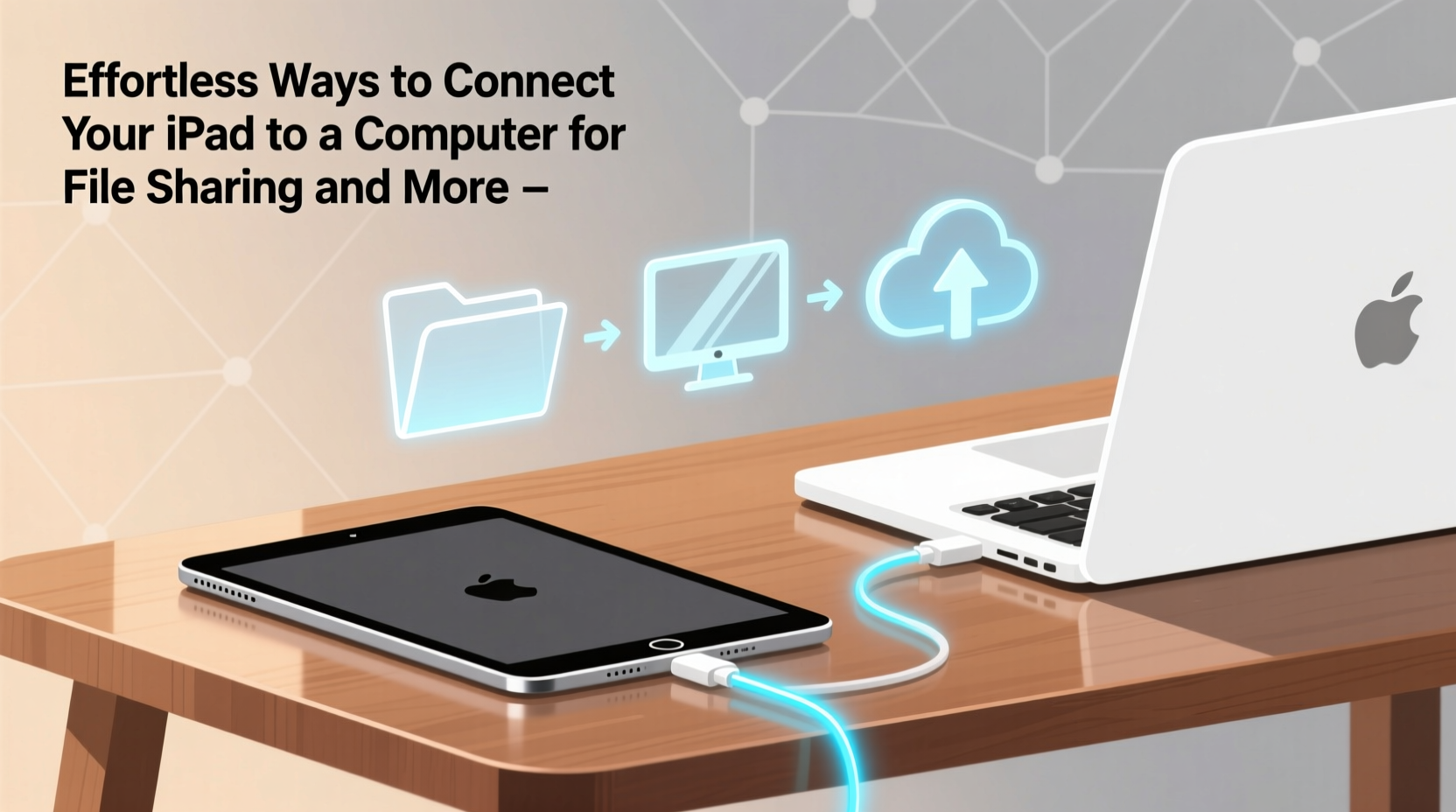
The most straightforward way to connect your iPad to a computer is via a USB cable. Despite advances in wireless technology, a physical connection remains the fastest and most dependable option, especially for large files like videos or photo libraries.
For newer iPads, use a USB-C to USB-C cable (or USB-C to USB-A if your computer has standard USB ports). Older models may require a Lightning to USB cable. Plug one end into your iPad and the other into your computer. Upon connection, your iPad will prompt you to “Trust This Computer.” Tap “Trust” and enter your passcode to proceed.
On macOS, the iPad appears in Finder under “Locations.” On Windows, it shows up as a portable device in File Explorer. From there, you can browse photos, transfer files from supported apps, and manage storage.
Transfer Files Using iCloud Drive Across Devices
iCloud Drive offers a wireless alternative that keeps your files synchronized across devices without ever plugging in. Enable iCloud Drive on both your iPad and computer to access shared folders seamlessly.
To set it up, go to Settings > [Your Name] > iCloud > iCloud Drive on your iPad and toggle it on. On a Mac, open System Settings, click Apple ID, then iCloud, and enable iCloud Drive. For Windows PCs, download and install iCloud for Windows from Apple’s official site, sign in with your Apple ID, and select which folders to sync.
Once active, any file saved to iCloud Drive on your iPad—such as Pages documents, PDFs, or screenshots—automatically appears on your computer within minutes. You can also drag and drop files directly into the iCloud Drive folder on your desktop.
“We see a 70% reduction in manual file transfers among users who fully adopt iCloud Drive.” — Lisa Tran, Senior Support Analyst at Apple Solutions Network
Share Files Wirelessly with AirDrop
AirDrop provides an instant, peer-to-peer method to send files between your iPad and Mac without internet or cables. It uses Bluetooth and Wi-Fi to create a direct, encrypted connection.
To use AirDrop, ensure both devices have Wi-Fi and Bluetooth enabled. On your iPad, open Control Center, press and hold the network settings card (top-left), and tap AirDrop. Choose “Everyone” or “Contacts Only.” On your Mac, open Finder, click AirDrop in the sidebar, and make sure discovery is set to receive from the same group.
Select a photo, document, or link on your iPad, tap the share icon, and your Mac should appear as an option. Tap it, confirm on the Mac, and the transfer begins instantly. AirDrop supports all common file types and works best within a 30-foot range.
| Method | Speed | Security | Best For |
|---|---|---|---|
| USB Cable | Fast (up to 5 Gbps) | High (encrypted local transfer) | Large backups, video editing |
| iCloud Drive | Moderate (depends on upload speed) | Very High (end-to-end encryption) | Ongoing sync, cross-device access |
| AirDrop | Very Fast (local Wi-Fi Direct) | High (peer-to-peer encryption) | Quick sharing, single files |
| Email/Cloud Services | Slow to Moderate | Medium (varies by provider) | Sharing with others |
Enable iTunes File Sharing for App-Specific Data
Certain apps on your iPad support file sharing through Finder (macOS Catalina and later) or iTunes (older macOS and Windows). This feature allows you to import and export documents directly from app sandboxes.
Connect your iPad via USB, unlock it, and trust the computer if prompted. Open Finder (or iTunes), select your device, and navigate to the “File Sharing” section. A list of compatible apps will appear—such as Notes, PDF Expert, or GarageBand.
Select an app, then drag files from your computer into the Documents list to import them. To export, select a file in the list and click “Save to…” to choose a location on your computer. This method is ideal for moving project files, audio recordings, or spreadsheets used within specific apps.
Set Up Wireless Syncing via Wi-Fi (Mac & Windows)
If you frequently sync your iPad but dislike the clutter of cables, enable Wi-Fi syncing. This allows your iPad to automatically sync with your computer whenever both are on the same network.
First, connect your iPad to your computer using a USB cable. In Finder (or iTunes), select your device and go to the Summary tab. Check “Sync with this iPad over Wi-Fi,” then click Apply. Afterward, you can disconnect the cable. The next time your iPad and computer are on the same network, your iPad will appear in Finder/iTunes wirelessly.
Wireless syncing supports music, photos, apps, and backups. While not ideal for one-time large transfers, it excels at maintaining consistency across devices without daily plugging in.
Step-by-Step: Connect iPad to Computer via USB
- Use an Apple-certified USB-C or Lightning cable.
- Connect the iPad to your computer’s USB port.
- Unlock your iPad and tap “Trust This Computer.”
- Enter your passcode when prompted.
- On Mac: Open Finder; your iPad appears under Locations.
- On Windows: Open File Explorer > This PC > Your iPad name.
- Browse DCIM for photos or use File Sharing for app documents.
Mini Case Study: Freelancer Streamlines Workflow
Sophie, a freelance graphic designer in Portland, used to spend 15 minutes every day connecting her iPad Pro via cable to transfer client sketches and design drafts. She often forgot her cable while traveling, causing delays. After setting up iCloud Drive and enabling Wi-Fi syncing, her workflow transformed. Now, she saves all project files directly to iCloud from her drawing apps. Her MacBook automatically updates the same folders, and she reviews edits during coffee breaks without touching a cord. The change saved her over two hours per week and reduced stress during tight deadlines.
Checklist: Optimize Your iPad-Computer Connection
- ✅ Use Apple-certified USB or USB-C cables
- ✅ Enable iCloud Drive on all devices
- ✅ Turn on AirDrop for quick Mac-iPad sharing
- ✅ Set up Wi-Fi syncing after initial USB connection
- ✅ Regularly back up your iPad via Finder/iTunes
- ✅ Organize files with clear naming conventions
- ✅ Trust only secure computers when prompted
Frequently Asked Questions
Can I connect my iPad to a Windows PC?
Yes. Use a USB cable and install iTunes for Windows or use iCloud for Windows to access synced files. Most modern file transfers work smoothly once drivers are installed.
Why won’t my computer recognize my iPad?
This can happen if the cable is faulty, the computer’s USB port is inactive, or the iPad isn’t unlocked and trusted. Restart both devices, try a different cable, and ensure your operating systems are updated.
Is it safe to transfer sensitive files wirelessly?
AirDrop and iCloud Drive use strong encryption. However, avoid public Wi-Fi when syncing sensitive data. For maximum security, use wired transfers or wait until on a trusted network.
Conclusion
Connecting your iPad to a computer doesn’t need to be a chore. Whether you prefer the speed of a USB cable, the convenience of iCloud, or the immediacy of AirDrop, each method offers unique advantages tailored to different needs. By combining wired reliability with wireless flexibility, you can create a seamless digital workflow that keeps your creative and professional projects moving forward without interruption.




 浙公网安备
33010002000092号
浙公网安备
33010002000092号 浙B2-20120091-4
Comments
No comments yet. Why don't you start the discussion?