
AVI files were once the standard for digital video, but today’s devices and platforms favor MP4. Whether you’re archiving old home videos, preparing clips for social media, or transferring footage between devices, converting AVI to MP4 is often essential. The good news: it doesn’t require technical expertise. With the right tools and approach, you can make the switch quickly and maintain high-quality output across all your devices.
Why Convert AVI to MP4?
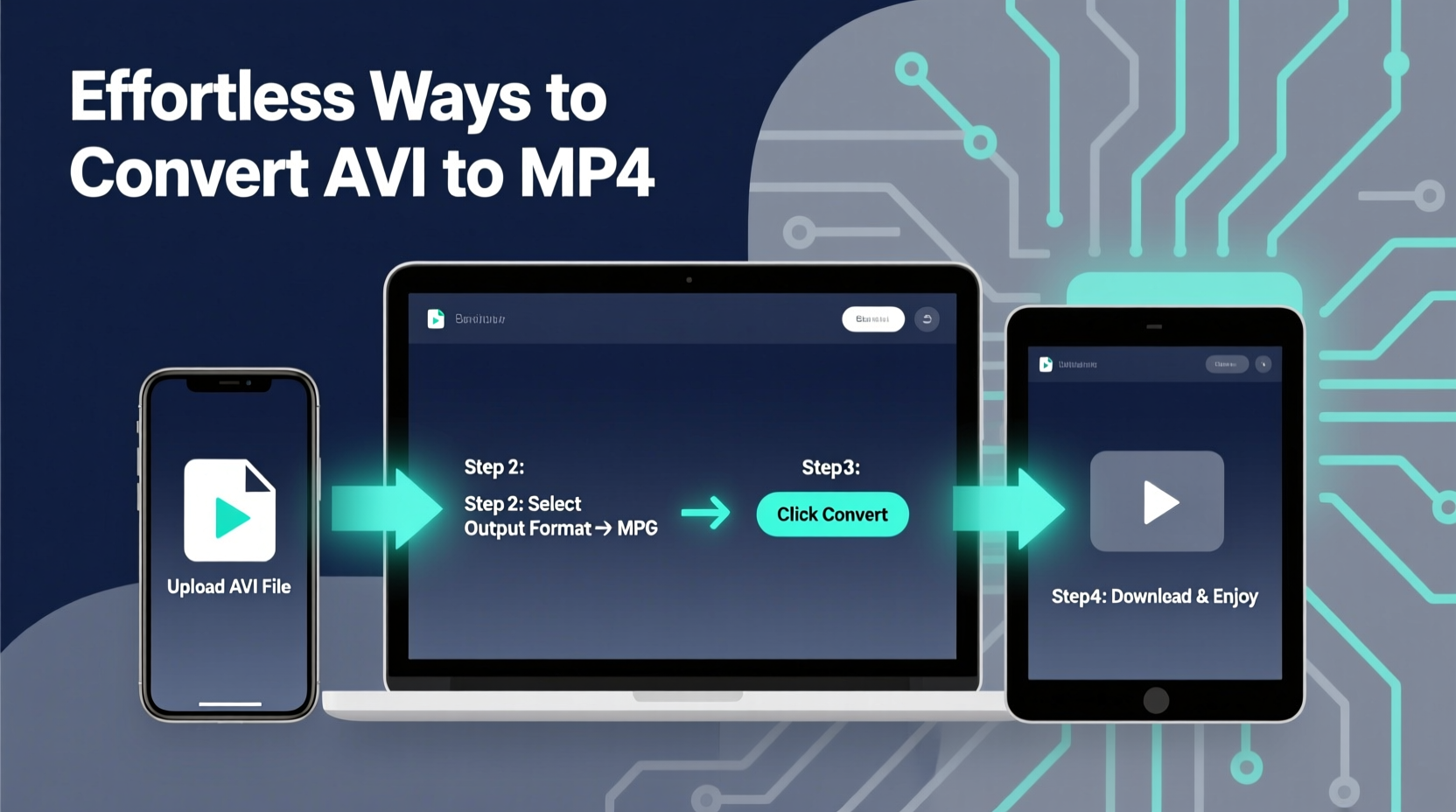
The AVI (Audio Video Interleave) format, developed by Microsoft in the 1990s, supports high-quality video but comes with significant drawbacks. It typically uses less efficient compression, resulting in large file sizes. In contrast, MP4 (MPEG-4 Part 14) uses modern codecs like H.264 or H.265 that deliver excellent quality at much smaller sizes. This makes MP4 ideal for streaming, mobile playback, cloud storage, and compatibility with nearly every device and platform—from smartphones to smart TVs.
“MP4 has become the universal container for digital video because of its balance of quality, size, and compatibility.” — Daniel Liu, Digital Media Engineer at Streamline Labs
Step-by-Step Guide to Convert AVI to MP4
Converting AVI to MP4 follows a consistent process regardless of your device. The steps below outline the universal workflow, which you can adapt using tools specific to your operating system or platform.
- Select your conversion tool: Choose software or an online service based on your device and preferences (privacy, speed, quality).
- Import the AVI file: Load your source video into the converter.
- Choose MP4 as output format: Set the target format and adjust settings if needed (resolution, bitrate, codec).
- Start the conversion: Initiate the process and wait for completion.
- Verify and save: Check the output file for quality and transfer it to your desired location.
Best Tools for Converting AVI to MP4 by Device
Different devices offer different advantages when converting video. Here’s how to do it efficiently on each major platform.
On Windows: Use HandBrake (Free & Powerful)
HandBrake is a free, open-source video transcoder trusted by professionals and casual users alike. It supports batch processing, hardware acceleration, and fine-tuned encoding settings.
- Download and install HandBrake from handbrake.fr.
- Open the program and click “Open Source File” to import your AVI.
- Under “Output Settings,” choose “MP4 File” as the container.
- Select a preset (e.g., “Fast 1080p30”) or customize resolution and quality.
- Click “Start Encode” and wait for the process to finish.
On Mac: QuickTime Player + Export Option
Built into macOS, QuickTime Player offers a simple way to convert AVI to MP4 without installing third-party apps.
- Right-click your AVI file and select “Open With > QuickTime Player.”
- Go to File > Export As.
- Choose “1080p” or another resolution option—QuickTime will automatically save it as MP4.
- Click “Next,” name the file, and save it to your preferred folder.
On Android: Use Video Converter Apps
Mobile apps like Video Converter – MP4 Converter (by Openlab) or VLC for Android let you convert videos directly on your phone.
- Install a reputable video converter app from the Google Play Store.
- Navigate to the AVI file in your file manager.
- Select “Convert” or “Share As” and choose MP4 as the output format.
- Wait for processing to complete—larger files may take several minutes.
- Find the converted file in your “Movies” or “Converted” folder.
On iPhone/iOS: Use Online Tools or Third-Party Apps
iOS lacks native AVI support, so direct conversion isn’t possible without external help. Use apps like FileConverter or upload via a secure web-based converter.
- Transfer the AVI file to your iPhone using AirDrop, iCloud, or email.
- Open a conversion app like “Documents by Readdle” or “FileConverter.”
- Import the AVI file and select MP4 as the export format.
- Process and save the file within the app, then share it to your camera roll or cloud storage.
Online Conversion: Fast and Device-Agnostic
If you're on a Chromebook, public computer, or just want a quick fix, online converters are convenient. Trusted services include CloudConvert, Zamzar, and Online-Convert.com.
- Visit a secure online converter (preferably one with end-to-end encryption).
- Upload your AVI file—most allow drag-and-drop.
- Select MP4 as the output format.
- Optionally adjust video settings (bitrate, resolution).
- Click “Convert” and download the result when ready.
Comparison of Top AVI to MP4 Conversion Methods
| Method | Best For | Speed | Quality Control | Privacy |
|---|---|---|---|---|
| HandBrake (Desktop) | High-quality, batch conversions | Medium-Fast | Excellent | High (local processing) |
| QuickTime (Mac) | Simple, quick exports | Fast | Basic | High |
| Mobile Apps | On-the-go conversion | Slow-Medium | Limited | Medium |
| Online Converters | Device flexibility, no install | Depends on upload speed | Variable | Low-Medium (data leaves device) |
Mini Case Study: Preserving Family Videos
Sarah, a teacher from Portland, inherited a collection of family videos stored in AVI format on an old camcorder hard drive. She wanted to share them with relatives and upload highlights to a private YouTube album. However, her iPad wouldn’t play the files, and Google Drive warned of compatibility issues.
She used HandBrake on her Windows laptop to convert 12 AVI files into MP4. By selecting the “Web Optimized” setting and H.264 encoding, she reduced total storage from 8.7 GB to 3.2 GB without noticeable quality loss. Within two hours, all videos played smoothly on phones, tablets, and smart TVs. Her nephew even edited one into a birthday tribute using iMovie.
This real-world example shows how a simple format shift can unlock accessibility and emotional value.
Checklist: Convert AVI to MP4 Like a Pro
- ✅ Back up original AVI files before starting
- ✅ Verify your device supports the AVI codec (try opening it first)
- ✅ Choose a trusted conversion tool based on your OS
- ✅ Select MP4 with H.264 for best compatibility
- ✅ Adjust resolution only if reducing file size is critical
- ✅ Test one file before batch-converting large collections
- ✅ Store converted files in organized folders with clear naming
Frequently Asked Questions
Will converting AVI to MP4 reduce video quality?
Not necessarily. Using high-bitrate settings and modern codecs like H.264 preserves quality while reducing file size. Avoid excessive compression or multiple re-encodings to prevent generational loss.
Can I convert multiple AVI files at once?
Yes. Desktop tools like HandBrake and VLC support batch conversion. Add all AVI files to the queue, set MP4 as the output, and start the process. This saves significant time when handling large archives.
Why won’t my AVI file open on my device?
Many devices don’t support AVI natively due to missing codecs. Even if the container is recognized, the internal video or audio codec might not be compatible. Converting to MP4 resolves this by repackaging the content into a universally supported format.
Final Thoughts and Next Steps
Converting AVI to MP4 is no longer a niche tech task—it’s a practical necessity in our multi-device world. Whether you’re digitizing old memories, preparing content for sharing, or optimizing storage, the right conversion method can save time, space, and frustration. The key is choosing a reliable tool that matches your device and priorities, especially when privacy and quality matter.




 浙公网安备
33010002000092号
浙公网安备
33010002000092号 浙B2-20120091-4
Comments
No comments yet. Why don't you start the discussion?