
Converting a PowerPoint presentation to PDF is a common task for professionals, educators, and students alike. Whether you're sharing slides with clients, submitting academic work, or archiving content, the PDF format ensures consistency across devices. But too often, users encounter issues: blurry images, misaligned text, missing animations, or distorted layouts. The good news is that preserving quality during conversion doesn’t require advanced technical skills—it just takes the right approach.
With the correct settings and tools, you can maintain crisp visuals, consistent typography, and clean formatting every time. This guide walks through proven methods to convert your PowerPoint to PDF seamlessly, avoiding common pitfalls and ensuring your message lands exactly as intended.
Why Quality Matters in PDF Conversion
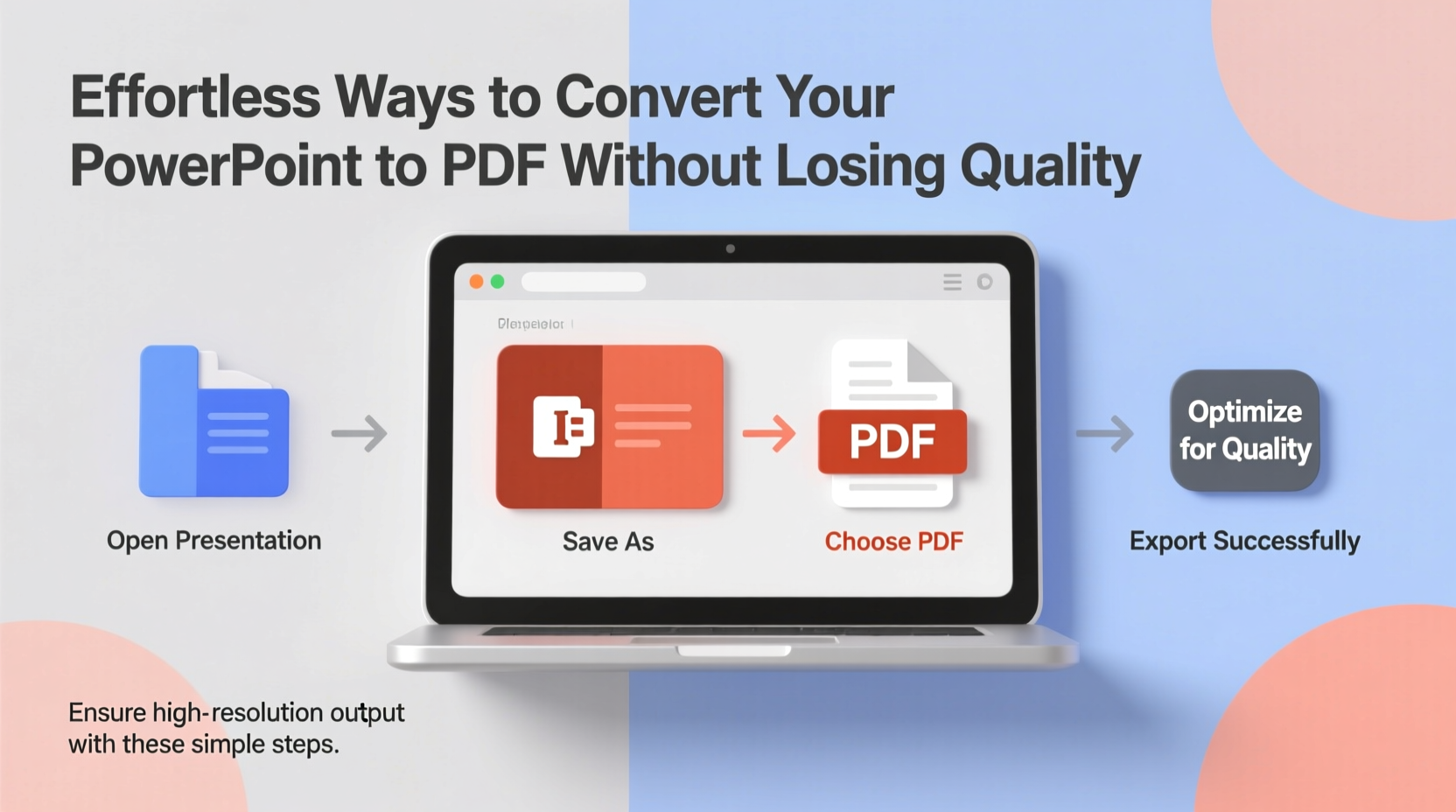
A poorly converted PDF can undermine even the most polished presentation. Blurry graphics, shifted elements, or font substitutions make your work appear unprofessional. When you send a PDF, recipients expect it to reflect what you see on your screen—no surprises.
The root cause of quality loss often lies in incorrect export settings, incompatible fonts, or high-resolution media being compressed unnecessarily. Understanding how PowerPoint handles output gives you control over the final result. Modern versions of PowerPoint (2016 and later) include robust PDF export features, but default options may prioritize file size over fidelity. Adjusting these settings ensures your PDF retains its integrity.
“PDFs are the universal language of document sharing. A high-quality export protects your credibility and ensures your content is interpreted correctly.” — Daniel Reyes, Digital Communications Specialist
Step-by-Step: Exporting from PowerPoint with Maximum Quality
The built-in export function in Microsoft PowerPoint remains one of the most reliable methods for converting presentations to PDF—when used correctly. Follow this sequence to preserve every detail:
- Open your PowerPoint presentation and review all slides for final adjustments.
- Navigate to File > Export > Create PDF/XPS.
- Click on “Options” before saving.
- In the dialog box, ensure “Standard (publishing online and printing)” is selected under ISO 19005-1 compliant (PDF/A). Avoid this if you have embedded videos or complex transitions.
- Under “Publish what,” choose Slides unless you need handouts or notes.
- Check “Document structure tags for accessibility” to improve compatibility with screen readers.
- Ensure “Bitmap compression” is set to None or ZIP only if file size is a concern.
- Select “High quality” under Optimize for.
- Click OK, then Save.
Alternative Tools for Flawless Conversion
While PowerPoint’s native export works well, third-party tools offer additional flexibility, especially when dealing with legacy versions or non-Windows systems.
| Tool | Best For | Quality Control Features |
|---|---|---|
| Adobe Acrobat Pro DC | Precision editing post-conversion | Custom DPI settings, color management, OCR support |
| Google Slides | Cross-platform access and collaboration | Download as PDF with layout preservation |
| LibreOffice Impress | Free alternative for Windows/Mac/Linux | Adjust image compression and resolution |
| Online converters (e.g., Smallpdf, ILovePDF) | Quick fixes on mobile or public computers | Limited; depends on upload quality |
For example, uploading a PPTX to Google Slides preserves most formatting and allows downloading as a clean PDF. However, animations and certain transition effects will not carry over—a trade-off for broad compatibility.
Mini Case Study: Preserving Brand Integrity for Client Pitches
Sophie Chen, a marketing consultant based in Toronto, regularly sends pitch decks to international clients. She once sent a PDF where her brand’s custom sans-serif font appeared as Times New Roman due to missing embedding. The client questioned whether the deck was finalized.
After that incident, Sophie updated her workflow: she now uses PowerPoint’s “Embed fonts” option and exports using the “High quality” preset. She also runs a quick test by opening the PDF on her phone before sending. Since then, her materials have consistently reflected her brand’s professionalism, leading to higher engagement and faster approvals.
Common Mistakes That Degrade PDF Quality
Avoid these frequent errors that compromise visual clarity:
- Using “Minimum Size” optimization: This setting aggressively compresses images and fonts, resulting in pixelation and jagged edges.
- Ignoring slide dimensions: Widescreen (16:9) presentations may be squeezed into standard (4:3) PDFs if not properly configured.
- Skipping proofing: Always open the exported PDF in a separate viewer to verify alignment, color accuracy, and readability.
- Overlooking linked media: External images or charts may not embed correctly unless saved within the presentation file.
“Always assume the recipient is viewing your PDF on a tablet or small laptop screen. If text is hard to read at 100%, go back and adjust.” — Lila Nguyen, UX Designer & Presentation Coach
Checklist: Pre-Export Quality Assurance
Run through this checklist before converting to ensure optimal results:
- ✅ Confirm all fonts are embedded or use system-safe alternatives.
- ✅ Verify image resolution (300 DPI recommended for print, 150+ for digital).
- ✅ Remove hidden slides or unused elements to reduce clutter.
- ✅ Test animations and transitions—if critical, consider including a video version.
- ✅ Set the correct slide size under Design > Slide Size.
- ✅ Use the “Inspect Document” tool (File > Info > Check for Issues) to detect hidden metadata.
- ✅ Preview the entire deck in Reading View to catch layout issues.
Frequently Asked Questions
Will animations and transitions appear in the PDF?
No. PDFs are static documents and do not support animated effects. If motion is essential, consider exporting your presentation as a video (MP4) instead.
Can I edit the PDF after conversion?
Yes, but with limitations. You can add annotations or highlights using Adobe Acrobat or similar tools. To re-edit content like text or images, you’ll need to return to the original PowerPoint file or use specialized PDF editors with optical character recognition (OCR).
Why does my PDF look blurry on some screens?
This usually occurs when images were compressed during export or were low-resolution to begin with. Ensure your source images are high quality and select “High quality” during export. Also, avoid scaling up small graphics within slides.
Final Thoughts: Make Every Slide Count
Converting a PowerPoint to PDF shouldn’t mean compromising on quality. With the right settings and a bit of preparation, your PDF can look just as sharp and professional as the original presentation. Whether you're presenting to stakeholders, distributing training materials, or archiving project milestones, maintaining visual fidelity strengthens your message and builds trust.
The tools are already at your fingertips—whether it’s PowerPoint’s export menu, cloud-based platforms, or trusted third-party software. What matters most is consistency: develop a repeatable process, double-check key details, and always preview your output.




 浙公网安备
33010002000092号
浙公网安备
33010002000092号 浙B2-20120091-4
Comments
No comments yet. Why don't you start the discussion?