
Moving data between Excel workbooks is a routine task for professionals across finance, operations, project management, and analytics. Whether you're consolidating reports, sharing data with colleagues, or archiving information, copying an Excel sheet accurately and efficiently is essential. While the process may seem straightforward, doing it incorrectly can lead to broken links, formatting loss, or unintended changes in formulas. The good news? There are several proven, low-effort methods to copy sheets between workbooks—each suited to different needs and skill levels. This guide walks through practical techniques that preserve data integrity while saving time and reducing errors.
Why Copying Sheets Matters for Data Flow
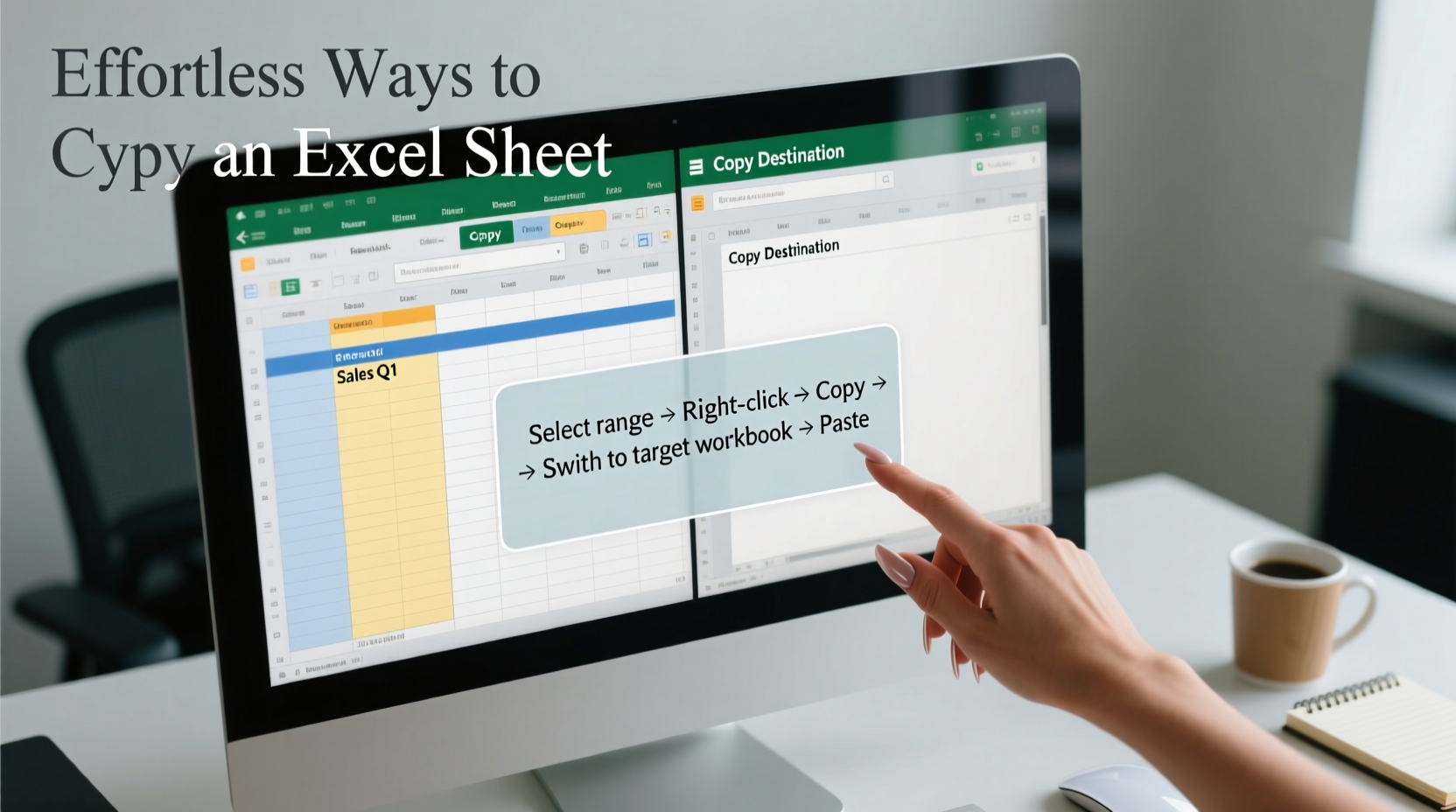
In modern business environments, data rarely lives in isolation. Teams often maintain master files, departmental spreadsheets, and shared dashboards—all of which need periodic updates from source workbooks. Manually re-entering data is not only time-consuming but error-prone. Copying entire sheets ensures consistency, retains formatting, and keeps formulas intact. When done correctly, this simple action supports accurate reporting, faster decision-making, and smoother collaboration.
However, many users overlook critical details such as external references, named ranges, or worksheet protection settings, which can cause issues after the copy. Understanding the right method—and when to use it—is key to maintaining data reliability across systems.
Step-by-Step: How to Copy a Sheet Using Right-Click (Beginner-Friendly)
The most intuitive way to copy a sheet involves using Excel’s built-in interface. This method requires no technical knowledge and works across all recent versions of Excel, including desktop and Microsoft 365.
- Open both the source workbook (containing the sheet to copy) and the destination workbook (where you want the sheet to go).
- Navigate to the sheet tab at the bottom of the source workbook.
- Right-click on the sheet name.
- Select Move or Copy from the context menu.
- In the dialog box, choose the destination workbook from the \"To book\" dropdown. If the target file isn’t open, it won’t appear—ensure both files are open first.
- Check the box labeled Create a copy. Without this, Excel will move rather than duplicate the sheet.
- Click OK.
The copied sheet appears in the destination workbook with the same name followed by \"(2)\" if a sheet with that name already exists. All cell values, formatting, charts, and internal formulas are preserved exactly.
Using VBA for Bulk or Automated Sheet Transfers
When dealing with multiple sheets or recurring transfers, manual copying becomes inefficient. Visual Basic for Applications (VBA) offers a powerful automation alternative. With a short script, you can copy one or more sheets across workbooks with precision.
Here’s a basic VBA macro that copies a specific sheet:
Sub CopySheetToAnotherWorkbook()
    Dim sourceWb As Workbook
    Dim destWb As Workbook

    Set sourceWb = Workbooks(\"SourceFile.xlsx\")
    Set destWb = Workbooks(\"DestinationFile.xlsx\")

    sourceWb.Sheets(\"DataSheet\").Copy Before:=destWb.Sheets(1)
End Sub
To use this:
- Press Alt + F11 to open the VBA editor.
- Insert a new module and paste the code.
- Update the workbook and sheet names to match your files.
- Run the macro.
This approach excels in scheduled reporting environments where weekly or monthly data must be migrated automatically. It also allows for error handling, logging, and integration with other processes like email notifications or file backups.
“Automation in Excel isn’t just for experts. Even simple macros can save hours per week on repetitive tasks.” — Laura Bennett, Data Systems Analyst at FinEdge Solutions
Preserving Links vs. Breaking Them: A Critical Decision
One of the most overlooked aspects of copying sheets is how Excel handles formula references. By default, if your source sheet contains formulas pointing to other sheets or external files, those links remain active after copying—unless the destination workbook lacks the referenced data, leading to #REF! errors.
You have two main options:
| Approach | Use Case | How to Apply |
|---|---|---|
| Keep External Links | When both workbooks will remain connected and updated together | No action needed; links persist automatically |
| Break Links / Convert to Values | When the copy should be standalone (e.g., for distribution) | Select all cells, copy, then use Paste Special > Values |
If you plan to distribute the copied sheet to others who don’t have access to the original files, convert formulas to static values before sharing. Otherwise, recipients may see broken references or be prompted to update links—an unnecessary distraction.
Mini Case Study: Streamlining Monthly Reporting at NexaCorp
NexaCorp’s regional sales team used to spend nearly three days each month compiling performance data into a central report. Each branch submitted its own Excel file, and the finance team manually copied individual sheets into a master workbook. Errors were common, and formatting inconsistencies delayed final sign-off.
They implemented a standardized template and trained managers to use the “Move or Copy” function to send their completed sheets directly into the master file. Additionally, they added a VBA button that automated link removal upon insertion, ensuring clean, self-contained data.
Result: The monthly close process was reduced from 72 hours to under 8. Accuracy improved significantly, and stakeholders received consistent, reliable reports on time.
Best Practices Checklist for Flawless Sheet Transfer
To ensure every copy operation goes smoothly, follow this actionable checklist:
- ✅ Open both source and destination workbooks before starting
- ✅ Verify sheet names don’t conflict with existing tabs
- ✅ Check for external links and decide whether to keep or break them
- ✅ Confirm that protected sheets are unprotected before copying (if modifications are needed)
- ✅ Test formulas in the destination workbook to ensure functionality
- ✅ Save a backup of the destination file before pasting large datasets
- ✅ Use Paste Special > Values when sharing externally to avoid dependency issues
Frequently Asked Questions
Can I copy a sheet without opening the destination workbook?
No, Excel requires both workbooks to be open for direct sheet copying via the Move or Copy dialog. However, you can use VBA or Power Query to import data into a closed workbook programmatically.
Why do my formulas show #REF! after copying?
This happens when your formulas reference sheets or cells that don’t exist in the destination workbook. To fix it, either recreate the missing references or convert formulas to values before copying using Paste Special.
Is there a limit to how many sheets I can copy at once?
Excel allows you to select and copy multiple adjacent or non-adjacent sheets simultaneously. Hold Ctrl to select multiple tabs, right-click, and choose Move or Copy. Just ensure the destination workbook has enough capacity and unique sheet names.
Conclusion: Master the Basics, Unlock Efficiency
Copying an Excel sheet to another workbook doesn’t need to be a tedious or risky task. Whether you're using simple drag-and-drop methods, leveraging the Move or Copy dialog, or automating with VBA, the right technique can make data management seamless and error-free. The key is understanding your data's dependencies and choosing the method that aligns with your workflow goals.




 浙公网安备
33010002000092号
浙公网安备
33010002000092号 浙B2-20120091-4
Comments
No comments yet. Why don't you start the discussion?