
In an age where communication happens at lightning speed, the ability to quickly copy and resend text messages can save valuable time. Whether you're forwarding a delivery address, repeating an appointment reminder, or sharing a quote with a friend, mastering efficient text handling on your smartphone streamlines daily interactions. Most users only scratch the surface of their device’s messaging capabilities, relying on slow manual typing instead of leveraging built-in tools and smart workflows. This guide reveals practical, often overlooked methods to copy, edit, and send messages across platforms—without unnecessary effort.
Why Copying Text Messages Matters
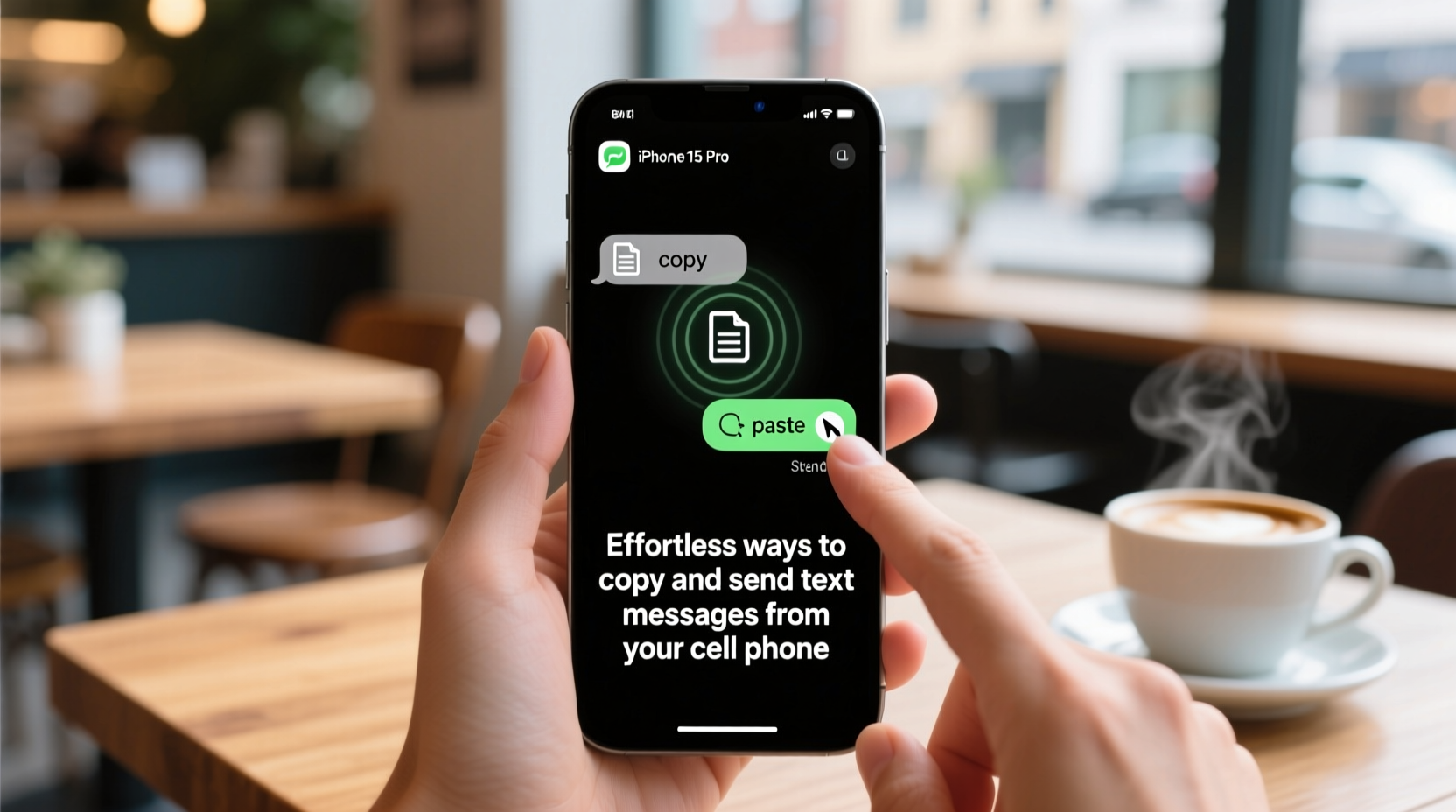
Copying and sending text isn’t just about convenience—it enhances accuracy, reduces errors, and supports multitasking. Imagine resending a complex Wi-Fi password or forwarding a medical appointment detail. Typing it manually increases the risk of mistakes. By copying directly from previous messages, you ensure precision and save time. Moreover, professionals who frequently share templates, responses, or contact details benefit significantly from streamlined text reuse.
“Efficiency in digital communication starts with minimizing repetitive actions. Copy-paste functionality is one of the most underutilized tools in mobile productivity.” — Dr. Lena Torres, Human-Computer Interaction Researcher
Step-by-Step: How to Copy Any Text Message on iPhone and Android
Both iOS and Android offer intuitive ways to extract text from messages. The process is nearly identical across modern smartphones, though interface details vary slightly.
- Open your messaging app (Messages on iPhone, Google Messages or Samsung Messages on Android).
- Locate the message you want to copy. Tap and hold on the specific message bubble until a menu appears.
- Select “Copy” from the context menu. On some devices, you may first need to tap “Copy text” after selecting the message.
- Paste it anywhere: Open a new message, email, note, or document and long-press in the text field. Tap “Paste” when the option appears.
Selecting Partial Text Within a Message
Sometimes you only need part of a message—like a phone number or date. Here’s how to do it precisely:
- Tap and hold within the message until selection handles appear.
- Drag the blue (iOS) or green (Android) brackets to highlight only the text you want.
- Tap “Copy” from the pop-up toolbar.
This method works even in encrypted messages via iMessage or WhatsApp, as long as the content is visible.
Built-in Shortcuts for Faster Text Reuse
Smartphones come with hidden features that accelerate text handling. Leveraging these eliminates redundant steps.
iOS: Use the Clipboard History (Limited but Useful)
While iOS doesn’t offer full clipboard history by default, it temporarily retains the last copied item. After copying a message, you can paste it repeatedly until you copy something else. For enhanced clipboard access, enable “Universal Clipboard” in Settings > General > AirDrop & Handoff to copy on one Apple device and paste on another.
Android: Leverage Gboard's Clipboard Manager
Google’s Gboard keyboard includes a powerful clipboard tool:
- Copy any text message as described earlier.
- Open any app with a text field and tap to bring up the keyboard.
- Tap the clipboard icon on the top row of Gboard.
- Access your last several copied items and paste them instantly.
Using Third-Party Apps to Supercharge Text Management
For users who regularly reuse messages, dedicated clipboard managers outperform native tools.
| App | Platform | Key Feature | Best For |
|---|---|---|---|
| Clipper | Android | Auto-saves all copied text; searchable history | Users who copy frequently |
| Paste | iOS | End-to-end encrypted sync across Apple devices | Privacy-focused professionals |
| TextExpander | iOS & Android | Create shortcuts for common phrases (e.g., “/addr” = full address) | Templates and automation |
These apps allow you to organize saved texts into folders, search past messages, and even set expiration dates for sensitive data like one-time passwords.
Real Example: Streamlining Customer Support Responses
Sophia runs a small online store and answers dozens of customer inquiries daily. She used to retype common replies about shipping times and return policies. After discovering clipboard tools, she created a snippet library using TextExpander. Now, typing “/ship” automatically inserts her standard shipping response. When a customer asks for tracking, she copies the last message containing the tracking link, pastes it, and adds a personalized note. Her response time dropped by 40%, and error rates in order details vanished.
“Before, I spent 30 minutes a day just retyping the same info. Now, I reclaim that time for actual customer engagement.” — Sophia Reed, Small Business Owner
Checklist: Optimize Your Text Copying Workflow
- ✅ Practice tapping and holding messages to trigger copy options.
- ✅ Use partial selection to extract only needed information (dates, numbers, links).
- ✅ Enable clipboard suggestions in your keyboard settings (Gboard or SwiftKey).
- ✅ Install a clipboard manager if you reuse text often.
- ✅ Create text shortcuts for frequent replies using TextExpander or similar tools.
- ✅ Avoid copying sensitive data unless necessary, and clear clipboard history periodically.
Frequently Asked Questions
Can I copy and send messages from encrypted apps like WhatsApp or Signal?
Yes. While end-to-end encryption protects message transit, once a message appears on your screen, you can copy its visible content just like any other text. The encryption does not restrict copy functions on the device level.
Does copying a message include timestamps or sender names?
No. Copying extracts only the textual content of the message. Metadata like time, date, or sender is not included unless manually selected (which usually isn’t possible in standard messaging interfaces).
Is there a way to automatically forward certain messages?
Yes, using automation tools like Apple Shortcuts (iOS) or Tasker (Android). For example, you can create a shortcut that automatically copies and forwards any message containing “urgent” to another contact. These require initial setup but pay off in recurring scenarios.
Mastering Mobile Messaging Efficiency
The ability to copy and send text messages effortlessly is more than a minor convenience—it’s a productivity multiplier. Whether you’re managing personal communications or professional correspondence, reducing friction in how you handle text leads to faster responses, fewer errors, and less mental fatigue. The techniques outlined here—from basic tap-and-hold mechanics to advanced clipboard automation—are accessible to every smartphone user, regardless of technical skill.




 浙公网安备
33010002000092号
浙公网安备
33010002000092号 浙B2-20120091-4
Comments
No comments yet. Why don't you start the discussion?