
A cluttered call log can be distracting, unprofessional, or even a privacy concern—especially if your iPhone is shared or occasionally used by others. Whether you're managing personal boundaries, tidying up after a busy day of calls, or simply prefer a minimalist interface, knowing how to efficiently delete recent calls from your iPhone is essential. The good news? Apple has built intuitive tools into iOS that make this process fast and straightforward. From removing individual entries to clearing entire logs in seconds, here’s everything you need to know to keep your call history crisp and controlled.
Why a Clean Call Log Matters
Your iPhone’s call log isn’t just a record of who you’ve spoken to—it’s often one of the first things visible when someone picks up your phone. A long list of missed calls, duplicates, or outdated numbers can create confusion or expose information you'd rather keep private. Beyond privacy, a streamlined call history improves usability. Searching for a specific contact becomes faster, and accidental redials are less likely when irrelevant entries are removed.
iOS doesn't automatically purge old calls unless storage space becomes critical. This means your call log could contain entries from months—or even years—ago. Taking manual control ensures your device reflects your current communication habits, not past ones.
How to Delete Individual Recent Calls
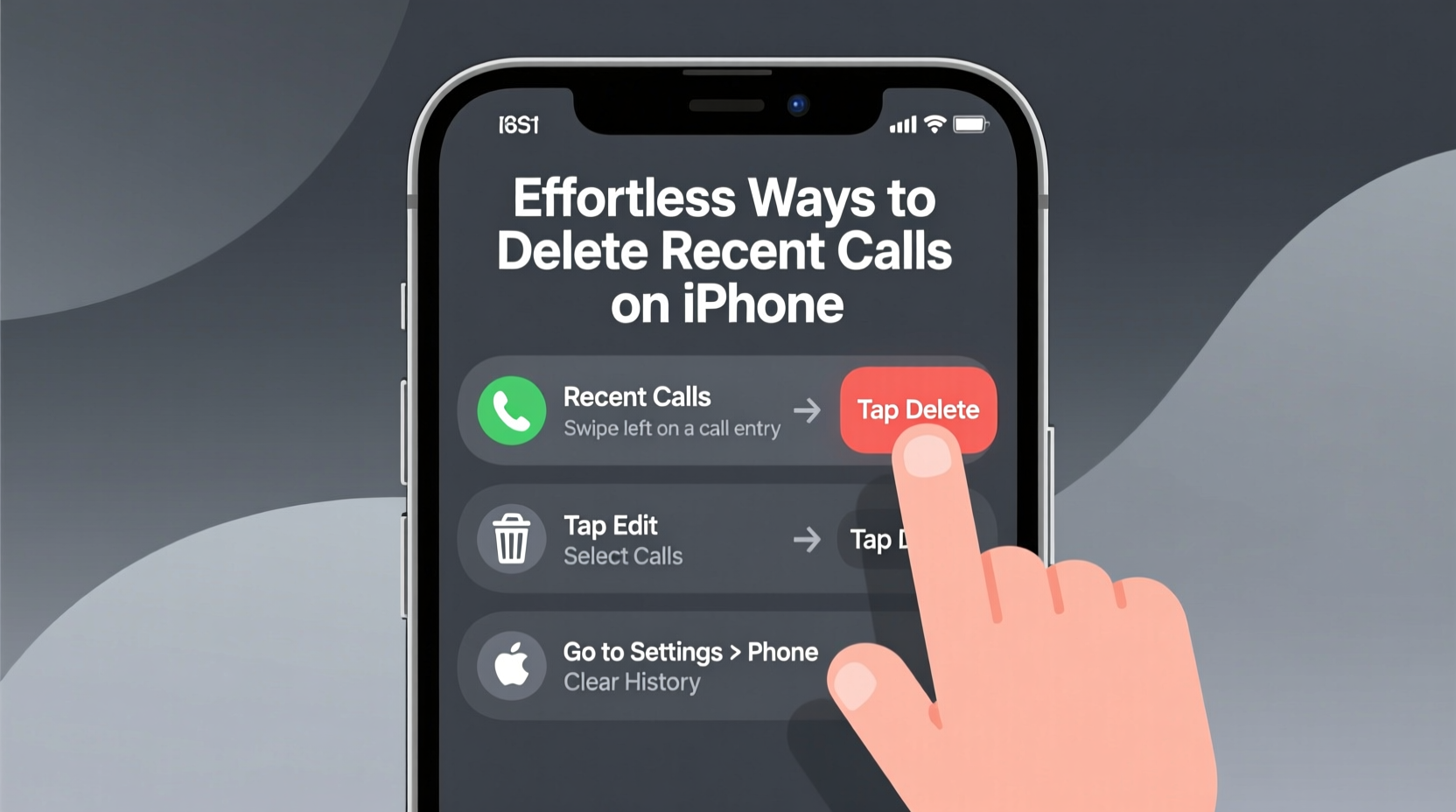
Removing single entries from your call log is ideal when you only want to erase a few select numbers. This method preserves the rest of your history while giving you precision control.
- Open the Phone app on your iPhone.
- Tap the Recents tab at the bottom of the screen.
- Swipe left on the call entry you wish to delete.
- Tap the red Delete button that appears.
This action removes just that instance of the call—whether it was incoming, outgoing, or missed. If you have multiple interactions with the same person, only the selected one will be erased.
Delete All Recent Calls at Once
If your call log is overflowing and you’d prefer a fresh start, iOS allows you to clear every entry in one go. This is especially useful after travel, events, or periods of high call volume.
- Launch the Phone app.
- Navigate to the Recents tab.
- Scroll to the very top of the list until you see the Clear option (it appears as a link above the first call).
- Tap Clear, then confirm by selecting Clear All Recents.
After confirmation, your entire call history vanishes instantly. Note: This does not affect voicemail messages or synced data from iCloud—only the local log displayed under Recents.
Limitations of Bulk Deletion
While “Clear All Recents” is efficient, it lacks customization. You can't selectively remove only missed calls or filter by date. Once deleted, there's no undo function unless you rely on backups. For users who need more granular control, third-party solutions or workarounds may be necessary—but these come with caveats, as Apple prioritizes user privacy and limits external access to call logs.
Using Siri for Hands-Free Call Log Management
For those who value speed and convenience, Siri offers a voice-powered shortcut. While Siri cannot directly delete specific calls, it can help initiate the process.
Say: \"Show my recent calls.\"
Siri will open the Phone app to the Recents tab, allowing you to manually swipe and delete entries immediately—without touching the screen if you're driving or multitasking.
Alternatively, use Siri to call someone, then manually delete that entry afterward. Over time, this reduces reliance on visual navigation and integrates deletion into your routine.
“Efficiency in digital hygiene starts with small, consistent actions. Cleaning your call log regularly prevents buildup and supports better focus.” — Jordan Lee, Digital Wellness Consultant
Automating Privacy with Screen Time Settings
While iOS doesn’t offer automatic call log purging, you can enhance privacy through Screen Time settings. These won’t delete calls, but they do limit visibility—an effective workaround for sensitive environments.
Steps to Restrict Call History Access:
- Go to Settings > Screen Time.
- Enable Screen Time if not already active.
- Select Content & Privacy Restrictions.
- Tap Privacy > Contacts, Calendars, Reminders.
- Set Calls to Don’t Allow (optional, restricts new entries).
Note: Disabling call logging entirely affects functionality—you won’t see recent calls at all. Use this only if complete suppression is desired, such as for shared devices.
Checklist: Maintaining a Tidy Call Log
- ✅ Review your Recents list weekly.
- ✅ Delete unwanted entries immediately after calls.
- ✅ Use “Clear All Recents” monthly or after high-volume periods.
- ✅ Enable Screen Time restrictions if sharing your device.
- ✅ Avoid storing unnecessary numbers in call history—add them to Contacts instead.
- ✅ Restart the Phone app occasionally to refresh glitches in display.
Do’s and Don’ts of Call Log Management
| Do | Don’t |
|---|---|
| Clear all recents when starting a new project or trip | Delete calls before checking voicemail (you might lose context) |
| Use Siri to quickly access the Recents tab | Rely solely on iCloud backup to restore selective call history (not supported) |
| Regularly archive important contacts to avoid losing track | Assume deleted calls are gone forever—forensic tools may recover data |
| Leverage Swipe-to-Delete for daily maintenance | Expect filters or search-based bulk deletion in native iOS (currently unavailable) |
Real Example: Managing Client Calls After a Launch Week
Sophie, a freelance marketing consultant, recently launched a campaign for five clients simultaneously. Over seven days, she made over 80 calls—follow-ups, briefings, and vendor coordination. By the end of the week, her iPhone’s Recents tab was overwhelming, filled with overlapping numbers and repeated callbacks.
Instead of scrolling endlessly, Sophie opened the Phone app each evening and tapped Clear at the top of her Recents list. She had already saved key contacts, so losing the log didn’t impact her workflow. Within seconds, her interface reset, reducing mental clutter and making urgent calls easier to spot. This habit improved both her productivity and peace of mind.
Frequently Asked Questions
Can I recover deleted recent calls?
No, once calls are deleted—either individually or in bulk—they cannot be retrieved through standard iOS functions. If you have an iCloud or iTunes backup created before deletion, restoring from that backup may bring back the data, but it will overwrite current changes.
Does deleting recent calls remove them from other devices?
If you use iCloud to sync call history across devices (like iPad or Mac), then yes—deleting a call on one device removes it from all linked devices. To disable syncing, go to Settings > [Your Name] > iCloud > toggle off Calls.
Why don’t some calls disappear after I delete them?
This rare issue usually stems from a temporary glitch. Try force-closing the Phone app and reopening it. If the problem persists, restart your iPhone. In most cases, the call log refreshes correctly after a reboot.
Final Thoughts: Simplicity Is Key
Keeping your iPhone’s call log clean doesn’t require complex tools or technical skills. With just a few taps, you can maintain a professional, organized, and secure communication history. Whether you choose to delete calls one by one or wipe the slate clean periodically, consistency is what makes the difference. Think of it as digital housekeeping—small efforts today prevent bigger headaches tomorrow.




 浙公网安备
33010002000092号
浙公网安备
33010002000092号 浙B2-20120091-4
Comments
No comments yet. Why don't you start the discussion?