
Whether you're capturing a podcast clip, saving background music from a tutorial, or converting a lecture for offline listening, extracting audio from video doesn’t need to be complicated. With the right tools and techniques, you can isolate high-quality sound in seconds—regardless of your device or technical skill level. The key is knowing which method aligns with your needs: speed, format compatibility, privacy, or audio quality.
This guide walks through practical, tested approaches across operating systems and platforms. From built-in features to trusted third-party tools, you’ll find solutions that balance simplicity and performance—without unnecessary downloads or confusing interfaces.
Why Extract Audio from Video?
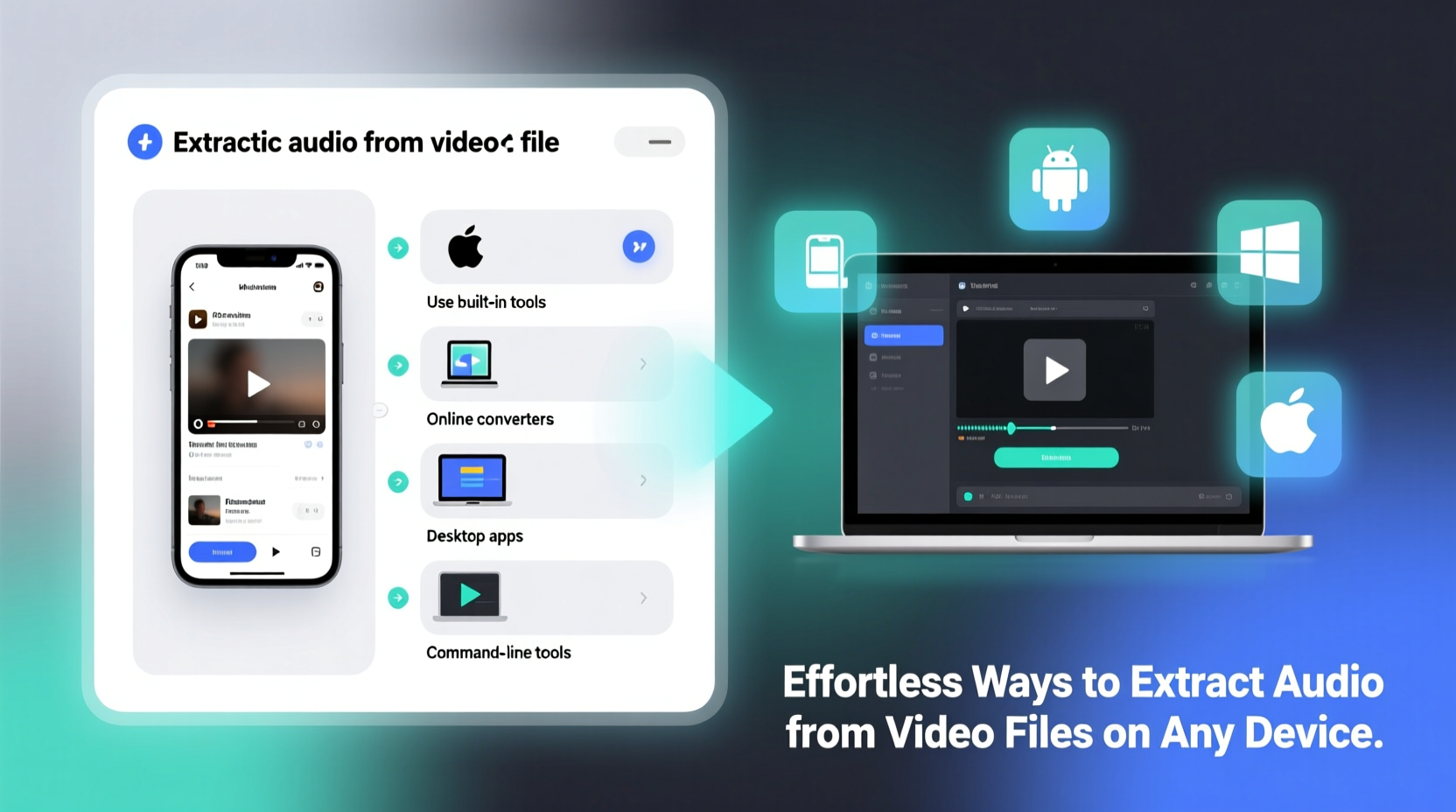
There are countless reasons to pull audio from video. Students convert recorded lectures into MP3s for easier review. Content creators repurpose YouTube videos into podcast episodes. Musicians extract instrumentals or vocals for remixing. Others simply want to listen to a motivational speech during a commute without using mobile data for video playback.
Audio files are smaller, more portable, and compatible with virtually every device. Converting video to audio streamlines storage and enhances accessibility—especially when internet access is limited or battery life matters.
Extract Audio Using Built-In Tools
Many devices come with native capabilities that allow basic audio extraction—no downloads required. These methods are ideal for quick jobs and users who prioritize privacy and simplicity.
On Windows: Use Photos App + Voice Recorder
While Windows doesn’t have a direct “extract audio” button, you can leverage the Photos app and Voice Recorder in tandem. Play the video in the Photos app, then record the output using Voice Recorder. This method works best for short clips under two minutes and when external noise is minimized.
On Mac: Leverage QuickTime Player and Export Options
Mac users have a more powerful built-in option. Open your video in QuickTime Player, go to File > Export As, and choose “Audio Only.” The resulting file will be saved as a .m4a—ideal for most personal uses. This method preserves decent quality and requires zero additional software.
“QuickTime’s export feature is underrated. It’s fast, clean, and surprisingly effective for everyday audio extraction.” — Jordan Lee, Multimedia Producer
Best Free Online Tools for Any Device
If you’re on a Chromebook, tablet, or public computer, browser-based tools offer the most flexibility. They work across operating systems and require no installation. However, always consider file sensitivity—uploading private videos to third-party sites may pose privacy risks.
Top 3 Online Converters
| Tool | Supported Formats | Max File Size | Key Benefit |
|---|---|---|---|
| OnlineAudioConverter.com | MP4, AVI, MOV, MKV → MP3, WAV, OGG | 100 MB | Simple interface, supports URL input (e.g., YouTube links) |
| CloudConvert.org | Over 200 formats | 1 GB (free tier) | Premium quality options and batch processing |
| FLVTO.biz | YouTube, Vimeo, MP4, WebM → MP3 | Unlimited (with ads) | Fast YouTube-to-MP3 conversion |
To use these tools: upload your video file or paste a link, select the desired audio format (MP3 is most universal), and click convert. Download the result directly to your device.
Step-by-Step: Extract Audio Using VLC Media Player
VLC isn’t just for playing obscure file types—it’s a powerhouse for audio extraction. Available on Windows, Mac, Linux, iOS, and Android, VLC is free, open-source, and highly reliable.
- Download and install VLC from videolan.org if you haven’t already.
- Open VLC, go to Media > Convert / Save.
- Click “Add” under the “File” section and select your video.
- Click “Convert / Save” at the bottom.
- In the “Profile” dropdown, choose “Audio - MP3” or “Audio - WAV.”
- Click the folder icon next to “Destination,” name your file, and choose save location.
- Press “Start.”
The process takes a few moments depending on file size. Once complete, you’ll have a standalone audio file ready for syncing to smart speakers, playlists, or transcription apps.
Mobile Solutions: Extract Audio on iPhone and Android
Smartphones are often where videos are captured—and sometimes where they’re consumed. Fortunately, extracting audio on mobile is straightforward with the right apps.
iOS: Use Documents by Readdle + Converter Tools
The Documents app functions as a file manager and includes an integrated web browser and converter. After downloading a video into the app, tap the file, choose “Share,” then select “Convert to Audio.” You can export as MP3 and transfer files to other apps like Apple Music or cloud storage.
Android: Try Audio Extractor or Video to MP3 Converter
Apps like Audio Extractor (by Bando Development) let you browse your gallery, select a video, and extract audio with one tap. The interface is minimal, and output quality is customizable. Files are saved directly to your device’s audio folder, making them easy to locate and share.
“I use Audio Extractor weekly to turn workout videos into audio cues. It saves me hours of manual voice recording.” — Priya M., Fitness Coach
Checklist: How to Choose the Right Method
- ✅ Need speed? Use an online tool like OnlineAudioConverter.
- ✅ Concerned about privacy? Use offline tools like VLC or QuickTime.
- ✅ Working with large files? Avoid web tools with size limits; opt for desktop software.
- ✅ Want highest quality? Choose WAV or FLAC output instead of MP3.
- ✅ On mobile? Install a dedicated extractor app for seamless integration.
- ✅ Extracting from YouTube? Ensure compliance with platform policies and copyright laws.
Real Example: Turning a TED Talk into a Commute Companion
Sarah, a university student in Toronto, wanted to listen to a 15-minute TED Talk about time management during her daily bus ride. She didn’t want to use mobile data for video playback, and the TED app didn’t offer audio-only downloads.
She used her laptop and went to CloudConvert.org, pasted the TED Talk URL, selected MP3 output, and converted the file in under a minute. She downloaded the audio and transferred it to her phone via Bluetooth. Now, she listens to educational content during commutes without draining her battery or data plan.
This simple workflow saved her time and enhanced her learning routine—all without installing new software.
FAQ
Can I extract audio without losing quality?
Yes. When using tools like VLC or FFmpeg, you can preserve original audio tracks in lossless formats like WAV or FLAC. Avoid multiple conversions, as each re-encoding may reduce quality.
Is it legal to extract audio from videos?
It depends on usage. Extracting audio for personal use—like listening offline—is generally acceptable. However, redistributing copyrighted content (e.g., music videos) without permission violates copyright law in most countries.
What’s the fastest way to extract audio on a Chromebook?
Use an online converter like OnlineAudioConverter.com. Simply upload the video file or paste a public link, choose MP3, and download the result. No installation needed.
Conclusion
Extracting audio from video doesn’t require advanced skills or expensive software. Whether you’re using a decade-old laptop or the latest smartphone, there’s a fast, reliable method waiting for you. From built-in players like QuickTime to versatile tools like VLC and user-friendly online converters, the options are broader than ever.
The real advantage lies in consistency and intention. Once you identify your preferred method—based on device, privacy needs, and frequency of use—you can automate the process and reclaim valuable time. Turn tutorials into podcasts, speeches into affirmations, and meetings into transcribable records.




 浙公网安备
33010002000092号
浙公网安备
33010002000092号 浙B2-20120091-4
Comments
No comments yet. Why don't you start the discussion?