
When you're on the move and need internet access for your Apple tablet but can't find a reliable Wi-Fi network, your smartphone becomes your most valuable tool. Whether you're traveling, working remotely, or simply in a location with poor connectivity, turning your iPhone into a personal hotspot is a seamless solution. This guide walks through practical, tested methods to share your phone’s data connection with your iPad—quickly, securely, and without technical headaches.
How Tethering Works: The Basics
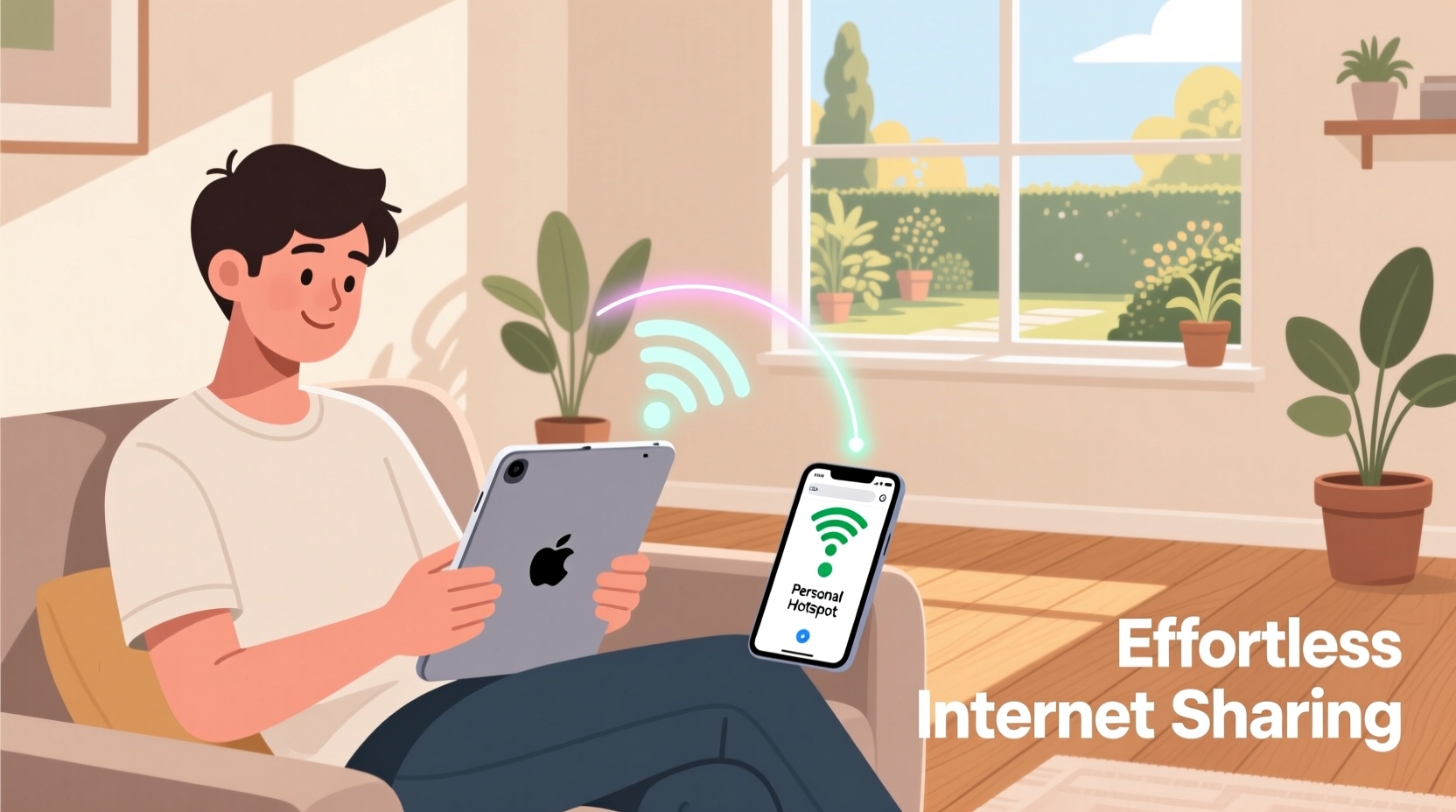
Tethering allows your smartphone to act as a wireless modem, sharing its cellular data connection with other devices like your Apple tablet. This process, also known as a personal hotspot, uses Wi-Fi, Bluetooth, or a USB cable to transfer internet access from your phone to your iPad. Apple makes this especially user-friendly within its ecosystem thanks to iCloud integration and native iOS features.
When enabled, your iPhone broadcasts a secure network that your iPad can join—just like any other Wi-Fi router. The connection speed depends on your carrier's signal strength and data plan, but modern 4G LTE and 5G networks provide more than enough bandwidth for browsing, streaming, or video calls.
Step-by-Step: Setting Up Personal Hotspot on iPhone
Setting up a personal hotspot is straightforward if both devices are signed in with the same Apple ID and have key settings enabled. Follow this sequence to ensure smooth connectivity:
- On your iPhone, go to Settings > Personal Hotspot.
- Toggle on Allow Others to Join.
- If available, note the Wi-Fi password displayed under the setting.
- Ensure Wi-Fi, Bluetooth, and Cellular Data are active.
- On your iPad, open Settings > Wi-Fi.
- Look for your iPhone’s name in the list of available networks (e.g., “John’s iPhone”).
- Select it and enter the password shown on your iPhone.
- Once connected, the iPad will route all internet traffic through your phone’s data plan.
After initial setup, future connections often happen automatically when both devices are nearby and unlocked—thanks to Instant Hotspot, an iCloud feature that syncs devices across the same account.
Alternative Connection Methods Beyond Wi-Fi
While Wi-Fi tethering is the most common method, there are two other reliable ways to connect your iPad to your iPhone’s internet: Bluetooth and USB. Each has advantages depending on your situation.
| Method | Best For | Pros | Cons |
|---|---|---|---|
| Wi-Fi Hotspot | Multiple devices, general use | Fast setup; supports several devices at once | Drains battery faster; potential interference |
| Bluetooth | Low-power, long-duration use | Energy-efficient; runs in background | Slower speeds; requires pairing |
| USB Cable | Stable, high-speed needs (e.g., downloads) | Fastest connection; charges iPad simultaneously | Less portable; requires physical cable |
To use Bluetooth tethering:
- Pair your iPad and iPhone via Settings > Bluetooth.
- Enable Personal Hotspot on the iPhone.
- On the iPad, go to Settings > Wi-Fi and look for the iPhone’s name under \"Hotspots.\"
- Select it—even though it appears in the Wi-Fi menu, iOS routes it through Bluetooth.
For USB tethering:
- Connect your iPad to your iPhone using a Lightning or USB-C cable.
- Enable Personal Hotspot on the iPhone.
- Your iPad should prompt you to “Use Cellular Connection.” Tap to confirm.
Real-World Example: Working Remotely From a Café
Sophie, a freelance graphic designer, travels frequently for client meetings. During a recent trip to a rural town, she arrived at a quiet café only to discover the Wi-Fi was down. With a presentation due in an hour, she needed immediate internet access for her iPad Pro.
She pulled out her iPhone, activated Personal Hotspot, and connected her iPad over Wi-Fi. Within seconds, she resumed uploading files to Dropbox and joined her Zoom call without delay. Because both devices were on the same iCloud account, the connection happened almost instantly. She later switched to USB tethering when her iPhone battery dropped below 30%, plugging in both devices to a power bank. This kept her online and charging throughout the meeting.
This scenario illustrates how flexible and dependable iPhone-to-iPad tethering can be—even under pressure.
Expert Insight: Network Reliability and Carrier Policies
“Many users don’t realize that their carrier may throttle hotspot speeds after a certain data threshold. Always check your plan details before relying on tethering for bandwidth-heavy tasks.” — Marcus Tran, Mobile Network Engineer
Not all data plans treat hotspot usage equally. Some carriers offer unlimited data but limit hotspot speeds after 10–20 GB per month. Others charge extra for hotspot access. Before relying heavily on tethering, review your plan or consider upgrading to one that includes generous—or unlimited—hotspot data.
Additionally, using your phone as a hotspot in areas with weak signal can result in slow speeds or unstable connections. If possible, move near a window or higher ground to improve reception. Turning off unused apps on both devices helps reduce bandwidth competition.
Troubleshooting Common Connection Issues
Even with proper setup, issues can arise. Here’s how to resolve the most frequent problems:
- Hotspot not appearing on iPad: Ensure both devices have Wi-Fi and Bluetooth enabled. Restart both devices if necessary.
- Connection drops frequently: Check your iPhone’s signal strength. Close background apps consuming data.
- Prompt says “No Service”: Verify cellular data is active and not restricted in Settings > Cellular > Personal Hotspot.
- iPad won’t join hotspot: Forget the network on the iPad and reconnect. Update both devices to the latest iOS version.
If Instant Hotspot isn’t working, confirm that:
- Both devices are signed in with the same Apple ID.
- Two-Factor Authentication is enabled for the Apple ID.
- Handoff is turned on (Settings > General > AirPlay & Handoff).
Checklist: Quick Setup & Optimization
Use this checklist before heading out to ensure seamless internet access anywhere:
- ✅ Confirm your iPhone has active cellular data.
- ✅ Enable Personal Hotspot in Settings.
- ✅ Set a strong Wi-Fi password for your hotspot.
- ✅ Pair devices via Bluetooth for automatic fallback.
- ✅ Carry a charging cable for USB tethering.
- ✅ Monitor data usage to avoid overage charges.
- ✅ Turn off hotspot when not in use to save battery.
Frequently Asked Questions
Can I use my Android phone to provide internet to my Apple tablet?
Yes, but the experience isn’t as seamless. You’ll need to manually set up a Wi-Fi hotspot on your Android device and connect your iPad to it like any standard network. Features like Instant Hotspot and automatic syncing do not work across operating systems.
Does using a personal hotspot count against my data plan?
Absolutely. All data transferred through the hotspot comes from your phone’s cellular plan. Streaming video, large downloads, or cloud backups can consume gigabytes quickly. Monitor usage in Settings > Cellular to stay within limits.
Is it safe to use my phone as a hotspot in public?
Yes, as long as you use a strong password. Avoid leaving your hotspot open (without a password) in public spaces, as this could allow unauthorized access and potentially expose your data.
Stay Connected, Anywhere
Having constant internet access shouldn’t depend on finding a coffee shop with decent Wi-Fi. By leveraging your iPhone’s built-in hotspot capabilities, your Apple tablet remains fully functional wherever you go. Whether you’re connecting via Wi-Fi, Bluetooth, or USB, the process is designed to be intuitive and reliable—especially within Apple’s integrated ecosystem.
The key is preparation: know your data plan, keep your devices updated, and understand the different tethering options at your disposal. With these strategies in place, staying productive or entertained on the go becomes effortless.




 浙公网安备
33010002000092号
浙公网安备
33010002000092号 浙B2-20120091-4
Comments
No comments yet. Why don't you start the discussion?