
Merging PDF files is a common task in both personal and professional settings. Whether you're combining scanned documents, creating a single report from multiple drafts, or compiling a portfolio, joining PDFs into one cohesive file saves time and improves organization. The good news? You don’t need advanced technical skills to do it. With the right tools and a clear understanding of your options, anyone can merge PDFs effortlessly. This guide walks you through everything you need to know—no jargon, no confusion, just practical solutions that work.
Why Merging PDFs Matters
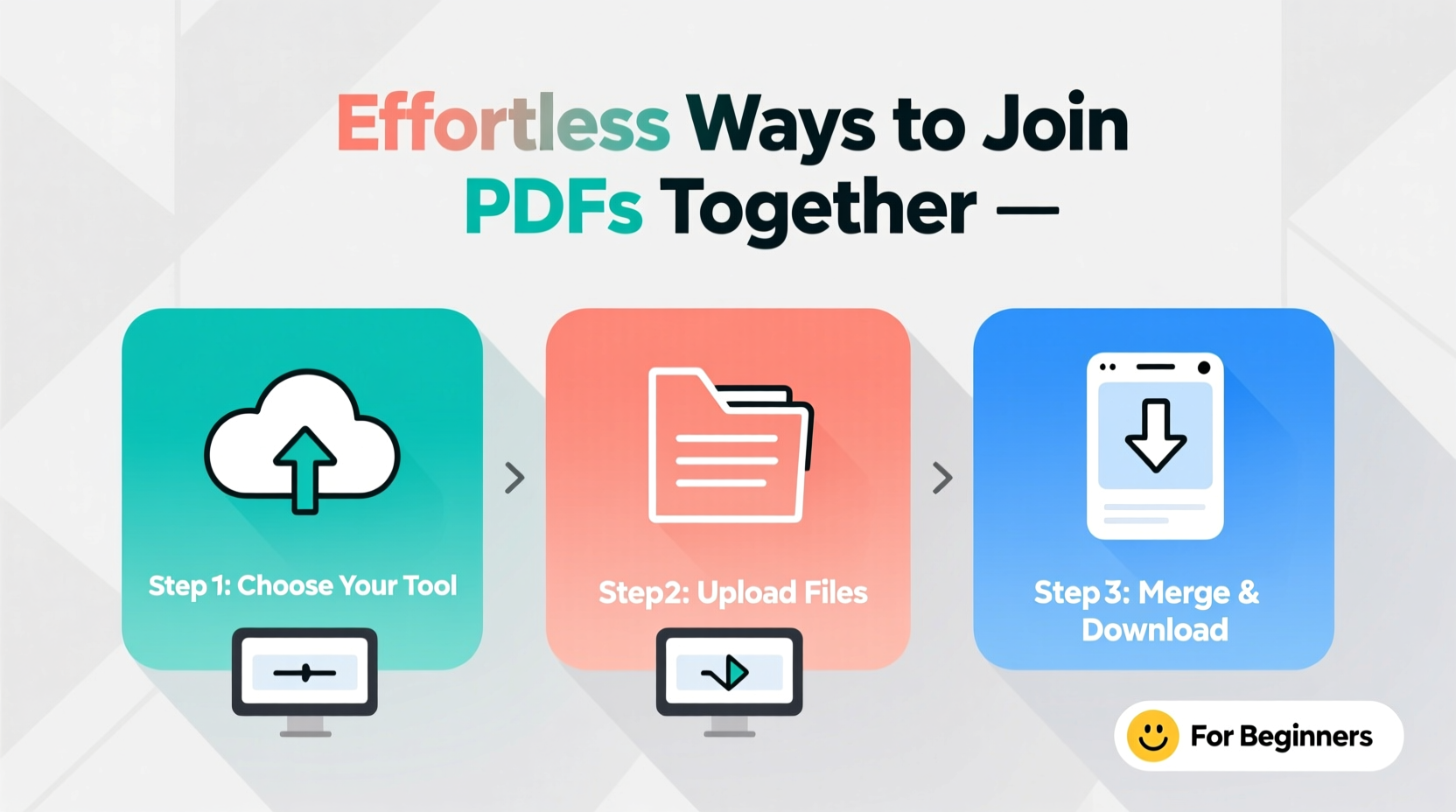
PDFs are widely used because they preserve formatting across devices and operating systems. However, having multiple separate files can be inefficient. A single merged document is easier to share, archive, and present. It reduces clutter, prevents missing pages, and ensures consistency in layout and page numbering. For students, professionals, freelancers, and creatives, mastering PDF merging is a small skill with big returns in productivity.
Understanding Your Options: Online Tools vs. Desktop Software
There are two primary methods for merging PDFs: using online tools or desktop software. Each has its advantages depending on your needs, such as security, frequency of use, and file size.
Online tools are ideal for occasional use. They’re accessible from any device with a browser, require no installation, and often offer free basic features. Popular platforms include Smallpdf, ILovePDF, and PDF24. These services allow you to upload files, rearrange them, and download the merged result in seconds.
Desktop software, like Adobe Acrobat Pro, PDFelement, or free open-source tools like PDFtk, gives you more control and better privacy. Since files stay on your computer, sensitive data isn’t uploaded to third-party servers. This method suits users who frequently handle confidential documents or large batches of files.
| Method | Best For | Pros | Cons |
|---|---|---|---|
| Online Tools | One-time merges, small files, convenience | Free, fast, no installation | Privacy risks, file size limits, internet required |
| Desktop Software | Frequent use, sensitive data, automation | Secure, powerful, offline access | Cost (some), learning curve, storage space |
| Mobile Apps | On-the-go merging, scanning + merging | Portable, camera integration | Limited editing, smaller screens |
Step-by-Step: How to Merge PDFs Using an Online Tool
If you're new to merging PDFs, starting with an online tool is the easiest path. Here's how to do it safely and efficiently:
- Choose a reputable service – Stick to well-known platforms like Smallpdf, ILovePDF, or Sejda. Avoid obscure sites that may harvest your data.
- Navigate to the “Merge PDF” feature – Most tools have a clear button labeled “Merge” or “Combine.” Click it.
- Upload your files – Drag and drop or click to select PDFs from your device. You can usually add up to 20 files at once.
- Rearrange the order – Use drag-and-drop or arrow buttons to place files in the correct sequence. This step is crucial if you're compiling reports or presentations.
- Click “Merge” – The tool will process your files and generate a single PDF.
- Download the result – Save the merged file to your computer. Some tools automatically delete files from their servers after a few hours.
“We see hundreds of users every day who simply need to combine forms or receipts. The key is simplicity and speed—without compromising security.” — David Lin, Product Lead at Smallpdf
How to Join PDFs on Desktop: A Quick Example with PDFelement
For those ready to move beyond online tools, desktop software offers greater reliability. Let’s walk through merging PDFs using Wondershare PDFelement, a user-friendly option available for Windows and Mac.
- Open PDFelement and click “Merge Files” from the homepage.
- Select “Add Files” and choose the PDFs you want to combine.
- Drag files into the desired order. Preview thumbnails help ensure accuracy.
- Click “Merge” and wait for processing to complete.
- Save the final document to your preferred folder.
Unlike online tools, PDFelement lets you edit text, add watermarks, and password-protect the merged file—all within the same interface. This makes it ideal for users who also need to refine content after merging.
Mini Case Study: Streamlining Client Onboarding
Sarah, a freelance graphic designer, used to email contracts, invoices, and project briefs as separate PDFs. Her clients often misplaced documents or questioned which version was current. After learning how to merge PDFs, she began combining all onboarding materials into one branded file titled “Project Kickoff Pack.” Not only did response times improve, but her clients reported feeling more confident about the process. By spending just five extra minutes organizing her files, Sarah enhanced her professionalism and client experience.
Essential Tips for Flawless PDF Merging
To get the most out of your merging efforts, follow these best practices:
- Check file sizes – Large files may fail to upload on free online tools. Compress them first if needed.
- Verify page orientation – Mixed portrait and landscape pages can disrupt flow. Adjust beforehand if possible.
- Avoid merging encrypted files – Password-protected PDFs often can't be processed by online tools unless decrypted first.
- Use consistent fonts and headers – When combining editable documents, unify styling for a polished look.
- Delete unnecessary pages – Remove blank sheets or duplicates before merging to keep the final file lean.
Security Considerations When Merging PDFs
Your PDFs may contain personal information, financial data, or business strategies. Always consider privacy when choosing a merging method. Free online tools often store files temporarily on their servers, which poses a risk if the platform lacks strong encryption or data retention policies.
If you're handling sensitive material:
- Use desktop software instead of web-based tools.
- Clear your browser cache after using online services.
- Opt for tools that state “files are deleted within 2 hours” or similar guarantees.
- Consider encrypting the final merged PDF with a password.
FAQ
Can I merge PDFs on my phone?
Yes. Android and iOS users can merge PDFs using apps like Adobe Acrobat, Microsoft Word, or dedicated tools like PDF Expert and Scanbot. Most let you scan documents and merge them in one workflow.
Is it legal to merge PDFs?
Yes, merging PDFs is legal as long as you have the right to use the content. Be cautious with copyrighted material, government forms, or licensed documents that prohibit modification.
Will merging reduce my PDF quality?
No. Merging combines files without altering image resolution or text clarity. However, some online tools may compress the output to reduce file size—check settings to preserve quality.
Final Checklist: Ready to Merge Like a Pro
- ✅ Back up original PDFs
- ✅ Choose the right tool (online or desktop)
- ✅ Rename files for easy sorting
- ✅ Arrange pages in logical order
- ✅ Check for blank or duplicate pages
- ✅ Merge and review the final document
- ✅ Save securely and share confidently
Conclusion
Merging PDFs doesn’t have to be complicated or time-consuming. With accessible tools and a few smart habits, you can turn scattered documents into organized, professional files in minutes. Whether you're preparing a resume, submitting a proposal, or archiving records, the ability to join PDFs effortlessly adds real value to your daily workflow. Start small, apply the tips in this guide, and soon merging will become second nature.




 浙公网安备
33010002000092号
浙公网安备
33010002000092号 浙B2-20120091-4
Comments
No comments yet. Why don't you start the discussion?