
Streaming services like Amazon Prime Video are designed for convenience, but sometimes that convenience comes with a trade-off: staying logged in longer than intended. Whether you're sharing a device, using a public screen, or simply switching accounts, knowing how to log out properly is essential for privacy and security. Unlike some platforms that make logging out obvious, Prime Video buries the option deep within menus on certain devices. This guide walks you through simple, reliable methods to log out of the Prime Video app across smartphones, tablets, smart TVs, streaming sticks, and gaming consoles—without frustration or guesswork.
Why Logging Out Matters
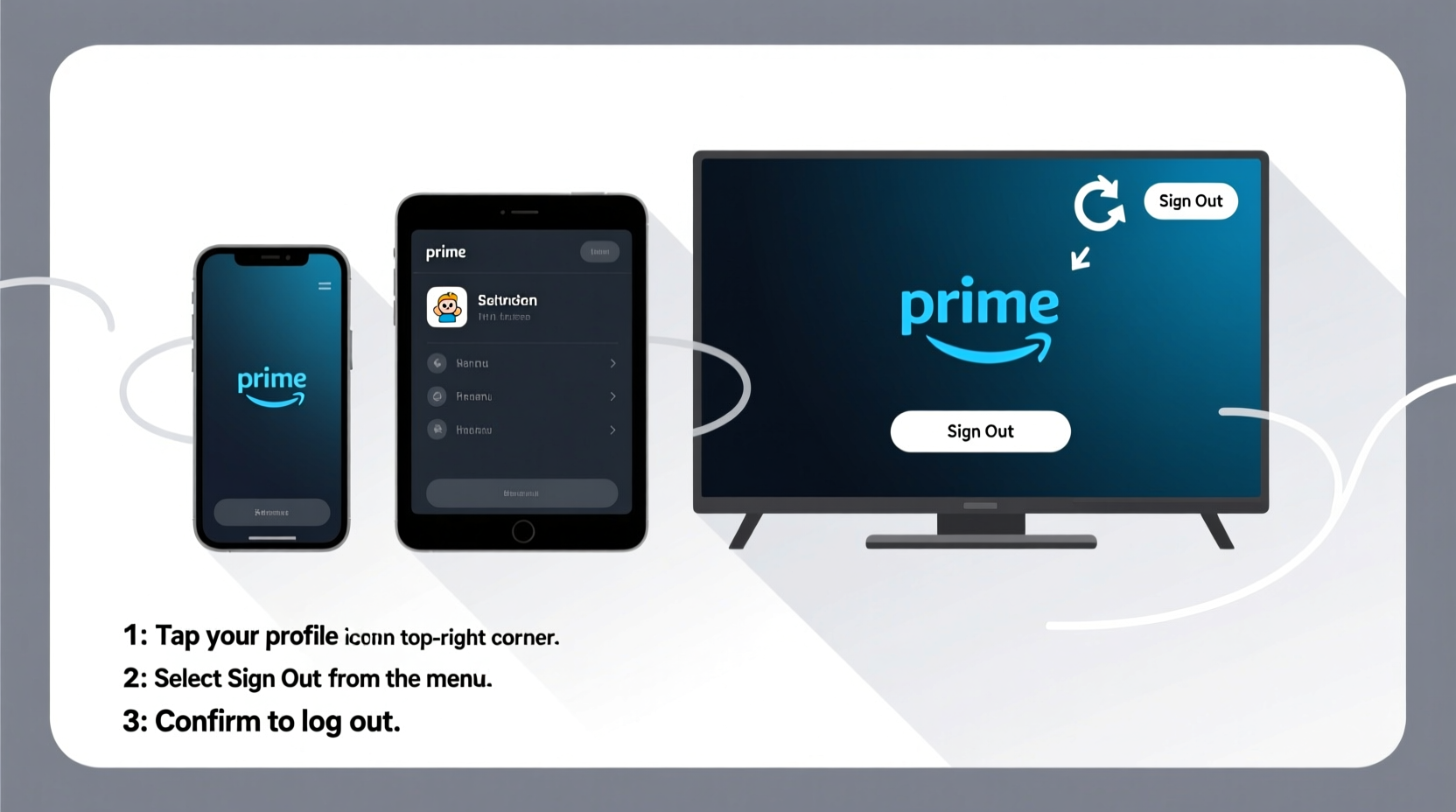
While Prime Video doesn’t expose sensitive financial data directly in the app, remaining logged in can pose risks. If someone gains access to your device, they can view your watch history, access your account settings, or even make purchases if your payment method is saved. Families sharing devices may also want to switch between profiles without mixing viewing habits. Logging out ensures your personal preferences and activity remain private.
“Many users assume closing the app fully logs them out, but most apps—including Prime Video—retain login sessions unless explicitly signed out.” — Jordan Lee, Digital Privacy Analyst
Step-by-Step: How to Log Out by Device Type
The logout process varies significantly depending on your device. Below are detailed instructions for the most common platforms.
Smartphones and Tablets (iOS and Android)
Prime Video on mobile devices offers one of the most straightforward logout paths. Here’s how:
- Open the Prime Video app.
- Tap the profile icon in the top-right corner (usually your initials or an avatar).
- Select Settings.
- Scroll down and tap Sign Out.
- Confirm when prompted.
Once completed, the app will return to the login screen. Your credentials are no longer stored locally on the device.
Amazon Fire TV and Fire Stick
On Amazon’s own streaming devices, the logout option isn’t immediately visible. It requires navigating through system-level settings rather than the app itself.
- From the home screen, go to Settings (gear icon).
- Select My Account.
- Choose Sign Out.
- Confirm the action.
This signs you out of the entire Fire OS interface, including all Amazon-linked apps like Prime Video, Kindle, and Audible. When you sign back in, you’ll need to re-enter your Amazon credentials.
Smart TVs (Samsung, LG, Roku TV)
Smart TVs often integrate Prime Video as a standalone app, but lack a direct “Log Out” button. Instead, you must remove the app’s access via your Amazon account online.
- Visit amazon.com and sign in.
- Hover over Accounts & Lists > Your Devices.
- Locate your TV under “Manage Devices.”
- Select Deregister.
This severs the connection between your Amazon account and the TV. The next time you open Prime Video on the TV, it will prompt for login details.
Apple TV and iOS-Based Streaming Devices
Unlike Fire devices, Apple TV runs third-party apps independently. To log out:
- Open the Prime Video app.
- Go to the Library tab at the bottom.
- Tap your profile picture or initials in the top-left.
- Select Settings.
- Choose Sign Out and confirm.
The app will reset, requiring login upon next launch.
Gaming Consoles (PlayStation and Xbox)
Consoles follow a similar pattern to smart TVs—logout options are limited in-app. The best method is remote deauthorization:
- Log in to your Amazon account online.
- Navigate to Your Content and Devices > Devices.
- Find your console (e.g., “PlayStation 5 – Living Room”).
- Click Deregister.
This removes the device from your trusted list. You can always re-register it later by logging in again.
Quick Reference Table: Logout Methods Across Devices
| Device Type | In-App Logout? | Alternative Method | Time Required |
|---|---|---|---|
| iOS / Android | Yes | None needed | 30 seconds |
| Fire TV / Fire Stick | No (system-level only) | Settings > My Account > Sign Out | 1 minute |
| Samsung, LG, Roku TV | No | Deregister via amazon.com | 2–3 minutes |
| Apple TV | Yes | Profile > Settings > Sign Out | 45 seconds |
| PlayStation / Xbox | No | Deauthorize online | 2 minutes |
Troubleshooting Common Issues
Even with clear steps, users sometimes encounter obstacles. Here are frequent problems and their solutions.
- “Sign Out” option missing: Ensure you’re on the latest version of the app. Update via your device’s app store.
- Can’t access amazon.com: Use a computer or mobile browser. Two-factor authentication may be required.
- Still seeing my profile after logout: Restart the device. Some apps cache user data until rebooted.
Mini Case Study: Securing a Shared Household TV
The Rivera family uses a Samsung Smart TV in their living room. Both parents stream different shows, and their teenage son occasionally uses the Prime Video app on school projects. One day, Mr. Rivera noticed his watch history included a documentary he hadn’t watched. Upon checking, he realized his son had used his profile without permission. Frustrated, he wanted to prevent automatic logins.
He visited amazon.com, went to \"Your Devices,\" and deregistered the TV. Now, every user must manually log in. He also set up individual profiles with PINs for mature content. Since then, viewing histories have remained separate, and unauthorized access has stopped.
Essential Checklist: Secure Your Prime Video Sessions
Follow this checklist to maintain control over your account access:
- ✅ Log out after using shared or public devices
- ✅ Deregister old or unused devices monthly
- ✅ Update the Prime Video app regularly
- ✅ Use unique profiles for family members
- ✅ Monitor active devices via Amazon’s website
- ✅ Enable two-factor authentication for your Amazon account
Frequently Asked Questions
Does closing the Prime Video app log me out?
No. Closing the app does not end your session. Your login remains active until you manually sign out or deregister the device.
Can I log out remotely from my phone?
You cannot log out of another device directly from your phone, but you can deregister it remotely by visiting amazon.com and managing your devices online.
Will logging out delete my watchlist or downloads?
Downloads stored on a device are removed when you log out. Watchlists are saved in the cloud and will reappear when you log back in.
Take Control of Your Streaming Experience
Logging out of Prime Video shouldn’t feel like solving a puzzle. With the right steps, you can protect your privacy, manage household usage, and keep your viewing experience personal. Whether you're using a smartphone, smart TV, or gaming console, the methods above ensure a clean, secure logout every time. Don’t wait until someone accesses your account by accident—take a few moments now to review which devices are linked and remove those no longer in use.




 浙公网安备
33010002000092号
浙公网安备
33010002000092号 浙B2-20120091-4
Comments
No comments yet. Why don't you start the discussion?