
Mirroring or streaming your phone screen to a TV has evolved from a tech novelty into a daily necessity. Whether you're sharing vacation photos with family, watching the latest episode of your favorite show without squinting at a small screen, or presenting work materials during a casual meeting, the ability to project your smartphone’s display onto a larger monitor is both practical and powerful. The good news? You no longer need expensive equipment or technical expertise. With built-in features and widely available tools, connecting your phone to any TV can be fast, reliable, and completely hassle-free.
Why Screen Mirroring Matters Today
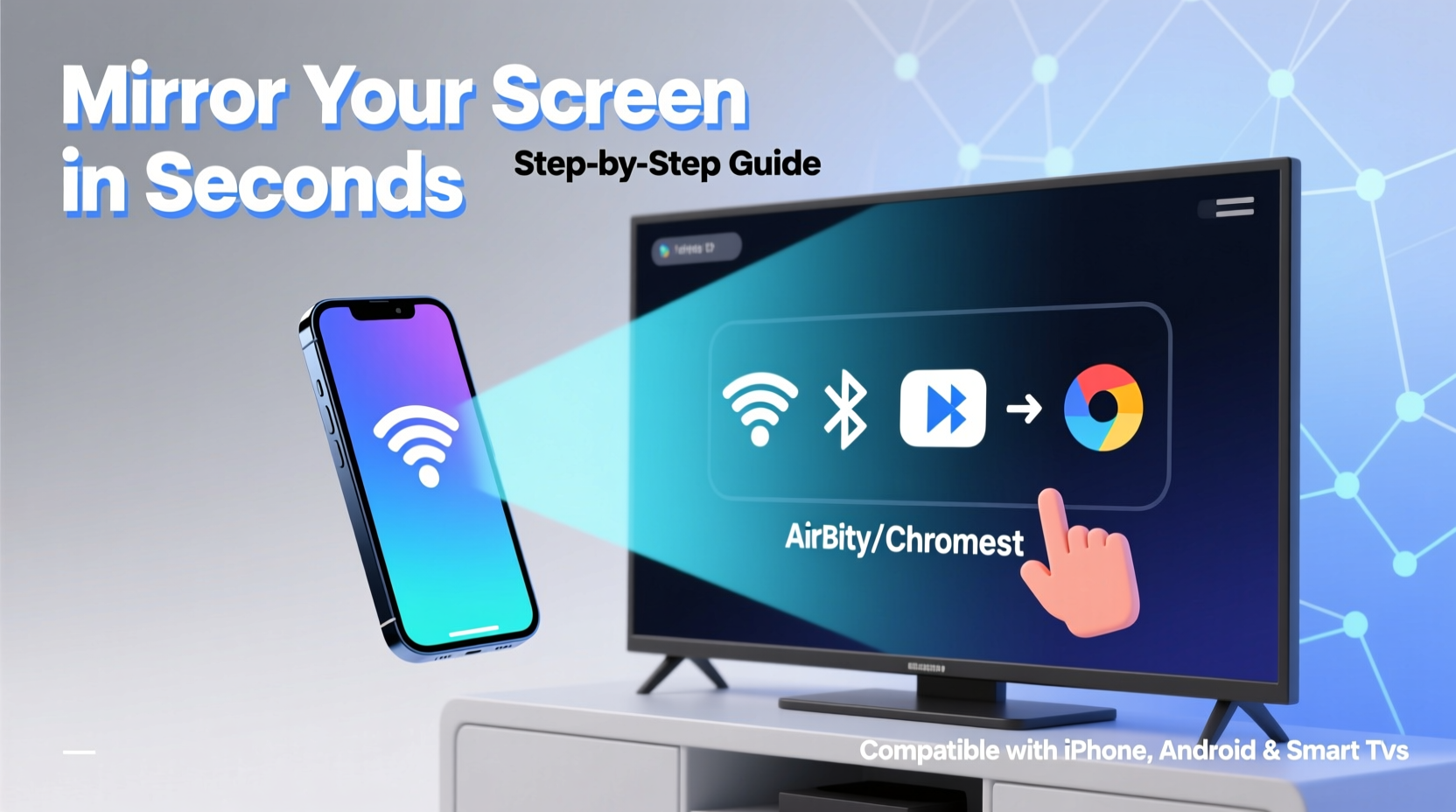
In an era where mobile devices serve as our primary cameras, media libraries, communication hubs, and productivity tools, there's growing demand to share that content beyond the confines of a five- or six-inch screen. A large TV offers better visibility, superior audio, and a shared viewing experience ideal for gatherings, remote learning, or collaborative brainstorming.
The key is simplicity. Many users abandon screen mirroring after a frustrating attempt involving tangled cables, incompatible formats, or failed wireless connections. But modern solutions have eliminated most of these pain points. From native casting options to affordable adapters, today’s methods prioritize user-friendliness without sacrificing performance.
Wireless Methods: Cast Smartly Without Cables
Wireless screen mirroring is often the most convenient option, especially when you want to move freely while maintaining a connection. Here are the most effective wireless approaches based on your device ecosystem:
Google Chromecast (Works with Android & iOS)
Chromecast remains one of the most popular and versatile tools for streaming phone content to a TV. Simply plug the dongle into your TV’s HDMI port, connect it to Wi-Fi, and use compatible apps like YouTube, Netflix, or Chrome browser to cast content directly.
For full-screen mirroring (not just app-specific casting), enable “Cast Screen/Audio” from your phone’s quick settings panel (Android) or via the Google Home app (iOS). This duplicates everything on your phone—perfect for showing social media feeds, presentations, or gameplay.
Apple AirPlay (iPhone & iPad to Apple TV or AirPlay-Compatible TVs)
iOS users benefit from seamless integration through AirPlay. If you own an Apple TV or a newer smart TV labeled “AirPlay 2 compatible,” you can mirror your iPhone screen instantly. Swipe down from the top-right corner to open Control Center, tap \"Screen Mirroring,\" and select your TV from the list.
AirPlay delivers high-quality video and audio with minimal latency, making it ideal for music playback, photo slideshows, or even FaceTime calls on the big screen.
Built-in Mirroring on Smart TVs (Samsung, LG, TCL, etc.)
Most modern smart TVs support direct screen mirroring via Miracast (Android) or proprietary protocols. On Samsung phones, use “Smart View”; on LG TVs, look for “Screen Share.” These functions rely on Wi-Fi Direct, eliminating the need for a central router.
To connect:
- Turn on your TV and ensure it’s discoverable (check settings under “Screen Sharing” or “Network”).
- On your phone, go to Settings > Connected Devices > Connection Preferences > Screen Sharing.
- Select your TV from the detected devices.
- Approve the connection prompt on the TV.
Once connected, your entire phone interface appears on the TV—touch inputs remain on the phone, but output plays externally.
Wired Solutions: Reliable and Universal
While wireless options dominate convenience, wired connections offer unmatched stability, especially for long streams or data-intensive activities like gaming or video editing previews.
Using HDMI Adapters (Lightning to HDMI for iPhone, USB-C to HDMI for Android)
Physical adapters provide plug-and-play reliability. For iPhones, Apple’s Lightning Digital AV Adapter connects directly to HDMI cables. Most newer Android phones use USB-C ports, which support video output via a simple USB-C to HDMI cable or adapter.
No additional power source is usually needed unless you're mirroring for extended periods. However, using a powered adapter helps prevent battery drain.
| Device Type | Adapter Needed | Audio Support? | Power Required? |
|---|---|---|---|
| iPhone (Lightning) | Lightning to HDMI | Yes | Sometimes (long sessions) |
| Android (USB-C) | USB-C to HDMI | Yes (if HDMI supports audio) | Rarely |
| Older Android (Micro-USB) | Not supported | No | N/A |
“Wired mirroring eliminates lag and compression artifacts common in wireless transmission—critical for professionals demonstrating design work or video content.” — David Lin, AV Integration Specialist
Connecting Through Laptops as Intermediaries
If your TV lacks smart features or HDMI input isn’t accessible, route your phone through a laptop connected to the TV. Tools like Duet Display (cross-platform), ApowerMirror, or scrcpy (Android-only, free) allow screen duplication over USB or Wi-Fi.
This method also enables keyboard and mouse control of your phone—a hidden productivity perk.
Step-by-Step Guide: Mirror Your Phone in Under 5 Minutes
Follow this universal checklist regardless of your device type:
- Check compatibility: Confirm your TV supports screen mirroring or has HDMI input.
- Connect to the same network: For wireless, ensure phone and TV are on the same Wi-Fi.
- Enable screen sharing: On Android, open Quick Settings > Smart View; on iPhone, open Control Center > Screen Mirroring.
- Select your TV: Choose the correct device from the list (may appear as model number or custom name).
- Adjust display settings: Set resolution and orientation if prompted. Test audio output.
Real-World Example: Family Movie Night Made Easy
Sarah wanted to host a movie night with her nieces but didn’t want them passing around her phone to see the film. She owns a Samsung Galaxy S23 and a Roku-powered TCL TV. Instead of downloading files or transferring videos, she opened the Google Home app, tapped “Cast my screen,” selected her TV, and started playing the movie from her cloud storage. Within seconds, the film filled the 55-inch screen with crisp sound through the TV’s speakers. No extra downloads, no cables—just instant sharing.
Later, she mirrored her camera roll to show photos from last summer’s trip. The kids laughed at silly faces, and Sarah appreciated how effortlessly technology brought everyone together.
Common Pitfalls and How to Avoid Them
- Lag or stuttering: Caused by weak Wi-Fi. Move closer to the router or reduce network load.
- No sound on TV: Check TV audio settings; some apps block external audio due to DRM.
- TV not appearing: Restart both devices and ensure screen sharing is enabled on the TV.
- Battery drain: Use a wall charger when mirroring wirelessly for more than 30 minutes.
Frequently Asked Questions
Can I mirror my phone to a non-smart TV?
Yes. Use a Chromecast, Amazon Fire Stick, or Roku Streaming Stick plugged into the HDMI port. Once set up, treat it like a smart TV for mirroring purposes.
Is screen mirroring secure?
Generally yes. Connections are local and encrypted when using official protocols like AirPlay or Google Cast. Avoid public networks to prevent unintended access.
Does screen mirroring affect video quality?
Wireless methods may compress video slightly depending on network strength. Wired connections preserve original resolution and color accuracy.
Final Checklist Before You Start
📋 **Pre-Mirror Checklist**- ✅ Both phone and TV powered on
- ✅ Connected to same Wi-Fi network (for wireless)
- ✅ TV input set to correct source (HDMI or screen mirroring mode)
- ✅ Phone battery above 30% or connected to charger
- ✅ No active VPNs or firewalls blocking discovery
Conclusion
Streaming your phone screen to a TV doesn’t require advanced skills or costly gear. Whether you choose wireless freedom with Chromecast or AirPlay, or opt for the rock-solid reliability of a wired HDMI link, the process should feel intuitive—not intimidating. As smart home ecosystems grow more interconnected, the ability to share digital content across screens becomes increasingly seamless.
Take advantage of these effortless methods today. Host impromptu slideshow nights, enhance your remote presentations, or simply enjoy mobile content the way it was meant to be seen: bigger, louder, and shared with others.




 浙公网安备
33010002000092号
浙公网安备
33010002000092号 浙B2-20120091-4
Comments
No comments yet. Why don't you start the discussion?