
Mirroring your phone screen to a TV has evolved from a technical challenge into a seamless experience accessible to nearly everyone. Whether you're sharing vacation photos, streaming the latest episode of your favorite show, or presenting work materials, casting your mobile display to a larger screen enhances visibility, engagement, and convenience. The good news? You don’t need advanced tech skills or expensive equipment. With built-in features and widely available tools, mirroring is now simpler than ever—regardless of your phone model or TV brand.
Why Screen Mirroring Matters in Daily Life
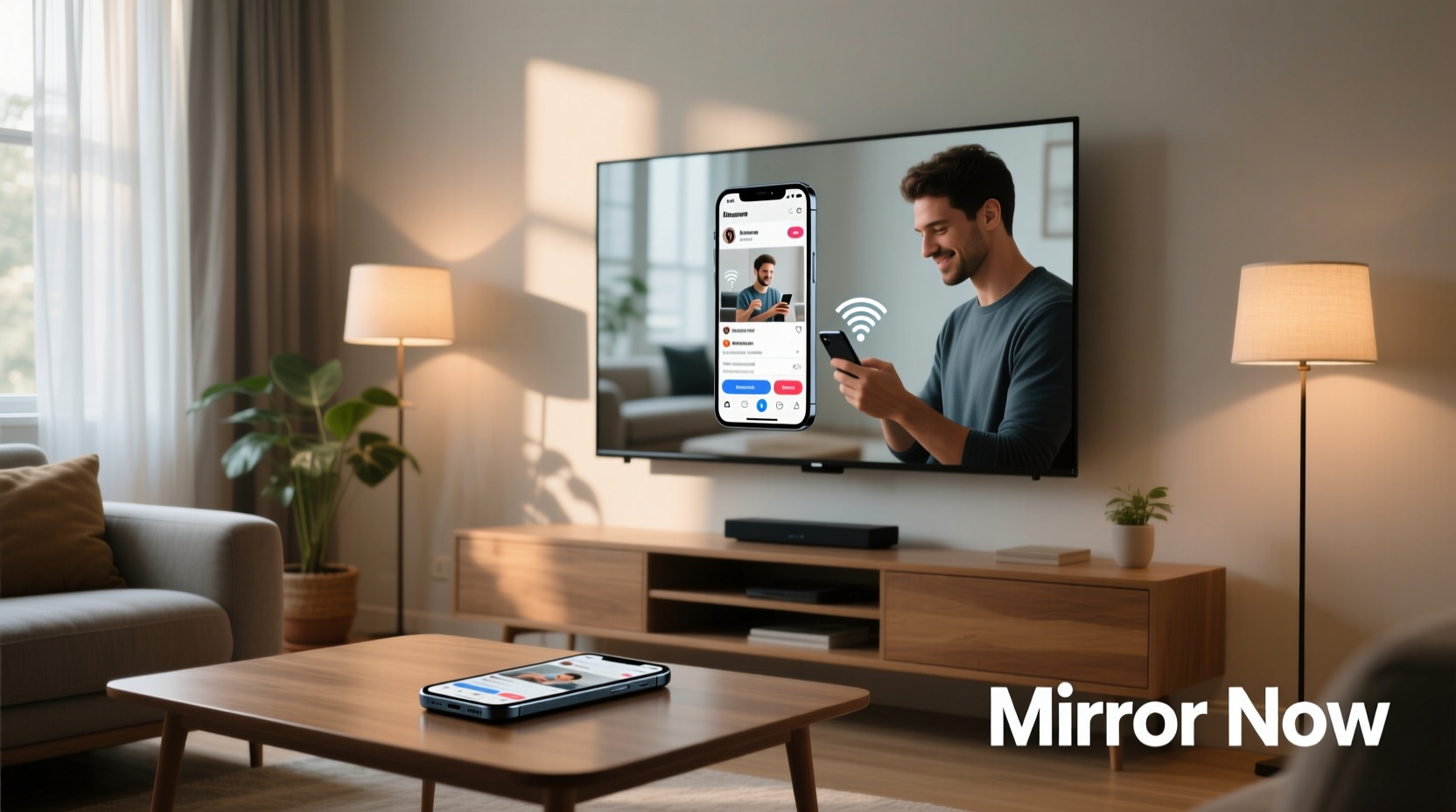
Today’s digital lifestyle revolves around mobility. We capture memories, manage tasks, and consume media primarily through smartphones. Yet, small screens limit shared experiences. Watching a video alone on a 6-inch display doesn’t compare to viewing it with family on a 55-inch TV. Screen mirroring bridges that gap. It transforms your phone into a remote control for a bigger, brighter, more immersive visual experience.
From casual use—like showing friends live concert footage—to practical applications such as demonstrating an app during a home office meeting, wireless screen sharing saves time and elevates interaction. And with modern connectivity standards, compatibility across devices continues to improve.
Wireless Methods That Work Across Devices
The most effortless screen mirroring solutions today rely on wireless protocols like Miracast, AirPlay, and Google Cast. These technologies allow real-time transmission of your phone’s screen without physical cables. Here’s how they work across platforms:
- AirPlay (Apple): Exclusive to iOS and Apple TV or AirPlay 2-compatible smart TVs. Swipe down from the top-right corner (iPhone X and later) to access Control Center, tap “Screen Mirroring,” and select your TV.
- Google Cast (Android & Chromecast): Available on Android phones and supported apps like YouTube, Netflix, and Chrome browser. Tap the cast icon (rectangle with Wi-Fi waves) within compatible apps to stream content directly.
- Miracast (Android & Windows): A universal standard for screen mirroring over Wi-Fi Direct. Works with many Samsung, LG, and Sony TVs. Enable via Settings > Connected Devices > Connection Preferences > Screen Mirroring.
Unlike HDMI cables, these wireless methods eliminate clutter and offer freedom of movement. You can continue using your phone while the output appears on the TV—even controlling playback or navigation from across the room.
Step-by-Step: How to Mirror Your iPhone to a Smart TV
- Ensure your iPhone and TV are on the same Wi-Fi network.
- Turn on your smart TV and make sure it supports AirPlay 2 (e.g., newer LG, Samsung, or Sony models).
- On your iPhone, swipe down from the top-right corner to open Control Center.
- Tap “Screen Mirroring.”
- Select your TV from the list of available devices.
- Enter the passcode displayed on the TV if prompted.
- Once connected, your entire iPhone screen appears on the TV in real time.
To stop mirroring, return to Control Center and tap “Stop Mirroring.”
Using Third-Party Apps for Broader Compatibility
Not all TVs support native mirroring protocols. If your television lacks AirPlay or Miracast, third-party apps fill the gap. These tools create a bridge between devices using local networks or QR-based pairing.
Popular options include:
- ApowerMirror: Supports both Android and iOS, works with Windows and Mac computers acting as receivers, and allows two-way control.
- Reflector: Turns your computer into an AirPlay and Google Cast receiver, ideal when your TV isn’t compatible.
- Microsoft Connect (Windows 10/11): Built-in feature that receives Miracast streams from Android phones. Open Settings > System > Projecting to this PC to enable.
These apps often provide additional features like recording mirrored sessions or adjusting resolution for better performance on slower networks.
“Wireless screen mirroring is no longer a luxury—it's a productivity and entertainment essential. As homes become smarter, interoperability will define user satisfaction.” — Dr. Lena Patel, Consumer Technology Analyst at TechInsight Group
Comparing Wired vs. Wireless Mirroring Solutions
| Solution Type | Setup Complexity | Latency | Device Compatibility | Best For |
|---|---|---|---|---|
| Wired (HDMI Adapter) | Low – plug and play | Near-zero | Limited (requires adapter) | Gaming, presentations |
| AirPlay 2 | Very Low | Low | iOS + Apple TV/AirPlay 2 TVs | Apple ecosystem users |
| Google Cast | Very Low | Low-Medium | Android + Chromecast | Streaming apps |
| Miracast | Medium | Medium | Broad (Android, Windows) | Non-Apple smart TVs |
| Third-Party Apps | Medium | Varies | High (cross-platform) | Older TVs, mixed ecosystems |
Real-World Example: Family Movie Night Made Easy
Sarah wanted to host a movie night with her extended family but didn’t want to transfer files or deal with USB drives. Her sister brought an Android phone with downloaded films, while Sarah used an iPhone. Their TV was a mid-range Samsung model from 2020.
Solution? They enabled Screen Mirroring on the Samsung TV. Sarah used AirPlay to stream from her iPhone, while her sister activated Smart View on her Samsung device. Both were able to take turns playing clips, pausing for discussion, and even browsing trailers—all without touching the TV remote. The evening flowed smoothly, and no one had to huddle around a tiny screen.
This scenario illustrates how modern mirroring standards accommodate diverse devices within a single household, making shared experiences effortless.
Essential Checklist Before You Mirror
Before attempting to mirror your phone screen, follow this quick checklist to ensure success:
- ✅ Confirm both phone and TV are connected to the same Wi-Fi network.
- ✅ Update your phone’s operating system and TV firmware.
- ✅ Enable screen mirroring or casting on your TV (check input/source menu).
- ✅ Close unnecessary apps to free up memory and reduce lag.
- ✅ Position your router centrally to minimize signal interference.
- ✅ Disable battery saver mode, which may restrict background connections.
Frequently Asked Questions
Can I mirror my phone to a non-smart TV?
Yes. Use a streaming dongle like Google Chromecast, Roku, or Amazon Fire Stick. Plug it into the HDMI port, connect it to Wi-Fi, and mirror your phone using the corresponding app or built-in casting feature.
Is screen mirroring secure?
Generally yes—mirroring occurs over your private Wi-Fi network and does not automatically share data beyond what’s on your screen. However, avoid mirroring sensitive information (e.g., banking apps) in public networks or untrusted environments.
Why is there audio delay when I mirror?
Audio-video sync issues often stem from network congestion or outdated software. Try reducing video resolution in app settings, restarting both devices, or switching to a less crowded Wi-Fi band (preferably 5 GHz).
Final Thoughts: Make Mirroring Effortless
Screen mirroring should enhance, not complicate, your digital life. With the right setup, it becomes second nature—just like turning on the lights. Whether you’re using native protocols like AirPlay or expanding compatibility with third-party tools, the goal remains the same: seamless, instant access to your mobile content on a bigger screen.
Start by assessing your current devices and network stability. Then, choose the method that aligns best with your ecosystem. Over time, you’ll find yourself reaching for cables less and enjoying shared moments more.




 浙公网安备
33010002000092号
浙公网安备
33010002000092号 浙B2-20120091-4
Comments
No comments yet. Why don't you start the discussion?