
Moving videos from your phone to your computer shouldn’t mean sacrificing clarity or spending hours troubleshooting. Whether you’re archiving family memories, editing vlogs, or backing up footage, preserving video quality is essential. The good news: modern technology offers multiple seamless methods that maintain resolution, frame rate, and audio fidelity. From wired transfers to cloud syncing and wireless tools, there are practical solutions for every user—regardless of operating system or technical comfort level.
Why Video Quality Matters in Transfers
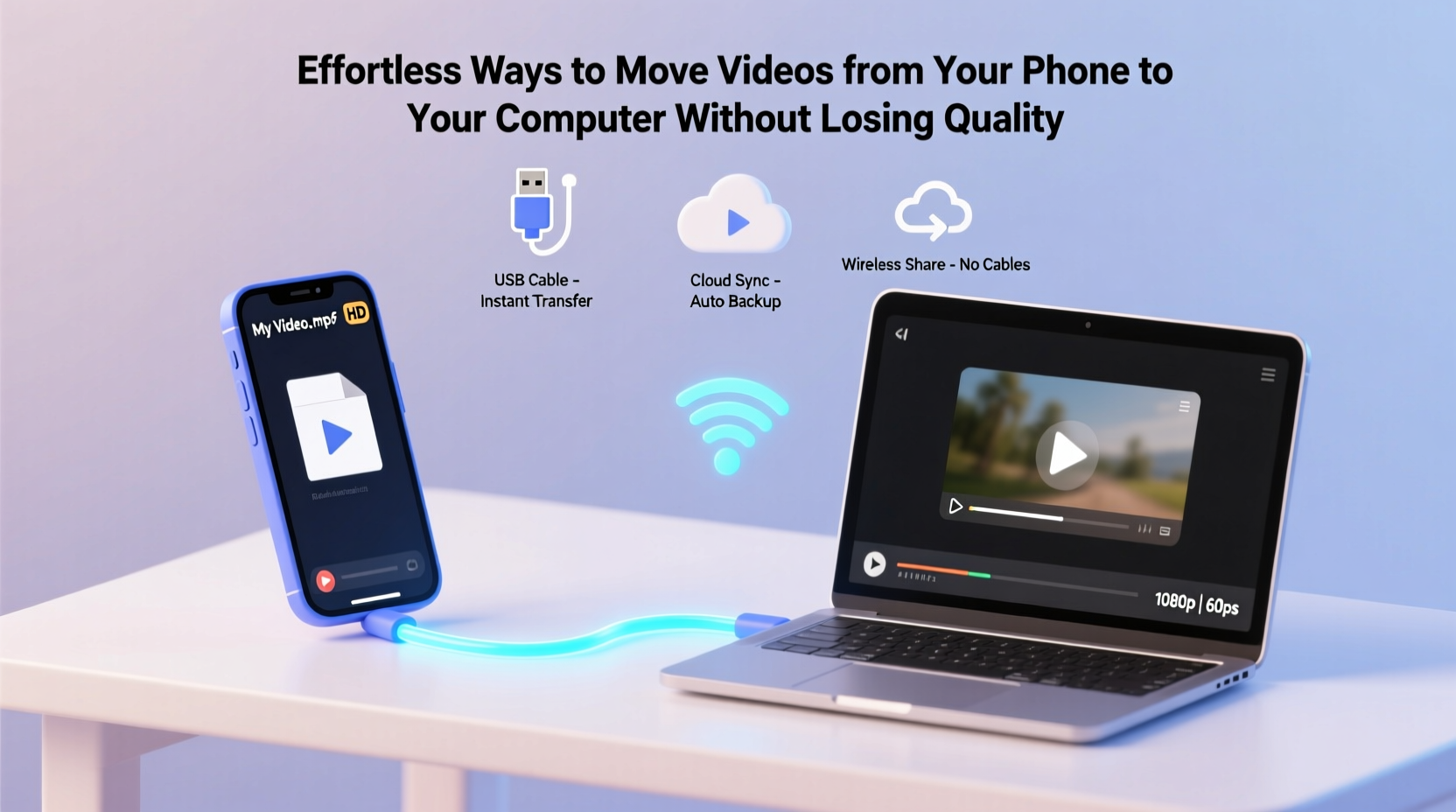
Smartphones now capture 4K HDR footage rivaling professional cameras. But when transferring files, compression, automatic resizing, or platform limitations can degrade the final output. A video recorded at 30 Mbps might be downsized to 5 Mbps during upload if not handled properly. This results in blurred motion, banding in gradients, and loss of detail—especially noticeable on larger screens.
The key to preserving quality lies in avoiding recompression and using direct file transfer methods whenever possible. Cloud services often compress media unless configured otherwise. Email attachments and messaging apps almost always reduce size. To keep your videos intact, use full-resolution export options and verify the transferred file matches the original in format and bitrate.
“Preserving original encoding settings ensures no generational loss. Always check file properties before and after transfer.” — Daniel Reyes, Digital Media Archivist
Wired Transfer: Fast, Direct, and Reliable
Connecting your phone directly to your computer via USB remains one of the fastest and most dependable methods—especially for large video libraries. This approach bypasses network instability and avoids cloud compression entirely.
For Android Users
- Connect your phone to your computer using a USB cable.
- On your phone, tap the USB notification and select “File Transfer” (MTP mode).
- Open the device folder on your computer (usually appears under “This PC” or Finder).
- Navigate to
DCIM > CameraorMovies. - Select the videos and drag them to a designated folder on your computer.
For iPhone Users
- Use a certified Lightning-to-USB or USB-C cable.
- Connect to your Mac or Windows PC and unlock your phone.
- Trust the computer if prompted.
- On macOS: Open the Photos app and import videos directly.
- On Windows: Use File Explorer to browse internal storage under “Internal Storage > DCIM”.
Wireless Options That Preserve Full Quality
If you prefer to avoid cables, several wireless methods retain original video quality when used correctly.
Using Manufacturer-Synced Ecosystems
Brands like Apple and Samsung offer ecosystem-specific tools designed for seamless media migration.
- Apple AirDrop: Send videos directly from iPhone to Mac. Files remain in original HEVC or H.264 format with no compression.
- Samsung Smart Switch: Transfers entire folders between Galaxy devices and Windows PCs over Wi-Fi Direct.
Cloud Services with Original Quality Settings
Google Photos and iCloud can preserve full quality—if configured properly.
| Service | Original Quality Option? | Storage Impact | Best For |
|---|---|---|---|
| Google Photos | Yes (via “Original Quality”) | Uses Google Account storage | Android users with ample cloud space |
| iCloud Photos | Yes (when enabled) | Uses iCloud subscription | iPhone-Mac workflows |
| OneDrive | Limited auto-sync without compression | Varies by plan | Windows-centric setups |
To ensure no compression occurs, disable “Save Storage” or “High Quality” modes. These default settings shrink videos above 1080p. Instead, enable “Upload Originals” in Google Photos or turn on “Download and Keep Originals” in iCloud settings.
Local Network Transfer Apps
Tools like Send Anywhere, Xender, or Portal by Pushbullet create temporary local servers to stream files over Wi-Fi without uploading to the internet.
“We used Portal to move 4K drone footage from an iPhone to a MacBook in under 3 minutes—no quality loss, no cloud dependency.” — Jordan Lee, Travel Vlogger
These apps generate QR codes or PINs to pair devices. Since data travels directly over your home network, it’s fast and secure. Best of all, they don’t re-encode videos—they transfer the actual file.
Step-by-Step: Transferring 4K Video Without Compression
Follow this timeline to move a high-resolution video safely:
- Step 1 (1 min): Disable battery optimization on your phone to prevent connection drops during transfer.
- Step 2 (2 min): Connect phone and computer to the same Wi-Fi network (for wireless) or use a USB cable (for wired).
- Step 3 (3 min): On your computer, create a dedicated folder (e.g., “Phone Videos – 2024”) to organize incoming files.
- Step 4 (5 min): Initiate transfer via preferred method—drag-and-drop (wired), AirDrop (Apple), or Send Anywhere (cross-platform).
- Step 5 (2 min): After transfer, right-click the file on your computer, select “Properties,” and verify resolution and codec match the original.
- Step 6 (1 min): Delete the video from your phone only after confirming successful backup.
Avoiding Common Pitfalls
Even experienced users make mistakes that compromise video integrity. Here’s what to watch for:
- Auto-sync apps compressing media: Some backup tools reduce file size silently. Check settings to ensure “original quality” is selected.
- Using email or messaging: WhatsApp, iMessage, and Gmail automatically compress videos over a few MBs. Never use these for full-quality transfers.
- Interrupted transfers: Large files require stable connections. Avoid moving devices far from routers or unplugging cables mid-transfer.
- File format incompatibility: HEVC (H.265) videos from iPhones may not play on older Windows machines. Install HEVC extensions or convert only if necessary.
Do’s and Don’ts Summary
| Action | Do | Don't |
|---|---|---|
| Transferring Method | Use USB, AirDrop, or local Wi-Fi apps | Rely on email or social media uploads |
| Cloud Backup | Enable “Original Quality” in settings | Assume default settings preserve resolution |
| Verification | Check file size and resolution post-transfer | Assume success without confirmation |
| Editing Workflow | Work from copied files, not originals | Delete phone videos before full backup |
FAQ
Can I transfer videos without using the internet?
Yes. Wired USB transfers and local wireless tools like AirDrop or Send Anywhere work offline. No internet connection is required.
Why does my transferred video look blurry?
This usually happens due to automatic compression—either from the transfer app, cloud service, or playback software. Confirm the file wasn’t resized and try opening it in VLC or QuickTime, which support more codecs.
Is Bluetooth suitable for video transfer?
No. Bluetooth has low bandwidth and will either fail or heavily compress large video files. It’s best suited for audio or small images.
Conclusion: Make High-Quality Transfers Routine
Moving videos from your phone to your computer doesn’t need to be complicated or risky. With the right tools and awareness, you can preserve every pixel of your high-resolution recordings. Whether you rely on a simple USB cable or a seamless cloud setup, consistency and verification are key. Set up a weekly or monthly transfer habit to protect your digital memories and creative work. The effort you invest today ensures your videos stay vivid and accessible for years to come.




 浙公网安备
33010002000092号
浙公网安备
33010002000092号 浙B2-20120091-4
Comments
No comments yet. Why don't you start the discussion?