
Streaming YouTube videos on a large screen enhances the viewing experience—whether you're watching tutorials, music videos, or family-friendly content. Fortunately, connecting YouTube to your TV doesn’t require technical expertise. With a variety of accessible methods across different devices, you can enjoy seamless playback in minutes. This guide walks you through reliable, tested techniques that work across platforms, from built-in smart TV apps to casting from mobile devices.
Why Stream YouTube on Your TV?
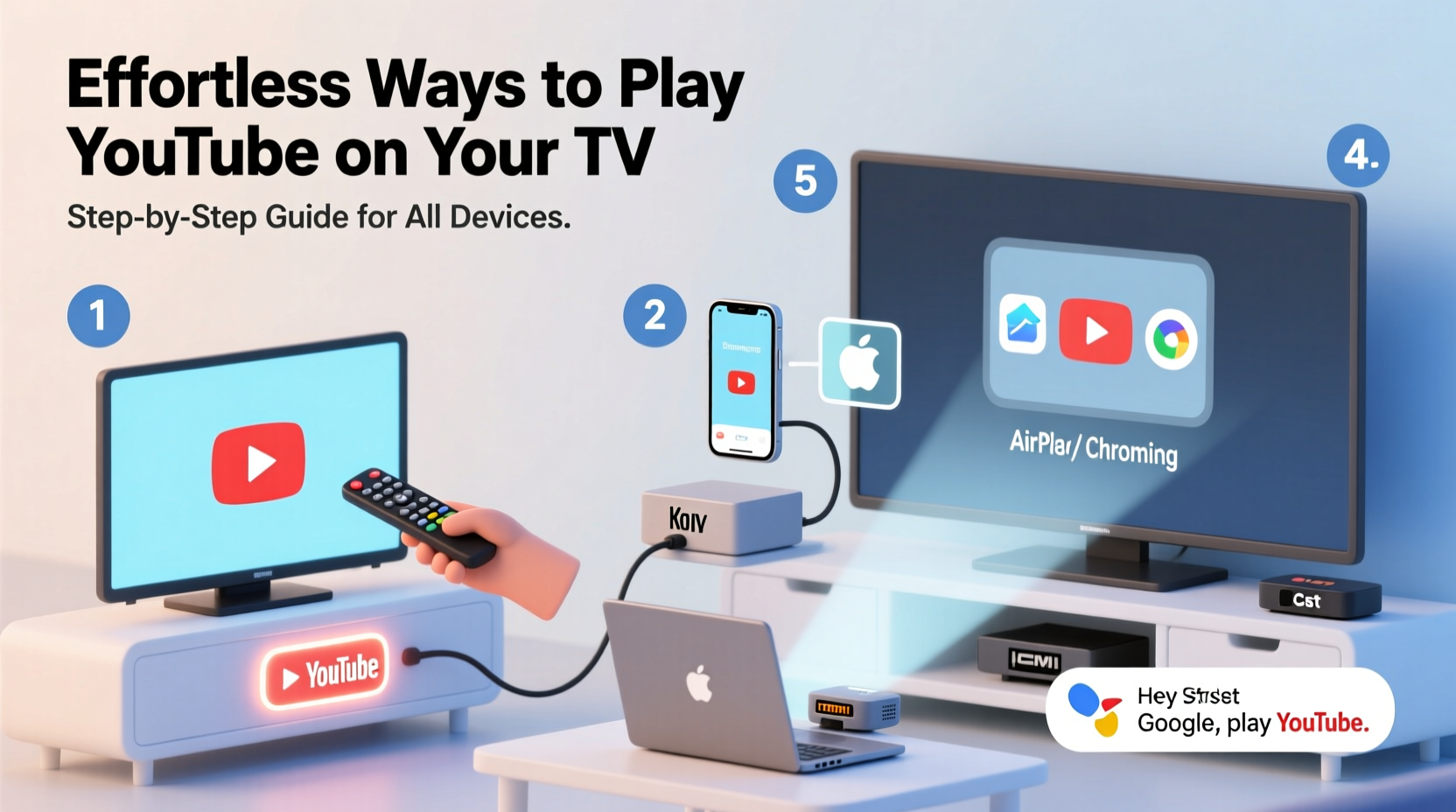
The convenience of YouTube on a smartphone or tablet is undeniable, but there’s no substitute for the immersive experience of a big screen. Whether you’re hosting a movie night, following a workout routine, or showing vacation photos to relatives, playing YouTube on your TV improves visibility, audio quality, and group engagement. Modern TVs and streaming devices make it easier than ever to access YouTube without cables or complicated setups.
Step-by-Step Methods to Play YouTube on Any TV
No matter what kind of television or device you own, there’s a way to stream YouTube effortlessly. Below are the most common and effective approaches, organized by device type.
1. Using Built-In Smart TV Apps (Samsung, LG, Sony, etc.)
Most modern smart TVs come with the YouTube app pre-installed. If not, it's typically available in the device’s app store.
- Turn on your TV and navigate to the home screen.
- Open the app drawer or content store (e.g., Samsung Galaxy Store, LG Content Store).
- Search for “YouTube” and install the official app.
- Launch the app and sign in with your Google account.
- Browse or search for videos directly using the remote.
Once signed in, your watch history, subscriptions, and playlists sync automatically. Use voice-enabled remotes (on supported models) to search hands-free.
2. Casting from Mobile Devices (Android & iPhone)
If your TV supports Chromecast or has the Google Cast feature, you can beam YouTube directly from your phone or tablet.
- Ensure your mobile device and TV are connected to the same Wi-Fi network.
- Open the YouTube app on your phone.
- Tap the cast icon (rectangle with Wi-Fi waves) in the top-right corner.
- Select your TV from the list of available devices.
- Choose a video—the playback will begin on your TV instantly.
You retain control from your phone: pause, skip, adjust volume, or queue up the next video without touching the remote.
3. Using Streaming Devices (Fire Stick, Roku, Chromecast, Apple TV)
Dedicated streaming sticks and boxes offer robust YouTube performance and intuitive interfaces.
| Device | How to Access YouTube | Notes |
|---|---|---|
| Amazon Fire Stick | Download YouTube from the Amazon Appstore | Voice search via Alexa remote |
| Roku | YouTube app available in Roku Channel Store | Simple interface; ideal for seniors |
| Chromecast with Google TV | YouTube preloaded on home screen | Full Google Assistant integration |
| Apple TV | Install YouTube from the App Store | Supports AirPlay from iOS devices |
After installation, open the app, sign in, and enjoy full functionality—subscriptions, offline downloads (where supported), and personalized recommendations.
4. Mirroring or Screen Sharing (Wireless Display)
This method works when your TV supports Miracast (Windows) or AirPlay (Apple).
- For Android: Swipe down the notification panel > Tap “Smart View,” “Screen Mirroring,” or “Cast.” Select your TV.
- For iPhone/iPad: Swipe down Control Center > Tap “Screen Mirroring” > Choose your Apple TV or AirPlay-compatible TV.
- For Windows PC: Press Win + K > Select your TV from the wireless display list.
Note: Screen mirroring duplicates your entire device screen, which may reduce battery life and video quality. It’s best for short-term use.
5. Gaming Consoles (PlayStation & Xbox)
Both PlayStation 4/5 and Xbox One/Series X|S support the YouTube app.
- From the console’s home menu, go to the app store (PS Store or Microsoft Store).
- Search for “YouTube” and install the app.
- Launch the app and log in with your Google credentials.
- Use the controller or voice commands to navigate and play videos.
On PlayStation, you can even use your smartphone as a remote via the PS App. On Xbox, Cortana integration allows voice search (“Xbox, open YouTube and play cat compilation”).
“Streaming YouTube via console offers high stability and excellent audio-video sync, especially during live events.” — David Lin, Home Theater Technician
Real-World Example: Connecting for a Family Movie Night
Sarah wanted to show her kids a curated playlist of educational science videos. Her living room has an older Samsung smart TV with limited apps. She downloaded the latest YouTube app from the Galaxy Store, logged in using her Gmail, and created a playlist titled “Weekend Learning Fun.” During movie night, she used her phone to cast new additions to the playlist while the kids watched comfortably from the couch. The whole process took less than ten minutes, and no extra hardware was needed.
Common Issues and How to Fix Them
Even straightforward setups can encounter hiccups. Here’s how to troubleshoot frequent problems:
- YouTube won’t cast: Restart your router, update the YouTube app, and confirm both devices are on the same network.
- App crashes on startup: Clear the app cache (in device settings) or reinstall the YouTube app.
- Audio out of sync: Check for firmware updates on your TV or streaming device.
- Blurry video: In YouTube settings, manually select 1080p or higher if auto-quality is defaulting too low.
Checklist: Get YouTube on Your TV in 5 Minutes
- ✅ Confirm your TV and mobile device are on the same Wi-Fi network.
- ✅ Locate the YouTube app on your TV or streaming device.
- ✅ Install and open the app; sign in with your Google account.
- ✅ Try casting from your phone using the cast icon in the YouTube app.
- ✅ Test playback with a short video to verify sound and picture quality.
Frequently Asked Questions
Can I watch YouTube on a non-smart TV?
Yes. Connect a streaming device like Chromecast, Roku Express, or Amazon Fire Stick to your TV’s HDMI port. Once set up, you can run the YouTube app just like on a smart TV.
Do I need a YouTube Premium subscription to play videos on my TV?
No. The free version of YouTube works on all TV apps and casting methods. However, YouTube Premium removes ads, enables background play, and allows offline downloads on mobile—which can then be cast.
Why does casting sometimes disconnect?
This usually happens due to Wi-Fi congestion. Reduce interference by placing your router closer to the TV, avoiding heavy bandwidth usage (like downloads) during streaming, or switching to the 5 GHz band if available.
Final Tips for a Smooth Experience
To maximize reliability and video quality, keep your device software updated. Rename your Chromecast or streaming box to something recognizable (e.g., “Living Room TV”) to avoid confusion when casting from multiple rooms. If you frequently switch between devices, bookmark your favorite channels or playlists for faster access.
Also, consider creating a dedicated Google account for your TV to separate personal recommendations from household viewing habits—especially useful in shared environments.
Conclusion
Playing YouTube on your TV doesn’t have to involve complex wiring or technical know-how. Whether you’re using a smart TV, streaming stick, gaming console, or mobile casting, the process is designed to be user-friendly and fast. By understanding the options available for your specific setup, you can transform any evening into a cinematic or educational experience with minimal effort.




 浙公网安备
33010002000092号
浙公网安备
33010002000092号 浙B2-20120091-4
Comments
No comments yet. Why don't you start the discussion?