
For years, Instagram limited posting capabilities to mobile devices only, forcing users to switch between apps or transfer files just to share a photo or video. But times have changed. While the platform still prioritizes its mobile experience, savvy users now have reliable workarounds to publish content directly from a web browser. Whether you're managing a personal brand, running a business account, or simply prefer working from your desktop, posting via browser can save time, improve precision, and reduce dependency on smartphones.
The ability to upload photos, videos, carousels, and even Stories through a browser isn't officially promoted by Instagram—but it's possible with the right techniques. This guide explores practical, tested methods that make publishing seamless without ever touching your phone.
Why Post on Instagram From Your Browser?
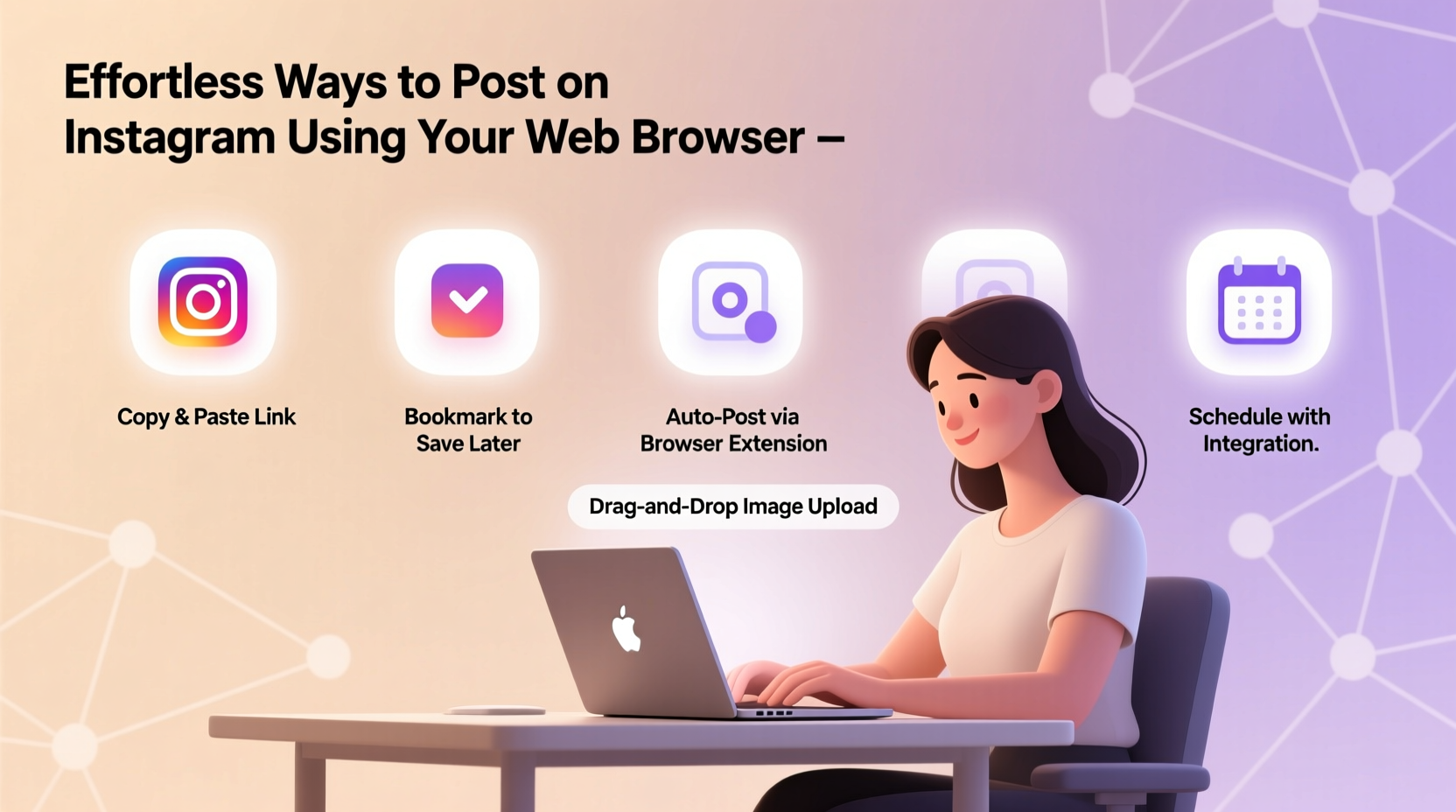
Working from a desktop offers several advantages over mobile posting. You have better access to high-resolution files, more screen space for editing captions, and easier integration with scheduling tools and cloud storage. For content creators, marketers, and small business owners, these efficiencies add up quickly.
Browsers also allow drag-and-drop functionality, keyboard shortcuts, and multitasking across tabs—features that are either limited or absent in the mobile app. When you’re batch-creating content or repurposing assets from design software like Canva or Adobe Creative Cloud, staying on your computer streamlines the entire process.
How to Post Using Browser Developer Tools (Desktop Mode)
Instagram’s website doesn’t show a native upload button on standard desktop view. However, by switching your browser to mimic a mobile device, you can unlock the mobile interface—including the ability to create new posts.
- Go to instagram.com and log in.
- Open your browser’s Developer Tools (right-click anywhere on the page and select “Inspect,” or press F12).
- In Chrome or Edge, click the “Toggle Device Toolbar” icon (a smartphone/tablet symbol) or press Ctrl+Shift+M.
- Select a mobile device preset (e.g., iPhone 12 Pro or Galaxy S21).
- Refresh the page while in mobile view. The mobile version of Instagram will load.
- Click the \"+\" icon at the bottom of the screen to begin uploading a photo or video from your computer.
- Follow the prompts to add filters, write a caption, tag people, and share.
This method uses Instagram’s actual mobile web interface, so no third-party tools are involved. It's secure, free, and works reliably as long as Instagram maintains its mobile site functionality.
“Desktop-based workflows are essential for professional content teams. Emulating mobile mode is a clever workaround until Instagram rolls out full web posting.” — Lena Patel, Social Media Strategist at BrandFlow Digital
Using Third-Party Management Platforms
If manually toggling device modes feels tedious, consider using trusted social media management tools that support Instagram posting via browser. These platforms connect to your account through official APIs and offer enhanced features like scheduling, analytics, and multi-account management.
| Platform | Key Features | Free Tier Available? | Best For |
|---|---|---|---|
| Hootsuite | Scheduling, engagement tracking, team collaboration | Yes | Businesses managing multiple networks |
| Loomly | User-friendly interface, visual calendar, post previews | Yes | Small brands and solo creators |
| Later | Visual content calendar, link-in-bio tool, Story scheduling | Yes | Influencers and e-commerce accounts |
| Buffer | Clean dashboard, analytics, simple scheduling | Yes | Minimalists who value clarity over complexity |
To get started:
- Sign up for one of the platforms listed above.
- Connect your Instagram account (ensure it’s a Creator or Business account for full access).
- Upload media directly from your computer.
- Add captions, hashtags, mentions, and location tags.
- Schedule or publish immediately.
Real-World Example: A Small Bakery’s Workflow
Maria runs a local bakery with an active Instagram presence showcasing daily specials, behind-the-scenes clips, and customer testimonials. She used to take photos on her DSLR, transfer them to her phone via email, then edit and post using the app—a process that took nearly an hour each day.
After learning about browser-based posting, she switched to using Later.com. Now, she uploads images directly from her camera’s SD card to her laptop, edits them in Lightroom, and schedules posts in batches every Sunday evening. Her posting time dropped to 20 minutes per week, and her consistency improved significantly.
She also began using the platform’s analytics to identify peak engagement times, adjusting her schedule accordingly. Within two months, her follower growth rate increased by 37%, and several customers mentioned seeing her posts more frequently in their feeds.
Common Pitfalls and How to Avoid Them
While posting from a browser is convenient, certain limitations remain. Being aware of them helps prevent frustration and ensures polished results.
- Video length restrictions: Instagram allows up to 60 seconds for regular feed videos via mobile web. Longer videos must be uploaded natively through the app or via approved partners.
- Aspect ratio issues: Stick to 1:1 (square), 4:5 (portrait), or 16:9 (landscape) formats to avoid unwanted cropping.
- No Reels or Live uploads: As of now, creating Reels or going live cannot be done through the browser—even in mobile emulation mode.
- Two-factor authentication delays: Some third-party tools require re-authentication if Instagram detects unusual login activity.
“Always double-check how your post appears on mobile before sharing. What looks great on desktop might feel cramped on a smaller screen.” — Jamal Rivers, UX Consultant for Social Apps
Checklist: Posting on Instagram From Your Browser
Use this checklist to ensure smooth, error-free publishing:
- ✅ Confirm you're logged into the correct Instagram account
- ✅ Resize and optimize images for Instagram standards (1080px width recommended)
- ✅ Enable mobile emulation mode if posting directly via Instagram.com
- ✅ Verify file type: JPEG for photos, MP4 for videos
- ✅ Write and proofread your caption before uploading
- ✅ Add alt text for accessibility and SEO benefits
- ✅ Include relevant hashtags and location tags
- ✅ Preview the post layout before finalizing
- ✅ Schedule or publish at optimal times for your audience
Frequently Asked Questions
Can I post Instagram Stories from my browser?
Direct Story uploads via Instagram’s website aren’t supported yet. However, tools like Later and Hootsuite allow scheduled Story posting if connected properly. Note: You must use a Business or Creator account and grant necessary permissions.
Is it safe to use third-party tools for Instagram posting?
Yes, as long as you use reputable platforms that comply with Instagram’s API terms. Avoid services asking for your password or promising automated likes/followers, as these violate policies and risk account suspension.
Why can’t I see the '+' button after enabling mobile view?
This usually happens if the page didn’t fully reload in mobile mode. Try clearing cache, disabling ad blockers temporarily, or switching browsers. Also ensure you’re not in “logged-out” preview mode.
Master Your Instagram Workflow
Posting on Instagram from your web browser is no longer a workaround—it's a strategic advantage. By leveraging mobile emulation or trusted management platforms, you gain control over your content calendar, reduce friction in publishing, and maintain higher-quality outputs. Whether you're curating a lifestyle brand or promoting a service, efficiency shouldn’t come at the cost of authenticity.
The key is consistency, preparation, and choosing the method that aligns with your technical comfort and goals. Start small: try uploading one post this week using your browser. Once you experience the time saved and the precision gained, you may never go back to switching devices again.




 浙公网安备
33010002000092号
浙公网安备
33010002000092号 浙B2-20120091-4
Comments
No comments yet. Why don't you start the discussion?