
Finding the perfect image online is only half the battle—getting it saved directly to your phone should be just as easy. Whether you're collecting inspiration, saving a meme, or downloading reference material, knowing how to quickly and correctly save images from Google can save time and frustration. With slight variations between Android and iOS, the process is simple once you know the right steps. This guide walks you through proven, no-fuss methods that work across devices.
Why Saving Images Matters
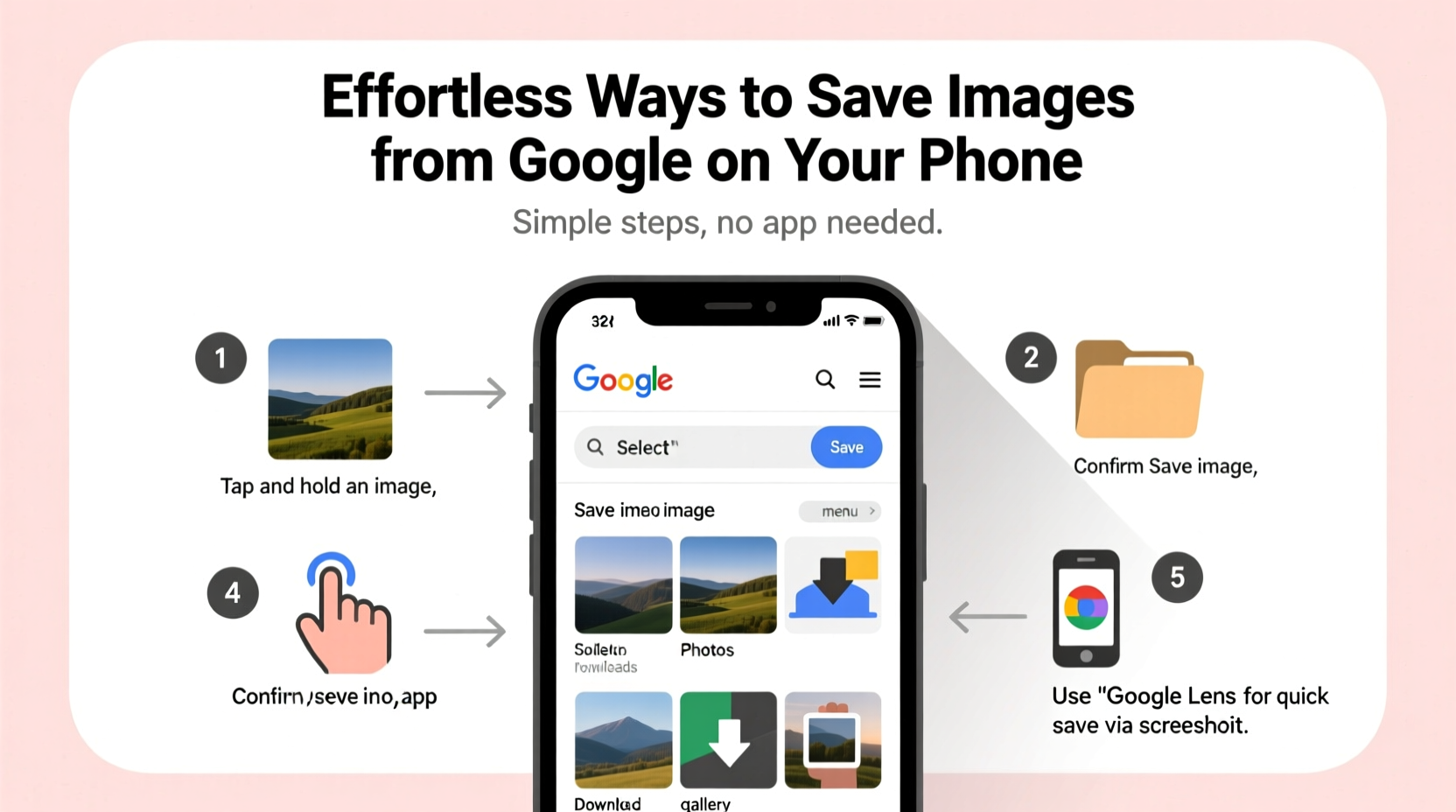
Images are central to modern communication. From sharing recipes to storing fashion ideas or capturing travel destinations, visual content plays a key role in daily digital life. Google Images remains one of the most accessible sources, but not everyone knows the most efficient way to save what they find. The good news: you don’t need special apps or technical skills. A few taps are all it takes—provided you follow the correct sequence.
Step-by-Step Guide to Save Images on Your Phone
The method varies slightly depending on your device’s operating system. Below is a detailed walkthrough for both Android and iPhone users.
Saving Images on Android
- Open the Google app or launch Chrome and go to images.google.com.
- Type your search query (e.g., “minimalist desktop wallpaper”) and browse results.
- Tap the image you want to save. This opens a preview with sourcing information.
- Tap the full-size version of the image at the bottom to view it clearly.
- Press and hold the image for about 1–2 seconds.
- A menu will appear with options like “Save image” or “Download.” Tap it.
- Wait a moment—the image saves automatically to your phone’s Gallery or Downloads folder.
Note: Some websites block long-press actions. If nothing happens, try opening the image in a new tab first by tapping “Visit page,” then attempt the save again.
Saving Images on iPhone (iOS)
- Launch Safari (or Chrome) and navigate to Google Images.
- Search for your desired image using descriptive keywords.
- Select the image thumbnail to open its preview.
- Tap the full-resolution version displayed below the preview.
- Press and hold the image until a pop-up menu appears.
- Choose “Save Image” from the options.
- The photo will be stored in your Photos app under the “Recents” album.
If the menu doesn’t appear, ensure you’re touching the actual image—not the surrounding webpage elements. Scrolling slightly to load the full image may also help.
Alternative Methods When Standard Saving Fails
Sometimes, due to website restrictions or browser limitations, the standard press-and-hold method won’t work. Here are three alternative approaches that bypass common obstacles.
Method 1: Use Desktop Mode
If an image won’t save in mobile view:
- In Chrome or Safari, tap the three-dot (Android) or “AA” (iOS) menu icon.
- Select “Request Desktop Site.”
- Reload the page and try pressing and holding the image again.
This often reveals hidden download triggers because desktop layouts render images differently.
Method 2: Screenshot and Crop
When all else fails:
- Zoom in on the image so it fills most of the screen.
- Take a screenshot (Power + Volume Down on Android; Side Button + Volume Up on iPhone).
- Use your phone’s built-in editor to crop out unwanted parts.
- Save the cropped version to your gallery.
Method 3: Copy Image Address
Advanced but effective:
- Long-press the image and select “Copy image address.”
- Open a new tab and paste the URL into the address bar.
- Once loaded, press and hold to save normally.
This works well when the original source hides behind JavaScript or lazy loading.
Checklist: Ensure Smooth Image Saving Every Time
Follow this quick checklist before attempting to save any image:
- ✅ Confirm you have internet access (saving requires full image load).
- ✅ Make sure your phone has available storage space.
- ✅ Disable ad blockers temporarily if saving fails.
- ✅ Update your browser to the latest version.
- ✅ Try a different browser if one isn’t working (e.g., switch from Chrome to Firefox).
Do’s and Don’ts of Saving Online Images
| Do’s | Don’ts |
|---|---|
| Always credit creators when sharing images publicly. | Don’t assume every image is free to use. |
| Save images in folders organized by topic or date. | Don’t rely solely on screenshots for high-quality needs. |
| Use incognito mode to avoid personalized tracking during searches. | Don’t click suspicious download buttons disguised as “Save” prompts. |
| Clear browser cache regularly to prevent loading issues. | Don’t ignore copyright warnings or licensing terms. |
Real Example: How Maria Built Her Mood Board in One Evening
Maria, a freelance interior designer, needed visuals for a client presentation. She opened Google Images on her iPhone, searched “Scandinavian bedroom design,” and browsed through dozens of thumbnails. Using the press-and-hold method, she saved 15 high-resolution images directly to her Photos app. When one site blocked saving, she switched to desktop mode in Safari and succeeded. Within 40 minutes, she had a complete digital mood board ready to share. No third-party apps, no complications—just smart use of native features.
“Most people overcomplicate image saving. On mobile, the simplest method is almost always the best—if you know where to tap.” — Derek Lin, Mobile UX Consultant
FAQ
Why can’t I save some images from Google?
Some websites disable right-click or long-press functions to protect content. Others use dynamic loading that prevents immediate access. Try switching to desktop mode or copying the image link manually.
Where do saved images go on my phone?
On Android, they typically go to the Gallery > Albums > Downloads folder. On iPhone, saved images appear in the Photos app under “Recents” or “All Photos.” You can move them later into custom albums.
Is it legal to save images from Google?
You can save images for personal use, but redistribution, resale, or commercial use may violate copyright unless the image is labeled for reuse. Always check usage rights via Google’s Tools > Usage Rights filter.
Final Thoughts and Next Steps
Saving images from Google on your phone doesn’t require complex tools or technical knowledge. With consistent techniques tailored to your device, the process becomes second nature. Whether you're curating ideas, gathering references, or simply preserving something beautiful, mastering these effortless methods gives you control over your digital content.




 浙公网安备
33010002000092号
浙公网安备
33010002000092号 浙B2-20120091-4
Comments
No comments yet. Why don't you start the discussion?