
In today’s fast-moving digital world, sharing photos instantly—whether with family, colleagues, or clients—is more important than ever. Email attachments can fail, messaging apps may compress image quality, and large files often exceed size limits. Google Drive offers a smarter, more reliable solution. With its seamless integration across devices and platforms, Google Drive allows you to send high-resolution images quickly while maintaining full control over who sees them and for how long.
This guide explores practical, time-saving methods to share images via Google Drive efficiently. Whether you're sending vacation photos to relatives or project visuals to a remote team, these techniques ensure clarity, speed, and accessibility without unnecessary steps.
Create Shareable Links in Seconds
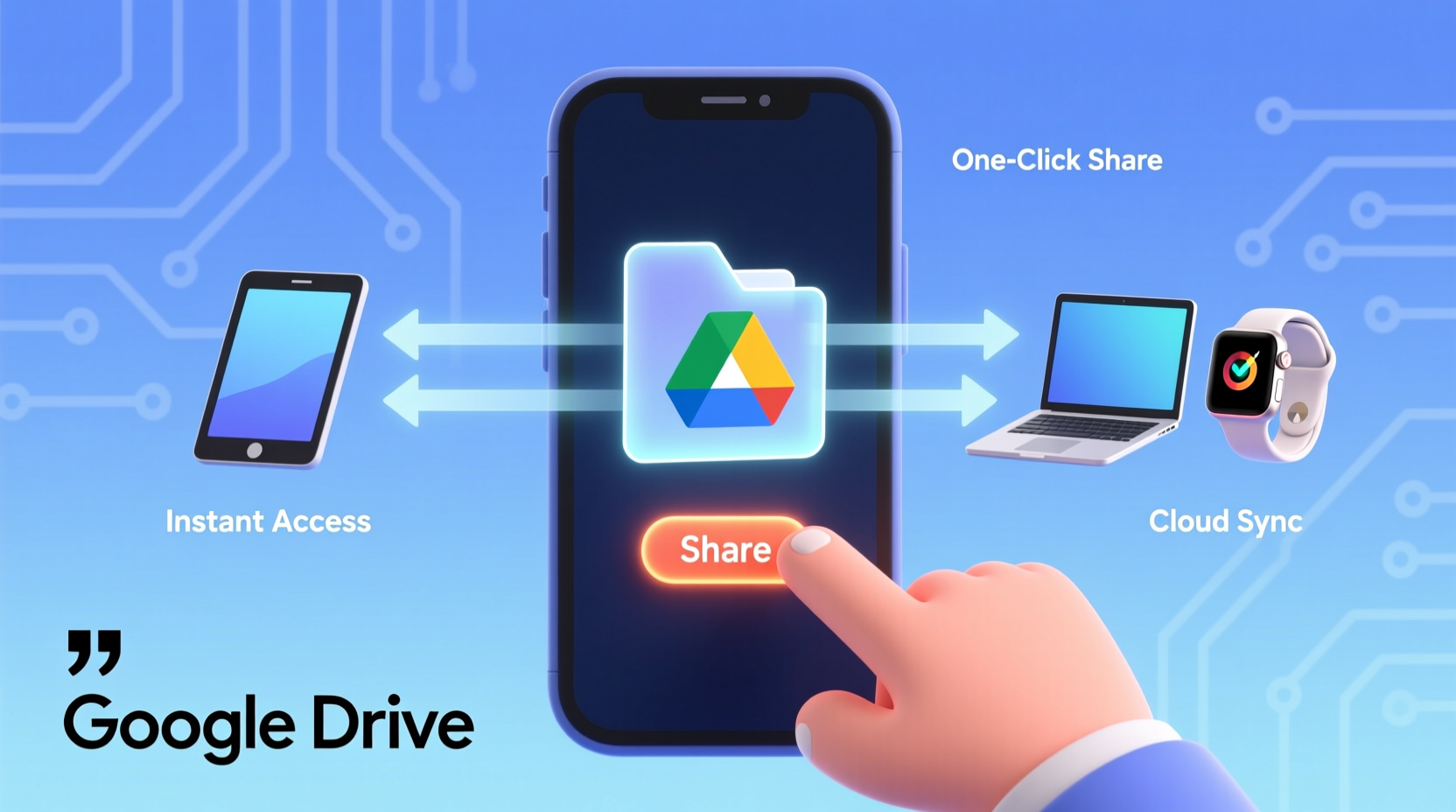
One of the fastest ways to distribute images is by generating a shareable link. This method bypasses email attachments entirely and works across any platform—text messages, social media, collaboration tools like Slack, or even printed handouts.
To generate a link:
- Upload your image to Google Drive (drag and drop or use the “New” button).
- Right-click the file and select “Get link.”
- Change the sharing settings from “Restricted” to “Anyone with the link” (if appropriate).
- Copy the link and paste it wherever needed.
The recipient clicks the link and views the image directly in their browser—no login required unless you’ve set restrictions. For sensitive content, keep the setting as “Restricted” and manually add email addresses for secure delivery.
Batch Upload and Share Multiple Images at Once
Sending one image is simple, but what if you have dozens? Instead of repeating the process, bundle them into a folder. This keeps related content organized and reduces clutter in shared links.
Here’s how to do it efficiently:
- Select multiple images on your device and upload them together into a new folder on Google Drive.
- Name the folder clearly (e.g., “Product Photos Q3 Launch”).
- Share the entire folder using a link or direct invitations.
Recipients get instant access to all files in one place. If updates are made later—such as adding corrected versions—the changes reflect automatically for everyone with access.
“Using folders to group related assets cuts down on confusion and repeated requests for missing files.” — Lena Patel, Digital Workflow Consultant
Embed Images Directly in Emails or Websites
For professional communication or web publishing, embedding an image hosted on Google Drive can be cleaner than attaching files. While Google doesn’t support direct embedding like traditional image hosts, there’s a workaround using the sharing link.
After setting the image's sharing permission to “Anyone with the link,” modify the URL:
- Take the standard sharing link:
https://drive.google.com/file/d/FILE_ID/view - Replace
/viewwith/preview - Use this modified URL in HTML
<img src=\"...\">tags or embed-capable platforms.
Note: This method works best within controlled environments like internal company portals or password-protected sites. Avoid public embedding for privacy-sensitive images.
Automate Sharing with Google Photos Integration
If you're primarily sharing personal photos, integrating Google Photos with Google Drive streamlines the process significantly. When enabled, every photo saved to Google Photos automatically appears in a dedicated folder inside Google Drive under “Google Photos.”
To activate this feature:
- Open Google Drive and go to Settings.
- Navigate to “Manage Apps” and ensure Google Photos is connected.
- In the Google Photos app, go to Settings > Backup & Sync and confirm it’s active.
Once synced, you can share specific albums or individual images from the Google Photos folder in Drive just like any other file. This is ideal for parents sharing baby photos, travelers documenting trips, or event planners distributing gallery previews.
Optimize Access with Permission Levels and Expiry Dates
Not all recipients need permanent access. Google Drive lets you assign precise permissions and even set expiration dates for shared links—a powerful tool for temporary collaborations or limited-time reviews.
Available permission types include:
| Permission Level | Description | Best Use Case |
|---|---|---|
| Viewer | Can only see the image | Sharing final deliverables or personal photos |
| Commenter | Can view and add suggestions | Design feedback or editorial review |
| Editor | Can modify or replace the image | Collaborative design work or team projects |
To add an expiry date (available in Google Workspace accounts), open the sharing panel, click the three-dot menu next to the link, and select “Set expiration.” After that date, the link stops working automatically—ideal for securing time-sensitive marketing materials or confidential drafts.
Mini Case Study: Streamlining Client Feedback
A freelance photographer, Maya, used to email ZIP files of edited portraits to clients. Many failed to download them due to size limits, and tracking revisions became chaotic. She switched to organizing each client session into a dated folder in Google Drive, shared with “Commenter” access.
Clients now open the folder, view full-resolution images in-browser, and leave timestamped comments directly on shots they like. Maya completes revisions 40% faster, with no lost emails or mislabeled files. The same folder serves as a long-term archive accessible anytime.
Step-by-Step Guide: Sending an Image via Mobile App
For users on the go, sharing from the Google Drive mobile app is straightforward:
- Open the Google Drive app on your smartphone.
- Tap the “+” icon and select “Upload” to add your image.
- Once uploaded, tap the file to open it.
- Tap the three-dot menu and choose “Share.”
- Enter an email address or tap “Copy link” to share elsewhere.
- Adjust permissions before sending.
This entire process takes less than a minute and ensures high-quality transfer—even from remote locations with moderate internet speeds.
Checklist: Best Practices for Sharing Images via Google Drive
- ✅ Use clear, consistent filenames
- ✅ Group related images in labeled folders
- ✅ Choose the right permission level (Viewer, Commenter, Editor)
- ✅ Set expiration dates for sensitive or temporary content
- ✅ Prefer link sharing over email attachments
- ✅ Enable Google Photos sync for automatic backups
- ✅ Review sharing settings periodically to revoke outdated access
Frequently Asked Questions
Can someone download my image if I share a link?
Yes, by default, viewers can download, print, and copy your image unless restricted. To prevent downloads, you’d need third-party tools or convert the image into a non-downloadable format like a PDF preview. However, determined users may still screenshot it.
What’s the maximum file size I can share?
Google Drive supports files up to 5 TB, though most individual images won’t come close. Practical limits depend on your available storage. Free accounts offer 15 GB shared across Gmail, Drive, and Photos.
Is it safe to share private photos this way?
It can be, provided you use “Restricted” sharing and avoid public links. Never share sensitive personal data (like IDs or medical images) without verifying recipient identity and considering end-to-end encrypted alternatives.
Final Thoughts
Google Drive transforms image sharing from a fragmented, error-prone task into a smooth, scalable workflow. Whether you're coordinating global teams or simply keeping loved ones updated, mastering these techniques saves time, preserves quality, and enhances collaboration.
Start small—upload one folder of recent photos and share it with a trusted contact. Refine your approach based on feedback and usage patterns. Over time, you’ll build a personalized system that makes sharing feel truly effortless.




 浙公网安备
33010002000092号
浙公网安备
33010002000092号 浙B2-20120091-4
Comments
No comments yet. Why don't you start the discussion?