
Sending videos from your phone should be simple, but file size limits, compatibility issues, and platform restrictions often complicate the process. Whether you're sharing vacation clips with family, sending work presentations, or forwarding a funny moment, knowing the most efficient method can save time and frustration. This guide breaks down seamless, reliable, and device-specific strategies to transfer videos effortlessly—regardless of whether you use an iPhone, Android, or need to share across platforms.
Understanding Video File Challenges
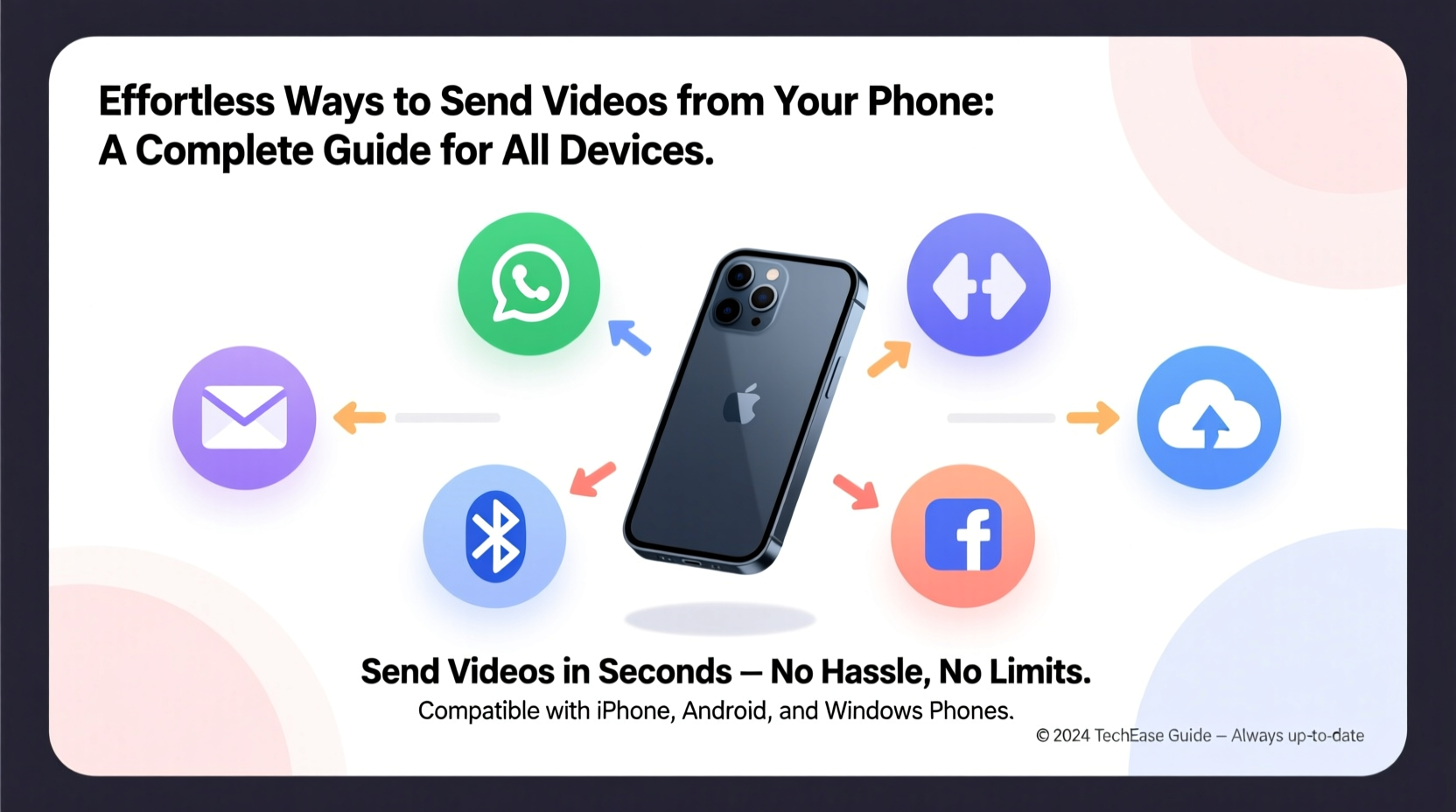
Before diving into transfer methods, it’s important to understand why video sharing isn’t always straightforward. Modern smartphones record high-resolution footage—often in 4K or HDR—which results in large file sizes. A single minute of 4K video can exceed 300MB, making it too large for standard email attachments or messaging apps like WhatsApp or iMessage without compression.
Different operating systems also handle media differently. iPhones default to HEVC (High-Efficiency Video Coding), which saves space but isn’t universally supported on Android or older devices. Similarly, Android phones often use MP4 with H.264 encoding, which is more compatible but still subject to size constraints.
Best Methods to Send Videos by Device Type
The optimal way to send a video depends on your device, the recipient’s device, and the file size. Below are the most effective techniques tailored to each ecosystem.
iOS (iPhone) – Leveraging iCloud and AirDrop
Apple users benefit from tight integration between devices. For short videos under 25MB, iMessage works instantly. For larger files, enable “Send as SMS” fallback in Settings > Messages to avoid failed deliveries.
AirDrop remains one of the fastest ways to transfer videos wirelessly between Apple devices. To use it:
- Open Control Center and tap the AirDrop icon.
- Select “Everyone” or “Contacts Only.”
- Open the video in Photos, tap Share, then select the nearby device.
For very large videos, use iCloud Links. In the Photos app, tap Share > Copy Link. This uploads the video securely to iCloud and generates a shareable URL. The recipient gets a web link valid for 30 days.
Android – Using Google Drive and Nearby Share
Android offers multiple built-in options. Google Drive is ideal for large files. Open the Gallery, select the video, tap Share > Save to Drive. Choose a folder, set sharing permissions, and send the link via any app.
Nearby Share, Google’s answer to AirDrop, allows direct transfers over Bluetooth and Wi-Fi Direct. Enable it in Quick Settings, then share the video directly to another Android user within range. No internet required.
Cross-Platform Solutions for Universal Compatibility
When sharing between iPhone and Android—or with someone using a computer—cross-platform tools are essential.
Email with Cloud Attachments
Most email providers limit attachments to 25MB. Instead of attaching the video directly, upload it to a cloud service and insert the link:
- Gmail + Google Drive: Click the Drive icon when composing an email.
- Outlook + OneDrive: Use the OneDrive attachment option.
- Apple Mail + iCloud: Available on macOS; iOS requires third-party integration.
Messaging Apps with Large File Support
Apps like Telegram and Signal allow video uploads up to 2GB and 1GB respectively—far beyond WhatsApp’s 16MB limit (compressed). Telegram even preserves original quality. Upload the video directly from your gallery, and the app handles compression only if necessary.
| App | Max Video Size | Quality Preserved | Best For |
|---|---|---|---|
| 16MB (compressed) | No | Quick clips under 1 min | |
| Telegram | 2GB | Yes | Long or high-quality videos |
| Signal | 1GB | Limited compression | Private, secure sharing |
| WeTransfer | 2GB (free) | Yes | One-time large sends |
Step-by-Step: How to Send a 4K Video Without Quality Loss
If preserving video quality is critical—such as for professional work or cherished memories—follow this sequence:
- Check the file size: Long 4K videos may exceed 1GB. Use a file manager app to verify.
- Choose a cloud service: Upload to Google Drive, Dropbox, or iCloud.
- Generate a shareable link: Set permissions to “Anyone with the link can view.”
- Shorten the link (optional): Use Bitly or TinyURL for cleaner appearance.
- Send via text, email, or social media: Paste the link where needed.
- Notify the recipient: Let them know the video is high-res and may take time to load on slower connections.
“Over 70% of failed video shares stem from ignoring file size limits. Always check before sending.” — Raj Patel, Mobile Connectivity Analyst at TechFlow Insights
Real Example: Sharing a Wedding Video Across Devices
Sarah filmed her friend’s wedding on her iPhone in 4K. She wanted to share a 5-minute highlight with guests, many of whom used Android phones. Initially, she tried iMessage, but the video failed to send. She then attempted WhatsApp, but the app heavily compressed it, reducing clarity.
Instead, Sarah opened iCloud Photos, selected the video, tapped Share > Create Link. She copied the URL, pasted it into a group message via SMS, and added a note: “Download this link for the full-quality version.” Guests clicked the link on their phones or computers and viewed the video without issues—no app switch or login required.
Essential Checklist for Hassle-Free Video Sharing
Use this checklist before sending any video:
- ✅ Confirm the recipient’s device type (iOS, Android, PC)
- ✅ Check video file size and duration
- ✅ Trim or compress if necessary
- ✅ Convert format if cross-platform (use MP4/H.264)
- ✅ Choose the right method based on size and urgency
- ✅ Test the link or delivery method with a small file first
- ✅ Follow up to confirm receipt and playback success
Frequently Asked Questions
Why won’t my video send through text?
Most carriers impose MMS size limits (usually 25MB). Larger videos fail unless sent via RCS (on Android) or iMessage (on iPhone). Use cloud links or messaging apps like Telegram instead.
Can I send a video from iPhone to Android without losing quality?
Yes, but avoid iMessage or MMS. Instead, use a cloud-sharing service like Google Drive or Dropbox. Upload from your iPhone and send the link to the Android user.
What’s the fastest way to send a video in real time?
If both parties are nearby, use AirDrop (Apple-to-Apple) or Nearby Share (Android-to-Android). For mixed devices, apps like Snapdrop.net allow instant browser-based transfers over the same Wi-Fi network.
Final Tips for Effortless Video Sharing
The key to effortless video sharing lies in preparation and choosing the right tool for the context. For quick personal clips, built-in messaging features suffice. For professional or high-value content, prioritize quality and reliability over convenience. Always consider the recipient’s access—some may not have enough storage or data to download large files.
Modern technology removes barriers, but understanding the nuances of file formats, platform limits, and sharing mechanisms ensures your videos arrive intact and on time.




 浙公网安备
33010002000092号
浙公网安备
33010002000092号 浙B2-20120091-4
Comments
No comments yet. Why don't you start the discussion?