
Gaming on PC doesn’t have to mean sacrificing the comfort and familiarity of a console-style controller. The Xbox Wireless Controller is one of the most ergonomic and responsive gamepads available, and with Windows’ native support, connecting it to your PC has never been easier. Whether you're playing indie platformers, AAA titles, or competitive shooters, setting up your Xbox controller correctly ensures minimal input lag, consistent performance, and a seamless experience across games.
From plug-and-play simplicity to advanced customization, this guide walks through everything you need to know to get your Xbox controller working flawlessly on your PC—without unnecessary complexity or technical jargon.
Why Use an Xbox Controller on PC?
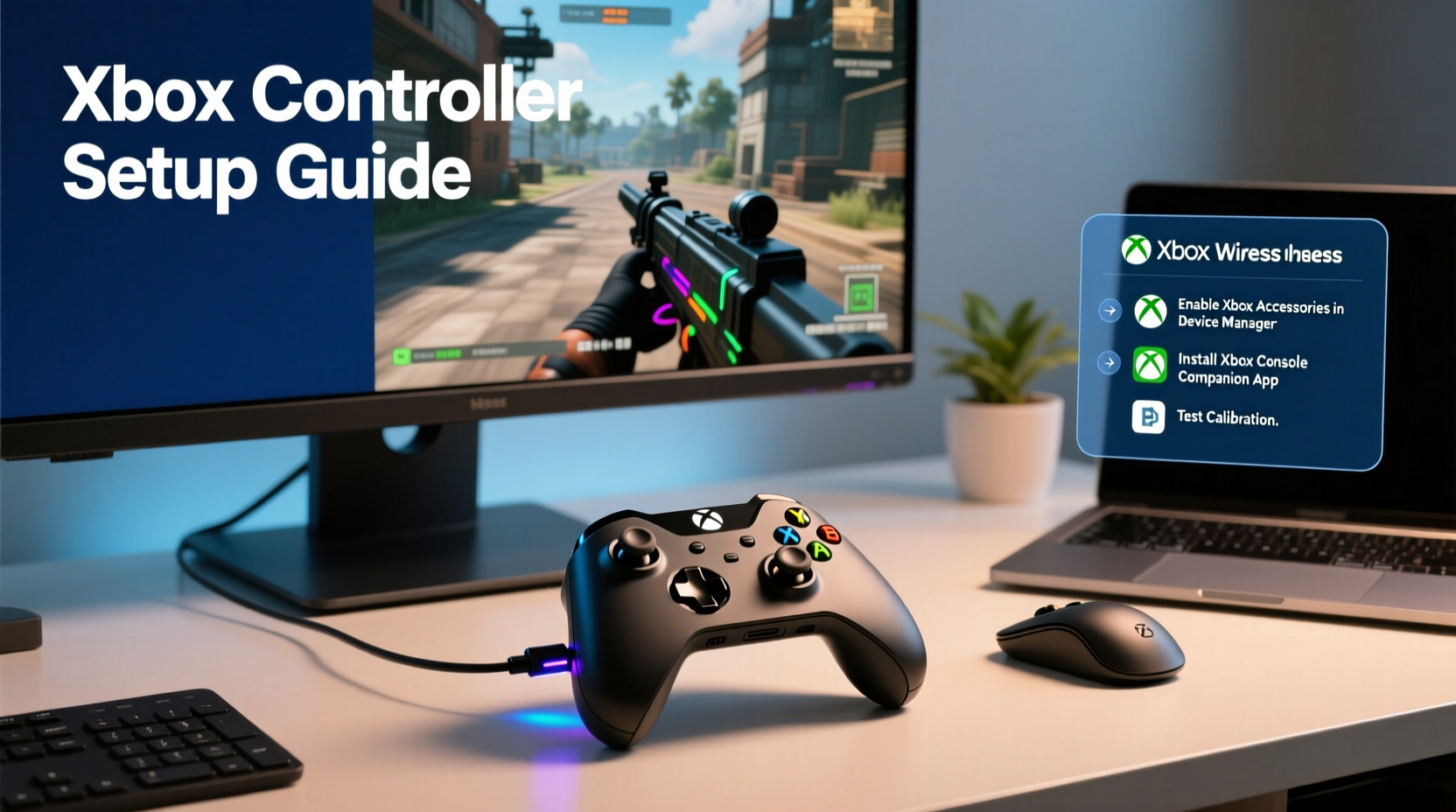
The Xbox controller’s design has become something of a gold standard in gaming ergonomics. Its symmetrical analog sticks, well-placed triggers, and balanced weight distribution make it ideal for extended play sessions. Microsoft has also ensured strong cross-platform compatibility, making the transition from console to PC intuitive.
Modern Windows versions (Windows 10 and 11) include built-in drivers for Xbox controllers, eliminating the need for third-party software in most cases. This means less hassle, fewer conflicts, and faster setup times. Additionally, many PC games—especially those available on Xbox Game Pass for PC—offer native controller support with optimized UI layouts and rumble feedback.
“Over 70% of Steam users who play with controllers choose Xbox-compatible devices, thanks to reliability and broad support.” — Valve Hardware Survey, 2023
Step-by-Step: Connecting Your Xbox Controller via USB
The simplest and most reliable method to connect your Xbox controller to a PC is via USB. This method works with all modern Xbox controllers, including the Xbox One, Xbox Series X|S, and Bluetooth-enabled models.
- Ensure your PC is powered on and unlocked.
- Use a high-quality USB-A to USB-C cable (or USB-A to Micro-USB, depending on your controller model).
- Plug one end into your controller and the other into an available USB port on your PC.
- Wait a few seconds. Windows will automatically detect the device and install necessary drivers.
- Press the Menu button on the controller to confirm it’s responsive.
- Open Settings > Devices > Bluetooth & other devices to verify the controller appears under “Devices.”
No additional software is required. Once connected, the controller will work instantly in most games, including those on Steam, Epic Games Store, and standalone launchers.
Wireless Setup: Bluetooth vs. Xbox Wireless Adapter
For a clutter-free gaming experience, wireless connection options are essential. You have two primary choices: Bluetooth or the official Xbox Wireless Adapter for Windows.
| Method | Pros | Cons |
|---|---|---|
| Bluetooth | Free, uses built-in PC capability, no extra hardware | Higher latency, limited range, may disconnect under interference |
| Xbox Wireless Adapter | Lower latency, supports multiple controllers, more stable | Costs ~$25, requires USB port |
Connecting via Bluetooth
- Turn on your controller by pressing the Xbox button.
- Press and hold the **Pair** button (top edge) for 3 seconds until the Xbox logo flashes rapidly.
- On your PC, go to Settings > Devices > Bluetooth & other devices.
- Click “Add Bluetooth or other device” > “Bluetooth.”
- Select “Xbox Wireless Controller” when it appears.
- Wait for confirmation. The Xbox button will stay lit when connected.
Using the Xbox Wireless Adapter
- Plug the adapter into a USB port.
- Press the Pair button on the adapter (small circular button).
- Press and hold the Pair button on the controller for 3 seconds.
- The Xbox button will remain solid once paired.
The adapter supports up to eight controllers and headsets simultaneously and provides a more console-like experience, especially beneficial for local multiplayer or tournament setups.
Optimizing Performance and Customization
Once your controller is connected, fine-tuning can significantly enhance gameplay. Input lag, vibration strength, and button mapping all influence responsiveness and immersion.
- Update firmware: Use the Xbox Accessories app (available on Microsoft Store) to keep your controller up to date.
- Remap buttons: Some games allow in-game remapping; others require tools like Steam Input or reWASD.
- Adjust dead zones: For analog sticks that drift slightly, adjusting dead zones in Steam or third-party apps can restore precision.
- Enable Game Mode: In Windows Settings > Gaming > Game Mode, toggle it on to prioritize system resources for active games.
Troubleshooting Common Issues
Even with excellent native support, occasional hiccups occur. Here’s how to resolve them quickly.
Controller Not Detected
First, check the physical connection. Try a different USB cable or port. If using Bluetooth, ensure Bluetooth is enabled and your PC supports Bluetooth 4.0 or higher. Restart the Bluetooth service via Task Manager if needed.
Input Lag or Delayed Response
Reduce background processes consuming CPU. Close unnecessary applications. Prefer wired or Xbox Wireless Adapter over Bluetooth for lower latency. Also, disable battery-saving modes on USB ports in Power Options.
Battery Drains Quickly
Use rechargeable AA batteries or the official Xbox Rechargeable Battery + Play & Charge Kit. Avoid leaving the controller on idle—it auto-shuts down after 15 minutes, but faulty units may not power off properly.
Mini Case Study: Competitive FPS Player Adopts Controller
Jamal, a long-time mouse-and-keyboard player, decided to try *Apex Legends* with his Xbox Series X controller after seeing pros use aim assist effectively. Initially skeptical about accuracy, he followed a structured setup: used a USB connection to eliminate latency, updated firmware, and customized sensitivity within the game. After two weeks of practice, his kill count increased by 40%, and he reported less wrist strain during marathon sessions. His key takeaway? “The right setup made all the difference—once I stopped fighting the controls, the game felt smoother than ever.”
Essential Checklist for Flawless Setup
- ✅ Verify controller model:
- Ensure it’s a Bluetooth-enabled Xbox One S or newer, or Xbox Series X|S controller.
- ✅ Choose connection method:
- Prefer wired for stability, wireless for convenience.
- ✅ Install Xbox Accessories app:
- Available free on Microsoft Store for firmware updates and profile saves.
- ✅ Test in game:
- Launch a title with controller support (e.g., *Halo Infinite*, *Forza Horizon 5*) to confirm inputs.
- ✅ Customize controls (optional):
- Use Steam Input or in-game settings to adjust sensitivity, invert axes, or remap buttons.
Frequently Asked Questions
Can I use my Xbox controller on any PC game?
Most modern PC games support Xbox controllers natively, especially those on platforms like Steam, Epic, and Xbox Game Pass. Older or niche titles may require third-party tools like x360ce to emulate Xbox input.
Do I need the Xbox Wireless Adapter if I have Bluetooth?
Not necessarily. Bluetooth works well for casual play, but the adapter offers better range, lower latency, and support for accessories like headsets. Competitive or serious gamers benefit more from the adapter.
How do I know if my PC supports Xbox Wireless?
Xbox Wireless (not Bluetooth) requires the official $25 USB adapter. Built-in support is rare—most PCs only have Bluetooth. Check your PC specs or look for “Xbox Wireless” in device documentation.
Final Thoughts: Elevate Your PC Gaming Experience
Setting up an Xbox controller on PC should be straightforward—and with today’s technology, it truly is. Whether you’re transitioning from console, reducing strain during long sessions, or simply prefer analog precision, a properly configured Xbox controller enhances both comfort and performance. From instant USB plug-and-play to refined wireless experiences, the tools are already at your fingertips.
Take a few minutes to optimize your setup, update firmware, and test responsiveness. Small adjustments can lead to smoother gameplay, quicker reactions, and greater enjoyment overall. Don’t overlook the value of a familiar, well-built controller in a world where every millisecond counts.




 浙公网安备
33010002000092号
浙公网安备
33010002000092号 浙B2-20120091-4
Comments
No comments yet. Why don't you start the discussion?