
Streaming a video, sharing vacation photos, or presenting a slideshow no longer requires cables or complicated setups. With today’s technology, mirroring your phone screen to a TV is fast, wireless, and accessible—whether you own an iPhone, Android device, or any modern television. The key lies in understanding the right method for your devices and environment. This guide walks through proven, low-effort techniques that work reliably across platforms, ensuring you can project your screen in under a minute.
Understanding Screen Mirroring vs. Casting
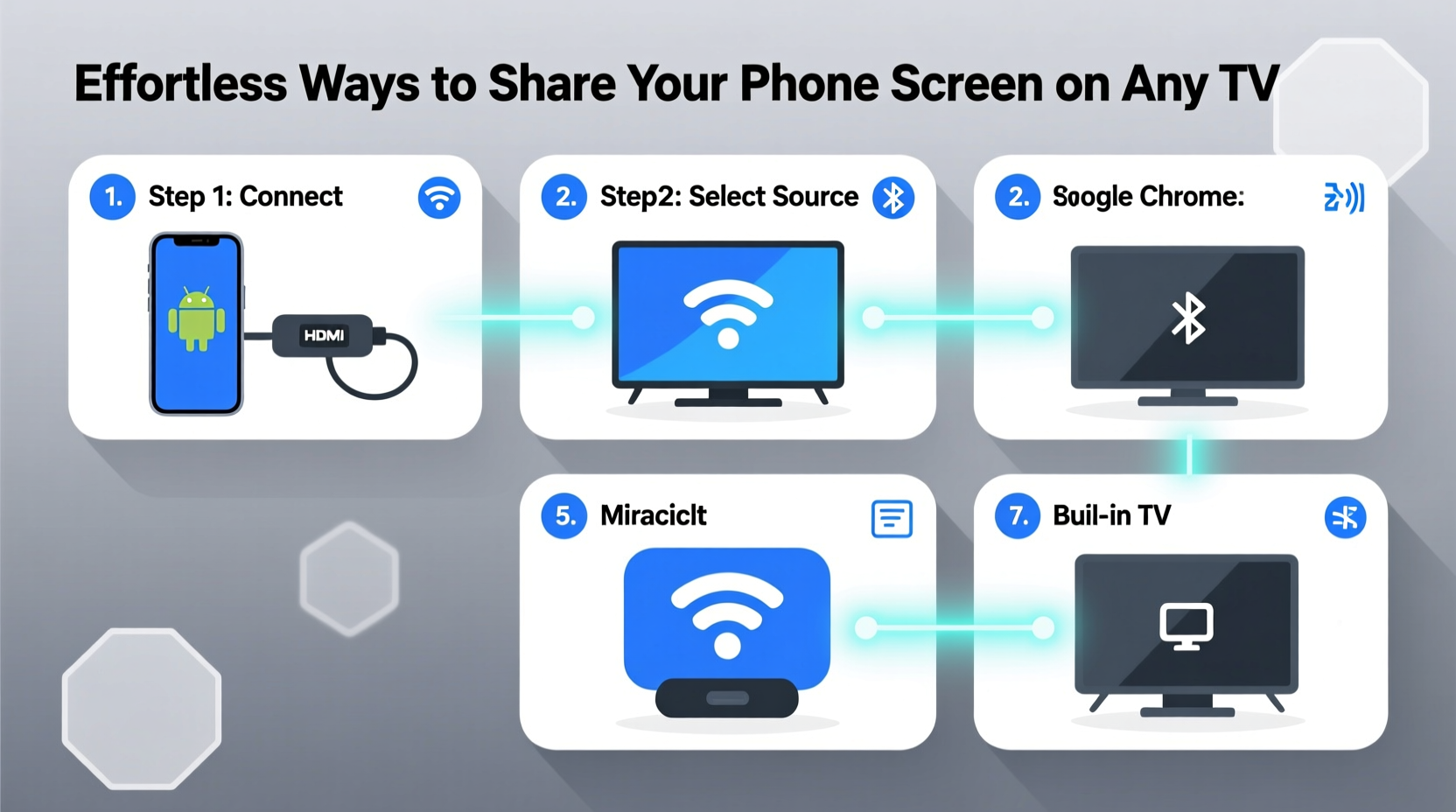
Before diving into methods, it's important to distinguish between screen mirroring and casting. While often used interchangeably, they serve different purposes.
- Screen Mirroring: Duplicates your entire phone display onto the TV in real time. Ideal for presentations, gaming, or showing apps not supported by streaming services.
- Casting: Sends specific content (like a YouTube video or Spotify playlist) from your phone to a compatible device such as Chromecast or Apple TV. Your phone acts as a remote; the media plays directly from the internet on the TV.
Choose mirroring when you want full control and visibility of your device’s interface. Opt for casting when streaming media and conserving battery life matters more than interactivity.
“Wireless screen sharing has evolved beyond gimmickry—it’s now a core feature for productivity and entertainment.” — David Lin, Consumer Tech Analyst at GadgetInsight
Step-by-Step: How to Mirror Your Phone to Any TV
The best method depends on your phone’s operating system and your TV’s capabilities. Below are the most reliable options, ranked by ease and compatibility.
1. Using Built-in Wireless Display (Android & Smart TVs)
Most modern Android phones and smart TVs support Miracast or proprietary screen-sharing protocols like Samsung Smart View or LG Screen Share.
- Ensure both your phone and TV are connected to the same Wi-Fi network.
- On your Android phone, open Settings > Connected Devices > Connection Preferences > Cast.
- Tap the “Cast” button and wait for available devices to appear.
- Select your TV from the list.
- When prompted, confirm the connection on both devices.
Once connected, your phone’s screen will appear instantly on the TV. To stop, return to the Cast menu and tap “Disconnect.”
2. AirPlay for iPhone and Apple TV or AirPlay 2-Compatible TVs
If you own an iPhone and either an Apple TV or a newer smart TV labeled “AirPlay 2,” you can mirror wirelessly with minimal setup.
- Make sure your iPhone and TV are on the same Wi-Fi network.
- Swipe down from the top-right corner (iPhone X and later) to open Control Center.
- Tap the Screen Mirroring icon.
- Select your Apple TV or AirPlay-compatible TV from the list.
- Enter the four-digit code displayed on the TV if prompted.
Your screen appears instantly. Audio, video, and touch interactions are mirrored seamlessly. For non-Apple TVs without AirPlay, third-party apps like LetsView or Reflector offer similar functionality.
3. Google Chromecast: Universal Casting Solution
Chromecast remains one of the most versatile and affordable tools for sharing phone content. Plug it into any HDMI port, set it up once, and cast from nearly any device.
- Plug the Chromecast into your TV’s HDMI port and power it via USB.
- Download the Google Home app on your phone.
- Follow the in-app instructions to connect Chromecast to your Wi-Fi.
- Open a supported app (YouTube, Netflix, Chrome browser).
- Tap the Casting icon (rectangle with Wi-Fi waves) and select your Chromecast.
To mirror your entire Android screen (not just app content), go to the Google Home app, tap your device, and select “Cast my screen.”
Wired Options: When Wireless Isn’t Reliable
Not every home network supports stable wireless streaming. In such cases, a physical connection ensures zero lag and consistent quality.
| Device | Connection Method | Cable Needed | Notes |
|---|---|---|---|
| iPhone | HDMI via Adapter | Lightning to HDMI or USB-C to HDMI | Requires power source for extended use |
| Android (USB-C) | DisplayPort Alt Mode | USB-C to HDMI cable | Only works with compatible phones (e.g., Pixel, Galaxy S series) |
| Older Android | MHL (rare) | MHL adapter + HDMI | Largely obsolete; check device specs first |
To use wired mirroring:
- Connect one end of the cable to your phone, the other to the TV’s HDMI input.
- Switch the TV to the correct HDMI source.
- Grant permission if your phone prompts for display access.
This method is ideal for gaming, watching high-resolution videos, or giving professional presentations where interruptions are unacceptable.
Troubleshooting Common Issues
Even with the right setup, problems can arise. Here’s how to resolve them quickly:
- TV not showing up? Restart both devices and ensure they’re on the same 2.4GHz or 5GHz Wi-Fi band. Some older TVs only respond to 2.4GHz.
- Audio out of sync? Reduce video resolution in your phone’s developer settings or switch to a wired connection.
- Screen freezes or lags? Move closer to the router or disconnect other bandwidth-heavy devices (like downloads or cloud backups).
- No sound on TV? Check audio output settings on your phone and TV. Some apps block audio during casting due to copyright.
“Inconsistent Wi-Fi is the number one reason for failed screen sharing. A mesh network can dramatically improve reliability.” — Lena Patel, Network Engineer at HomeNet Labs
Mini Case Study: Hosting a Movie Night Without Cables
Sophia wanted to host a backyard movie night using her patio TV and iPhone. She had no HDMI cables and didn’t want guests fumbling with connections. She used AirPlay to mirror her screen after confirming her outdoor TV supported AirPlay 2. She opened the Apple TV app, selected a film, and started playback. Guests arrived and watched the movie in HD with synchronized audio—all controlled from her phone. When someone wanted subtitles, she adjusted them remotely. No wires, no interruptions, just seamless viewing.
This scenario highlights how modern mirroring tools eliminate friction, especially in casual or social environments.
Checklist: Ready-to-Go Screen Sharing Setup
Use this checklist before attempting to share your screen:
- ✅ Both phone and TV are powered on and charged (or plugged in).
- ✅ Connected to the same Wi-Fi network.
- ✅ TV input is set to screen mirroring or correct HDMI port.
- ✅ Bluetooth is off (can interfere with some mirroring protocols).
- ✅ Mirroring/Casting feature is enabled in TV settings.
- ✅ Phone display brightness is adjusted for better visibility.
FAQ
Can I mirror my phone to a non-smart TV?
Yes. Use a Chromecast, Roku Streaming Stick, or Amazon Fire TV Stick plugged into the HDMI port. These devices add smart functionality and support wireless mirroring.
Does screen mirroring drain my phone battery quickly?
Yes, especially over Wi-Fi. Keep your phone plugged into a charger during extended sessions to avoid unexpected shutdowns.
Is it safe to mirror sensitive information on a public network?
No. Avoid mirroring banking apps, messages, or private documents on unsecured networks. Stick to trusted home or office Wi-Fi for screen sharing.
Final Tips for Effortless Experience
For the smoothest experience, keep these habits:
- Update your phone and TV firmware regularly—new updates often fix connectivity bugs.
- Name your Chromecast or AirPlay device something recognizable, like “Living Room TV.”
- Close unused apps before mirroring to free up memory and reduce lag.
- Use a dual-band router and assign devices to less congested bands when possible.
Conclusion
Sharing your phone screen on a TV doesn’t require technical expertise or expensive gear. Whether you're using built-in features like AirPlay or Chromecast, or falling back on a simple HDMI cable, the process can be completed in minutes. The real advantage lies in preparation—knowing your device’s capabilities, keeping software updated, and following a clear routine. Now that you have the tools and knowledge, try it tonight. Stream that playlist, show those photos, or present your ideas with confidence. The big screen is waiting.




 浙公网安备
33010002000092号
浙公网安备
33010002000092号 浙B2-20120091-4
Comments
No comments yet. Why don't you start the discussion?