
Staying connected across devices shouldn’t require technical expertise. Yet many iPhone users still struggle with syncing their phones to computers efficiently. Whether you're transferring photos, backing up messages, or keeping calendars in step, a smooth sync process saves time and prevents data loss. The good news? Modern tools make it easier than ever to maintain seamless access between your iPhone and computer—with minimal effort and maximum reliability.
Use iCloud for Automatic, Continuous Syncing
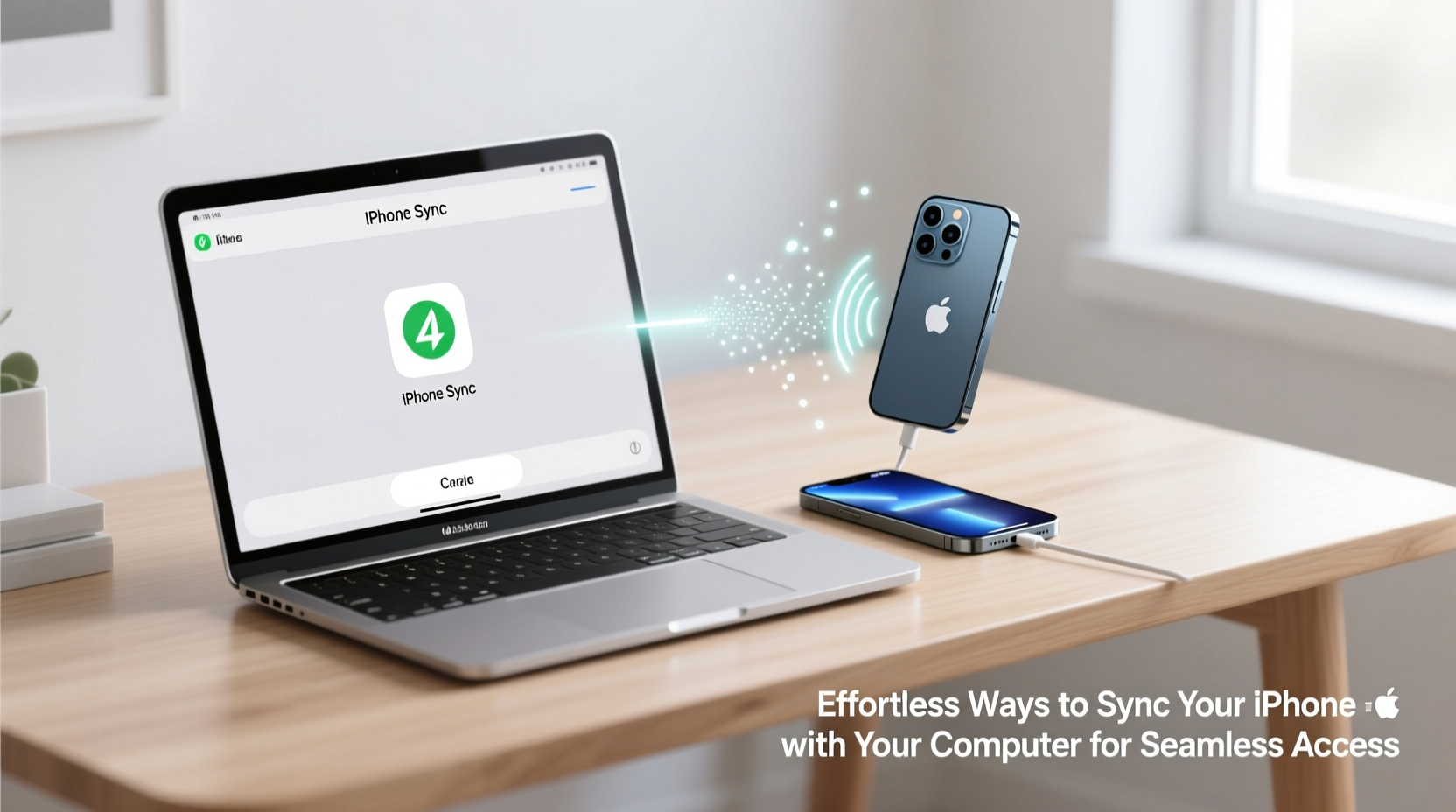
iCloud is Apple’s most powerful tool for effortless synchronization. When properly configured, it keeps your contacts, calendars, notes, reminders, Safari bookmarks, and even desktop and documents folders in perfect harmony across all your Apple devices.
Enable iCloud Drive on both your iPhone and computer (via Finder on macOS or iCloud for Windows), then choose which apps and file types should sync automatically. Once set up, any change made on one device appears almost instantly on the other—no cables, no manual steps.
For Windows users, installing the iCloud app from Microsoft Store enables access to Photos, Mail, Contacts, and Bookmarks directly from your PC. While not as deeply integrated as on macOS, it still delivers reliable cross-platform continuity.
Sync Photos Effortlessly with iCloud Photos
Photos are often the biggest pain point when syncing an iPhone. Manually transferring thousands of images via USB is tedious and error-prone. iCloud Photos eliminates this by uploading every photo and video to the cloud as soon as it's taken—provided you have Wi-Fi and sufficient storage.
Once enabled (Settings > [Your Name] > iCloud > Photos), your entire library becomes accessible from any device. On your computer, open the Photos app (macOS) or the iCloud website to view, edit, or download images without connecting your phone.
“With iCloud Photos, I never worry about losing memories. My family’s entire year is backed up and searchable within seconds.” — David Lin, Digital Organizer & Tech Consultant
If you're concerned about storage costs, consider offloading full-resolution originals to iCloud while keeping smaller versions on your iPhone (Optimize iPhone Storage). This balances performance with space efficiency.
Transfer Files Wirelessly Using AirDrop and Third-Party Tools
Sometimes you need to move specific files—like PDFs, spreadsheets, or project drafts—between your iPhone and computer quickly. AirDrop offers the fastest solution for Mac users, allowing drag-and-drop transfers over local Wi-Fi and Bluetooth.
To use AirDrop, ensure both devices have Wi-Fi and Bluetooth enabled, then open Finder on your Mac and select AirDrop in the sidebar. On your iPhone, open Control Center, long-press the network settings card, and tap AirDrop. Choose “Everyone” or “Contacts Only,” depending on your privacy preference.
For non-Mac environments, third-party tools like Dropbox, Google Drive, or OneDrive provide excellent alternatives. Save a file from your iPhone to the cloud folder, then access it instantly on your computer through the desktop client. These services also support version history and offline access.
| Method | Best For | Speed | Cross-Platform? |
|---|---|---|---|
| iCloud Drive | Apple ecosystem users | Fast (Wi-Fi) | No |
| AirDrop | Quick file sharing (Mac + iPhone) | Very Fast | Limited |
| Google Drive | Windows/Mac + iPhone | Moderate | Yes |
| Email Attachments | Small files | Slow | Yes |
Step-by-Step: Sync Messages and Data via Backup Solutions
Text messages, app data, and settings are rarely considered until they’re lost. But restoring them after switching computers or reinstalling software shouldn’t be a crisis. Here’s how to ensure everything stays intact:
- Enable iCloud Backup: Go to Settings > [Your Name] > iCloud > iCloud Backup and toggle it on. Your iPhone will back up daily when connected to power, Wi-Fi, and locked.
- Back Up to Computer (Optional): Connect your iPhone to your Mac or PC, open Finder (or iTunes on older systems), select your device, and click “Back Up Now.” Choose “Encrypt backup” if you want to include passwords and Health data.
- Restore Selectively: When setting up a new computer or replacing your phone, restore from the latest backup. Encrypted backups allow recovery of saved Wi-Fi passwords and message history.
- Use Third-Party Apps for Message Export: Tools like iMazing or AnyTrans let you export SMS and iMessages to PDF or CSV for archiving or legal purposes—something iCloud doesn’t offer natively.
Real-World Example: A Freelancer’s Seamless Workflow
Sophie, a freelance graphic designer based in Portland, uses her iPhone constantly—for client calls, sketching ideas, and capturing inspiration. She used to lose hours each week transferring files manually. After reconfiguring her setup, she now works fluidly across devices.
She enabled iCloud Drive and Desktop & Documents syncing so that files saved on her iPhone appear instantly in her project folders on her MacBook. Client feedback captured via voice memo gets transcribed using Siri and saved directly into shared folders. Final designs are exported to Dropbox, where her team accesses them from various operating systems.
The result? No more cables, no missed updates, and zero data loss during travel. Her workflow runs silently in the background, letting her focus on creativity instead of logistics.
Checklist: Ensure Your Sync Setup Is Complete
- ✅ Enable iCloud Drive and select key apps to sync
- ✅ Turn on iCloud Photos with Optimize Storage
- ✅ Set up iCloud Backup or schedule regular computer backups
- ✅ Install iCloud for Windows (if using a PC)
- ✅ Test AirDrop between your iPhone and Mac
- ✅ Verify that Contacts, Calendars, and Reminders are syncing
- ✅ Use consistent Apple ID across all devices
Frequently Asked Questions
Can I sync my iPhone to two computers?
You can back up your iPhone to multiple computers, but only one at a time can hold the latest sync data for media (like music or videos) if using manual management. For backups, each computer stores its own version. To avoid conflicts, stick to iCloud for core data and use computer backups as secondary archives.
Why aren’t my messages showing up on my Mac?
This usually happens when iMessage isn’t signed in with the same Apple ID on both devices. Go to Settings > [Your Name] on iPhone and check the Apple ID. Then on Mac, open Messages > Preferences > Accounts and verify login status. Also ensure \"Messages in iCloud\" is enabled.
Is it safe to sync over public Wi-Fi?
While iCloud encrypts data in transit, it’s best to avoid initiating large syncs or backups over unsecured public networks. Wait until you’re on a trusted connection to prevent potential interception or incomplete uploads.
Conclusion: Make Syncing Invisible, Not Impossible
The goal of syncing isn’t just to move data—it’s to make the process disappear entirely. When done right, you shouldn’t have to think about whether your calendar is updated or if last night’s photos are backed up. With iCloud, smart file tools, and consistent habits, your iPhone and computer can function as a single, unified workspace.




 浙公网安备
33010002000092号
浙公网安备
33010002000092号 浙B2-20120091-4
Comments
No comments yet. Why don't you start the discussion?