
In today’s fast-paced digital world, typing on a smartphone isn’t always practical—especially when you’re working, multitasking, or simply want larger keys and a bigger screen. Texting from your computer offers speed, comfort, and efficiency. Whether you're coordinating with family, managing business communications, or staying in touch with friends, sending messages from your desktop or laptop can streamline your workflow and reduce strain. This guide explores proven methods, tools, and best practices to make texting from your computer not only possible but truly effortless.
Why You Should Text From Your Computer
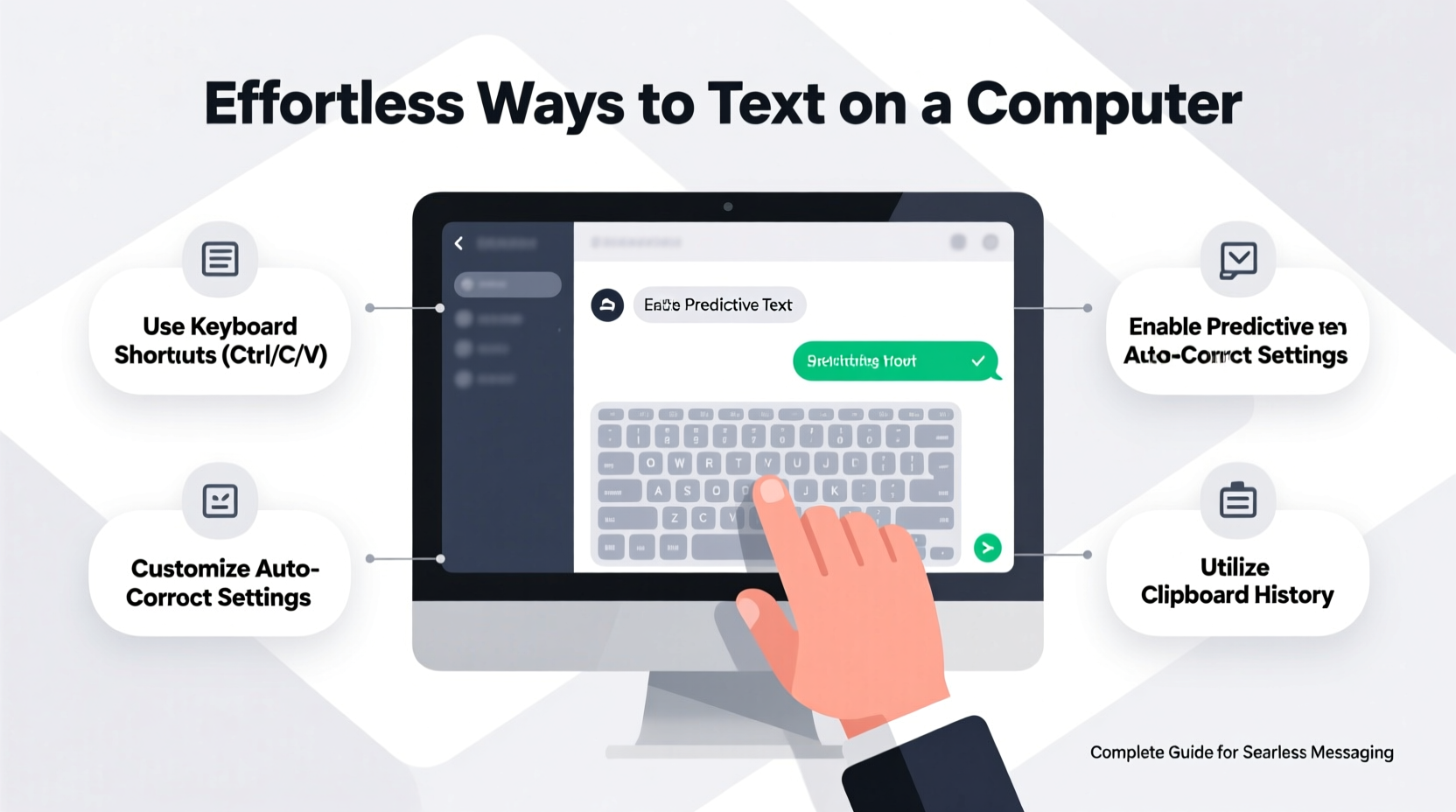
Mobile phones are convenient, but they come with limitations: small screens, autocorrect errors, and the physical discomfort of prolonged thumb typing. When you shift messaging to a computer, you gain access to full-sized keyboards, better ergonomics, copy-paste functionality, and easier file sharing. For professionals, this means faster replies during meetings. For casual users, it means more comfortable conversations without switching devices constantly.
Additionally, many modern messaging apps now sync across devices, allowing real-time communication regardless of whether you're on a phone, tablet, or desktop. The key is knowing which tools support cross-device syncing and how to set them up correctly.
Top Methods to Send Texts From Your Computer
Not all messaging systems work the same way. Some rely on internet connections, others mirror your phone’s activity, and a few operate independently. Here are the most reliable approaches:
1. Native Messaging Apps with Desktop Versions
Many popular messaging platforms offer dedicated desktop applications that sync directly with your mobile account. These include:
- WhatsApp Desktop: Syncs with your phone via QR code; allows full message history, media sharing, and group chats.
- Telegram Desktop: Fully independent after login; supports cloud-based syncing across unlimited devices.
- Signal Desktop: Requires pairing with a mobile device but provides end-to-end encryption and seamless integration.
2. Web-Based Messaging Portals
If you prefer not to install software, browser-based versions of messaging apps are equally effective. Simply visit web.whatsapp.com, web.telegram.org, or messages.google.com/web, scan the QR code with your phone, and start typing.
3. Carrier-Supported PC Messaging
Some mobile carriers provide their own solutions for desktop texting. For example:
- T-Mobile DIGITS: Allows users to send SMS/MMS from multiple devices using the same number.
- Verizon Messages+ and AT&T Messages for Web also enable web-based texting with carrier-level security.
4. Third-Party Cross-Platform Tools
Applications like PulseSMS, AirDroid, and Pushbullet act as bridges between your phone and computer. They allow you to manage texts, receive notifications, and even respond without touching your phone.
“Desktop messaging reduces cognitive load by keeping communication within your primary workspace.” — Dr. Lena Torres, Human-Computer Interaction Researcher at MIT Media Lab
Step-by-Step Setup: How to Start Texting From Your Computer
Follow this universal setup process for most major platforms (e.g., WhatsApp, Telegram, Google Messages):
- Open the messaging app on your smartphone and navigate to settings.
- Select “Linked Devices” or “Desktop” option.
- Launch the corresponding website or download the desktop app.
- Scan the displayed QR code using your phone’s camera or app scanner.
- Confirm the connection on both devices.
- Begin texting—your contacts and recent conversations will appear instantly.
Once linked, your computer becomes an extension of your phone. Messages sent or received on either device appear in both places. Note: Your phone must remain powered on and connected to the internet for some services (like WhatsApp) to function on desktop.
Comparison of Popular Messaging Platforms on Desktop
| App | Standalone Desktop App? | Offline Access? | End-to-End Encryption? | File Sharing Limit |
|---|---|---|---|---|
| Yes | No (requires phone connection) | Yes | 100MB | |
| Telegram | Yes | Yes (cloud-based) | Only in Secret Chats | 2GB |
| Signal | Yes | No (linked to phone) | Yes | 100MB |
| Google Messages | No (web-only) | No | Yes (RCS enabled) | 100MB |
| iMessage (Mac only) | Yes (Apple ecosystem) | Yes | Yes | Unlimited (via iCloud) |
Best Practices for Seamless Messaging
To get the most out of computer-based texting, adopt these habits:
- Keep your desktop app updated to ensure compatibility and security patches.
- Use multiple windows or tabs to manage different conversations side-by-side.
- Enable desktop notifications so you don’t miss urgent messages while working.
- Avoid logging into public computers unless absolutely necessary—and always log out afterward.
- Leverage drag-and-drop file uploads for faster photo, video, or document sharing.
Mini Case Study: Remote Worker Boosts Productivity
Sarah, a freelance project manager based in Denver, used to switch constantly between her phone and laptop during client calls. After linking her Google Messages to her Chromebook, she began responding to SMS updates without breaking focus. Within two weeks, she reported a 30% reduction in response lag and fewer missed messages. “I finally stopped feeling tethered to my phone,” she said. “Now I handle all client coordination from one screen.”
Essential Checklist Before You Begin
Your Text-on-Computer Readiness Checklist
- ✅ Ensure your smartphone has a stable internet connection
- ✅ Install the latest version of your preferred messaging app
- ✅ Download or bookmark the desktop/web version
- ✅ Test the QR code pairing process once
- ✅ Enable desktop notifications for timely alerts
- ✅ Review privacy settings to control data access
- ✅ Log out of shared devices after use
Frequently Asked Questions
Can I text from my computer without my phone nearby?
It depends on the platform. Telegram and iMessage (on Mac) work independently once logged in. However, WhatsApp, Signal, and Google Messages require your phone to be online for syncing. If your phone loses power or connectivity, desktop functionality may pause.
Is it safe to send personal messages from my computer?
Yes, provided you use encrypted platforms and avoid unsecured networks. Always log out of shared computers and disable auto-save features for sensitive accounts. Stick to official apps and verified websites to prevent phishing risks.
Can I receive MMS (photos, videos) on my computer?
Most desktop versions of messaging apps support receiving and viewing multimedia. WhatsApp, Telegram, and Google Messages display images, videos, and documents directly in the chat window. Just ensure sufficient storage space and bandwidth for large files.
Final Thoughts: Make Messaging Work for You
Texting from a computer shouldn't feel like a technical hurdle—it should enhance your daily communication. With the right tools and setup, you can enjoy faster typing, better organization, and improved accessibility. Whether you're replying to a quick text or managing a team chat, leveraging your computer's capabilities puts you in control.
The shift from mobile-only to multi-device messaging is already underway. By adopting these effortless strategies today, you future-proof your communication habits and unlock new levels of productivity.




 浙公网安备
33010002000092号
浙公网安备
33010002000092号 浙B2-20120091-4
Comments
No comments yet. Why don't you start the discussion?