
Sending a quick message used to require pulling out your phone, unlocking it, and navigating through apps. But what if you could text directly from your laptop or desktop—without ever touching your phone? Whether you're working at your desk, your phone is charging across the room, or you simply prefer typing on a full-sized keyboard, modern technology makes it possible to send texts from your computer with ease. The best part? You don’t need your phone nearby to do it.
From web-based messaging platforms to standalone SMS services, there are multiple reliable methods to send and receive text messages entirely from your computer. These solutions are not only convenient but also improve productivity, accessibility, and multitasking. Below, explore the most effective, secure, and user-friendly options available today.
Why Text from Your Computer?
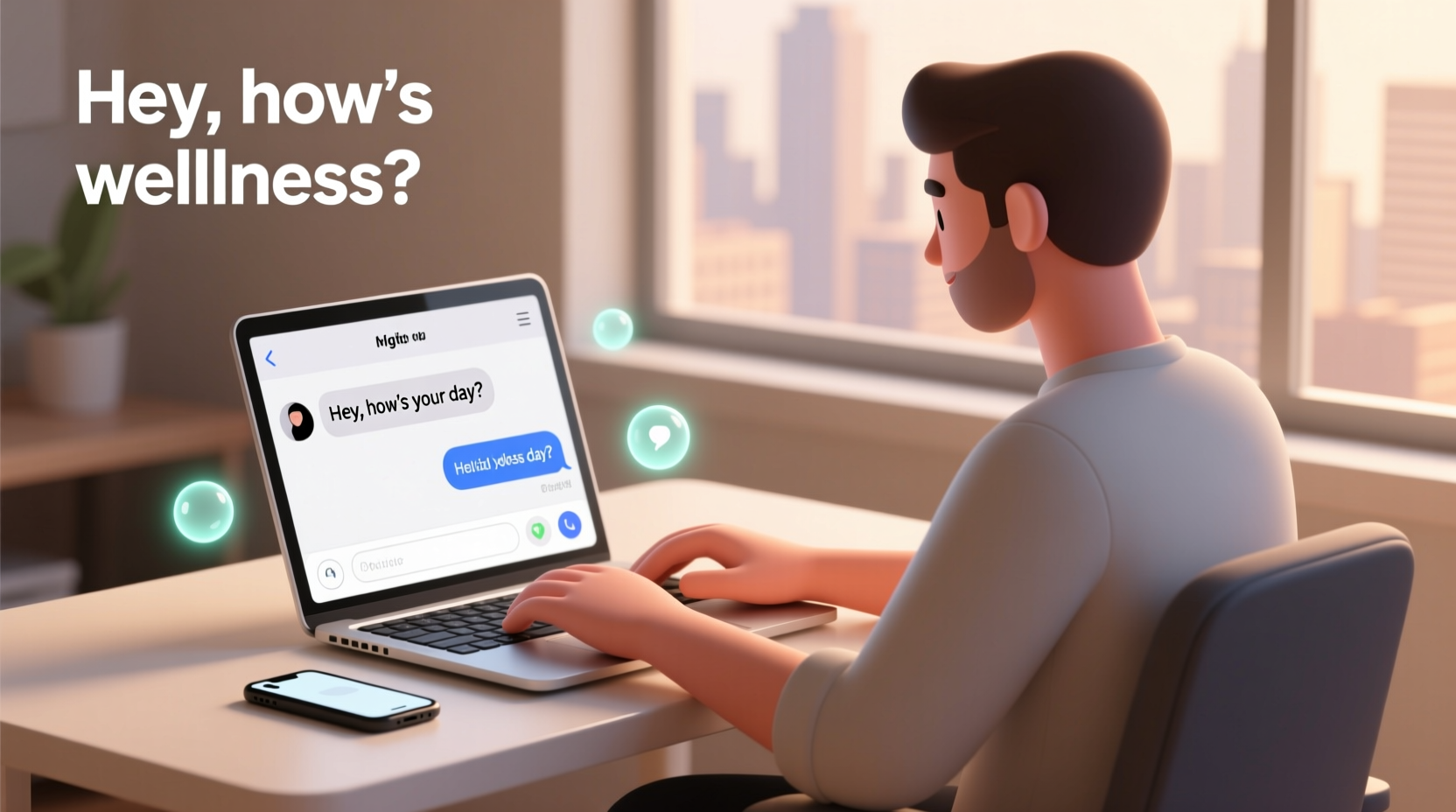
Typing on a physical keyboard is faster and more accurate than tapping on a touchscreen. For professionals, remote workers, or anyone who spends hours in front of a computer, switching between devices disrupts workflow. Being able to respond to personal or time-sensitive messages without reaching for your phone streamlines communication.
Additionally, people with visual or motor impairments often benefit from larger screens and assistive technologies available on desktops. Others may simply want to avoid screen fatigue from constantly checking their phones. Whatever your reason, texting from a computer offers practical advantages that go beyond convenience.
Top Methods to Text Without a Phone
Not all solutions require your smartphone to be powered on or connected. Some operate independently using your phone number, while others use internet-based accounts. Here are the most effective approaches:
1. Google Messages for Web (with RCS)
Google’s native messaging app allows users to send SMS and RCS messages from a computer via messages.google.com/web. While this method requires your Android phone to be set up initially, once linked, you can continue sending messages even if your phone is off—thanks to RCS (Rich Communication Services) support.
RCS enables cloud-based messaging, meaning your texts sync across devices without relying on constant Bluetooth or Wi-Fi connections. This is ideal for users who want continuity between mobile and desktop environments.
2. Third-Party SMS Gateways
Several online services let you send free text messages internationally using just a web browser. Websites like TextNow, Pinger, and Dingtone provide virtual U.S. phone numbers and allow unlimited texting over Wi-Fi. After signing up, you can access their web portals to send SMS to any mobile number—no physical SIM card required.
These services are especially useful for freelancers, customer support agents, or individuals managing side businesses who need a dedicated number separate from their personal line.
3. Messaging Apps with Independent Accounts
Platforms such as Signal, Telegram, and WhatsApp Web offer robust desktop experiences. While WhatsApp still needs your phone for initial authentication, Signal and Telegram allow full functionality on desktop—even when your phone is offline—if you’ve enabled \"desktop notifications\" or registered with a non-phone-number email during setup.
Telegram stands out by offering cloud-based chats that sync instantly across all devices, making it one of the few truly phone-independent messaging ecosystems.
4. Email-to-SMS Gateways
Most major carriers support email-to-text features. By addressing an email to a specific format—like 1234567890@vtext.com for Verizon—you can send a text message directly from your email client. This works well for occasional use and doesn’t require installing additional software.
However, replies come back as emails, which may complicate two-way conversations. Also, formatting limitations mean rich media like emojis or links might not render correctly.
5. VoIP Services with SMS Features
Virtual phone number providers such as RingCentral, Grasshopper, and Nextiva include SMS capabilities as part of their business communication suites. These services assign you a real phone number and let you send and receive texts via web dashboard or desktop app.
They’re widely used by entrepreneurs and remote teams needing professional-grade communication tools. Unlike consumer apps, these platforms often include message logging, team collaboration, and integration with CRM systems.
“Businesses that adopt unified messaging systems report a 30% increase in response efficiency.” — Laura Simmons, Communications Strategist at TechFlow Insights
Step-by-Step: Setting Up Texting on Your Computer
Follow this guide to get started with independent computer-based texting using a third-party service like TextNow:
- Visit www.textnow.com and create a free account.
- Select a free U.S. phone number during registration.
- Log in to your account from any browser on your computer.
- Navigate to the “Messages” tab and click “New Message.”
- Enter the recipient’s phone number and type your message.
- Hit send—your message will be delivered as a standard SMS.
- Enable desktop notifications to receive incoming texts instantly.
Once configured, you can close the tab and continue working. Incoming messages will appear as browser alerts, allowing immediate responses without opening the app.
Comparison of Key Messaging Platforms
| Service | Phone Required? | Free Option? | Web Access | Best For |
|---|---|---|---|---|
| Google Messages (RCS) | Yes (initial setup) | Yes | Yes | Android users wanting seamless sync |
| TextNow | No | Yes | Yes | Free texting with virtual number |
| Signal | No (if pre-configured) | Yes | Yes | Privacy-focused users |
| Telegram | No | Yes | Yes | Cloud-based chat & file sharing |
| RingCentral | No | No (paid plans) | Yes | Small businesses & teams |
Real-World Example: Remote Work Communication
Jamie, a freelance graphic designer based in Portland, uses TextNow on her MacBook to manage client communications. She keeps her personal phone number private and instead shares her TextNow number for project updates. When clients text her about revisions, she responds directly from her design workspace—without switching devices.
“I used to lose focus every time my phone buzzed,” she says. “Now I handle all messages in one place. It saves me at least 20 minutes a day.” Her inbox stays organized, and she avoids the distraction of social media notifications that come with using personal messaging apps.
Essential Checklist Before You Start
- ✅ Choose a platform that fits your privacy and usability needs.
- ✅ Confirm whether your preferred service requires a phone for activation.
- ✅ Set up two-factor authentication if using a virtual number for sensitive conversations.
- ✅ Test sending and receiving messages before relying on it full-time.
- ✅ Enable desktop notifications for timely responses.
- ✅ Back up important messages if the platform doesn’t offer automatic cloud storage.
Frequently Asked Questions
Can I receive texts on my computer without my phone being on?
Yes—services like TextNow, Telegram, and VoIP platforms (e.g., RingCentral) operate independently of your mobile device. As long as you have internet access, you can send and receive messages even if your phone is off or unavailable.
Are free texting websites safe to use?
Most reputable sites like TextNow and Pinger are safe, but exercise caution with lesser-known platforms. Avoid entering sensitive personal information, and never use them for two-factor authentication codes unless you trust the provider fully.
Will the recipient know I’m texting from a computer?
Unless they see unusual delivery patterns (e.g., instant replies while your phone shows “offline”), most recipients won’t notice. Messages appear as regular SMS or app-based texts depending on the service used.
Take Control of Your Messaging Workflow
Texting from your computer isn’t just a shortcut—it’s a smarter way to communicate. Whether you’re avoiding phone distractions, improving accessibility, or managing professional relationships, the tools exist to make your digital life more efficient. With minimal setup and no extra cost on many platforms, there’s little reason to keep juggling between screens.
Explore the options outlined here, test a few services, and find the one that aligns with how you work and connect. Once you experience the fluidity of typing messages on a full keyboard and keeping conversations organized in one window, going back to constant phone-checking will feel outdated.




 浙公网安备
33010002000092号
浙公网安备
33010002000092号 浙B2-20120091-4
Comments
No comments yet. Why don't you start the discussion?