
In today’s hyper-connected world, moving files between devices is a daily necessity. Whether you’re sharing vacation photos with family, transferring work documents to your laptop, or backing up precious memories, the process should be fast, reliable, and secure. Yet many people still rely on outdated methods like email attachments or USB cables that slow them down or expose data to risk.
The good news is that modern technology offers smarter alternatives. From cloud services to peer-to-peer sharing, there are now seamless ways to move files across platforms—whether you're switching from Android to iPhone, sending data to a Windows PC, or collaborating remotely. The key is knowing which method fits your needs in terms of speed, security, and ease of use.
Use Cloud Storage for Universal Access
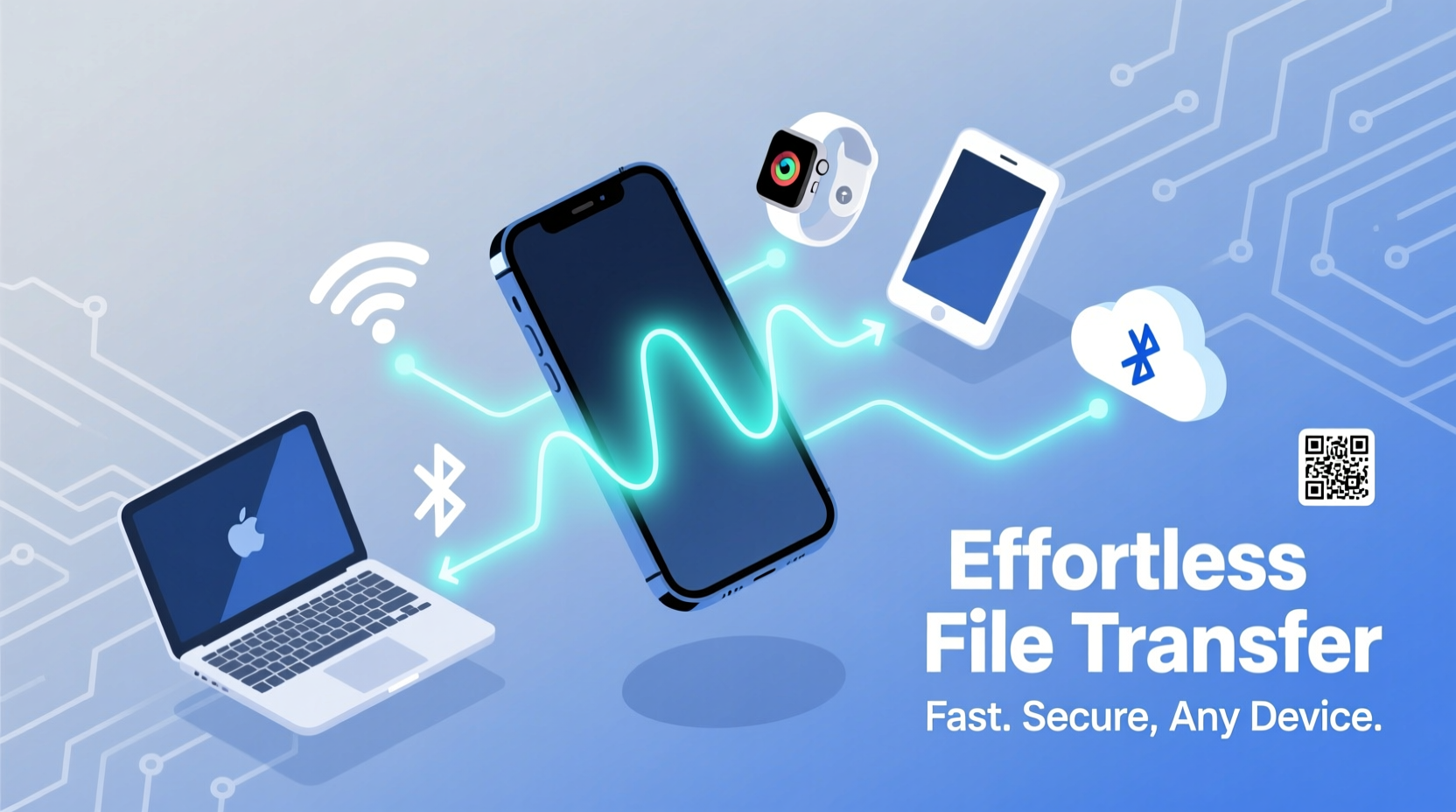
Cloud storage remains one of the most versatile and widely adopted solutions for file transfers. Services like Google Drive, Dropbox, and iCloud allow you to upload files from your phone and access them instantly on any internet-connected device.
Uploading is simple: open the app, tap “Upload,” select your file—be it a photo, video, PDF, or document—and it becomes available across all synced devices. Since these platforms offer encryption during transit and at rest, your data stays protected even if intercepted.
Paid tiers often include advanced features like version history, remote wipe, and end-to-end encryption (as seen in pCloud and Tresorit), making them ideal for professionals handling sensitive information.
Leverage Direct Wireless Transfer Apps
When you need to send large files quickly—especially over short distances—direct wireless apps outperform traditional methods. Tools like Snapdrop, Send Anywhere, and Portal by Pushbullet establish local connections between devices using Wi-Fi Direct or WebRTC protocols, bypassing the internet entirely.
For example, Send Anywhere generates a six-digit code after selecting a file on your phone. Enter that code on the receiving device, and the transfer begins immediately. No account creation, no size limits (up to 10GB on free tier), and completed in minutes—even for high-resolution videos.
“We designed Send Anywhere to eliminate friction in cross-platform sharing. You shouldn’t need cables or accounts just to move a file.” — Sangyoung Kim, CEO of Estmob Inc.
Step-by-Step: Transfer Files Using Snapdrop
- Ensure both devices are connected to the same Wi-Fi network.
- Open snapdrop.net in a browser on both your phone and target device.
- Your devices will appear automatically under \"Devices Nearby.\"
- Tap the icon of the receiving device from your phone.
- Select the file(s) when prompted and confirm the transfer.
- Accept the download prompt on the second device.
This method works across operating systems—Android to Mac, iPhone to Linux—and requires no installation.
Bluetooth vs. NFC: When Simplicity Matters
While slower than newer technologies, Bluetooth and NFC still have their place in quick, low-effort sharing.
Bluetooth is built into nearly every smartphone and computer. To use it:
- Pair your phone with the receiving device via system settings.
- Navigate to the file, tap “Share,” and choose Bluetooth.
- Select the paired device and approve the transfer.
NFC (Near Field Communication) takes simplicity further. Just tap your phone against an NFC-enabled device or tag to initiate a share. Android Beam once used this feature extensively, and while discontinued, third-party apps like ShareMe still support tap-to-transfer functionality.
| Method | Speed | Security Level | Best For |
|---|---|---|---|
| Cloud Storage | Moderate (depends on upload speed) | High (with encryption) | Large files, remote access |
| Direct Wireless (Snapdrop) | Fast (local network) | Medium (HTTPS/WebRTC) | Quick transfers between nearby devices |
| Bluetooth | Slow | Low-Medium (pairing required) | Small files, older devices |
| NFC | Very Fast Initiation, Slow Transfer | Low | Contacts, URLs, instant triggers |
| Cable Connection | Very Fast | High (physical control) | Massive media libraries, backups |
Go Wired: Don’t Underestimate the Power of Cables
Sometimes the oldest method is still the best. Connecting your phone directly to a computer via USB cable provides unmatched speed and reliability—especially for transferring full photo libraries or 4K videos.
Modern Android phones support MTP (Media Transfer Protocol), allowing drag-and-drop access through File Explorer on Windows or Finder on macOS. iPhones require iTunes or Image Capture, but third-party tools like iMazing or SyncMate simplify the process significantly.
For frequent users, investing in a high-quality USB-C or Lightning cable ensures faster data throughput and durability. Some cables even support dual-host connections, letting you transfer files directly between two phones.
Mini Case Study: A Freelancer’s Workflow Upgrade
Jamila, a freelance photographer based in Portland, used to email herself photos from shoots before editing. It was time-consuming and risky—she once lost a client gallery due to an expired link.
She switched to using Google Drive with automatic backup enabled on her phone. Now, every photo uploads securely as soon as she captures it. From her MacBook, she accesses them instantly via the desktop app, tags them, and shares private links with clients.
“It cut my prep time in half and gave me peace of mind,” she says. “I don’t worry about losing anything anymore.”
Secure Your Transfers: Best Practices Checklist
No matter which method you choose, security must be a priority. Follow this checklist to protect your data:
- Verify recipient identity – Confirm who you're sending to, especially with public codes or links.
- Use encrypted services – Opt for providers offering end-to-end encryption (e.g., Proton Drive, Tresorit).
- Enable two-factor authentication on cloud accounts to prevent unauthorized access.
- Delete shared links after transfer completion to limit exposure.
- Avoid public Wi-Fi for direct transfers unless using a trusted VPN.
- Review app permissions – Only grant necessary access to file-sharing apps.
Frequently Asked Questions
Can I transfer files between Android and iPhone easily?
Yes. While Apple’s AirDrop only works between Apple devices, third-party tools like Snapdrop, Google Drive, or SHAREit enable smooth cross-platform transfers. Simply upload from one device and download on the other.
Are wireless file transfers safe?
Most reputable methods use encryption during transmission. However, avoid unsecured public networks and always double-check recipient details. For maximum safety, use apps with verified end-to-end encryption.
What's the fastest way to transfer large files?
For large files (over 1 GB), a wired USB connection or local wireless tool like Send Anywhere or LocalSend typically offers the fastest results. Cloud uploads depend heavily on your internet speed but provide broader accessibility.
Conclusion: Make File Sharing Effortless Today
Transferring files from your phone doesn’t need to be a chore. With the right tools and habits, you can move data quickly, securely, and seamlessly—no matter what device you're sending to. Whether you prefer the simplicity of tapping two phones together or the reliability of a cloud backup, there’s a solution tailored to your lifestyle.




 浙公网安备
33010002000092号
浙公网安备
33010002000092号 浙B2-20120091-4
Comments
No comments yet. Why don't you start the discussion?