
If your inbox has stopped refreshing, you're not alone. Millions of users across Gmail, Outlook, Apple Mail, and other platforms experience delayed or missing emails daily. While frustrating, the issue is often fixable with targeted troubleshooting. Whether you're using a desktop client, mobile app, or web browser, this guide walks you through actionable fixes to restore real-time email sync.
Why Emails Stop Updating
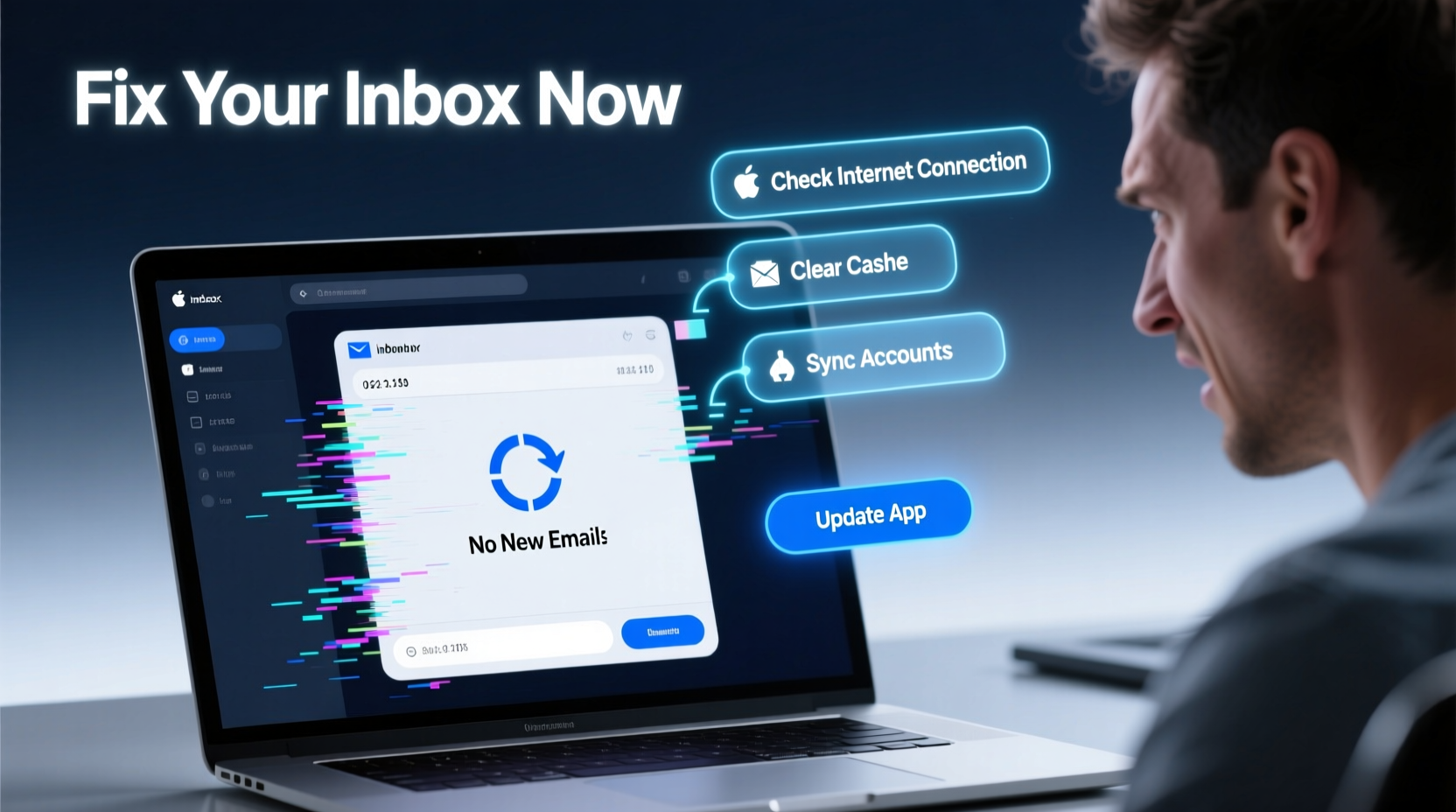
Emails fail to update for several reasons—ranging from connectivity issues to incorrect settings or outdated software. The underlying cause usually falls into one of these categories:
- Sync settings disabled: Automatic fetching may be turned off.
- Poor internet connection: Weak or unstable Wi-Fi can interrupt sync processes.
- Server outages: Email providers like Google or Microsoft occasionally face downtime.
- Outdated apps: Older versions lack compatibility with current server protocols.
- Storage limits: Full inboxes or cloud storage caps can halt new message delivery.
- Background restrictions: Mobile OS power-saving modes may block background data.
Understanding the root cause is half the battle. Let’s move on to practical solutions.
Step-by-Step: How to Fix Email Sync Issues
Follow this timeline-based approach to identify and resolve the problem efficiently.
- Check your internet connection – Try loading a website or switching between Wi-Fi and cellular data. If pages load slowly or not at all, restart your router or toggle airplane mode on and off.
- Verify service status – Visit the provider’s status dashboard (e.g., Google Workspace Status or Outlook Status) to rule out outages.
- Force-refresh your inbox – On mobile, pull down the screen. In browsers, press Ctrl + F5 (Windows) or Cmd + Shift + R (Mac).
- Restart the app or device – Close your email client completely and reopen it. For persistent issues, reboot your phone or computer.
- Re-enable sync settings – Navigate to account settings and ensure “Sync Email” or “Fetch New Data” is enabled.
Platform-Specific Fixes
Different email clients behave differently. Here’s how to troubleshoot the most common platforms.
Gmail (Mobile & Web)
- Ensure you’re logged into the correct account if managing multiple profiles.
- In the Gmail app, tap your profile icon > Account > Sync Gmail. Toggle off and back on.
- Clear app cache: Android Settings > Apps > Gmail > Storage > Clear Cache.
- Check filter rules: Go to Settings > See all settings > Filters and Blocked Addresses. A misconfigured filter might be archiving or deleting incoming mail silently.
Outlook (Desktop & App)
- Open Outlook > Send/Receive tab > click “Send/Receive All Folders.”
- Disable cached mode temporarily: File > Account Settings > Account Settings > select account > Change > uncheck “Use Cached Exchange Mode.”
- Repair PST file: Use the built-in Inbox Repair Tool (
scanpst.exe) located in your Office installation folder.
Apple Mail (iOS/macOS)
- Go to Settings > Mail > Accounts > [Your Account] > Advanced > check “Push” is enabled.
- Adjust fetch schedule under “Fetch New Data.” Avoid “Manually” unless intentional.
- Remove and re-add the account if sync fails repeatedly—this often resets corrupted configurations.
Do’s and Don’ts: Email Sync Best Practices
| Action | Do | Don't |
|---|---|---|
| Sync Frequency | Set to Push or every 15 minutes | Leave on manual fetch unless necessary |
| App Updates | Enable auto-updates | Ignore update notifications |
| Power Saving | Add email app to battery optimization whitelist | Allow aggressive background restrictions |
| Account Setup | Use IMAP over POP3 for multi-device sync | Delete and recreate accounts unnecessarily |
“Email sync problems are rarely hardware-related. Over 80% stem from configuration errors or network hiccups that users can resolve themselves.” — Jordan Lee, Senior IT Support Analyst at TechFlow Solutions
Mini Case Study: Restoring a Frozen Work Inbox
Sarah, a project manager at a mid-sized marketing firm, noticed her Outlook desktop app hadn’t received any new emails for six hours. Her team relied on timely responses, and missed messages were causing delays. She first checked her internet—stable. Then confirmed no Microsoft 365 outages. She restarted Outlook, but the issue persisted.
She next reviewed her send/receive settings and discovered that “Schedule automatic send/receive every X minutes” was set to 60—and only during business hours. After adjusting it to run every 15 minutes around the clock, emails began flowing in immediately. Additionally, she disabled cached mode temporarily to force a full server sync.
The fix took less than ten minutes. Sarah now performs a monthly audit of her email settings to prevent recurrence.
Essential Checklist: Fix Email Sync Fast
- ✅ Test internet connection on another device
- ✅ Confirm email provider is online
- ✅ Restart email app and device
- ✅ Enable push notifications or frequent fetch
- ✅ Clear app cache (mobile) or reset preferences (desktop)
- ✅ Re-add account if sync remains broken
- ✅ Check spam and filters for misdirected messages
Frequently Asked Questions
Why are my emails delayed by hours?
Delayed emails typically result from infrequent fetch intervals, poor connectivity, or server-side processing lags. Adjust your sync settings to “Push” or “Every 15 Minutes,” and ensure your device allows background data usage.
Will clearing app data delete my emails?
No—if you use IMAP or Exchange, your emails are stored on the server, not locally. Clearing app data removes temporary files and settings but won’t erase messages. However, with POP3 accounts, local copies may be lost if not backed up.
How do I know if my email is syncing correctly?
Send a test email to yourself from another account. If it appears within seconds (or per your fetch interval), sync is working. You can also log into webmail and compare message timestamps across devices.
Conclusion: Take Control of Your Inbox Today
Email is a critical communication tool, and when it stops updating, productivity suffers. The good news? Most sync issues are solvable without technical expertise. By systematically checking your network, settings, and app health, you can restore reliable email flow in minutes—not hours.
Don’t wait for the next missed deadline or overlooked message. Apply these fixes now, set up regular maintenance habits, and keep your inbox responsive and dependable.




 浙公网安备
33010002000092号
浙公网安备
33010002000092号 浙B2-20120091-4
Comments
No comments yet. Why don't you start the discussion?