
The modern workplace demands long hours at a computer, and for many, that means extended typing sessions. Over time, the physical toll can accumulate—wrist pain, shoulder tension, fatigue. Enter the ergonomic keyboard: a design engineered to align with the natural posture of your hands and reduce strain. But how does it truly compare to the standard QWERTY layout most of us learned in school or on our first laptop? More importantly, is the switch worth the inevitable learning curve?
This isn’t just about comfort—it’s about sustainability. As remote work grows and digital interaction becomes constant, reevaluating your tools isn’t indulgence; it’s necessity. The choice between an ergonomic and standard keyboard goes beyond preference. It touches on health, efficiency, and long-term productivity.
Understanding the Key Differences
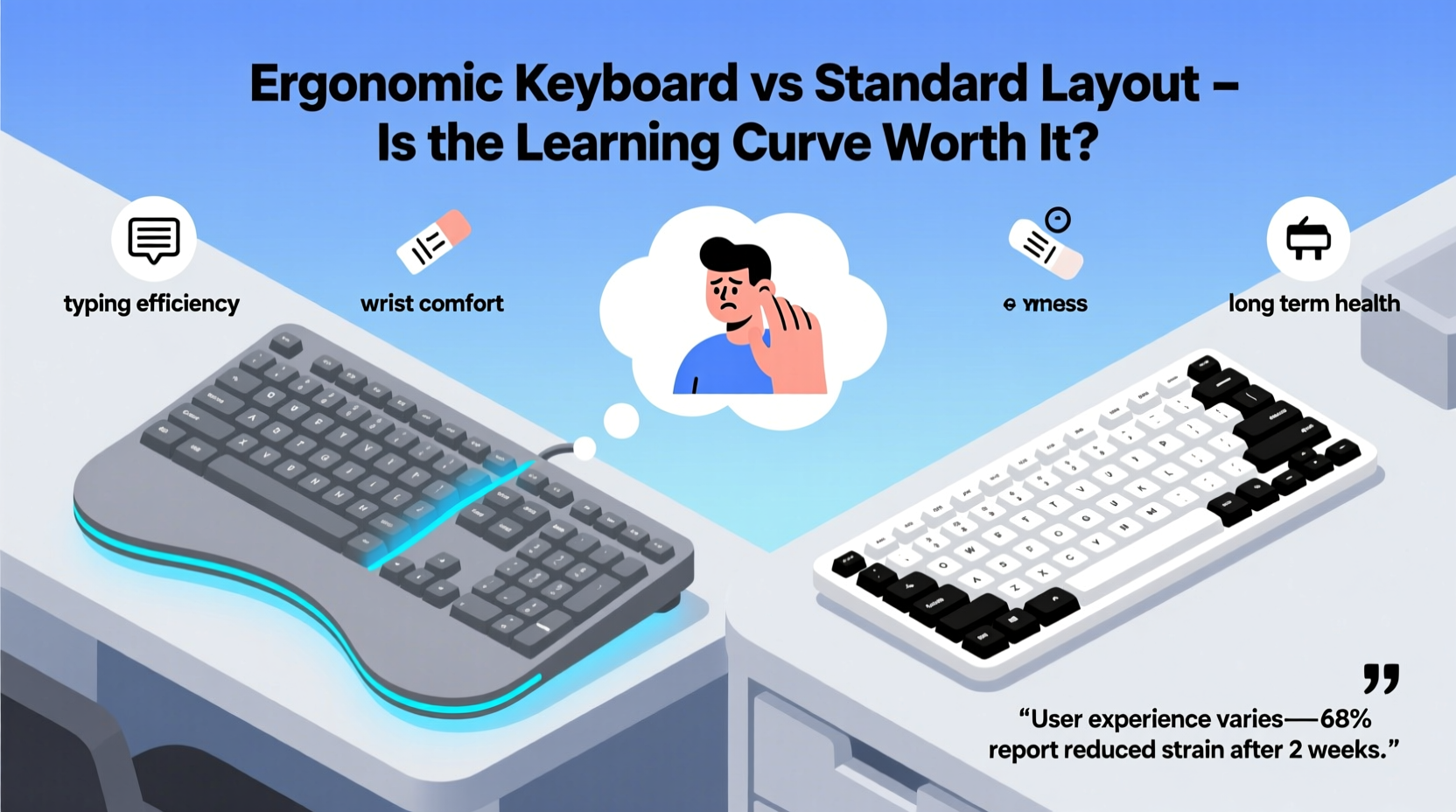
The fundamental distinction lies in design philosophy. A standard keyboard assumes a flat, straight layout where both hands type inward toward the center, often forcing wrists into ulnar deviation (bending outward) and shoulders to hunch forward. This position may feel familiar, but years of use can contribute to repetitive strain injuries (RSIs), carpal tunnel syndrome, and chronic discomfort.
Ergonomic keyboards, by contrast, are built around biomechanics. They aim to keep your hands, wrists, and arms in a neutral alignment. Common features include:
- Split design: Keys are separated into left and right halves to allow a more natural shoulder-width hand placement.
- Tenting: The keyboard is angled upward in the center (like opening a book), reducing forearm pronation.
- Curved key wells: Keys follow the arc of your fingers, minimizing finger stretching.
- Columnar stagger: Keys are aligned vertically by column rather than row, so each finger moves in a straight line.
These changes aren't cosmetic—they're rooted in occupational therapy and industrial design principles aimed at reducing muscle strain and joint stress.
Health Benefits: Beyond Comfort
One of the strongest arguments for ergonomic keyboards is injury prevention. According to the Occupational Safety and Health Administration (OSHA), musculoskeletal disorders account for nearly 30% of all worker injuries. Typing-related conditions like tendinitis and carpal tunnel syndrome develop gradually, often going unnoticed until they become debilitating.
A 2020 study published in the Journal of Occupational Rehabilitation found that participants using split ergonomic keyboards reported a 35% reduction in wrist discomfort after six weeks compared to those using traditional models. Another trial showed decreased electromyographic (EMG) activity in forearm muscles, indicating lower muscular effort during typing.
“Ergonomic keyboards don’t eliminate risk, but they shift the load away from vulnerable joints and soft tissues. For anyone spending more than four hours daily at a keyboard, that shift matters.” — Dr. Lena Patel, Occupational Therapist and Human Factors Specialist
The benefits extend beyond wrists. Proper alignment reduces shoulder elevation and neck flexion, which are common contributors to upper back pain. Users frequently report less fatigue at the end of the day—not because they type faster, but because their bodies aren’t fighting against awkward postures.
Performance and Productivity Trade-offs
It’s one thing to feel better; it’s another to maintain performance. Many hesitate to adopt ergonomic keyboards due to fears of reduced speed or accuracy during the adjustment period.
Yes, there is a learning curve. Switching from a flat QWERTY layout to a split, tented model can initially slow typing speeds by 20–40%. Muscle memory developed over decades must be retrained. However, this dip is typically temporary. Most users regain their baseline speed within 2–6 weeks of consistent use, depending on frequency and practice.
Some ergonomic models introduce additional complexity. For example:
- Dvorak or Colemak layouts: Often paired with ergonomic hardware, these alternative key mappings claim higher typing efficiency but require full relearning.
- Thumb clusters: Additional keys placed under the thumbs for modifiers (Ctrl, Alt, Space) improve access but demand new coordination.
- Low-profile switches: May change tactile feedback, affecting rhythm.
Yet, once adapted, many users report not only restored speed but improved focus. Reduced physical strain means fewer micro-pauses caused by discomfort, leading to smoother workflow continuity.
Comparative Overview: Ergonomic vs Standard Keyboard
| Feature | Standard Keyboard | Ergonomic Keyboard |
|---|---|---|
| Hand Position | Flat, inward-typing, ulnar deviation | Split, neutral wrist alignment |
| Learning Curve | Minimal (familiar to most) | Moderate to high (2–6 weeks adaptation) |
| Typing Speed (initial) | High (established muscle memory) | Reduced temporarily |
| Long-Term Comfort | Fair to poor (risk of strain) | Good to excellent (reduced fatigue) |
| Portability | High (slim, widely compatible) | Limited (bulkier, specialized stands) |
| Price Range | $15–$75 | $100–$300+ |
| RSI Risk Reduction | Low | High (with proper setup) |
Real-World Adaptation: A Case Study
Consider Mark, a technical writer with over 12 years of experience. He typed 60–80 words per minute on a standard membrane keyboard but began experiencing numbness in his right hand after working remotely full-time. After a diagnosis of early-stage carpal tunnel, he was advised to modify his workstation.
He invested in a high-end split ergonomic keyboard with tenting and columnar staggering. The first week was frustrating—his speed dropped to 38 WPM, and he made frequent errors. He used online typing tutors tailored for ergonomic layouts and practiced 20 minutes daily outside work hours.
By week three, his speed climbed back to 55 WPM. By week six, he matched his original pace and noticed something unexpected: fewer mid-afternoon energy slumps. “It’s not just my hands,” he said. “My whole upper body feels lighter. I don’t realize how much tension I was holding until it was gone.”
After eight months, Mark no longer experiences numbness. His productivity hasn’t declined—in fact, he completes drafts faster due to fewer breaks for stretching or discomfort relief.
Step-by-Step Guide to Transitioning Successfully
If you’re considering the switch, doing it right makes all the difference. Follow this timeline to minimize frustration and maximize success:
- Week 1: Research and Select
Select a model that fits your workspace and needs. Popular options include the Microsoft Sculpt, Kinesis Freestyle Pro, or ErgoDox EZ. Prioritize adjustability—tenting, split distance, and tilt should be customizable. - Week 2: Setup and Familiarization
Assemble your keyboard with moderate split and minimal tenting. Use it for light tasks: emails, note-taking. Don’t expect speed. Focus on posture: elbows at 90°, wrists floating, shoulders relaxed. - Week 3–4: Structured Practice
Dedicate 15–20 minutes daily to typing exercises. Use platforms like typingclub.com or Keybr.com, which adapt to non-standard layouts. Track progress weekly. - Week 5–6: Integrate Fully
Replace your standard keyboard entirely. Expect occasional regression, especially under stress or fatigue. Keep your old keyboard nearby as a fallback if needed. - Week 7+: Optimize and Maintain
Adjust tenting or split width based on comfort. Consider pairing with an ergonomic mouse and monitor riser for full workstation harmony.
Common Myths and Misconceptions
Several myths deter people from trying ergonomic keyboards:
- “They’re only for people with injuries.”
False. Prevention is more effective than treatment. Just as seatbelts protect before accidents happen, ergonomic tools safeguard against cumulative damage. - “You’ll never type fast again.”
Data shows most users recover speed within a few weeks. Long-term, some even exceed previous performance due to reduced fatigue. - “All ergonomic keyboards are the same.”
Variations in split angle, key spacing, actuation force, and layout matter greatly. What works for one person may not suit another. - “It’s just marketing hype.”
While some products exaggerate claims, peer-reviewed studies consistently support reduced biomechanical strain with proper ergonomic design.
FAQ: Your Top Questions Answered
Can I use an ergonomic keyboard with a laptop?
Absolutely. Most ergonomic keyboards connect via USB or Bluetooth, making them ideal companions for laptops. In fact, pairing one with a laptop stand and external mouse creates a near-perfect mobile workstation.
Do I need to learn a new typing method?
Not necessarily. You can continue touch typing using home-row positioning. However, some users pair ergonomic hardware with alternative layouts like Dvorak or Colemak for added efficiency. These require relearning but offer potential long-term gains.
Are ergonomic keyboards worth the cost?
When measured against medical bills, lost productivity, or chronic pain, even a $200 keyboard is a bargain. Think of it as insurance for your hands. For professionals who type daily, the return on investment is clear—both physically and professionally.
Checklist: Is an Ergonomic Keyboard Right for You?
Use this checklist to evaluate your readiness:
- ✅ Do you type for more than 3 hours per day?
- ✅ Have you experienced wrist, hand, or shoulder discomfort?
- ✅ Are you willing to invest 4–6 weeks in adaptation?
- ✅ Can you budget $100–$250 for a quality model?
- ✅ Do you value long-term health over short-term convenience?
If you answered yes to three or more, transitioning is likely worthwhile.
Final Verdict: Is the Learning Curve Worth It?
The answer depends on your relationship with your keyboard. If typing is incidental—checking email, occasional documents—a standard layout suffices. But if your livelihood, creativity, or daily function relies on sustained keyboard use, then yes: the learning curve is absolutely worth it.
The initial slowdown is temporary. The discomfort relief, improved posture, and long-term injury prevention are lasting. Technology evolves to serve human needs, not the other way around. Choosing an ergonomic keyboard isn’t abandoning tradition—it’s embracing progress.
You wouldn’t drive a car without adjustable seats or steering wheels. Why accept a fixed, one-size-fits-all interface for one of the most repetitive physical tasks you perform?




 浙公网安备
33010002000092号
浙公网安备
33010002000092号 浙B2-20120091-4
Comments
No comments yet. Why don't you start the discussion?