
Determining your computer’s hardware and software specifications is crucial for troubleshooting, upgrading components, or installing compatible software. On Windows 7, a widely used operating system even years after its support ended, accessing this information doesn’t require third-party tools in most cases. Built-in utilities and command-line options provide comprehensive details about your CPU, RAM, graphics card, storage, and more. Knowing how to retrieve these specs efficiently saves time and empowers informed decisions when managing your system.
1. Using the System Properties Window
The quickest way to view basic system information is through the System Properties window. This method reveals core details such as processor type, installed memory (RAM), system type (32-bit or 64-bit), and Windows edition.
To access it:
- Click the Start button.
- Right-click on Computer in the right pane of the Start menu.
- Select Properties from the context menu.
This opens a window displaying:
- Windows edition (e.g., Windows 7 Professional)
- Processor model and speed
- Installed RAM
- System type (important for driver and software compatibility)
- Computer name and workgroup
2. Accessing Detailed Hardware Info via System Information Tool
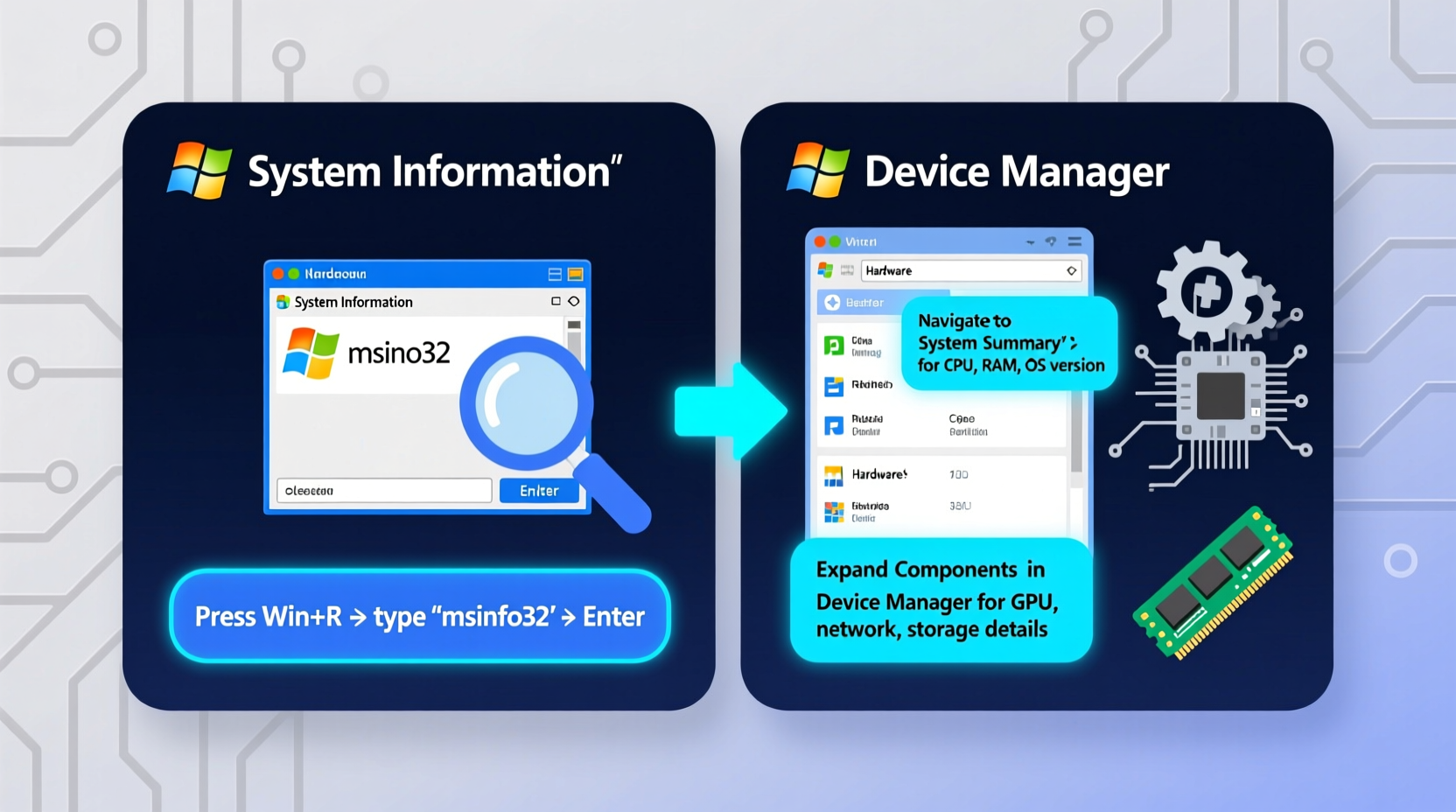
For a deeper dive into your system's configuration, use the built-in System Information utility (msinfo32.exe). It provides an extensive breakdown of hardware resources, components, and software environment.
Steps to launch System Information:
- Press Windows Key + R to open the Run dialog.
- Type
msinfo32and press Enter.
The tool displays four main categories:
| Category | Description |
|---|---|
| System Summary | Overview of OS version, BIOS, motherboard, network adapter, and system uptime. |
| Hardware Resources | IRQs, DMA channels, I/O ports — useful for diagnosing hardware conflicts. |
| Components | Details on display, storage, audio, network, and other peripherals. |
| Software Environment | Running services, loaded drivers, startup programs, and environment variables. |
Under Components > Display, you’ll find your GPU model, driver version, and available video memory. Under Storage > Drives, each hard drive or SSD is listed with capacity and file system.
“System Information is often overlooked, but it's one of the most powerful native tools for diagnosing performance issues without installing anything.” — David Lin, Senior Desktop Support Analyst
3. Command Line Methods: WMIC and PowerShell
Advanced users can extract precise system data using command-line tools. These are especially helpful when scripting diagnostics or gathering specs remotely.
Using WMIC (Windows Management Instrumentation Command-line)
WMIC allows querying hardware directly from the Command Prompt. Launch Command Prompt by typing cmd in the Start menu search bar, then run any of these commands:
wmic cpu get name– Shows CPU modelwmic memorychip get capacity– Lists RAM module sizes (in bytes)wmic diskdrive get model,size– Displays connected drives and their sizewmic path win32_videocontroller get name– Returns GPU namewmic computersystem get totalphysicalmemory– Total installed RAM (convert bytes to GB by dividing by 1073741824)
Example output for RAM modules:
Capacity
2147483648
2147483648
This indicates two 2GB modules (totaling 4GB).
PowerShell Alternative
If PowerShell is available on your Windows 7 machine (available via update), try:
Get-WmiObject Win32_ComputerSystem | Select-Object Model, TotalPhysicalMemory
This returns manufacturer, model, and RAM in bytes. PowerShell offers better formatting and filtering than WMIC, which Microsoft has deprecated in newer systems.
4. Device Manager for Component-Level Details
The Device Manager provides insight into individual hardware components recognized by Windows and their driver status. While not a spec-reporting tool per se, it helps verify whether devices are functioning correctly and identify exact models.
To open Device Manager:
- Navigate to Control Panel > System and Security > System, then click Device Manager on the left.
- Or right-click Computer and select Manage, then choose Device Manager under Computer Management.
Expand categories like:
- Display adapters – GPU model(s)
- Processors – Number of logical processors (cores/threads)
- Network adapters – Wi-Fi and Ethernet cards
- Disk drives – Specific HDD/SSD models
Double-click any device to view properties, including driver version, IRQ assignment, and resource usage. If a device shows a yellow exclamation mark, it may indicate missing or corrupted drivers — critical when assessing system health.
5. Third-Party Tools for Enhanced Reporting
While Windows 7 includes robust built-in tools, third-party utilities offer enhanced visualization, export options, and real-time monitoring. These are particularly useful when preparing system reports for technical support or upgrades.
Recommended lightweight tools include:
- CPU-Z: Displays detailed CPU, motherboard, RAM, and GPU info in real time.
- Speccy (by Piriform): Presents a clean, color-coded overview of all components with temperature readings.
- AIDA64: A professional-grade diagnostic tool offering stress testing, benchmarking, and network analysis.
All three tools are compatible with Windows 7 and do not require installation (portable versions available). They detect finer details such as RAM timings, BIOS date, chipset model, and thermal sensors—information not exposed through native tools.
“When auditing older machines still running Windows 7, I always carry Speccy on a USB drive. It gives me everything I need in under 30 seconds.” — Maria Tran, IT Asset Manager
Mini Case Study: Resolving a Driver Conflict
John, a small business owner, experienced frequent crashes when printing invoices. His technician suspected outdated drivers but didn’t know the exact printer model connected. Using msinfo32, she navigated to Components > Ports and identified the USB-connected HP LaserJet 1020. She cross-referenced the model with HP’s legacy driver archive and installed the correct version. The crashes stopped immediately. This case illustrates how accurate system specs prevent guesswork and resolve issues faster.
Frequently Asked Questions
Can I check if my PC supports 64-bit Windows?
Yes. Open System Properties (Win + Pause). If “System type” says “64-bit Operating System,” you’re already running 64-bit Windows. If it says “32-bit,” check whether your processor supports 64-bit by using wmic cpu get addresswidth. A result of “64” means the CPU supports 64-bit architecture.
How do I find out how much free space is on my hard drive?
Open Computer (from Start menu), and view the graphical bar under each drive listing. Alternatively, right-click a drive and select Properties to see total, used, and free space. For command-line access, use dir C:\\ or fsutil volume diskfree C:.
Is it safe to use third-party system info tools on Windows 7?
Yes, as long as you download them from official sources. Avoid untrusted websites offering modified installers. Stick to well-known developers like CPUID (CPU-Z), FinalWire (AIDA64), or Piriform (Speccy). Always scan downloaded files with antivirus software before execution.
Quick Checklist: How to Gather Full System Specs
- Press Win + Pause to view basic specs (OS, RAM, processor).
- Run
msinfo32for detailed component inventory. - Use
wmiccommands for scripted or remote data collection. - Check Device Manager for driver status and hardware IDs.
- Run CPU-Z or Speccy for advanced metrics and exportable reports.
- Note down key details: OS version, RAM amount, CPU model, GPU, disk capacity.
Conclusion
Knowing your system specifications on Windows 7 doesn’t require complex tools or technical expertise. Whether you're upgrading RAM, installing software, or troubleshooting performance, the right method depends on the depth of detail needed. From the simplicity of System Properties to the precision of WMIC and the richness of third-party apps, each approach serves a purpose. With these techniques mastered, you gain full visibility into your machine’s capabilities—empowering smarter decisions and smoother computing.




 浙公网安备
33010002000092号
浙公网安备
33010002000092号 浙B2-20120091-4
Comments
No comments yet. Why don't you start the discussion?