
In today’s hyper-connected world, web browsers are your primary gateway to information, communication, and services. Whether you're checking email, researching a topic, shopping online, or managing finances, knowing how to efficiently access and navigate a browser across devices is no longer optional—it's essential. The process may vary slightly depending on your device type and operating system, but the core principles remain consistent. Understanding these fundamentals ensures you can stay productive and secure, regardless of whether you're using a smartphone, tablet, laptop, or desktop computer.
Understanding Browser Access Across Devices
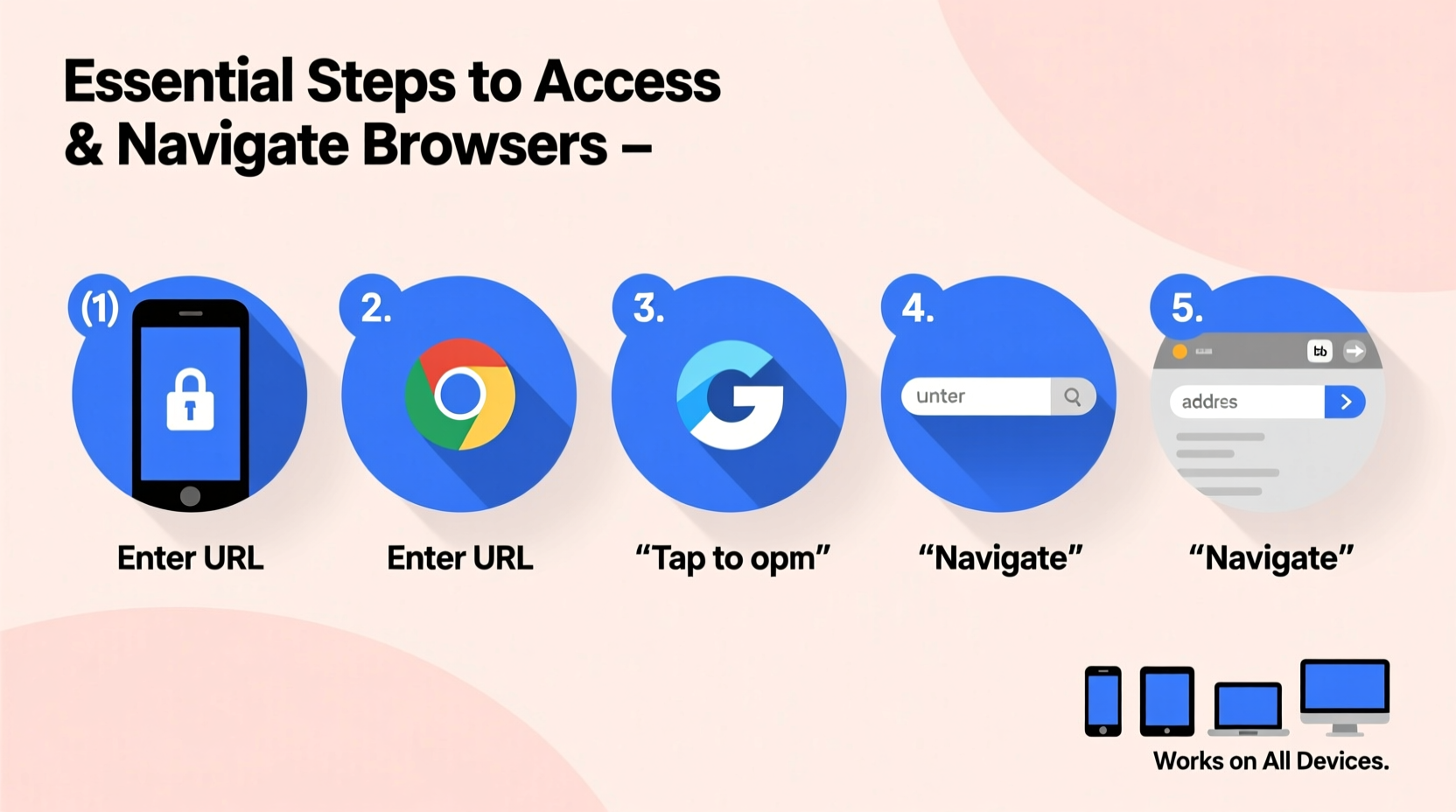
Every modern computing device comes equipped with a default web browser. On Android phones, this is typically Google Chrome; on iPhones, it's Safari. Windows PCs often use Microsoft Edge, while Macs ship with Safari. However, users are not limited to these defaults. Third-party options like Firefox, Brave, and Opera are available for download and installation across platforms.
To access a browser, locate its icon on your home screen, app drawer, or taskbar. On smartphones, swipe through your apps or use the search function by swiping down from the home screen. On computers, click the browser shortcut on the desktop, Start menu (Windows), Dock (Mac), or application launcher (Linux).
Once launched, the browser opens to either a blank page, a search engine homepage (like Google or Bing), or your last browsing session, depending on your settings. This initial screen is called the address bar or omnibox, where you can type URLs or search queries directly.
Step-by-Step Guide to Launching and Navigating a Browser
- Locate the Browser Icon: Identify the browser app on your device. Common icons include a globe (Chrome), compass (Safari), fox around a globe (Firefox), or an “e” symbol (Edge).
- Open the Application: Tap (on mobile) or click (on desktop) the icon to launch the browser.
- Wait for Initialization: Allow a moment for the browser to load, especially if it’s restoring previous tabs or syncing data.
- Use the Address Bar: Tap or click the top bar to activate it. Type a full URL (e.g., https://www.example.com) or a keyword to initiate a search.
- Navigate Pages: Click links, fill forms, scroll, and interact with web content as needed.
- Open New Tabs or Windows: Use the \"+\" button in tab view or right-click links to open in new tabs. On desktop, press Ctrl+T (Cmd+T on Mac) for a new tab.
- Close the Browser: On mobile, swipe it away from recent apps. On desktop, click the \"X\" or close all tabs.
This sequence applies universally, though touch gestures on mobile—such as pinch-to-zoom or swipe between pages—add intuitive control absent on traditional keyboards and mice.
Key Navigation Features and Tools
Modern browsers come packed with tools that enhance usability and efficiency. Familiarizing yourself with these features can drastically improve your browsing experience.
- Back/Forward Buttons: Navigate your browsing history with ease.
- Refresh Button: Reload the current page if content fails to load properly.
- Bookmarks (Favorites): Save frequently visited sites for one-tap access.
- History Panel: View recently visited pages under the browser menu.
- Downloads Manager: Track files saved from the web.
- Private/Incognito Mode: Browse without saving history, cookies, or form data.
- Search Integration: Most browsers allow direct searches from the address bar using your default search engine.
Customization options also let you set startup preferences, default search engines, and sync settings across devices using accounts like Google, Apple ID, or Firefox Account.
Do’s and Don’ts When Using Browsers
| Do’s | Don’ts |
|---|---|
| Keep your browser updated to benefit from security patches and performance improvements. | Ignore update notifications—outdated browsers are vulnerable to exploits. |
| Use bookmarks to organize important websites. | Rely solely on memory or typing long URLs repeatedly. |
| Enable sync across devices for seamless access to tabs, passwords, and history. | Sync sensitive data over public Wi-Fi without a secure connection. |
| Clear cache and cookies periodically to maintain speed and privacy. | Store login credentials on shared or public devices. |
| Install reputable extensions for ad-blocking, password management, or translation. | Add unknown or unverified extensions—they may contain malware. |
Tips for Efficient Cross-Device Browsing
Many people switch between phones, tablets, and computers throughout the day. Ensuring continuity enhances productivity and reduces frustration.
For example, signing into Chrome with your Google account enables synced tabs, saved passwords, and autofill data. Safari users with an iPhone and Mac can use iCloud Tabs to view open pages across devices. Similarly, Firefox Sync securely transfers browsing data between installations.
“Seamless cross-device browsing isn’t just convenient—it reduces cognitive load and helps users stay focused on tasks.” — Dr. Lena Patel, UX Researcher at WebFlow Labs
Mini Case Study: Maria’s Remote Work Routine
Maria, a freelance graphic designer, starts her day on her iPad, checking emails and news in Safari. During her commute, she continues reading an article in her iPhone’s Safari app via iCloud Tabs. Once at her desk, she opens the same tab on her MacBook Pro and completes the read before diving into client work. By leveraging browser sync, Maria maintains flow without losing context—saving time and mental energy.
Essential Security Practices
Browsers are common targets for phishing, tracking, and malware. Protecting yourself starts with awareness and proactive habits.
- Look for the padlock icon next to the URL to confirm a site uses HTTPS encryption.
- Avoid entering personal information on sites with suspicious URLs or poor design.
- Use built-in pop-up blockers and enable safe browsing modes (e.g., Chrome’s “Enhanced Protection”).
- Regularly review permissions granted to websites (camera, microphone, location).
Consider installing a trusted password manager integrated with your browser to generate and store complex credentials securely.
FAQ
Can I change my default browser?
Yes. On Android, go to Settings > Apps > Default Apps > Browser App. On iPhone, iOS 14 and later allow third-party defaults via Settings > [Browser Name] > Set as Default Browser. On Windows and Mac, you can select your preferred browser during installation or through system settings.
Why does my browser run slowly?
Slow performance can result from too many open tabs, outdated software, accumulated cache, or running background extensions. Try closing unused tabs, clearing browsing data, disabling unnecessary add-ons, or restarting the browser.
Is incognito mode completely private?
No. While incognito mode prevents local storage of history and cookies, your internet service provider, employer, or website operators can still track your activity. It protects privacy on shared devices but doesn’t make you anonymous online.
Checklist: Master Your Browser Experience
- ✅ Locate and launch your preferred browser on each device.
- ✅ Bookmark essential websites for quick access.
- ✅ Enable sync using a secure account.
- ✅ Update your browser regularly.
- ✅ Use incognito mode when on shared devices.
- ✅ Install only verified and useful extensions.
- ✅ Review and clear browsing data monthly.
- ✅ Verify HTTPS on sites handling personal data.
Conclusion
Accessing and navigating browsers effectively is a foundational digital skill. From launching the app to mastering navigation tools, syncing across devices, and protecting your privacy, each step contributes to a smoother, safer online experience. Technology evolves quickly, but these core competencies remain constant. Whether you're a student, professional, or casual user, refining your browser fluency empowers you to make the most of the web—anytime, anywhere.




 浙公网安备
33010002000092号
浙公网安备
33010002000092号 浙B2-20120091-4
Comments
No comments yet. Why don't you start the discussion?